
ZAQE X20
ZAQE X20 MP3 Player User Manual
Model: X20
Introduction
Thank you for purchasing the ZAQE X20 MP3 Player. This device is designed to provide a versatile portable audio experience, featuring Bluetooth 5.3 connectivity, FM radio, voice recording, and e-book functionality. It supports expandable storage up to 512GB, making it suitable for various activities including running and workouts. Please read this manual thoroughly to understand the player's features and ensure proper operation.
What's in the Box
Upon unpacking, please verify that all the following items are included:
- ZAQE MP3 Player (X20)
- User Manual (this document)
- Wired Headphones
- Type-C Data Cable
Product Overview
The ZAQE X20 MP3 Player features a compact design with a 2.0-inch TFT color display and intuitive physical buttons for easy navigation. It also includes a clip for secure attachment during activities.

Image: Front and back view of the ZAQE X20 MP3 Player, highlighting its compact size and integrated clip. The front shows the screen interface, and the back shows the clip mechanism.
Key Features:
- 64GB Internal Storage: Store a large library of music, audiobooks, and other files.
- Expandable Storage: Supports MicroSD cards up to 512GB for additional capacity.
- Bluetooth 5.3: For stable and efficient wireless connection to headphones and speakers.
- FM Radio: Tune into your favorite radio stations.
- Voice Recorder: Capture audio notes and lectures.
- E-Book Reader: Read text files on the go.
- Clip-On Design: Lightweight (35g) and portable for active use.
- 2.0" TFT Color Display: Clear interface for easy navigation.
Setup
1. Charging the Device
Before first use, fully charge the MP3 player.
- Connect the included Type-C data cable to the charging port on the player.
- Connect the other end of the cable to a USB power adapter (not included) or a computer's USB port.
- The battery indicator on the screen will show charging status. A full charge typically takes a few hours.
2. Power On/Off
- To Power On: Press and hold the Power button until the screen illuminates.
- To Power Off: Press and hold the Power button until the power-off options appear on the screen, then select "Power Off".
3. Transferring Music and Files
You can transfer audio files, e-books, and other supported media from your computer to the MP3 player.
- Connect the MP3 player to your computer using the Type-C data cable.
- The player will appear as a removable disk drive on your computer.
- Drag and drop your desired files into the appropriate folders on the player (e.g., "Music" for audio files, "E-Book" for text files).
- Safely eject the device from your computer before disconnecting the cable.
4. Inserting a MicroSD Card (Optional)
The player supports MicroSD cards up to 512GB for expanded storage.
- Locate the MicroSD card slot on the side of the player.
- Gently insert the MicroSD card into the slot until it clicks into place.
- To remove, push the card inward until it springs out, then pull it out.
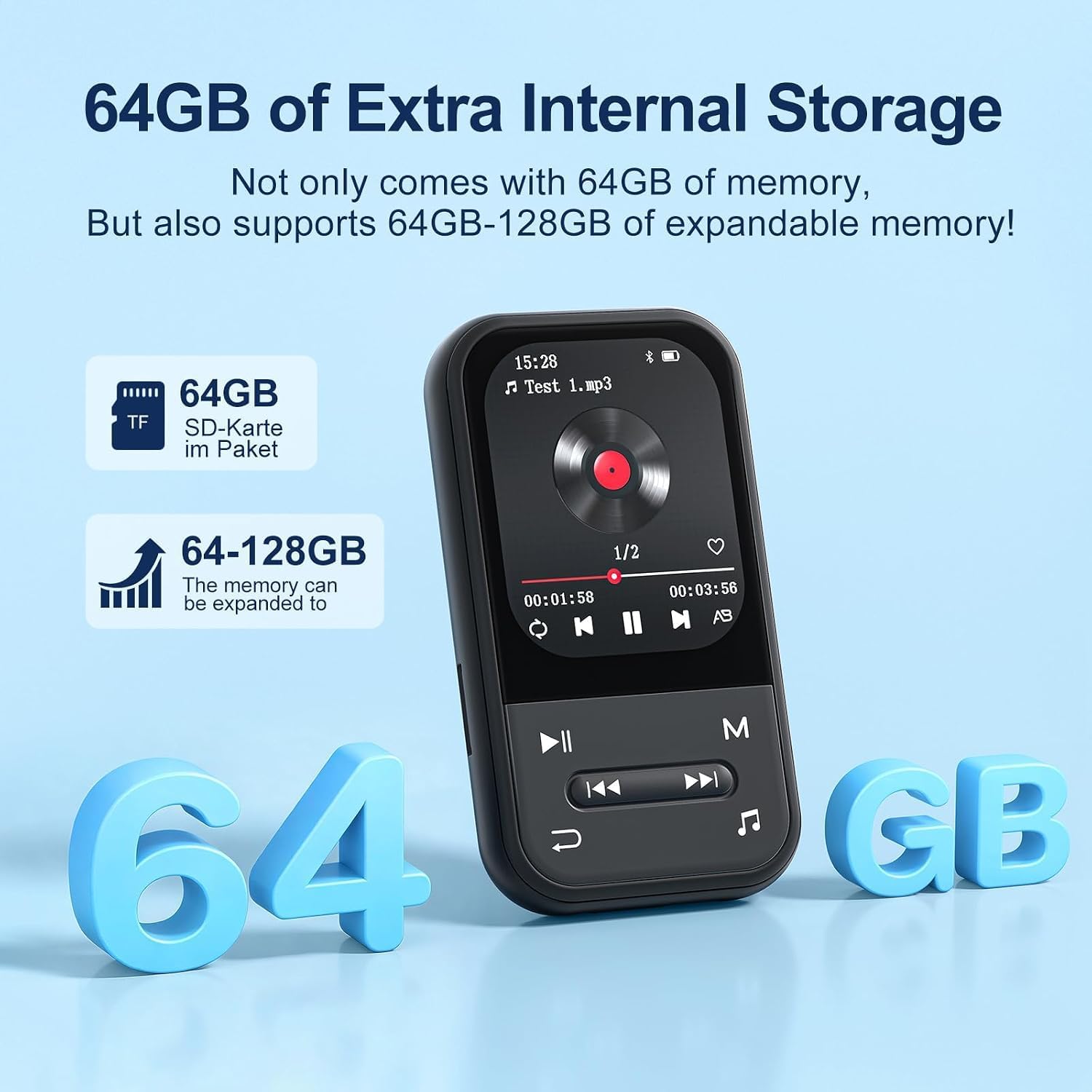
Image: The ZAQE X20 MP3 Player screen displaying storage information, indicating 64GB internal memory and support for expandable storage via MicroSD card.
Operating Instructions
1. Basic Navigation
The ZAQE X20 features a touch screen and physical buttons for navigation.
- Touch Screen: Tap icons to open applications, swipe to navigate menus.
- Physical Buttons: Use the dedicated buttons for Play/Pause, Next/Previous track, Volume Up/Down, and Back/Home functions.

Image: The ZAQE X20 MP3 Player displaying its multi-functional interface with icons for music, video, pictures, voice recorder, e-book, FM radio, Bluetooth, and settings.
2. Music Playback
- From the main menu, tap the "Music" icon.
- Browse your music library by Artist, Album, Songs, or Playlists.
- Tap a song to begin playback.
- Use the physical buttons or on-screen controls for Play/Pause, Next/Previous, and Volume adjustment.

Image: The ZAQE X20 MP3 Player displaying its music playback interface, showing track information and playback controls. An arrow points to a dedicated button for quick access to the music interface from other functions.
Playback Modes:
The player supports various playback modes:
- Sequential Play: Plays tracks in order.
- Repeat All: Repeats the entire playlist or album.
- Shuffle: Plays tracks in a random order.
- Single Repetition: Repeats the current track.

Image: Visual representation of the four playback modes available on the ZAQE X20 MP3 Player: Sequential Play, Repeat All, Shuffle, and Single Repetition.
3. Bluetooth Connectivity
Connect your ZAQE X20 to Bluetooth headphones or speakers for wireless audio.
- Ensure your Bluetooth headphones or speaker are in pairing mode.
- On the MP3 player, go to "Settings" and select "Bluetooth".
- Turn Bluetooth "On" and scan for available devices.
- Select your device from the list to pair. Once paired, audio will stream wirelessly.
Note: The ZAQE X20 MP3 Player cannot pair with smartphones or tablets. It is designed for connecting to Bluetooth audio output devices like headphones and speakers.

Image: The ZAQE X20 MP3 Player alongside Bluetooth headphones and a speaker, illustrating its Bluetooth 5.3 connectivity for stable wireless audio.
4. FM Radio
To use the FM radio function:
- Plug in the wired headphones (included) into the 3.5mm audio jack. The wired headphones act as an antenna for better reception.
- From the main menu, tap the "FM Radio" icon.
- Use the on-screen controls to scan for stations or manually tune to a frequency.
5. Voice Recorder
To record audio:
- From the main menu, tap the "Voice Recorder" icon.
- Tap the "Record" button to start recording.
- Tap "Pause" or "Stop" as needed. Recordings are saved automatically.
6. E-Book Reader
To read e-books:
- Ensure compatible e-book files (e.g., TXT) are transferred to the player's "E-Book" folder.
- From the main menu, tap the "E-Book" icon.
- Select the desired e-book to open and read.
7. Other Applications (if applicable)
The ZAQE X20 may include or support additional applications for enhanced functionality. Navigate to the main menu to explore available apps such as a calendar, calculator, or other media players.

Image: The ZAQE X20 MP3 Player screen showing icons for various applications, including music streaming services, a web browser, and a play store, indicating its versatile capabilities beyond basic MP3 playback.
Maintenance
1. Cleaning
- Use a soft, dry, lint-free cloth to clean the device.
- Do not use liquid cleaners, aerosols, or solvents.
2. Storage
- Store the player in a cool, dry place away from direct sunlight and extreme temperatures.
- Avoid exposing the device to water or excessive humidity.
3. Battery Care
- To prolong battery life, avoid fully discharging the battery frequently.
- If storing the device for an extended period, charge it to about 50% every few months.
Troubleshooting
If you encounter issues with your ZAQE X20 MP3 Player, refer to the following common solutions:
| Problem | Solution |
|---|---|
| Device does not power on. | Ensure the battery is charged. Connect to a power source and try again. |
| Cannot connect to Bluetooth device. |
|
| No sound from headphones. |
|
| Files not appearing on the player. |
|
| FM Radio reception is poor. | Ensure wired headphones are plugged in, as they serve as the antenna. Try moving to an open area. |
Specifications
| Feature | Detail |
|---|---|
| Brand | ZAQE |
| Model Name | X20 |
| Internal Memory | 64 GB |
| Expandable Storage | Up to 512 GB (MicroSD Card) |
| Connectivity | Bluetooth 5.3, USB Type-C |
| Screen Size | 2.0 inches |
| Display Technology | TFT Color Display |
| Special Features | Touch Screen, FM Radio, Voice Recorder, E-Book Reader, Clip-On Design |
| Compatible Devices | Headphones, Speakers |
| Included Components | MP3 Player, User Manual, Wired Headphones, Type-C Data Cable |
Warranty and Support
Warranty Information
The ZAQE X20 MP3 Player comes with a 1-year warranty from the date of purchase. This warranty covers manufacturing defects under normal use. It does not cover damage caused by misuse, accidents, unauthorized modifications, or natural disasters. Please retain your proof of purchase for warranty claims.
Customer Support
For further assistance, technical support, or warranty inquiries, please contact ZAQE customer service through the retailer where the product was purchased or visit the official ZAQE website.
Related documentsX20

Ask a question about this manual
Ask about setup, troubleshooting, compatibility, parts, safety, or missing instructions. Manuals+ will review the question and use this page’s manual context to help answer it.