
Introduction
This manual provides detailed instructions for the setup, operation, and maintenance of your CASCHO Smart Watch P125. Please read this manual thoroughly before using the device to ensure proper function and longevity.
The CASCHO Smart Watch P125 is designed as a fitness tracker with a 1.85-inch HD display, Bluetooth call capabilities, AI voice control, IP68 waterproofing, and over 115 sports modes. It is compatible with both iOS and Android systems.
What's in the Box
Upon opening the exquisite box, verify that all the following items are included:
- CASCHO Smart Watch (P125) x 1
- Instruction Manual x 1
- Charging Cable x 1
Setup
1. Charging the Smart Watch
Before initial use, fully charge your smart watch. Connect the provided charging cable to the charging port on the back of the watch and to a standard USB power adapter (not included).
- Charging Time: Approximately 1.5 hours for a full charge.
- Battery Life: Up to 7 days of typical use.
- Standby Time: Up to 30 days.

Image: The CASCHO Smart Watch connected to its charging cable, illustrating the charging process.
2. App Installation
To unlock the full features of your smart watch, download and install the 'Da Fit' app on your smartphone. The app is compatible with both iOS (version 9.0 or above) and Android (version 9.0 or above) devices.
- Scan the QR code provided in the quick start guide (if available) or search for "Da Fit" in your phone's app store (Apple App Store for iOS, Google Play Store for Android).
- Download and install the app.
- Open the 'Da Fit' app and follow the on-screen instructions to create an account or log in.
3. Device Pairing (Bluetooth Connection)
Pair your smart watch with your smartphone via Bluetooth to enable data synchronization and call functions.
- Ensure Bluetooth is enabled on your smartphone.
- Open the 'Da Fit' app.
- Navigate to the "Device" or "Add Device" section within the app.
- The app will search for available devices. Select "P125" or "CASCHO Smart Watch" from the list.
- Confirm the pairing request on both your phone and the smart watch if prompted.
- Once connected, the watch will synchronize time and other settings with your phone.
Operating Instructions
1. Basic Navigation
- Touchscreen: Swipe left/right, up/down to navigate through menus and features. Tap to select.
- Side Button: Typically used to wake the screen, return to the home screen, or access the app list.
2. Bluetooth Call Function
The smart watch features a built-in microphone and speaker for direct call handling.
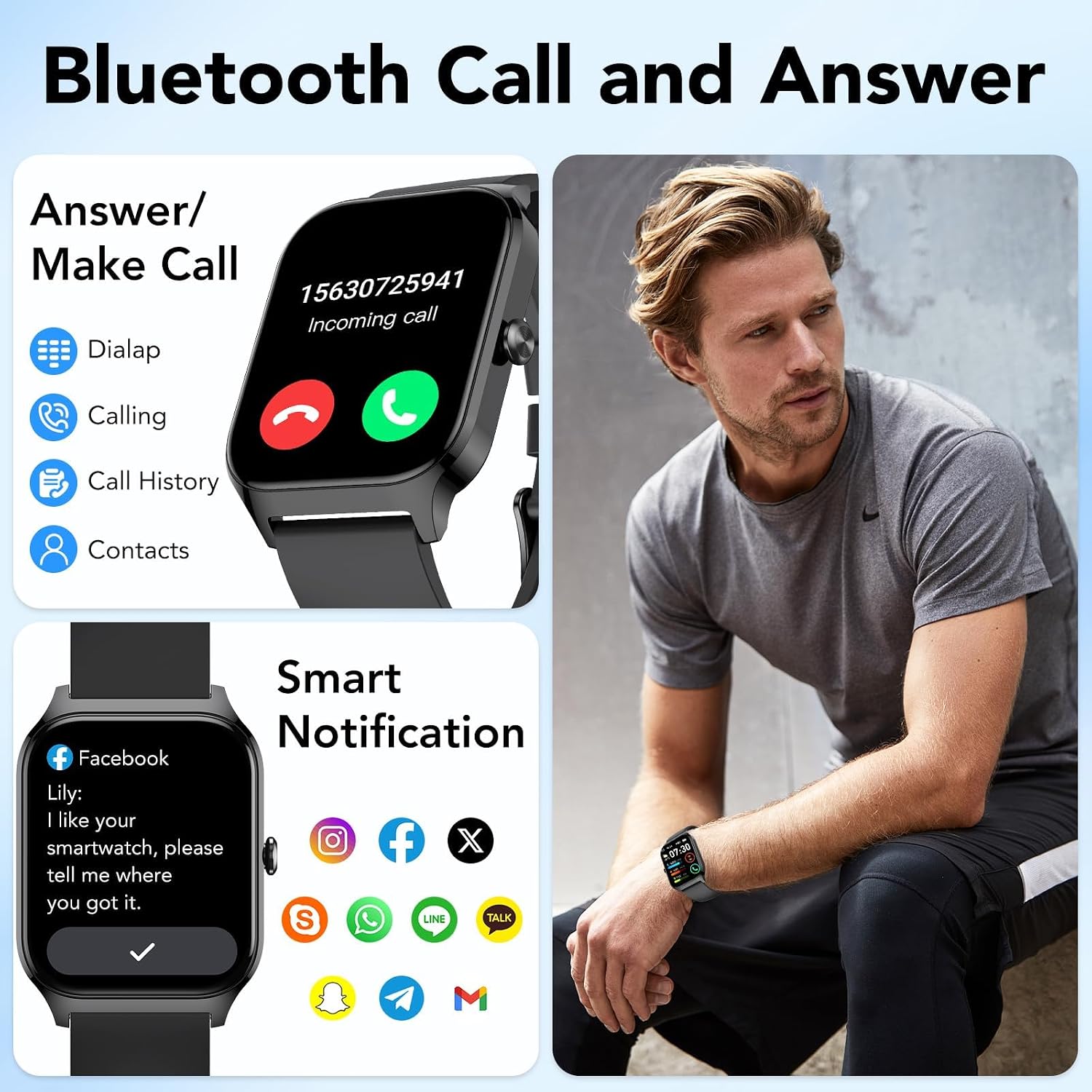
Image: The CASCHO Smart Watch screen showing options for answering/making calls, call history, and contacts, alongside a depiction of smart notifications.
- Making Calls: Access the dialer or contacts list on the watch to initiate a call.
- Answering/Rejecting Calls: When a call comes in, swipe or tap the corresponding icon on the watch screen to answer or reject.
- Call Logs: View recent call history directly on the watch.
3. AI Voice Assistant
Utilize the integrated AI voice assistant for hands-free control.
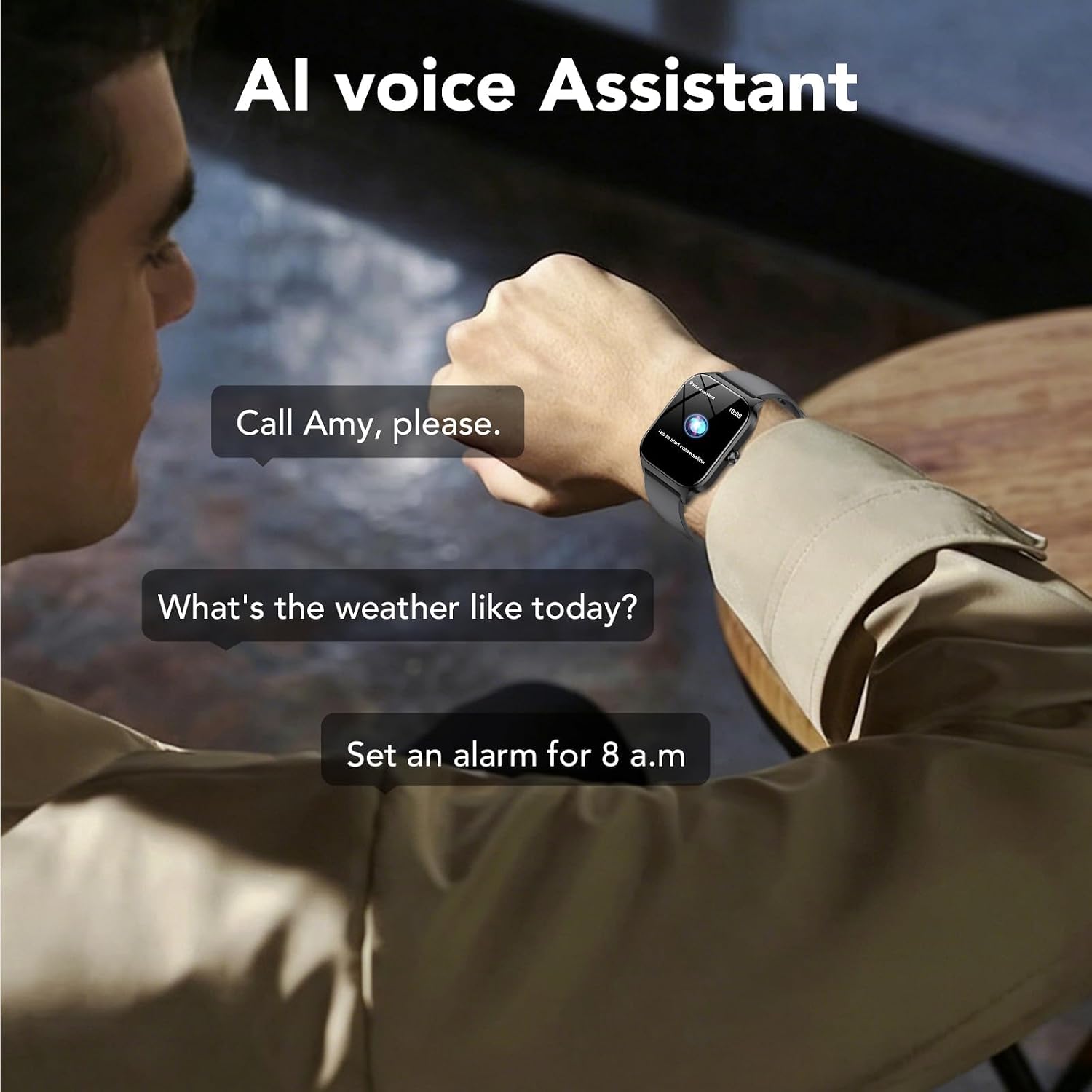
Image: A user interacting with the CASCHO Smart Watch via voice commands, demonstrating the AI voice assistant feature.
- Activate the voice assistant (refer to the watch interface or app settings for activation method).
- Speak commands such as "Call [Contact Name]", "What's the weather like today?", or "Set an alarm for 8 a.m.".
4. Customizing Watch Faces
Personalize your watch with various watch faces.

Image: The CASCHO Smart Watch screen showing a selection of customizable watch faces and options to upload personal photos.
- Through the 'Da Fit' app, you can select from over 200 online dials.
- You can also upload your own photos to use as a custom watch face background.
5. Sports Modes and Activity Tracking
The watch supports over 115 sports modes and tracks various fitness metrics.

Image: Visual representation of the CASCHO Smart Watch tracking various sports activities, including running, cycling, and climbing, along with activity data.
- Activity Tracking: Monitors steps, calories burned, and active distance.
- Sports Modes: Select your activity (e.g., Basketball, Climbing, Cycling, Fitness, Hiking) to track specific workout data.
- Intelligent Exercise Recognition: The watch may automatically detect certain activities.
6. Health Monitoring
The watch provides 24-hour health tracking features.

Image: The CASCHO Smart Watch displaying real-time data for heart rate, blood oxygen (SpO2), and sleep patterns, including awake, light sleep, and deep sleep durations.
- Heart Rate Monitoring: Continuously tracks your heart rate.
- Blood Oxygen (SpO2) Monitoring: Measures your blood oxygen saturation levels.
- Sleep Monitoring: Tracks your sleep patterns, including awake time, light sleep, and deep sleep.
- Women's Health: Specific tracking features available through the app.
Note: This device is not a medical device. Health data is for reference only and should not be used for medical diagnosis or treatment.
7. Smart Notifications
Receive notifications from your smartphone directly on your watch.
- Enable app notifications in the 'Da Fit' app settings to receive alerts for calls, messages, and social media apps (e.g., Facebook, Instagram, WhatsApp).
8. Additional Features

Image: The CASCHO Smart Watch highlighting its multifunctional capabilities, including Bluetooth 5.3, music control, camera control, IP68 waterproof rating, breathing exercises, find phone, 112+ sport modes, message reminder, weather report, and sedentary reminder.
- Music Control: Control music playback on your smartphone.
- Camera Control: Use your watch as a remote shutter for your phone's camera.
- Stopwatch & Timer: Built-in tools for timing activities.
- Alarm: Set alarms directly from your watch.
- Calendar: View calendar events.
- Sedentary Reminder: Alerts you to move after periods of inactivity.
- Breathing Exercises: Guided breathing sessions for relaxation.
- Find Phone: Locate your paired smartphone.
- Weather Report: Get current weather information.
Maintenance
1. Water Resistance (IP68)
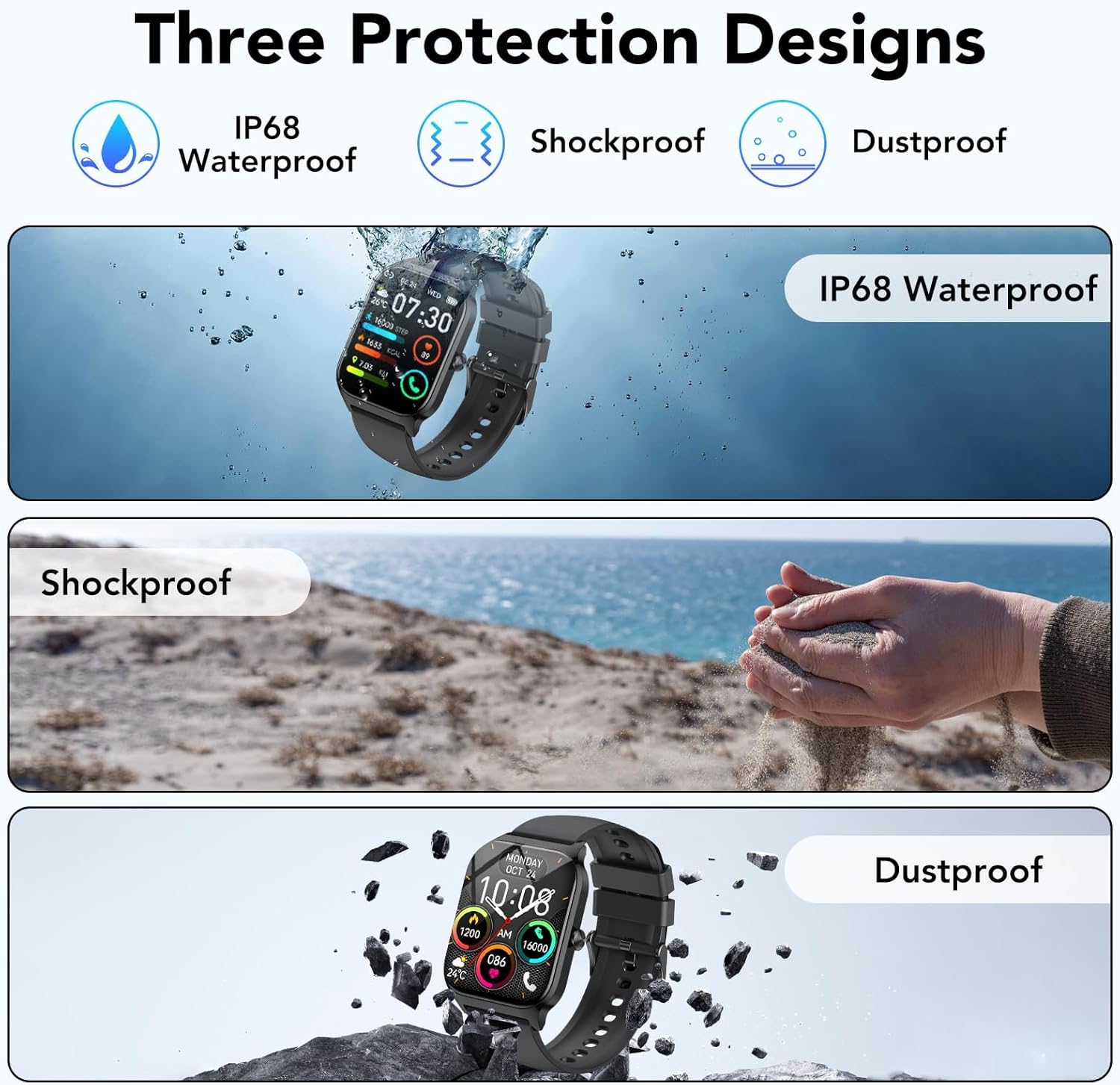
Image: The CASCHO Smart Watch highlighting its IP68 waterproof, shockproof, and dustproof protection designs.
The CASCHO Smart Watch P125 is IP68 waterproof, meaning it is resistant to dust and can withstand immersion in water up to 1.5 meters for up to 30 minutes. It is suitable for daily use, such as hand washing, rain, and swimming in shallow water.
- Do NOT use the watch in hot water, saunas, or steam rooms.
- Do NOT press buttons underwater.
- Avoid prolonged exposure to saltwater. Rinse with fresh water and dry thoroughly after exposure.
2. Cleaning
- Wipe the watch screen and body with a soft, damp cloth.
- Clean the charging contacts regularly to ensure proper charging.
- Avoid using harsh chemicals or abrasive materials.
3. Battery Care
- Avoid extreme temperatures, which can affect battery life.
- Do not leave the watch fully discharged for extended periods.
- Use only the provided charging cable.
Troubleshooting
| Problem | Possible Solution |
|---|---|
| Watch does not turn on | Ensure the watch is fully charged. Connect it to the charger for at least 30 minutes. |
| Cannot pair with smartphone |
|
| Notifications not received |
|
| Inaccurate health data |
|
| Short battery life |
|
Specifications
| Feature | Detail |
|---|---|
| Model Name | P125 |
| Brand | CASCHO |
| Screen Size | 1.85 inches |
| Display Type | Digital, HD Full-Touch TFT Color Display |
| Connectivity Technology | Bluetooth 5.3 |
| Compatible Devices | Smartphones (Android 9.0+, iOS 9.0+) |
| Operating System | Wear OS 1.0 (Note: This may refer to a generic OS classification; actual OS is typically proprietary for this device type.) |
| Battery Capacity | 300 mAh |
| Battery Life (Average) | 7 days |
| Standby Time | 30 days |
| Charging Time | 1.5 hours |
| Water Resistance Level | IP68 Waterproof |
| Band Material Type | Silicone |
| Band Width | 22 millimeters |
| Band Length | 25.5 centimeters |
| Special Features | Bluetooth Calls, AI Voice Assistant, 115+ Sports Modes, Heart Rate, SpO2, Sleep Monitor, Music/Camera Control, Notifications, Sedentary Reminder, Breathing Exercises, Find Phone, Weather Report, Custom Dials. |
| Human Interface Input | Microphone, Touchscreen |
| GPS | No GPS |
Warranty Information
According to the product specifications, there is NO explicit warranty description provided for the CASCHO Smart Watch P125. Please refer to your point of purchase or local consumer protection laws for information regarding returns or defects.
Support
If you encounter any issues not covered in this manual or require further assistance, please contact CASCHO customer support through the official website or the 'Da Fit' app's support section. Provide your model number (P125) and a detailed description of the issue for efficient support.


