
1. Introduction
Thank you for choosing the Goshyda Goshydabh5mv3ykie 4G LTE Mobile Hotspot. This portable device provides high-speed internet access on the go, allowing you to connect multiple devices simultaneously. Please read this manual carefully to ensure proper setup, operation, and maintenance of your device.
2. Product Overview
The Goshyda Goshydabh5mv3ykie is a compact and powerful 4G LTE mobile hotspot designed for reliable internet connectivity. It features a built-in SIM card slot, a 2100mAh battery for extended use, and supports speeds up to 300 Mbps.
Package Contents:
- 1 x Goshyda Goshydabh5mv3ykie Portable Hotspot
- 1 x USB-C Power Cable
- 1 x User Manual
Device Layout:
The device features indicator lights for signal strength, Wi-Fi status, battery level, and message notifications. The SIM card slot and USB-C charging port are located on the device's side or bottom.
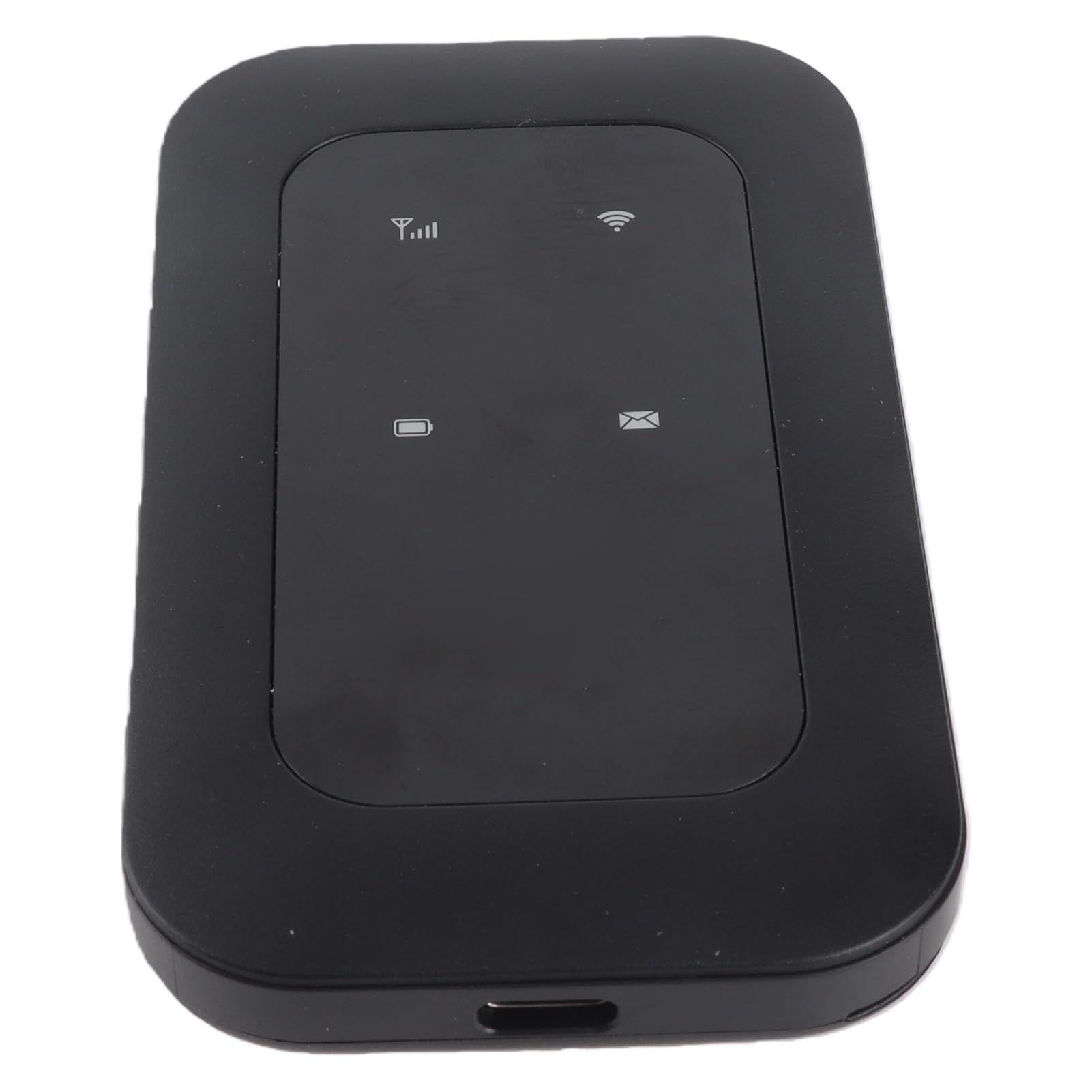
Figure 2.1: Front view of the Goshyda 4G LTE Mobile Hotspot, displaying its sleek design and indicator lights.

Figure 2.2: Angled view of the mobile hotspot, showcasing its portable form factor.

Figure 2.3: The mobile hotspot alongside its USB-C power cable.
3. Setup
The Goshyda Goshydabh5mv3ykie is designed for easy plug-and-play setup. Follow these steps to get started:
- Insert SIM Card: Locate the SIM card slot on the device. Carefully insert a standard 4G SIM card into the slot until it clicks into place. Ensure the SIM card is correctly oriented.
- Power On: Connect the device to a power source using the provided USB-C cable. You can use a wall adapter (not included) or a computer's USB port. The device will power on automatically or require a press of the power button (if present).
- Check Indicators: Once powered on, observe the indicator lights. The signal strength indicator should show a stable connection, and the Wi-Fi indicator should be active.
- Connect Devices: On your smartphone, tablet, or laptop, search for available Wi-Fi networks. Select the network name (SSID) corresponding to your Goshyda hotspot and enter the password (usually found on a sticker inside the device or on the packaging).

Figure 3.1: Key features for setup, including USB-C charging and 4G connectivity.
4. Operating Instructions
Connecting Multiple Devices:
The Goshyda Goshydabh5mv3ykie supports connecting up to 10 devices simultaneously. This includes smartphones, tablets, laptops, and other Wi-Fi enabled devices. Simply connect each device to the hotspot's Wi-Fi network using the provided SSID and password.

Figure 4.1: The hotspot's capability to connect multiple users and devices.
Battery Management:
The built-in 2100mAh battery provides over 10 hours of continuous use. Monitor the battery level indicator to know when to recharge. Connect the device to a power source using the USB-C cable for charging. The device can operate while charging, providing unlimited usage duration.
Network Bands:
The hotspot supports the following network bands:
- LTE: B1 / B3 / B5 / B40
- WCDMA: B1
It also supports Wi-Fi standard 802.11 b/g/n.
5. Maintenance
To ensure the longevity and optimal performance of your Goshyda Goshydabh5mv3ykie hotspot, follow these maintenance guidelines:
- Cleaning: Use a soft, dry cloth to clean the device. Avoid using liquid cleaners or abrasive materials.
- Storage: Store the device in a cool, dry place away from direct sunlight and extreme temperatures.
- Battery Care: To preserve battery life, avoid fully discharging the battery frequently. If storing for an extended period, charge the battery to about 50% and recharge every few months.
- Protection: Protect the device from drops, impacts, and water exposure.
6. Troubleshooting
If you encounter issues with your Goshyda Goshydabh5mv3ykie, refer to the following troubleshooting tips:
| Problem | Possible Solution |
|---|---|
| No Internet Connection |
|
| Slow Internet Speed |
|
| Cannot Connect to Wi-Fi |
|
| Device Not Powering On |
|
7. Specifications
| Feature | Detail |
|---|---|
| Model Name | Goshydabh5mv3ykie |
| Brand | Goshyda |
| Network Bands | LTE: B1 / B3 / B5 / B40, WCDMA: B1 |
| Wi-Fi Standard | 802.11 b/g/n |
| Transmission Speed | Up to 300 Mbps |
| Battery Type | Built-in 2100mAh Lithium Ion |
| Battery Life | More than 10 hours (continuous use) |
| Connectivity | USB-C for charging |
| Max Connected Devices | 10 |
| Material | ABS + Electronic Components |
8. Warranty and Support
Warranty: This product comes with a 90-day warranty from the date of purchase, covering manufacturing defects.
Customer Support: For technical assistance, warranty claims, or further inquiries, please contact your retailer or the manufacturer directly. Refer to your purchase documentation for specific contact details.