
1. Introduction
The XYGCACO D65 is a comprehensive 4-channel dash camera system designed to record front, rear, left, and right views of your vehicle. It features 4K front recording, three adjustable 1080P lenses, dual-band 5GHz WiFi connectivity, GPS functionality, a built-in G-sensor, continuous loop recording, and enhanced night vision capabilities. This manual provides detailed instructions for the proper installation, operation, and maintenance of your dash cam.
2. What's in the Box
Please verify that all items are present before proceeding with installation:
- XYGCACO D65 Dash Cam Unit
- Suction Cup Car Mount
- Rear Camera with Cable
- Car Charger (Power Cable)
- Crowbar (Trim Tool)
- 64GB SD Card (Pre-installed)
- User Manual (This document)
3. Product Features Overview
3.1. 360° All-Side Coverage with 4 Lenses
The D65 dash cam provides comprehensive surveillance with a 4K front lens and three adjustable 1080P lenses for rear, left, and right views. All four views are synchronized and displayed on the 3-inch IPS screen, effectively minimizing blind spots around your vehicle.

Image: Visual representation of the 360-degree coverage provided by the four cameras.
3.2. Loop Recording & G-Sensor Protection
The device comes with a pre-installed 64GB SD card, initiating recording automatically upon power-on. Loop recording ensures continuous operation by overwriting the oldest files when the storage is full. The integrated G-sensor detects sudden impacts or collisions, automatically locking the corresponding video files to prevent them from being overwritten, preserving critical evidence.
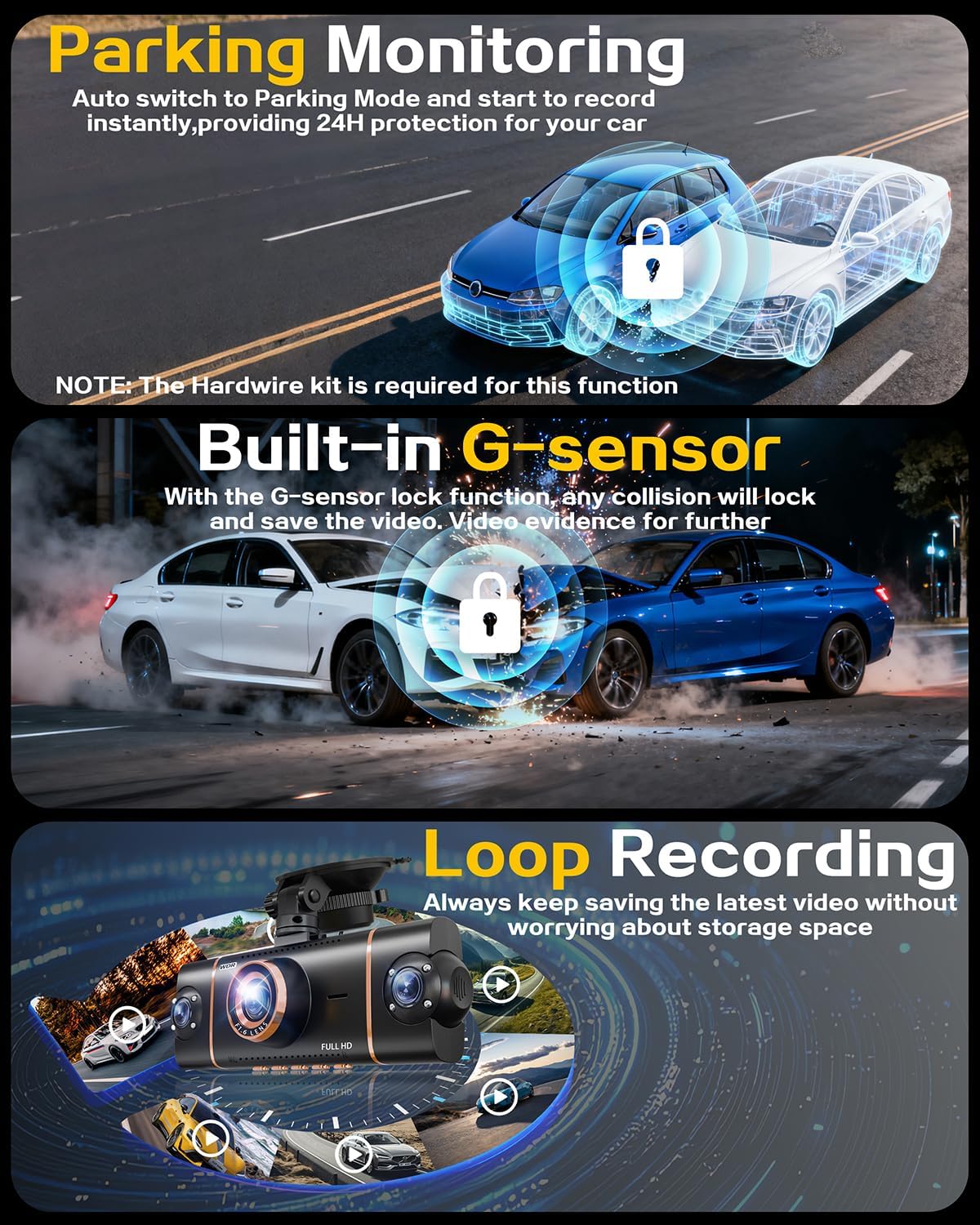
Image: G-sensor activation during a collision, securing video evidence.

Image: Loop recording process, ensuring continuous footage without manual deletion.
3.3. 5GHz WiFi, GPS & App Control
The D65 supports dual-band 5GHz WiFi for a fast and stable connection to the Viidure App (available on iOS/Android). This app allows users to view, download, and share recordings directly from their smartphone. Integrated GPS functionality records vehicle route and incident locations, providing verifiable data.

Image: Dash cam connectivity with the Viidure mobile application for easy access and control.

Image: GPS route tracking feature displaying vehicle location and speed data.
3.4. Super Night Vision with 8 IR LEDs & WDR
Equipped with 8 infrared lamps and Wide Dynamic Range (WDR) technology, the dash camera enhances visibility in low-light conditions. It reduces headlight glare and balances exposure in scenes with high contrast. The F1.6 aperture automatically adjusts to brightness changes, ensuring clear night vision.

Image: Enhanced night vision performance of the dash cam in dark environments.
3.5. 24-Hour Parking Mode
When the vehicle is parked, the camera can switch to parking mode for continuous surveillance. This feature requires a separate hardwire kit (not included). The motion sensor detects objects within 3–4 meters and triggers a 1-minute recording within 5 seconds, providing security while your vehicle is unattended.

Image: Visual representation of the 24-hour parking mode feature.
4. Setup and Installation
Follow these steps to properly install your XYGCACO D65 Dash Cam:
- Mount Front Camera: Attach the main dash cam unit to the passenger side of your windshield using the included suction cup mount. Ensure it does not obstruct your view.
- Install Rear Camera: Apply the electrostatic film to the rear windshield, then attach the rear camera. Position it to capture a clear view of the rear.
- Run Rear Cam Cable: Carefully route the rear camera cable along the roof liner or vehicle panels using the provided trim tool to conceal it. Connect the cable to the main dash cam unit.
- Power Up: Plug the car charger into your vehicle's cigarette lighter socket. Connect the 11.5ft power cable to the dash cam's Type-C port. The dash cam will power on automatically.

Image: Step-by-step guide for installing the dash cam components in a vehicle.

Image: Wiring diagram for the dash cam system, showing cable routing and connections.
5. Operating Instructions
Once installed and powered, the dash cam will begin recording automatically. Use the physical buttons on the device or the Viidure App for advanced controls and settings.
5.1. Basic Operation
- Power On/Off: The camera powers on automatically when the vehicle starts and powers off when the engine is turned off. You can also manually power it on/off using the designated button.
- Screen Display: The 3-inch IPS screen displays live views from the cameras. You can switch between different camera views or turn off the screen display to avoid distraction while recording continues in the background.
- Recording Indicator: A red dot or similar icon on the screen indicates that recording is active.
5.2. Using the Viidure App
The Viidure App provides convenient access to your dash cam's features:
- Download App: Search for "Viidure" in the App Store (iOS) or Google Play Store (Android) and install it.
- Connect via WiFi: On your smartphone, connect to the dash cam's 5GHz WiFi network. The WiFi name and password can typically be found in the dash cam's settings menu.
- Access Features: Within the app, you can:
- View live footage from all cameras.
- Download recorded videos to your phone.
- Share videos directly from the app.
- Adjust dash cam settings.
- Review GPS data for route tracking.
6. Maintenance
Proper maintenance ensures the longevity and optimal performance of your dash cam:
- SD Card Management: Regularly format the SD card (at least once a month) to prevent data corruption and ensure smooth recording. Use a high-quality Class 10 or U3 microSD card.
- Lens Cleaning: Gently clean the camera lenses with a soft, lint-free cloth. Avoid abrasive materials or harsh chemicals that could scratch the lens.
- Mounting Security: Periodically check that the suction cup mount is securely attached to the windshield. Re-attach if it feels loose.
- Temperature Control: Avoid exposing the dash cam to extreme temperatures for extended periods, as this can affect battery life and component integrity.
7. Troubleshooting
If you encounter issues with your XYGCACO D65 Dash Cam, refer to the following common problems and solutions:
| Problem | Possible Cause | Solution |
|---|---|---|
| Video footage is blurry or unclear. | Dirty lens, protective film still on, incorrect resolution settings, poor lighting conditions. | Clean the camera lenses. Ensure any protective film is removed. Check video resolution settings in the menu or app. Ensure sufficient lighting for optimal recording. |
| Dash cam does not power on. | Loose power connection, faulty car charger, vehicle's cigarette lighter socket not providing power. | Check all power connections. Ensure the car charger is fully inserted. Test the cigarette lighter socket with another device. |
| App cannot connect to the dash cam via WiFi. | Incorrect WiFi password, phone not connected to dash cam's WiFi, app permissions, interference. | Verify the WiFi password. Ensure your phone is connected to the dash cam's specific WiFi network (not your home WiFi). Check app permissions on your phone. Try restarting both devices. |
| Parking Mode is not working. | Hardwire kit not installed, parking mode not enabled in settings, motion sensor sensitivity too low. | Ensure a hardwire kit is correctly installed (sold separately). Enable parking mode in the dash cam settings. Adjust motion sensor sensitivity. |
| Recordings are not saving or are corrupted. | SD card full, faulty SD card, SD card not formatted correctly. | Format the SD card regularly. Replace the SD card if it is old or damaged. Ensure the SD card is inserted correctly. |
8. Specifications
| Feature | Detail |
|---|---|
| Brand | XYGCACO |
| Model Name | D65 |
| Video Capture Resolution | Front: 2160p (4K), Other Lenses: 1080p |
| Connectivity Technology | Wi-Fi (Dual-band 5GHz) |
| Special Features | 360 Degree Coverage, App Control, Built-In WiFi, G-Sensor, Night Vision, GPS |
| Screen Size | 3 inches |
| Maximum Aperture | F1.6 |
| Included Memory Card | 64 GB SD Card |
| Max Supported Memory Card Size | 256 GB |
| Item Dimensions (D x W x H) | 1.5" x 2.2" x 6.3" |
| Control Method | App, Push Button |
9. Warranty and Support
Your XYGCACO D65 Dash Cam is backed by an 18-month warranty. For any questions, technical assistance, or warranty claims, please contact our customer support team. We offer 24/7 customer support to assist you.
For further information or to contact support, please visit the official XYGCACO store on Amazon: XYGCACO Store
