
1. Introduction
This manual provides essential information for the proper use and maintenance of your TABWEE T70 tablet. Please read it thoroughly before operating the device to ensure optimal performance and longevity. The TABWEE T70 is an 11-inch tablet featuring an IPS 90Hz display, dual-band WiFi, quadruple GPS, and runs on Android 16.
2. What's in the Box
Upon unboxing your TABWEE T70 tablet, verify that all the following items are present:
- TABWEE T70 Tablet
- Keyboard
- Mouse
- Stylus
- Screen Protector Film
- Protective Case
- Headphones
- Data Cable
- Charger
3. Product Overview
Familiarize yourself with the physical components of your TABWEE T70 tablet.
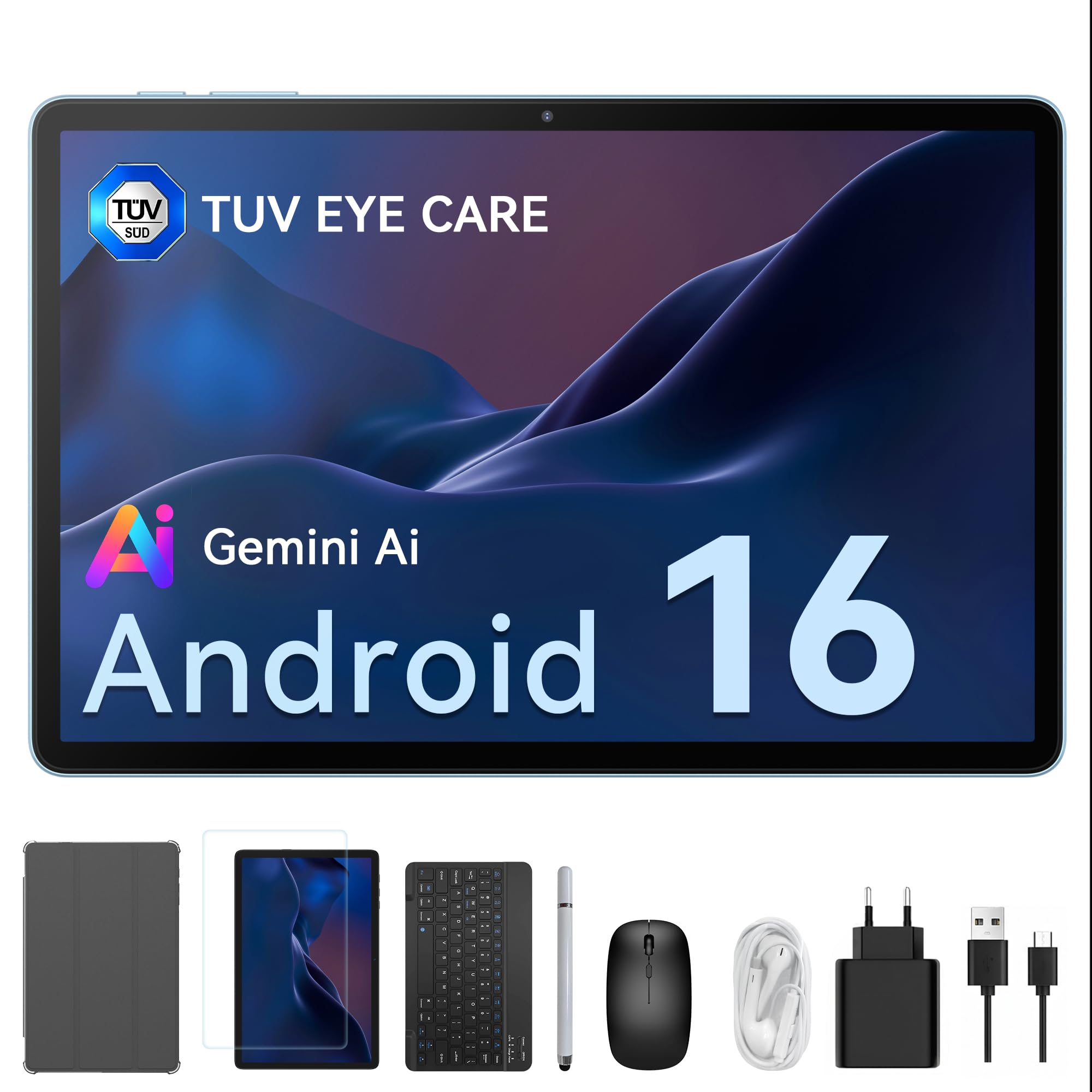
Figure 3.1: Front view of the TABWEE T70 tablet. This image displays the tablet's 11-inch IPS screen, highlighting its vibrant display and the slim design of the bezels. The tablet is shown powered on, indicating its operational state.
Key Components:
- 11-inch IPS Display: High-resolution screen for clear visuals.
- Front Camera: Located on the top bezel for video calls and selfies.
- Rear Camera: On the back panel for photography and video recording.
- Power Button: Typically on the side, used to turn the tablet on/off or put it to sleep.
- Volume Buttons: Adjust audio levels.
- USB-C Port: For charging and data transfer.
- Headphone Jack: For connecting wired headphones.
- MicroSD Card Slot: To expand storage capacity.
- Stereo Speakers: Located on the sides or bottom for audio output.
4. Setup
4.1 Initial Charging
Before first use, fully charge your TABWEE T70 tablet. Connect the provided charger to the USB-C port on the tablet and plug it into a power outlet. The charging indicator will illuminate. A full charge typically takes 3-4 hours.
4.2 Powering On/Off
- To Power On: Press and hold the Power button until the TABWEE logo appears on the screen.
- To Power Off: Press and hold the Power button until a menu appears. Select "Power off" and confirm.
- To Sleep/Wake: Briefly press the Power button to put the tablet to sleep or wake it up.
4.3 Initial Setup Wizard
The first time you power on the tablet, you will be guided through an initial setup wizard. Follow the on-screen prompts to:
- Select your language.
- Connect to a Wi-Fi network (2.4G/5G).
- Set up your Google account (recommended for app downloads and services).
- Set date and time.
- Configure screen lock (PIN, pattern, password).
5. Operating Instructions
5.1 Basic Navigation
- Tap: Select an item or open an app.
- Tap and Hold: Access contextual menus or move icons.
- Swipe: Scroll through pages or navigate between screens.
- Pinch-to-Zoom: Enlarge or reduce content on the screen.
5.2 Connecting Accessories
Your TABWEE T70 comes with several accessories. To connect them:
- Keyboard/Mouse: These typically connect via Bluetooth. Go to Settings > Connected devices > Bluetooth, turn Bluetooth on, and pair with the keyboard/mouse.
- Stylus: The stylus may connect via Bluetooth or be passive. Refer to the stylus's specific instructions for pairing if required.
- Headphones: Plug the headphones into the 3.5mm audio jack.
5.3 Using GPS
The TABWEE T70 features quadruple global GPS for accurate location services. To use GPS, ensure location services are enabled in Settings > Location. You can then use navigation apps or other location-based services.
5.4 Managing Applications
Download new applications from the Google Play Store. To manage installed apps, go to Settings > Apps. From here, you can uninstall apps, clear data, or force stop them.
6. Maintenance
6.1 Cleaning the Tablet
Use a soft, lint-free cloth to clean the screen and body of the tablet. For stubborn smudges, slightly dampen the cloth with water or a screen-cleaning solution. Avoid using harsh chemicals or abrasive materials.
6.2 Battery Care
- Avoid extreme temperatures, which can degrade battery life.
- Do not let the battery completely drain frequently.
- Use only the provided charger or a certified compatible charger.
6.3 Software Updates
Regularly check for software updates to ensure your tablet has the latest features and security patches. Go to Settings > System > System update to check for and install updates.
6.4 Storage Management
To optimize performance, regularly manage your tablet's storage. Delete unnecessary files, uninstall unused apps, and consider moving large media files to a microSD card. Access storage settings via Settings > Storage.
7. Troubleshooting
7.1 Tablet Will Not Turn On
- Ensure the tablet is sufficiently charged. Connect it to the charger for at least 30 minutes before attempting to power on again.
- Try a forced restart: Press and hold the Power button for 10-15 seconds.
7.2 Wi-Fi Connection Issues
- Check if Wi-Fi is enabled in Settings > Network & internet > Wi-Fi.
- Restart your Wi-Fi router and the tablet.
- Forget the network and reconnect by re-entering the password.
7.3 Slow Performance
- Close unused applications running in the background.
- Clear cache data for frequently used apps.
- Ensure sufficient free storage space.
- Restart the tablet regularly.
7.4 Factory Reset
If persistent issues occur, a factory reset may resolve them. Warning: This will erase all data on your tablet. Back up important data before proceeding. Go to Settings > System > Reset options > Erase all data (factory reset).
8. Specifications
| Feature | Detail |
|---|---|
| Model Name | T70V2 |
| Display Size | 11 Inches |
| Display Type | IPS, 90Hz |
| Operating System | Android 16 |
| Processor Brand | Unisoc |
| Installed RAM | 32 GB |
| Wireless Communication | Wi-Fi (Dual-band 2.4G/5G) |
| Cellular Technology | 5G |
| GPS | Quadruple Global GPS |
| Battery Type | Lithium-polymer |
| Battery Capacity | 8000 mAh |
| Product Dimensions | 25.8L x 17.1W x 0.8H cm |
| Color | Grey |
9. Warranty and Support
The TABWEE T70 tablet comes with a 4-year manufacturer's warranty. This warranty covers defects in materials and workmanship under normal use. For warranty claims or technical support, please contact TABWEE customer service through their official website or the retailer where the product was purchased. Keep your proof of purchase for warranty validation.
For further assistance, you may visit the TABWEE Brand Store.