
Introduction
This manual provides detailed instructions for the safe and effective use of your CAMWORLD AC27 4K Mini Body Camera. Please read this manual thoroughly before operating the device and retain it for future reference. The CAMWORLD AC27 is a compact, wearable camera designed for capturing high-quality video and photos in various environments, featuring 4K resolution, a 150-degree wide-angle lens, and Wi-Fi connectivity.
What's in the Box
Verify that all the following items are included in your package:
- Main unit (CAMWORLD AC27 Camera) x1
- 64GB SD Card x1
- USB Data Cable x1
- Magnetic Pendant x1
- Enclosed Magnetic Case x1
- Enclosed Case with Clip x1
- Enclosed Cap Clip x1
- Open-design Case with Screw Mount x1
- Open-design Case with Action Camera Mount x1

Image: Diagram showing the main camera unit and all included accessories, such as the 64GB SD card, USB cable, magnetic pendant, and various cases and clips.
Setup
1. Charging the Camera
Before first use, fully charge the camera. Connect the camera to a USB power source using the provided USB data cable. The charging indicator light will show the charging status.
2. Inserting the Memory Card
The camera comes with a 64GB SD card. Locate the SD card slot on the camera. Gently insert the SD card with the gold contacts facing the correct direction until it clicks into place. To remove, press the card gently to release it.
3. Powering On/Off
To power on, press and hold the power button until the screen illuminates. To power off, press and hold the power button again until the screen turns off.
4. Initial Configuration
Upon first power-on, you may need to set the language, date, and time. Navigate through the menu using the control buttons and confirm selections as prompted on the 1.47-inch HD screen.

Image: A hand holding the CAMWORLD AC27 camera, highlighting its compact design and the clear 1.47-inch HD screen for real-time preview.
Operating Instructions
1. Basic Controls
The camera features intuitive buttons for navigation and control. Use the Mode button to cycle through different modes (Video Record, Photo Shot, Time-lapse, Playback, Menu) and the OK button to confirm selections. Additional buttons on the side allow for menu navigation.
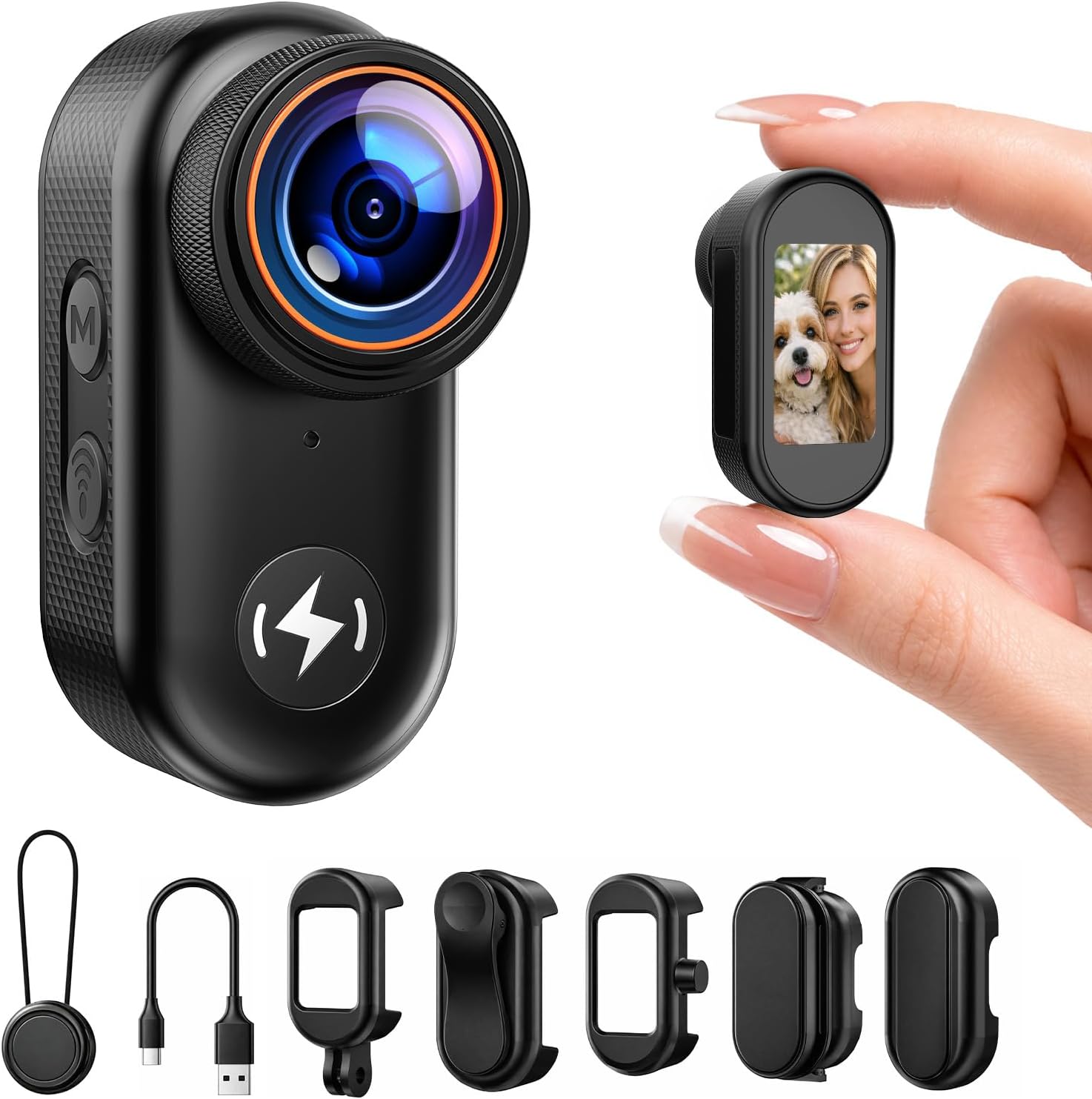
Image: A close-up view of the camera's screen showing the main menu interface with icons for different functions.
2. Recording Video
From the main menu, select 'Video Record'. Press the OK button to start recording. Press it again to stop. The camera supports 4K/30fps video capture.
3. Taking Photos
From the main menu, select 'Photo Shot'. Press the OK button to capture a photo.
4. Switching Shooting Modes
The camera allows switching between 16:9 landscape and 9:16 vertical formats directly in the camera menu. Navigate to the settings menu to select your preferred orientation. It also supports time-lapse photography and loop recording, accessible via the menu.

Image: Visual representation of the camera's flexible shooting orientations, showing how to switch between landscape and portrait modes.

Image: Examples of Time-lapse and Loop Recording functions, demonstrating their applications.
5. Connecting to Wi-Fi and App Control
The camera can be controlled remotely via the Viipulse App on your iOS or Android device. Follow these steps to connect:
- Turn on the camera's Wi-Fi from the camera menu. The Wi-Fi SSID and password will be displayed on the screen.
- Download and install the Viipulse App on your smartphone.
- Open the app and select "Add Camera" on the homepage.
- Go to your phone's Wi-Fi settings and connect to the camera's Wi-Fi network using the provided SSID and password.
- Return to the Viipulse App. Ensure all necessary permissions are granted to the app for proper functionality.
- Once connected, you can preview, control recording, and manage files directly from your phone.
Video: A guide demonstrating the steps to connect the CAMWORLD AC27 camera to a smartphone via Wi-Fi and operate it using the Viipulse App.
6. Transferring Files
You have several options for transferring your recorded footage:
- Via USB Cable: Connect the camera directly to a computer using the USB data cable. The camera will appear as a removable disk, allowing you to copy files.
- Via OTG Function: For Android devices and iPhone 15 or later, use a USB-C to USB-C cable to connect the camera directly to your phone. Select 'USB flash drive' mode on the camera to transfer files.
- Via SD Card Reader: Remove the SD card from the camera and insert it into a compatible card reader connected to your computer.
- Via Wi-Fi App: Use the Viipulse App to download photos and videos directly to your smartphone.

Image: A visual guide demonstrating the OTG function for transferring files from the camera to a smartphone.

Image: A composite image showing four different ways to playback recorded content: directly on the camera screen, connecting to a computer via USB, using an SD card reader, and viewing live on a phone via Wi-Fi.
7. Mounting Options
The camera is designed for versatile mounting. Utilize the included magnetic back cover, magnetic pendant, clip-on case, or cap clip to attach the camera to various surfaces or clothing. Ensure the enclosed magnetic case is installed for a stronger magnetic hold when using magnetic attachments.

Image: A person wearing the camera attached to a magnetic pendant, demonstrating a hands-free mounting option.
Video: A demonstration of the CAMWORLD AC27 camera capturing life from a first-person perspective, showcasing its hands-free capabilities for various activities.
Maintenance
- Cleaning: Use a soft, dry cloth to clean the camera body. For the lens, use a specialized lens cleaning cloth and solution. Avoid harsh chemicals.
- Storage: Store the camera in a cool, dry place away from direct sunlight and extreme temperatures.
- Battery Care: To prolong battery life, avoid fully discharging the battery frequently. Charge the camera regularly, even if not in use for extended periods.
- Water Resistance: This camera is NOT water resistant. Avoid exposure to water or high humidity.
Troubleshooting
| Problem | Possible Cause | Solution |
|---|---|---|
| Camera does not power on. | Low battery; faulty battery; power button issue. | Charge the camera fully. Ensure the power button is pressed correctly. |
| Cannot connect to Wi-Fi/App. | Incorrect Wi-Fi password; app permissions not granted; phone automatically switched to another Wi-Fi network. | Verify Wi-Fi password. Grant all necessary permissions to the Viipulse App. Manually reconnect to the camera's Wi-Fi in your phone settings if disconnected. |
| Poor video quality. | Lens is dirty; incorrect resolution settings; low light conditions. | Clean the lens. Check video resolution settings in the menu. Ensure adequate lighting. |
| Camera freezes or becomes unresponsive. | Software glitch; full memory card. | Perform a soft reset (if available, refer to specific button combination). Check and clear memory card space. |
| Files not transferring to phone/computer. | Incorrect connection mode; cable issue; driver issue (for PC). | Ensure correct transfer mode (e.g., USB flash drive) is selected on camera. Try a different USB cable or port. For PC, ensure necessary drivers are installed. |
Video: Instructions on how to maintain a stable Wi-Fi connection between the camera and your device, addressing common disconnection issues.
Specifications
| Feature | Detail |
|---|---|
| Brand | CAMWORLD |
| Model Number | AC27 |
| Photo Sensor Technology | CMOS |
| Video Capture Resolution | 4K |
| Flash Memory Type | SDHC (64GB card included) |
| Video Capture Format | MP4 |
| Supported Audio Format | MP4 |
| Screen Size | 1.47 inches |
| Connectivity Technology | USB, Wi-Fi |
| Special Features | Lightweight, Time Lapse, Loop Recording, Magnetic Mount, OTG Transfer |
| Water Resistance Level | Not Water Resistant |
| Form Factor | Ultra Compact |
| Item Dimensions (D x W x H) | 1.06" x 1.37" x 2.36" |
| Lens Type | Wide Angle (150 degrees) |
| Image Aspect Ratio | 16:9, 9:16 |
| File Format (Photo) | JPEG |
| Compatible Devices | Smartphone (iOS, Android) |
Warranty Information
The CAMWORLD AC27 Mini Body Camera comes with a 2-year warranty. This warranty covers manufacturing defects and malfunctions under normal use. Please retain your proof of purchase for warranty claims. For detailed terms and conditions, refer to the warranty card included in your package or contact customer support.
Customer Support
For any questions, concerns, or technical assistance regarding your CAMWORLD AC27 Mini Body Camera, please contact our customer support team. We provide 24/7 customer support to ensure you receive timely help.
Please visit the official CAMWORLD website or refer to the contact information provided in your product packaging for support details.