
Introduction
This manual provides detailed instructions for the installation, operation, and maintenance of your Krunia T52 10.26" Wireless CarPlay Screen. This device integrates wireless Apple CarPlay and Android Auto, a 4K front dash camera, and an HD backup camera, designed to enhance your driving experience with advanced connectivity and safety features. Please read this manual thoroughly before use to ensure proper functionality and to maximize the product's lifespan.
Package Contents
Verify that all items listed below are included in your package. If any items are missing or damaged, please contact customer support.
- 10.26" Portable Car Screen
- Car Charger (10.5ft)
- AUX Cable (5ft)
- Rear Camera (24.61ft)
- Rear Camera Adhesive (x2)
- Rear Camera Screws (x4)
- Suction Cup Bracket
- Adhesive Bracket
- Installation Accessories
- Wire Clips
- User Manual
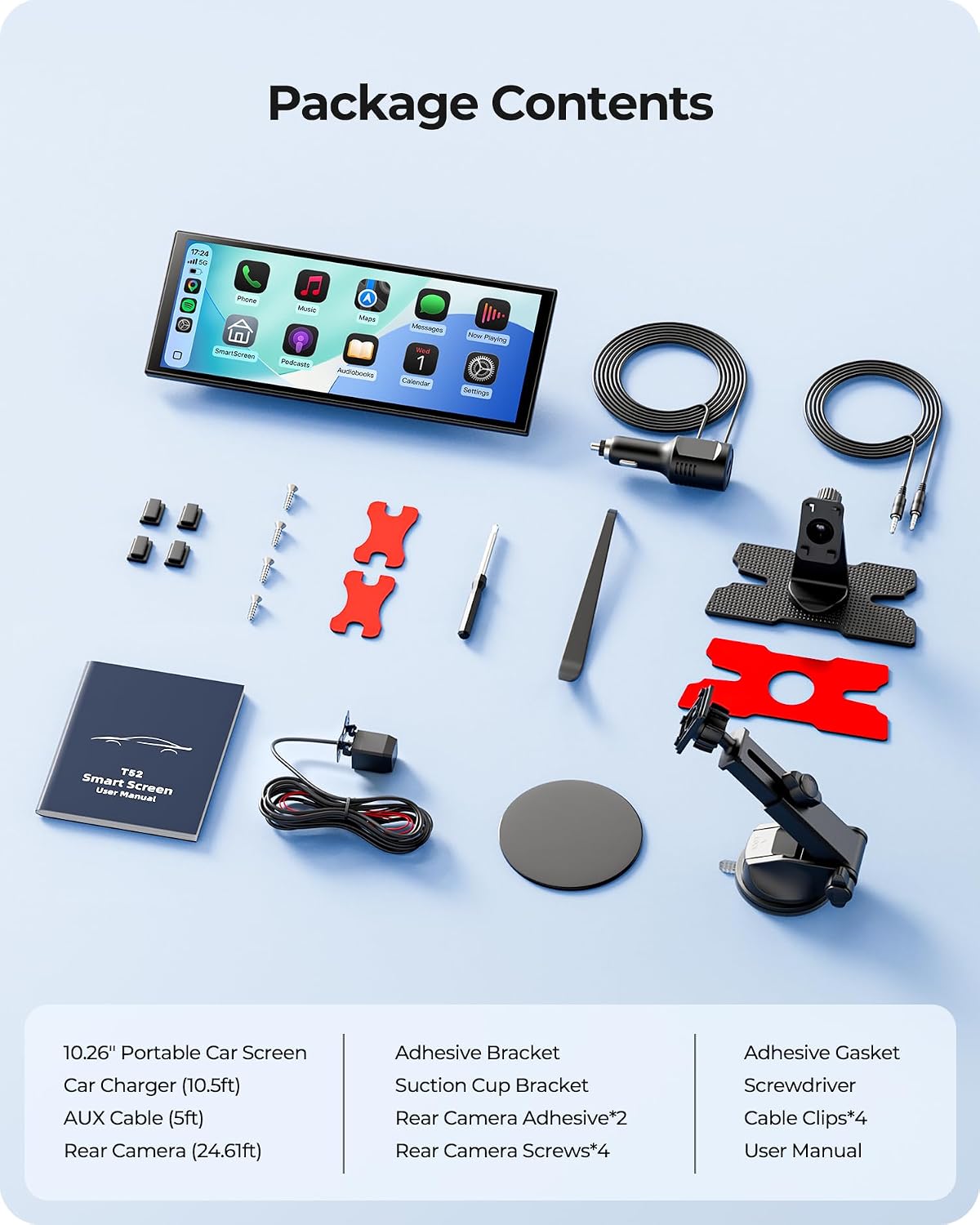
Image: All components included in the Krunia T52 package, laid out for inspection.
Setup
1. Mounting the Screen
The Krunia T52 offers two mounting options: a suction cup bracket for windshield or dashboard, and an adhesive bracket for dashboard installation. Choose the method that best suits your vehicle and provides an unobstructed view.
Suction Cup Mount Installation:
- Clean the dashboard surface where the suction cup will be placed. Apply the adhesive pad if your dashboard surface is not smooth, and wait 24 hours for it to cure.
- Remove the protective film from the suction cup.
- Press the suction cup firmly onto the chosen surface and lock the lever to secure it.
- Attach the Krunia T52 screen to the bracket, ensuring it clicks into place. Adjust the angle for optimal viewing.

Image: Step-by-step guide for installing the screen using the suction cup mount.
Adhesive Mount Installation:
- Clean the dashboard surface thoroughly.
- Remove the protective film from the adhesive bracket.
- Press the adhesive bracket firmly onto the desired location on the dashboard and hold for a few seconds. Allow 24 hours for the adhesive to fully bond before attaching the screen.
- Attach the Krunia T52 screen to the bracket.

Image: Step-by-step guide for installing the screen using the adhesive mount.

Image: The fully adjustable suction mount, demonstrating its extendable arm and 360-degree rotation for flexible positioning.

Image: The strong adhesive mount providing a stable and secure installation on the dashboard.
2. Rear Camera Installation
The rear camera provides an HD view for reversing and continuous recording. Professional installation is recommended for optimal cable routing.
- Connect the rear camera cable to the designated AV-IN port on the Krunia T52 display.
- Route the camera cable to the rear of your vehicle. Connect the red wire of the camera cable to your vehicle's reverse light power supply (12V). This enables automatic display of the rear view when reversing.
- Mount the rear camera using the provided adhesive or screws, ensuring a clear view of the area behind your vehicle.
Note: To ensure stable operation, use the original car charger (10.5ft) providing 5V 3A output. Chargers below 5V 3A may cause the screen to turn off or the device to shut down.

Image: A diagram illustrating the three simple steps to install the rear camera, including connecting to the display and reverse light.
3. Power Connection
Connect the provided car charger to your vehicle's 12V power outlet (cigarette lighter socket) and then to the Krunia T52 unit. The device will power on automatically when the vehicle starts and power off when the vehicle is turned off (depending on your vehicle's power outlet configuration).
Operating Instructions
1. Wireless Connectivity (CarPlay / Android Auto)
The Krunia T52 supports wireless Apple CarPlay and Android Auto for seamless smartphone integration.
Wireless Apple CarPlay Connection Steps:
Note: Your iPhone must be running iOS 9 or later. Ensure Siri is enabled for voice control.
- On the Krunia T52 screen, switch to CarPlay Mode.
- On your iPhone, turn on Wi-Fi and Bluetooth.
- Select and pair with the device named "T86-xxxx" in your iPhone's Bluetooth settings.
- A prompt will appear on your iPhone. Select "Use CarPlay".
- Connection successful.

Image: Visual guide for connecting an iPhone to the Krunia T52 for wireless Apple CarPlay.
Wireless Android Auto Connection Steps:
Note: Compatible with any phone running Android 11.0 or newer, Google or Samsung phones with Android 10.0 or newer, or Samsung Galaxy S8/S8+/Note 8 with Android 9.0 or newer. Update your Android Auto app to the latest version.
- On the Krunia T52 screen, switch to Android Auto Mode.
- On your Android phone, turn on Wi-Fi and Bluetooth.
- Select and pair with the device named "T86-xxxx" in your phone's Bluetooth settings.
- Connection successful.

Image: Visual guide for connecting an Android phone to the Krunia T52 for wireless Android Auto.

Image: The Krunia T52 display showing both Apple CarPlay and Android Auto interfaces, along with a screen mirroring function.
2. Screen Mirroring (AirPlay / Super Link)
The device supports screen mirroring for both iOS (AirPlay) and Android (Super Link) devices, allowing you to display your phone's screen directly on the T52.
Wireless AirPlay Mirror Link Steps (iOS):
- On the Krunia T52 screen, switch to AirPlay mode.
- On your iPhone, turn on Wi-Fi and connect to the Wi-Fi network named "AIRPLAY-xxxxxx".
- Activate Screen Mirroring from your iPhone's Control Center and select "SmartScreen".
- Connection successful.

Image: Visual guide for connecting an iPhone to the Krunia T52 for wireless AirPlay screen mirroring.
Wireless Super Link Connection (Android):
- On the Krunia T52 screen, switch to 'Super Link (Android)' Mode. A QR code will appear.
- Scan the QR code with your Android phone to download the "Evelink" application.
- On your Android phone, turn on Wi-Fi.
- Open the Evelink app and connect to the Wi-Fi network named "EVELINK-xxxxxx".
- Connection successful.

Image: Visual guide for connecting an Android phone to the Krunia T52 for wireless Super Link screen mirroring.

Image: The Krunia T52 displaying a mirrored smartphone screen, showcasing its high-definition capabilities.
3. Audio Integration
The Krunia T52 offers multiple ways to output audio to your vehicle's sound system:
- Built-in Speaker: For basic audio output directly from the unit.
- AUX Connection: Use the provided 3.5mm AUX cable to connect the T52 to your car's AUX input for high-fidelity audio.
- Bluetooth Streaming: Connect the T52 to your car's Bluetooth system (if available) for wireless audio transmission.
- FM Transmitter: Tune your car's FM radio to a specific frequency set on the T52 to transmit audio wirelessly.

Image: A visual representation of the four audio output options: built-in speaker, AUX, Bluetooth, and FM transmitter.
4. Voice Control
Utilize voice commands (e.g., "Hey Siri" or "Hey Google") for hands-free control of navigation, calls, music, and messaging when connected via CarPlay or Android Auto. This feature enhances safety by allowing you to keep your hands on the wheel and eyes on the road.

Image: Illustrates voice control functionality with examples like "Hey Siri, Call Mom!" and "Hey Google, Play Music!".
5. Dash Cam & Reversing Assist
The integrated 4K front dash cam and HD rear camera provide continuous recording and intelligent reversing assistance.
- Loop Recording: The system automatically overwrites older footage when the memory card is full, ensuring continuous recording. A 64GB card is included, supporting up to 256GB.
- AI-Powered Pedestrian Detection: The rear camera features AI detection that provides real-time voice alerts when pedestrians are detected during reversing.
- Parking Guide Lines: Adjustable parking guide lines are displayed on the screen when reversing, aiding in safe maneuvering.
- Image Mirroring: Supports 4-way image mirroring (up/down, left/right) for flexible rear camera view adjustment.

Image: Depicts the 4K front camera and HD rear camera, highlighting their dual recording capabilities.

Image: The rear camera view on the screen, showing pedestrian detection with a warning overlay and settings for alerts.

Image: The rear camera with options for adjustable reverse lines, image flip, IP67 waterproof rating, and a wide-angle lens.

Image: Illustrates the loop recording feature with options for 1, 3, or 5-minute segments and the included 64GB storage.
6. Steering Wheel Control
The Krunia T52 maintains compatibility with your vehicle's existing steering wheel controls. This allows you to safely manage volume, answer calls, and skip tracks without taking your hands off the steering wheel.

Image: A driver's hand interacting with steering wheel controls, demonstrating the ability to answer calls, skip tracks, and adjust volume.
7. Screen Management
- Instant Screen Control: Tap the screen to quickly turn it on or off, saving power and reducing distractions.
- Adjustable Brightness: Manually set the screen brightness to your preference.
- Time-based Brightness Settings: Configure automatic brightness adjustments for different times of the day (e.g., dim at night, brighter during the day).
- Personalized Startup Logo: Customize the startup screen with your preferred car brand logo, personal photos, or other images. Contact customer support for customization options.

Image: Demonstrates the quick on/off function of the screen with a single tap, for power saving and reduced distraction.

Image: Shows the manual brightness slider and examples of time-based brightness settings for different times of day.

Image: Displays various car brand logos and options for personalizing the startup screen.
Maintenance
Proper maintenance ensures the longevity and optimal performance of your Krunia T52.
- Cleaning: Use a soft, dry cloth to clean the screen and exterior. Avoid abrasive cleaners or solvents that may damage the surface.
- Temperature: The device is designed to operate reliably in temperatures ranging from -20°C to 70°C (-4°F to 158°F). Avoid prolonged exposure to extreme temperatures outside this range.
- Cable Management: Ensure all cables are securely routed and not pinched or exposed to excessive wear. Use the provided wire clips to keep cables tidy.
- Software Updates: Periodically check for firmware updates to ensure optimal performance and access to new features. Refer to the device settings or manufacturer's website for update instructions.

Image: Illustrates the device's ability to withstand extreme temperatures, from desert heat to snowy mountains.
Troubleshooting
If you encounter issues with your Krunia T52, refer to the following common problems and solutions:
| Problem | Possible Cause | Solution |
|---|---|---|
| Device does not power on. | No power supply; loose connection; insufficient power. | Ensure the car charger is properly connected to both the device and the vehicle's 12V outlet. Verify the vehicle's 12V outlet is functional. Use the original 5V 3A car charger. |
| Wireless CarPlay/Android Auto fails to connect. | Bluetooth/Wi-Fi off on phone; incorrect pairing; outdated phone OS/app. | Ensure Bluetooth and Wi-Fi are enabled on your phone. Re-pair the device via Bluetooth settings. Update your phone's operating system and CarPlay/Android Auto app to the latest version. |
| No audio or poor audio quality. | Incorrect audio output setting; loose AUX cable; FM interference. | Check the audio output settings on the T52. Ensure the AUX cable is fully inserted. Try a different FM frequency if using the FM transmitter. Verify your car's Bluetooth connection. |
| Rear camera image is not displayed. | Loose cable connection; incorrect wiring to reverse light; camera malfunction. | Check the AV-IN connection on the T52. Verify the rear camera's red wire is correctly connected to the reverse light power. Ensure the camera lens is clean and unobstructed. |
| Screen overheats and turns off. | Prolonged exposure to direct sunlight; high ambient temperature. | Relocate the device to a cooler spot if possible. Use a sunshade when parked. Allow the device to cool down before restarting. |
If the problem persists after attempting these solutions, please contact Krunia customer support for further assistance.
Specifications
Detailed technical specifications for the Krunia T52.
- Model Name: T52
- Brand: Krunia
- Screen Size: 10.26 inches
- Display Type: LCD, Fully Laminated
- Resolution: 1920x720 HD
- Peak Brightness: 750-nit
- Contrast Ratio: 1100:1
- Colors: 16.7 Million
- Frame Rate: 60 FPS
- Connectivity Technology: Bluetooth 5.0, Dual-Band Wi-Fi (2.4Ghz/5Ghz)
- Control Method: App, Touch, Voice
- Front Dash Cam Video Capture Resolution: 4K (2160p)
- Rear Camera Video Capture Resolution: HD
- Field Of View (Front): 170 degrees
- Real Angle of View (Rear): 140 degrees
- Included Memory Card Size: 64 GB (Supports up to 256GB)
- Mounting Type: Suction Cup Mount, Adhesive Mount
- Compatible Vehicle Types: Car, SUV, Truck (12-32V)
- Item Dimensions (D x W x H): 0.79"D x 10.43"W x 4.13"H
- Item Weight: 497 g
- Operating Temperature: -20°C to 70°C (-4°F to 158°F)

Image: Highlights the dual-band Wi-Fi (2.4Ghz/5Ghz) and Bluetooth 5.0 connectivity features of the device.

Image: A comparison showing the true 10.26-inch display size of the Krunia T52 against smaller screens.

Image: A comparison illustrating the benefits of a fully laminated screen (93% transmittance, 1.5% reflectance) versus a non-laminated screen.

Image: A graph comparing the blue light emission of the Krunia T52 screen with conventional screens, showing reduced high-energy blue light.

Image: Various vehicle types (cars, SUVs, trucks, mini vans) demonstrating the wide compatibility of the Krunia T52 with 12-32V systems.
Warranty and Support
Krunia is committed to providing reliable products and excellent customer service.
- Return Policy: Enjoy a 30-day return policy for your purchase.
- Limited Warranty: The Krunia T52 comes with a 2-year limited warranty. You can extend this warranty by reaching out to Krunia customer support.
- Technical Support: 24/7 expert technical support is available to assist you with any questions or issues.
- Official Email: service@krunia.com
For warranty claims or technical assistance, please contact Krunia customer support via the official email or through the contact information provided on the Krunia brand store.


