
1. Introduction
This manual provides essential instructions for the proper use, setup, and maintenance of your Generic T8 Pro Smart Watch. Please read this manual thoroughly before using the device to ensure optimal performance and safety. The T8 Pro Smart Watch is designed to be a versatile companion for active lifestyles, offering features such as Bluetooth calling, heart rate monitoring, step tracking, sleep analysis, and 5ATM water resistance.

Figure 1: Generic T8 Pro Smart Watch (Black, Silver, Gray variant). The watch features a round display showing time, date, and various health metrics.
2. Safety Information
- Do not attempt to disassemble or modify the watch. This may void the warranty and cause damage.
- Keep the watch away from extreme temperatures, direct sunlight, and corrosive liquids.
- Avoid strong impacts or dropping the device.
- Consult a medical professional before starting any new exercise regimen, especially if you have pre-existing health conditions. The heart rate and other fitness data provided by this device are for reference only and should not be used for medical diagnosis or treatment.
- Ensure the charging contacts are clean and dry before charging to prevent corrosion or damage.
- This device contains a lithium-ion battery. Dispose of it responsibly according to local regulations.
3. Package Contents
Verify that all items are present in your package:
- T8 Pro Smart Watch
- Charging Cable (USB)
- User Manual (this document)
4. Setup
4.1. Charging the Smart Watch
Before initial use, fully charge your T8 Pro Smart Watch. Connect the magnetic charging cable to the charging contacts on the back of the watch and plug the USB end into a standard USB power adapter (not included) or a computer's USB port.
- A full charge typically takes approximately 2 hours.
- The watch display will show a charging indicator.
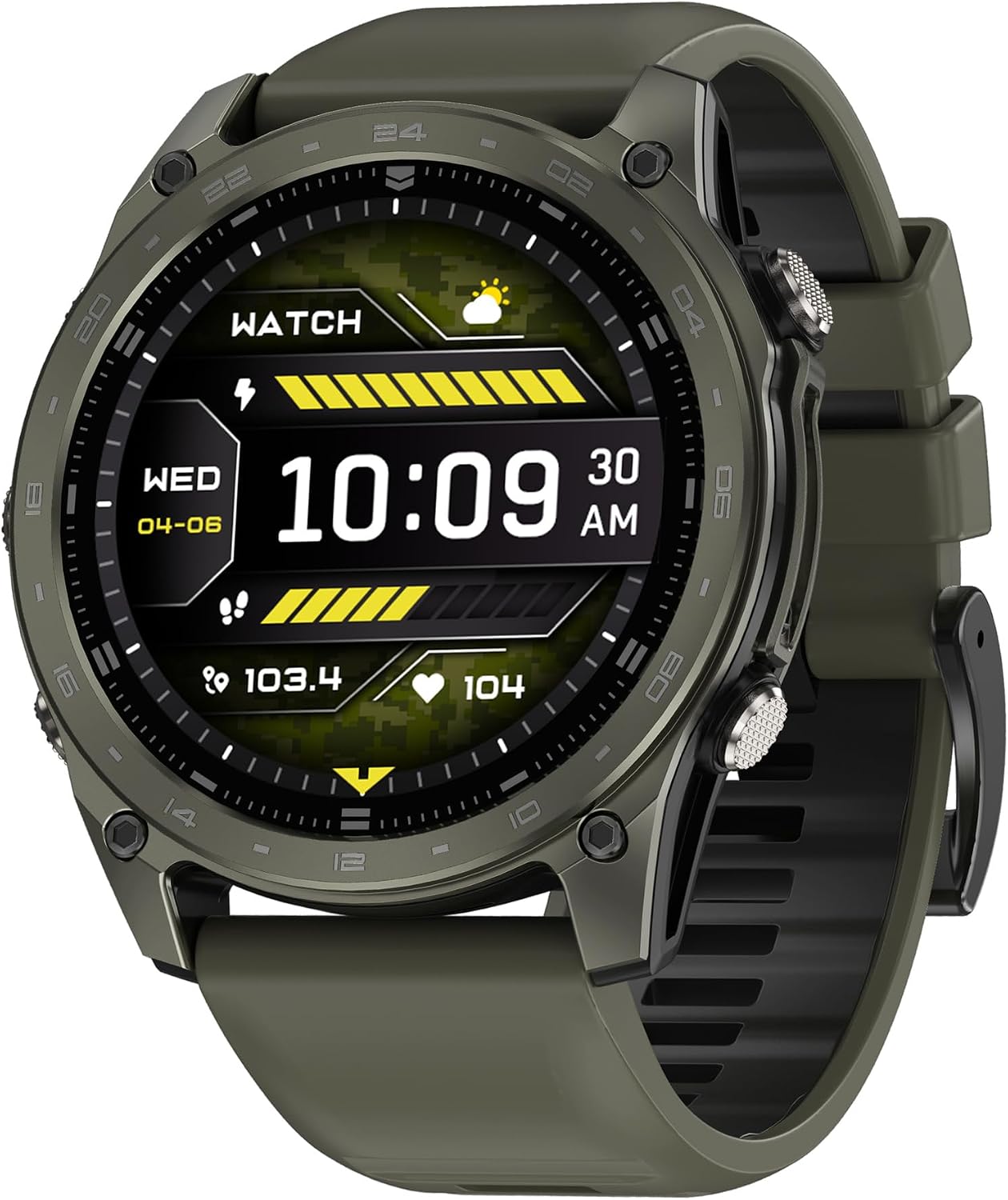
Figure 2: Side view of the T8 Pro Smart Watch, highlighting the control buttons.
4.2. Powering On/Off
- Power On: Press and hold the top physical button for a few seconds until the screen lights up.
- Power Off: From the watch face, swipe down to access the quick settings, then tap the power icon, or navigate to Settings > System > Power Off. Confirm your selection.
4.3. Pairing with Your Smartphone
To unlock the full functionality of your T8 Pro Smart Watch, you need to pair it with your smartphone via Bluetooth and the dedicated companion application.
- Download the App: Scan the QR code provided in the watch's packaging or search for the "T8 Pro" companion app in your smartphone's app store (Google Play Store for Android, Apple App Store for iOS). Install the application.
- Enable Bluetooth: Ensure Bluetooth is enabled on your smartphone.
- Open the App: Launch the T8 Pro companion app on your smartphone and follow the on-screen instructions to create an account or log in.
- Add Device: In the app, navigate to the "Device" or "Add Device" section. The app will search for available smartwatches. Select "T8 Pro" from the list.
- Confirm Pairing: A pairing request will appear on both your phone and the watch. Confirm the pairing on both devices.
- Complete Setup: Follow any remaining prompts in the app to complete the setup, including granting necessary permissions for notifications, health data, etc.
5. Operating Instructions
5.1. Basic Navigation
- Touchscreen: Swipe left, right, up, or down to navigate through menus and features. Tap to select.
- Top Button: Press to return to the watch face or wake the screen. Long press to power on/off.
- Bottom Button: Customizable shortcut button (can be set in app settings).

Figure 3: T8 Pro Smart Watch worn on a wrist, demonstrating its fitness tracking capabilities.
5.2. Bluetooth Calling
Once paired with your smartphone, you can make and receive calls directly from your watch.
- Making a Call: Access the "Dialer" or "Contacts" app on your watch. You can dial a number directly or select a contact from your synced phonebook.
- Receiving a Call: When a call comes in, the watch will display the caller ID. Tap the green icon to answer or the red icon to reject.
5.3. Heart Rate Tracking
The T8 Pro Smart Watch continuously monitors your heart rate. To view your current heart rate or historical data:
- Swipe to the Heart Rate widget on your watch face or open the Heart Rate app.
- Ensure the watch is worn snugly on your wrist for accurate readings.
- Detailed historical data is available in the companion app.
5.4. Step Tracking
The watch automatically tracks your steps, distance, and calories burned throughout the day.
- View your daily progress on the watch face or in the Activity app.
- Set daily step goals within the companion app.
5.5. Sleep Monitoring
Wear the watch to bed, and it will automatically monitor your sleep patterns, including deep sleep, light sleep, and awake times.
- Access sleep data on the watch's Sleep app or in the companion app for detailed analysis.
5.6. Sport Modes
The T8 Pro offers multiple sport modes for tracking various activities.
- Open the "Workout" or "Sport" app on your watch.
- Select your desired activity (e.g., Running, Cycling, Hiking).
- Tap "Start" to begin tracking. The watch will record duration, heart rate, calories, and other relevant metrics.
- Tap "Pause" or "End" to stop the workout. Data will sync to your companion app.
5.7. Customizing Watch Faces
Personalize your watch by changing the watch face.
- On the Watch: Long-press the watch face, then swipe left or right to browse available faces. Tap to select.
- Via App: The companion app offers a wider selection of watch faces and customization options.
5.8. 5ATM Waterproof Rating
The T8 Pro Smart Watch has a 5ATM waterproof rating, meaning it can withstand pressures equivalent to a depth of 50 meters. This makes it suitable for:
- Showering and bathing (avoid hot water and steam).
- Swimming in shallow water.
- Rain and splashes.
Important: Do not press any buttons while the watch is submerged in water. Avoid exposing the watch to high-velocity water or extreme temperature changes, as this may compromise the water seal.
6. Maintenance
6.1. Cleaning
- Wipe the watch screen and body with a soft, lint-free cloth.
- For stubborn dirt, slightly dampen the cloth with water. Do not use harsh chemicals or abrasive cleaners.
- Clean the charging contacts regularly with a dry cloth to ensure proper charging.
- Rinse the watch with fresh water after exposure to saltwater or chlorinated water, then dry thoroughly.
6.2. Storage
- Store the watch in a cool, dry place when not in use.
- Avoid storing in direct sunlight or areas with high humidity.
6.3. Battery Care
- To prolong battery life, avoid fully discharging the battery frequently.
- Charge the watch regularly, even if not in daily use, to prevent deep discharge.
7. Troubleshooting
| Problem | Possible Solution |
|---|---|
| Watch does not power on. | Ensure the watch is fully charged. Connect it to the charger for at least 30 minutes. |
| Cannot pair with smartphone. |
|
| Inaccurate heart rate/step data. |
|
| Notifications not appearing. |
|
| Watch screen is unresponsive. | Try restarting the watch by long-pressing the top button. If unresponsive, allow the battery to fully drain and then recharge. |
8. Specifications
| Feature | Detail |
|---|---|
| Model Name | T8 Pro |
| Brand | Generic |
| Screen Size | 1.77 inches |
| Display Type | AMOLED |
| Connectivity Technology | Bluetooth |
| Operating System | Android (Compatible) |
| Memory Storage Capacity | 4 GB |
| RAM Memory Installed | 256 GB |
| Battery Capacity | 180 mAh |
| Battery Type | Lithium Ion |
| Average Battery Life | 6 days |
| Battery Charge Time | 2 hours |
| Waterproof Rating | 5ATM (IP68) |
| Case Material | Aluminum |
| Band Material | Silicone |
| Item Weight | 219.99 g |
| Special Features | Bluetooth Calling, Heart Rate Monitor, GPS |
| Compatible Devices | Android Smartphones |
9. Warranty and Support
This product comes with a standard manufacturer's warranty. Please refer to the warranty card included in your package or contact your retailer for specific warranty terms and conditions. For technical support, troubleshooting assistance, or service inquiries, please contact the vendor or refer to the official product website.
Keep your purchase receipt as proof of purchase for warranty claims.


