
ieGeek Baby 10
ieGeek Baby Monitor with Camera and Audio (Model Baby 10) - User Manual
Model: Baby 10
1. Introduction
This manual provides instructions for the safe and effective use of your ieGeek Baby Monitor with Camera and Audio, Model Baby 10. This device offers both local wireless monitoring and remote access via a 2.4GHz Wi-Fi app, ensuring you can monitor your baby from anywhere. It features a 5-inch LCD screen, infrared night vision, two-way talk, and environmental monitoring.
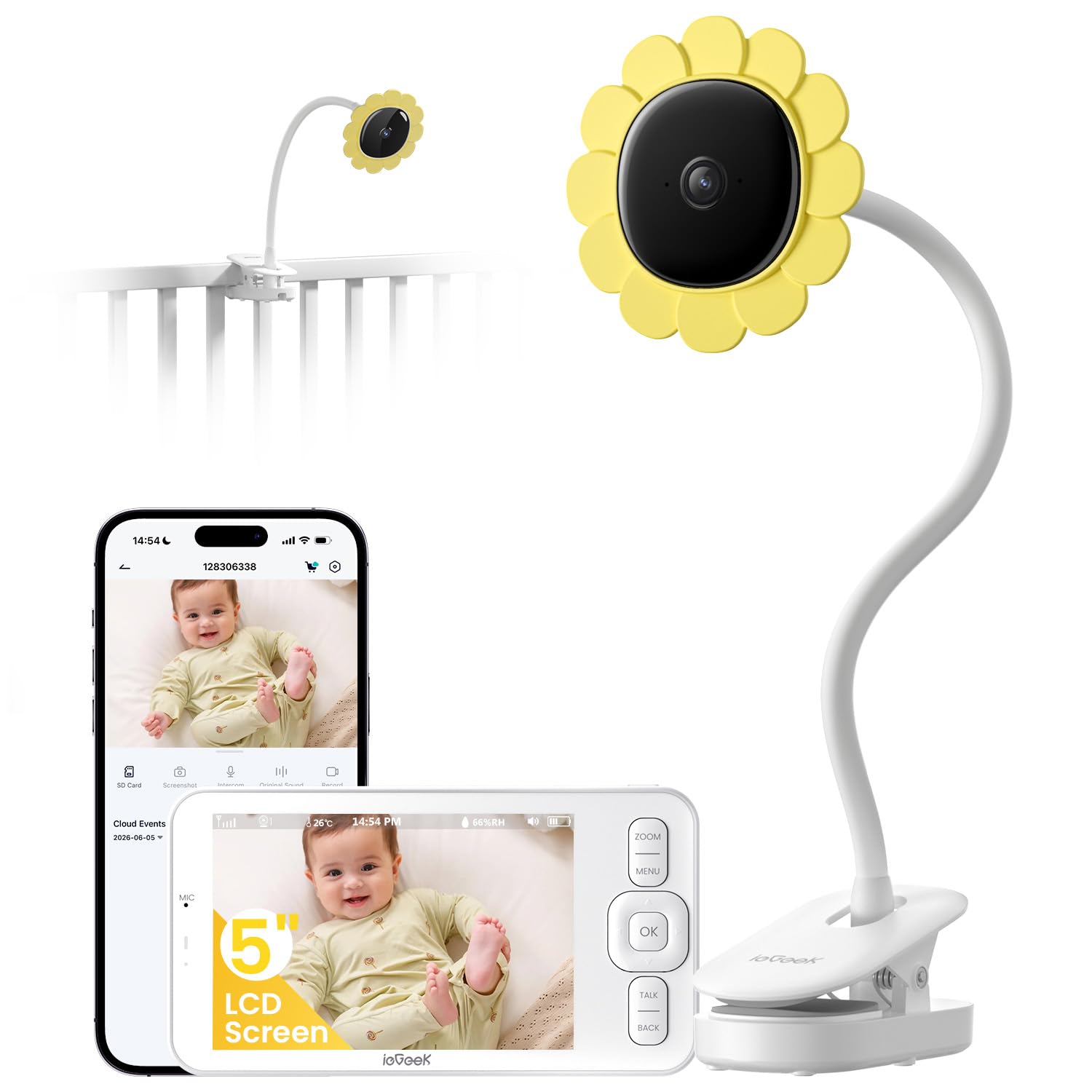
Image: The ieGeek Baby Monitor system, showing the camera with a flexible stand and the handheld parent unit.
2. What's in the Box
Please check the package contents carefully. If any items are missing or damaged, contact customer support.
- 1 x ieGeek Baby Camera with Stand
- 1 x Handheld 5" Parent Unit (Display)
- 2 x Power Adapters
- 2 x Power Cables
- 1 x Quick Guide
- 1 x Mounting Bracket
- 4 x Screws
- 4 x Screw Hats
- 1 x Needle (for reset)

Image: All components included in the ieGeek Baby Monitor package.
3. Product Features
- Flexible Gooseneck Stand & 5" LCD Screen: The camera features a bendable gooseneck stand for versatile positioning and a 5-inch LCD parent unit for clear viewing.
- Dual-Mode Connectivity: Use as a local wireless monitor (no Wi-Fi needed) or switch to 2.4GHz Wi-Fi mode for remote access via a smartphone app.
- 1080P HD Night Vision & Two-Way Talk: Automatic infrared night vision provides clear images in darkness. Two-way audio allows communication with your baby.
- Smart Alerts & Environmental Monitoring: Detects crying, motion, and noise. Customizable virtual safe zones trigger instant alerts. Monitors room temperature and humidity.
- Recording & Sharing: Supports local storage via SD card (not included) or cloud storage. Share moments with up to 5 family members via the app.
- Privacy Protection: Features a physical switch to turn off the camera for enhanced privacy.
- Long-Lasting Battery: The parent unit offers extended battery life for all-day monitoring.

Image: The monitor displaying real-time temperature and humidity readings while monitoring a sleeping baby.

Image: Illustration of the dual connectivity modes: 2.4GHz Wi-Fi for app access and direct connection without Wi-Fi.
4. Setup Instructions
4.1 Camera Installation
- Insert the camera into the bracket base.
- Clip the bracket securely onto a crib, shelf, or other stable surface. Ensure the surface is flat and sturdy.
- Plug in the camera's power adapter.

Image: Examples of the flexible gooseneck stand positioning on a crib, bedside table, and coffee table.
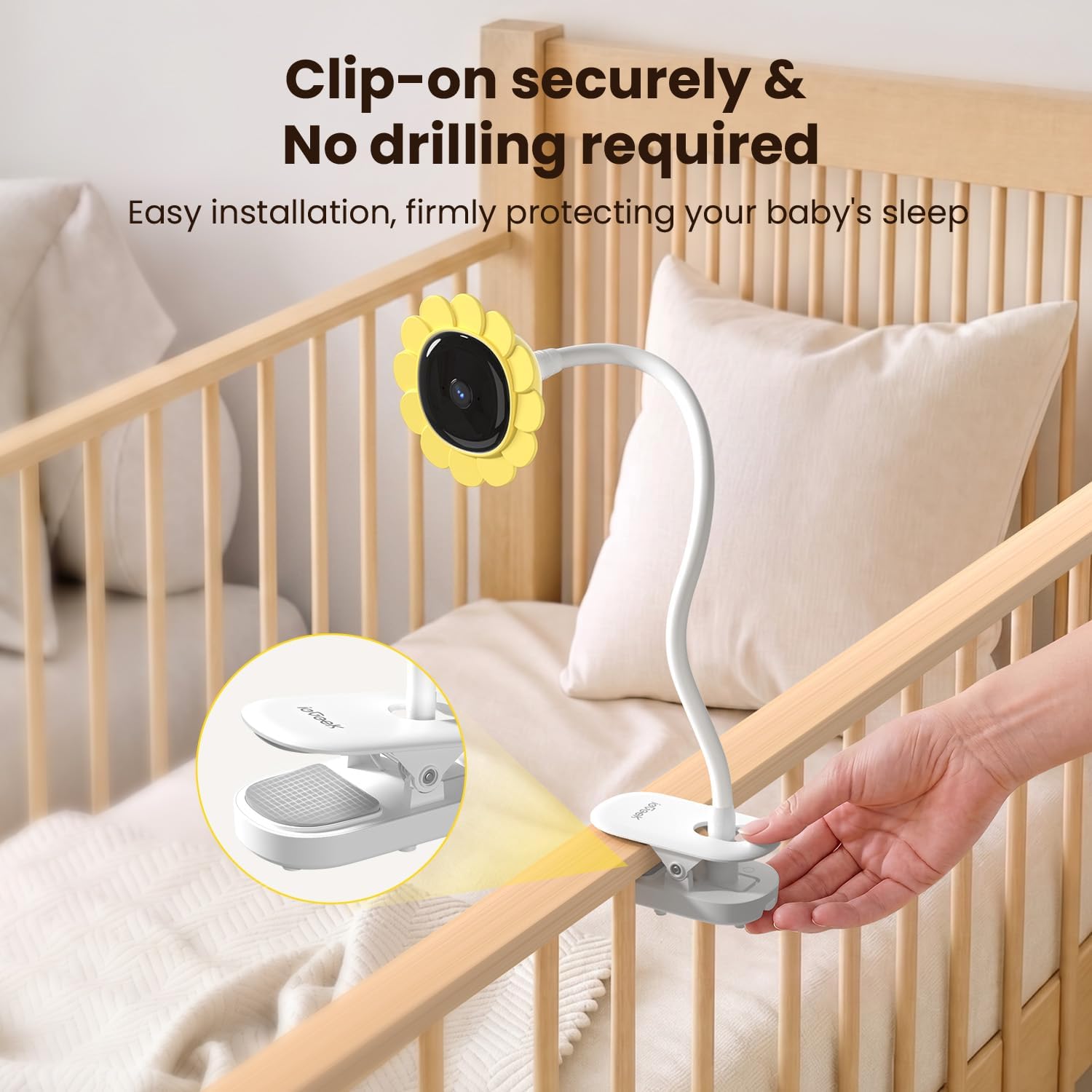
Image: Close-up of the clip-on mechanism for secure, drill-free installation on a crib rail.
4.2 Connecting the Parent Unit (Monitor)
The parent unit and camera are pre-paired for direct use. Simply power on both devices.
Video: Instructions on how to connect the display screen to the ieGeek baby camera.
4.3 Connecting to the Mobile App (Optional)
For remote monitoring and additional features, download the ieGeek Cam app and follow the in-app instructions to connect your camera via 2.4GHz Wi-Fi.
Video: Instructions on how to connect the ieGeek baby monitor to the mobile application.
5. Operating Instructions
5.1 Basic Monitoring
- Power On/Off: Press and hold the power button on the parent unit to turn it on or off.
- Volume Control: Use the dedicated buttons on the parent unit to adjust the audio volume.
- VOX Mode (Eco Sleep): Activate VOX mode to turn off the screen when no sound is detected, conserving battery. The screen will automatically turn on when sound is detected.

Image: The 5-inch HD display showing a clear image of a baby sleeping in a dark room, demonstrating infrared night vision.
5.2 Advanced Features
- Two-Way Talk: Press and hold the talk button on the parent unit to speak to your baby through the camera.
- Lullabies & White Noise: Select from built-in lullabies or white noise options to soothe your baby directly from the parent unit.
- Temperature & Humidity Monitoring: The parent unit displays real-time room temperature and humidity. Set alerts for out-of-range conditions.
- Cry & Motion Detection: Receive alerts on the parent unit or smartphone app when crying or motion is detected.
- Virtual Safe Zones: Define specific areas within the camera's view to receive alerts if your baby enters or exits them.
- One-Key Call: Your child can press a button on the camera to initiate a call to the parent unit.
- Physical Camera Switch: Use the physical switch on the camera to turn off video and audio transmission for privacy.

Image: A baby crawling on the floor, with the monitor app displaying an alert for motion detection within a defined zone.

Image: A child interacting with the camera, and a smartphone screen showing an incoming call from the camera, demonstrating the two-way calling feature.

Image: Close-up of the physical ON/OFF switch on the camera for privacy control.
6. Maintenance
- Keep the camera and monitor clean using a soft, dry cloth. Avoid abrasive cleaners.
- Ensure ventilation openings are clear of dust and debris.
- Do not expose the devices to extreme temperatures, humidity, or direct sunlight.
- Regularly check power cables for damage.
7. Troubleshooting
7.1 No Image/Signal on Parent Unit
- Ensure both the camera and parent unit are powered on and fully charged.
- Check that the camera and parent unit are within range of each other.
- Verify there are no obstructions or strong interference sources (e.g., other wireless devices, thick walls) between the camera and parent unit.
- Try re-pairing the camera and parent unit if the connection is lost (refer to the Quick Guide for specific steps).
7.2 App Connectivity Issues
- Ensure your smartphone is connected to a 2.4GHz Wi-Fi network. The monitor does not support 5GHz Wi-Fi.
- Verify the camera is connected to your home's 2.4GHz Wi-Fi network.
- Restart your router, camera, and smartphone.
- Check for app updates and ensure your app version is current.
- If issues persist, try resetting the camera and re-adding it to the app.
7.3 Poor Audio Quality
- Adjust the volume on the parent unit.
- Ensure the microphone on the camera and speaker on the parent unit are not obstructed.
- Reduce background noise in the baby's room.
8. Specifications
| Feature | Detail |
|---|---|
| Model Name | Baby 10 |
| Connectivity Technology | 2.4GHz Wi-Fi or Non-Wi-Fi (Direct Connection) |
| Video Capture Resolution | 1080p |
| Screen Size | 5 inches |
| Night Vision | Infrared Night Vision (8 IR LEDs) |
| Special Features | 2-Way Audio, Lullabies, Motion Sensor, Cry Detection, Customize Alarm Area, Temperature & Humidity Monitoring |
| Power Source | Camera: Corded Electric; Monitor: Battery Powered |
| Mount Type | Tabletop Mount & Clip Mount |
| Material | Acrylonitrile Butadiene Styrene (ABS) |
| Item Dimensions | 3.35 x 3.35 x 5.31 inches |
| Item Weight | 99.99 g |
9. Warranty and Support
Your ieGeek Baby Monitor is backed by a 2-year quality guarantee and free 30-day returns. For any questions or assistance with the product, please contact our professional customer service team.
- Warranty: 2-Year Quality Guarantee
- Returns: Free 30-day Returns
- Customer Service Email: service@iegeek.com
Related documentsBaby 10


Ask a question about this manual
Ask about setup, troubleshooting, compatibility, parts, safety, or missing instructions. Manuals+ will review the question and use this page’s manual context to help answer it.