
1. Introduction
This manual provides detailed instructions for the safe and effective use of your DIGIERA DGW100BL 5K Digital Camera. Please read this manual thoroughly before operating the camera and retain it for future reference.
The DIGIERA DGW100BL is a versatile digital camera designed for high-quality photography and videography, featuring 5K video recording, 80MP photo resolution, a 3.0-inch IPS LCD flip screen, and advanced autofocus capabilities.
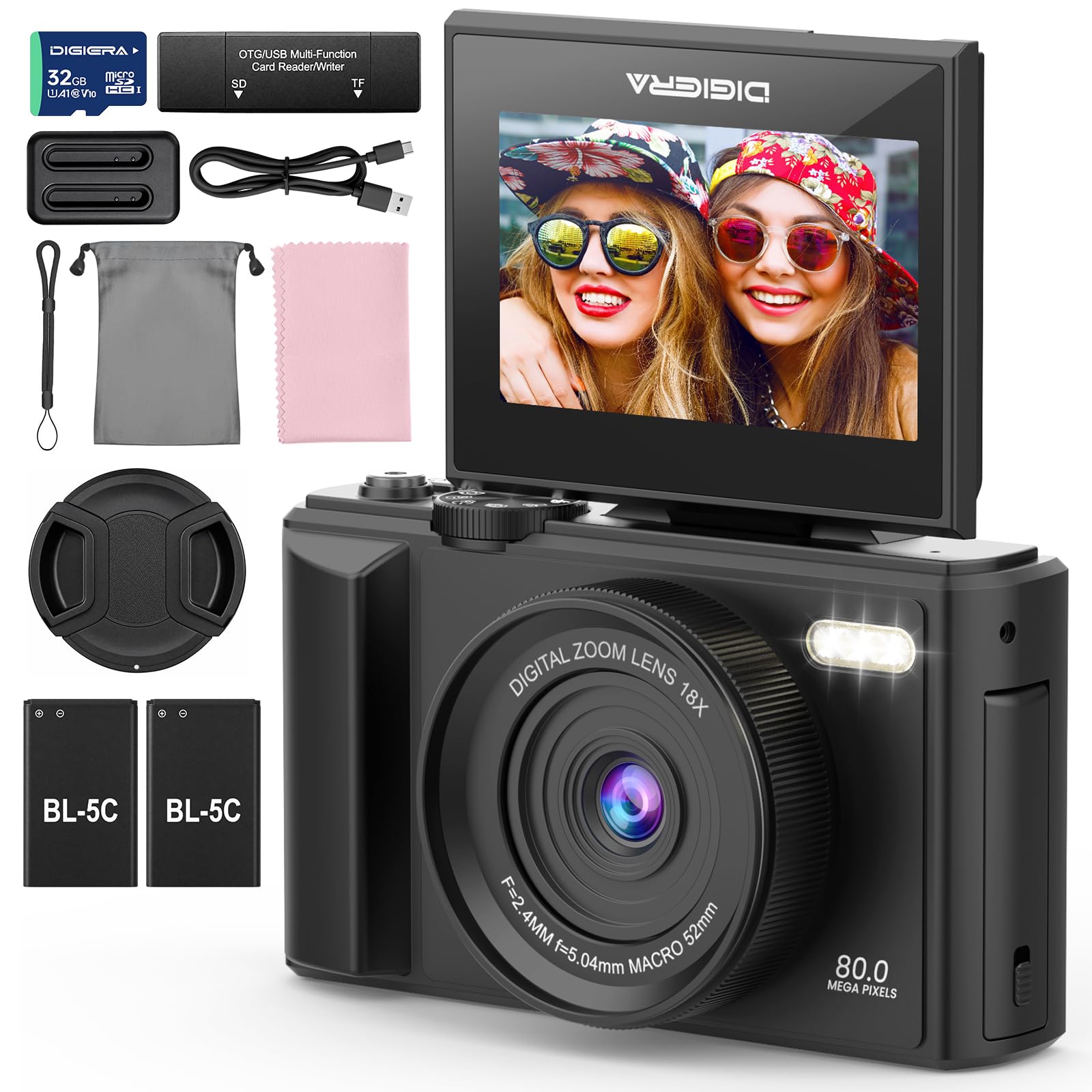
Image 1.1: The DIGIERA DGW100BL 5K Digital Camera.
2. Package Contents
Verify that all items are present in your package:
- DIGIERA DGW100BL Camera Body
- 2 x Detachable Rechargeable Lithium-ion Batteries
- Battery Charger
- 32GB SD Card
- USB Cable
- User Manual
- Wrist Strap
3. Setup
3.1. Battery Installation and Charging
- Open the battery compartment cover located on the bottom of the camera.
- Insert a rechargeable lithium-ion battery, ensuring the contacts align correctly. Close the cover.
- To charge the battery, insert it into the provided external charger. Connect the charger to a power source using the USB cable. The indicator light on the charger will show charging status.
- A fully charged battery provides approximately 80 minutes of 4K video recording.
3.2. SD Card Installation
- Locate the SD card slot, typically on the side or bottom of the camera.
- Insert the included 32GB SD card with the metal contacts facing the correct direction (refer to the diagram near the slot). Push until it clicks into place.
- To remove, gently push the SD card inward until it springs out.
3.3. Powering On/Off
- To power on, press and hold the Power button until the screen illuminates.
- To power off, press and hold the Power button again until the screen shuts down.
3.4. Initial Settings
Upon first power-on, you may be prompted to set the date, time, and language. Use the navigation buttons to select and confirm your preferences.
4. Operating the Camera
4.1. Basic Photography and Video Recording
The camera supports 80MP still images and 5K video recording.

Image 4.1: Demonstrating 5K video and 80MP photo capabilities.
- Switching Modes: Use the mode dial or menu options to switch between photo, video, and playback modes.
- Taking Photos: In photo mode, frame your shot and press the Shutter button halfway to focus, then fully to capture the image.
- Recording Videos: In video mode, press the Record button to start and stop recording.
- Snapshot While Recording: You can capture still photos during video recording by pressing the Shutter button.
4.2. Focus Modes
The camera offers flexible focusing options:
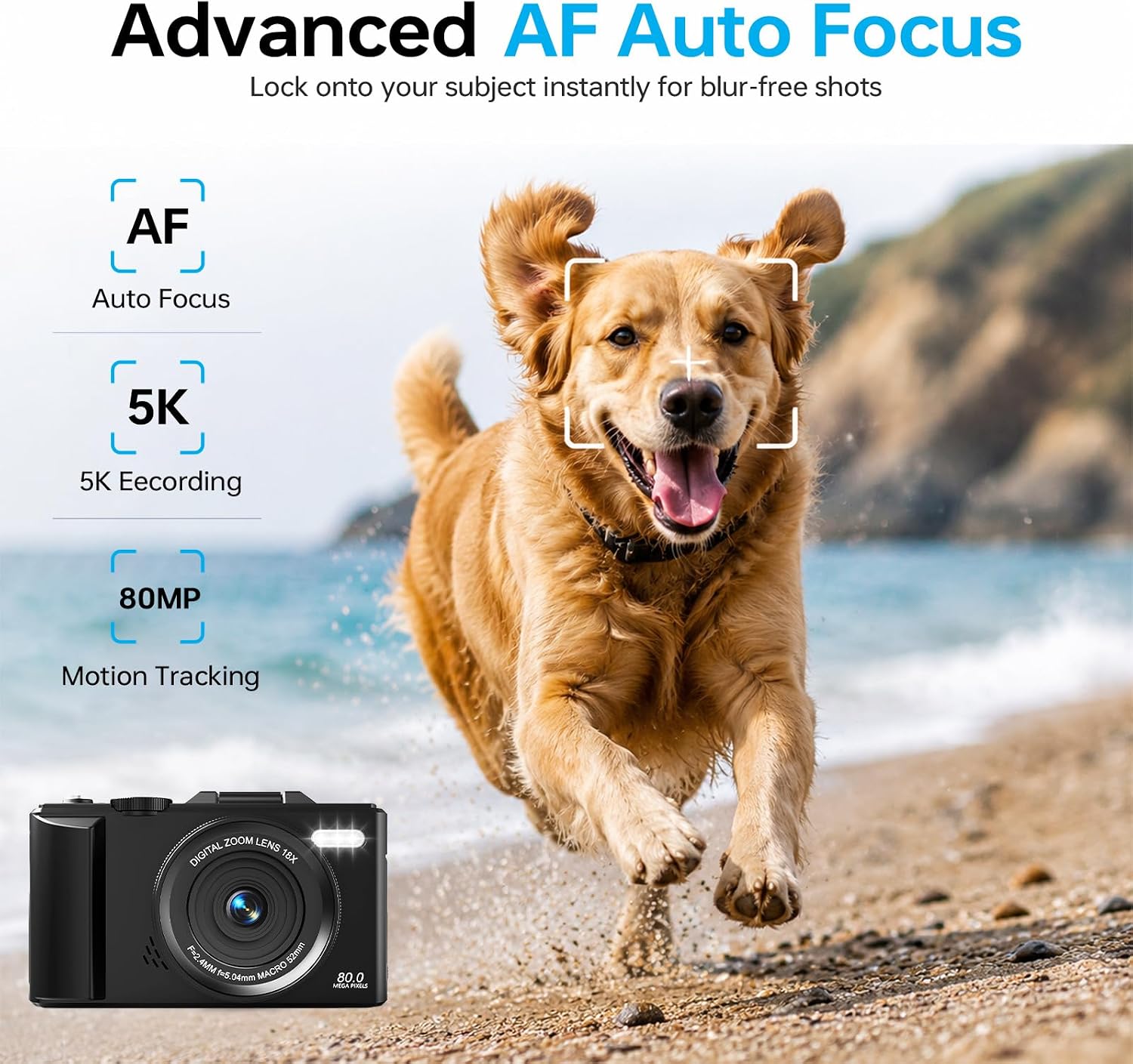
Image 4.2: Advanced Autofocus for sharp images.
- Autofocus (AF): The camera automatically detects and focuses on subjects. This is ideal for most situations, including moving subjects.
- Fixed Focus: Maintains a fixed focus distance, suitable for specific scenarios where manual adjustment is not desired.
- Manual Focus (MF): Allows you to manually adjust the focus for precise control.
4.3. Using the Flip Screen and Digital Zoom

Image 4.3: The 180° flip screen for easy selfies and vlogging.
- Flip Screen: The 3.0-inch IPS LCD screen can be flipped 180 degrees, making it convenient for self-portraits, vlogging, and monitoring your shots from various angles.
- 18X Digital Zoom: Use the zoom controls (usually 'W' for wide and 'T' for telephoto) to digitally zoom in or out on your subject. Note that digital zoom may reduce image quality compared to optical zoom.
4.4. Anti-Shake Technology
The built-in anti-shake technology helps to stabilize your footage and photos, reducing blur caused by camera movement, especially useful during handheld shooting or when using digital zoom.
4.5. Special Features
- Time-Lapse: Capture sequences of images over time to create time-lapse videos. Access this feature through the camera's menu. For extended sessions, consider connecting a power bank.
- Slow-Motion: Record videos at a higher frame rate to play back in slow motion.
- Creative Filters: Apply various artistic filters and effects directly to your photos and videos.

Image 4.4: Examples of built-in creative filters.
4.6. Wi-Fi Connectivity and App Control

Image 4.5: Wi-Fi transfer for instant sharing.
The camera features built-in Wi-Fi for seamless transfer of photos and videos to your smartphone via a dedicated mobile app. This also enables remote control for convenient selfies and group shots.
- Download the official DIGIERA camera app from your device's app store.
- Enable Wi-Fi on your camera and connect your smartphone to the camera's Wi-Fi network.
- Use the app to browse, transfer, and share your media, or to control the camera remotely.
4.7. External Lens Support

Image 4.6: The camera supports external 52mm wide-angle lenses (sold separately).
The camera supports external 52mm wide-angle lenses (not included) to expand your field of view, ideal for capturing landscapes or group photos.
5. Maintenance
5.1. Cleaning the Camera
- Lens: Use a soft, lint-free cloth or a lens brush to gently remove dust. For smudges, use a specialized lens cleaning solution applied to a cloth, not directly to the lens.
- Screen: Wipe the LCD screen with a soft, dry microfiber cloth. Avoid harsh chemicals.
- Body: Use a dry, soft cloth to clean the camera body. Do not use water or cleaning solvents.
5.2. Battery Care
- Store batteries in a cool, dry place when not in use.
- Avoid fully discharging batteries frequently to prolong their lifespan.
- Do not expose batteries to extreme temperatures.
5.3. Storage
When storing the camera for extended periods, remove the battery and SD card. Store the camera in a protective case in a dry, dust-free environment.
6. Troubleshooting
If you encounter issues with your camera, refer to the following common problems and solutions:
| Problem | Possible Cause | Solution |
|---|---|---|
| Camera does not power on. | Battery is depleted or incorrectly inserted. | Ensure battery is fully charged and correctly inserted. Try a different charged battery. |
| Cannot take photos/record videos. | SD card is full, locked, or not inserted. | Check SD card status. Ensure it is unlocked, has sufficient space, and is inserted correctly. Format the SD card if necessary (this will erase all data). |
| Images are blurry. | Incorrect focus, camera shake, or dirty lens. | Check focus mode. Ensure anti-shake is enabled. Clean the lens. Hold the camera steady. |
| Wi-Fi connection issues. | Incorrect Wi-Fi settings or app issues. | Ensure Wi-Fi is enabled on both camera and phone. Reconnect to the camera's Wi-Fi network. Restart the camera and the app. |
| Short battery life. | Frequent use of power-intensive features or old battery. | Reduce screen brightness, limit continuous recording. Ensure batteries are fully charged. Consider replacing old batteries. |
If the problem persists after trying these solutions, please contact customer support.
7. Specifications
| Feature | Detail |
|---|---|
| Model Name | DGW100BL |
| Photo Sensor Technology | CMOS |
| Maximum Webcam Image Resolution | 80 MP |
| Video Resolution | 5K |
| Digital Zoom | 18X |
| Screen Size | 3.0 inches |
| Display Type | IPS LCD (Flip Screen) |
| Image Stabilization | Digital (Anti-Shake) |
| Focus Modes | Autofocus, Fixed Focus, Manual Focus |
| Supported File Format | JPEG (Photos) |
| Memory Storage Capacity | 32 GB (SD Card included) |
| Compatible Flash Memory Type | microSD |
| Connectivity Technology | USB, Wi-Fi |
| Battery Type | Detachable Rechargeable Lithium-ion |
| Battery Average Life | Approx. 80 minutes (4K recording) |
| Special Features | Anti-Shake, Slow Motion, Wi-Fi Control, Time-Lapse, Snapshot While Recording, 5K Ultra-HD |
| Manufacturer | Shenzhen Kerun E-commerce Co.,Ltd |
8. Warranty Information
This DIGIERA DGW100BL camera comes with a 1-Year Manufacturer Warranty from the date of purchase. This warranty covers manufacturing defects and workmanship under normal use. It does not cover damage caused by misuse, accidents, unauthorized modifications, or natural disasters.
Please retain your proof of purchase for warranty claims.
9. Customer Support
For technical assistance, troubleshooting not covered in this manual, or warranty inquiries, please contact DIGIERA customer support. We offer 4/7 after-sale support to assist you.
- Email: Refer to your product packaging or the official DIGIERA website for contact details.
- Website: Visit the DIGIERA Store on Amazon