
1. Introduction
Thank you for choosing the TCL 55T8D 55-inch 4K QD-Mini LED Google TV. This manual provides essential information for the safe and efficient use of your television. Please read it thoroughly before operating the device and retain it for future reference.
The TCL 55T8D combines advanced display technologies like QD-Mini LED Dimming and QLED with a 144Hz native refresh rate for an exceptional viewing and gaming experience. It features an ONKYO 2.1 Hi-Fi sound system with Dolby Atmos for immersive audio and is powered by Google TV for smart functionality.
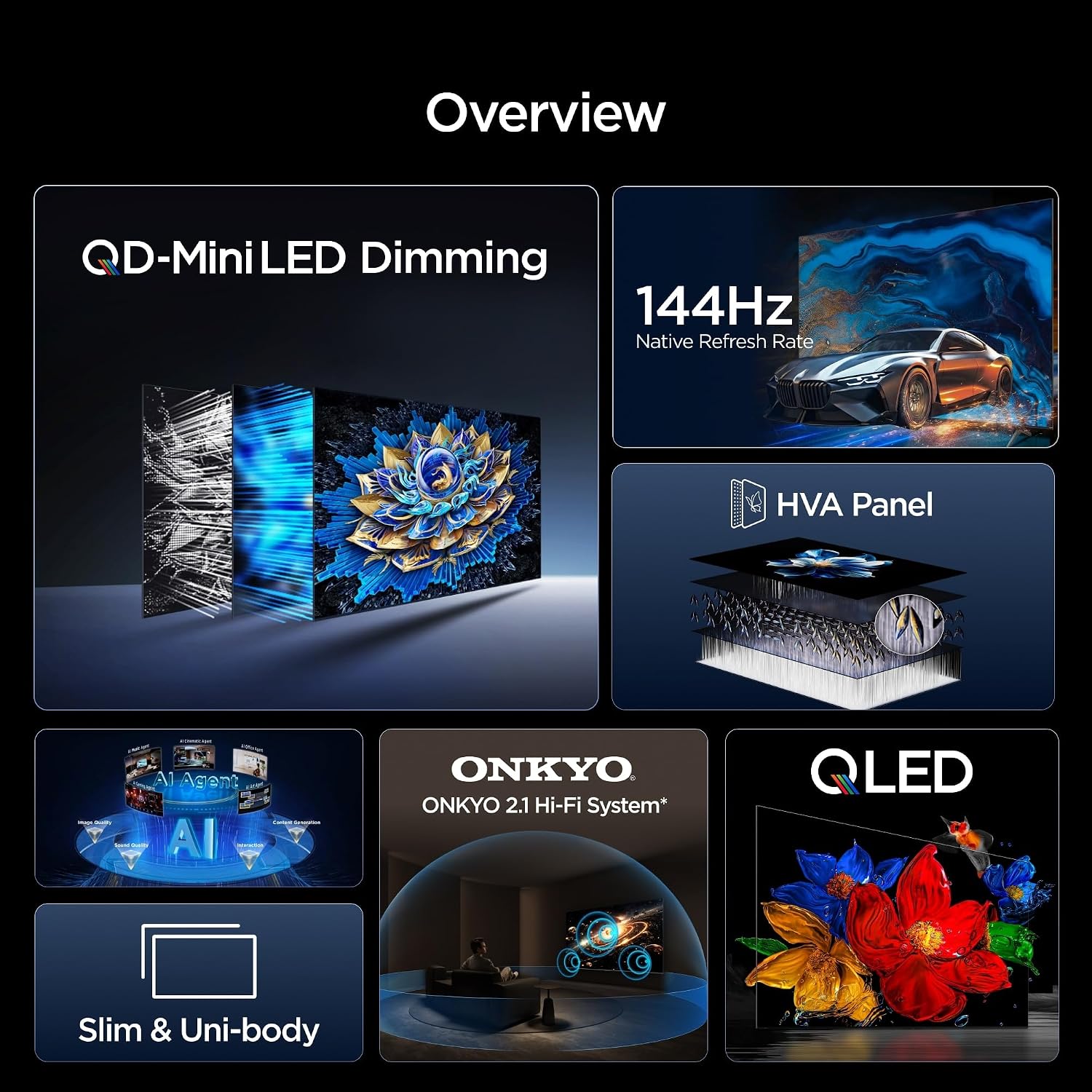
Image 1.1: Overview of the TCL 55T8D TV's key features including QD-Mini LED Dimming, 144Hz Native Refresh Rate, HVA Panel, ONKYO 2.1 Hi-Fi System, QLED, AI, and Slim & Uni-body design.
2. Safety Information
Before using your TV, please read all safety instructions carefully. Failure to follow these instructions may result in electric shock, fire, or damage to the TV.
- Power Source: Ensure the TV is connected to a power supply within the specified voltage range.
- Ventilation: Do not block ventilation openings. Allow adequate space around the TV for proper airflow.
- Water and Moisture: Do not expose the TV to rain or moisture. Do not place objects filled with liquids, such as vases, on the TV.
- Cleaning: Unplug the TV before cleaning. Use a soft, dry cloth. Do not use liquid cleaners or aerosol cleaners.
- Placement: Place the TV on a stable, level surface. Avoid placing it in direct sunlight or near heat sources.
- Children: Supervise children to ensure they do not climb on the TV or furniture.
3. Package Contents
Verify that all items are present in the package:
- TCL 55T8D 55-inch 4K QD-Mini LED Google TV
- Remote Control
- Power Cable
- Stand (Included Components: Stand)
- Screws for Stand Assembly
- User Manual (this document)
4. Setup
4.1 Unpacking
- Carefully remove the TV from its packaging. It is recommended to have two people for this process due to the size and weight.
- Place the TV face down on a soft, flat surface (e.g., a blanket or foam) to prevent screen damage.
4.2 Attaching the Stand
The TV comes with a stand for tabletop placement. Follow these steps to attach it:
- Identify the left and right stand components.
- Align each stand component with the corresponding slots on the bottom of the TV.
- Secure the stands using the provided screws. Ensure they are tightened firmly.

Image 4.1: Rear view of the TCL 55T8D TV with dimensions (1224mm width, 708mm height without stand, 770mm height with stand, 69mm thickness) and stand attachment points.
4.3 Connecting Peripherals
Connect your external devices to the TV using the appropriate ports.
- HDMI: Connect Blu-ray players, game consoles, or set-top boxes to the HDMI port(s). The TV supports HDR10+.
- USB: Connect USB storage devices for media playback.
- Power: Plug the power cable into the TV's power input and then into a wall outlet.
4.4 Initial Power On and Google TV Setup
- Press the power button on the remote control or the TV.
- Follow the on-screen instructions to complete the initial setup, including language selection, network connection (Wi-Fi or Ethernet), and Google account sign-in for Google TV features.
5. Operating the TV
5.1 Basic Controls
Use the remote control to navigate the TV. Common functions include:
- Power: Turn the TV on/off.
- Volume: Adjust the sound level.
- Channel: Change TV channels (if applicable).
- Navigation: Use arrow keys to move through menus and select options.
5.2 Google TV Interface Navigation
Your TCL 55T8D runs on Google TV, providing a personalized entertainment experience. Use the remote to:
- Access streaming apps and services.
- Search for content using voice commands (if remote supports it).
- Manage your profile and settings.
5.3 Picture Settings
Optimize your viewing experience with the TV's advanced picture technologies:
- QD-Mini LED Dimming: The TV features up to 512 precise dimming zones for superior contrast and brightness control. Adjust settings in the picture menu for optimal performance.
- QLED (Quantum Crystal): Enjoy vibrant and accurate colors with 93% DCI-P3 coverage. The Quantum Crystal technology enhances color accuracy for an immersive experience.
- HDR10+ and High HDR Brightness: The TV supports HDR10+ for enhanced contrast and color in compatible content. High HDR Brightness ensures details are visible in both bright and dark scenes.
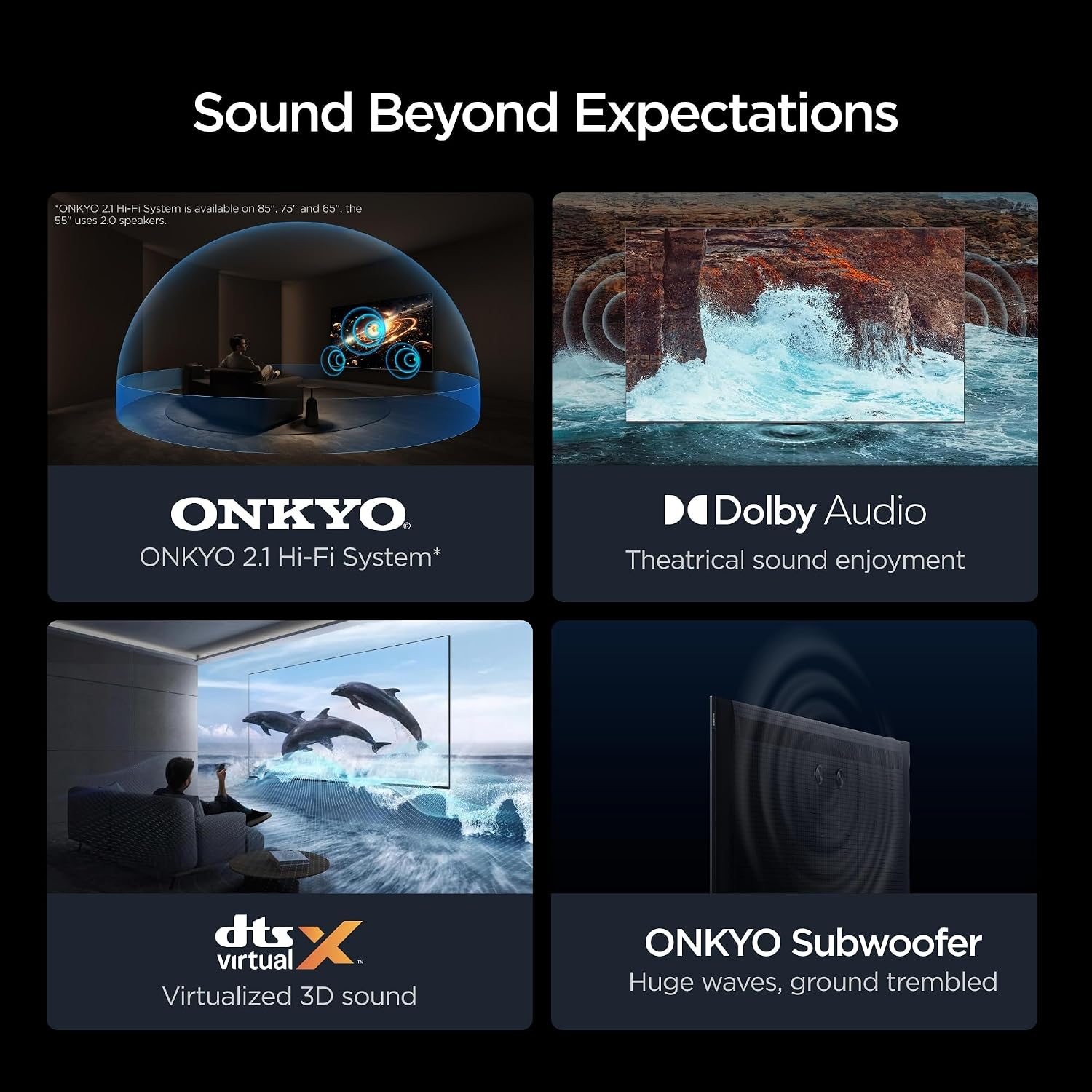
Image 5.1: Comparison illustrating the precise light and color control of QD-Mini LED Dimming compared to conventional LED technology.
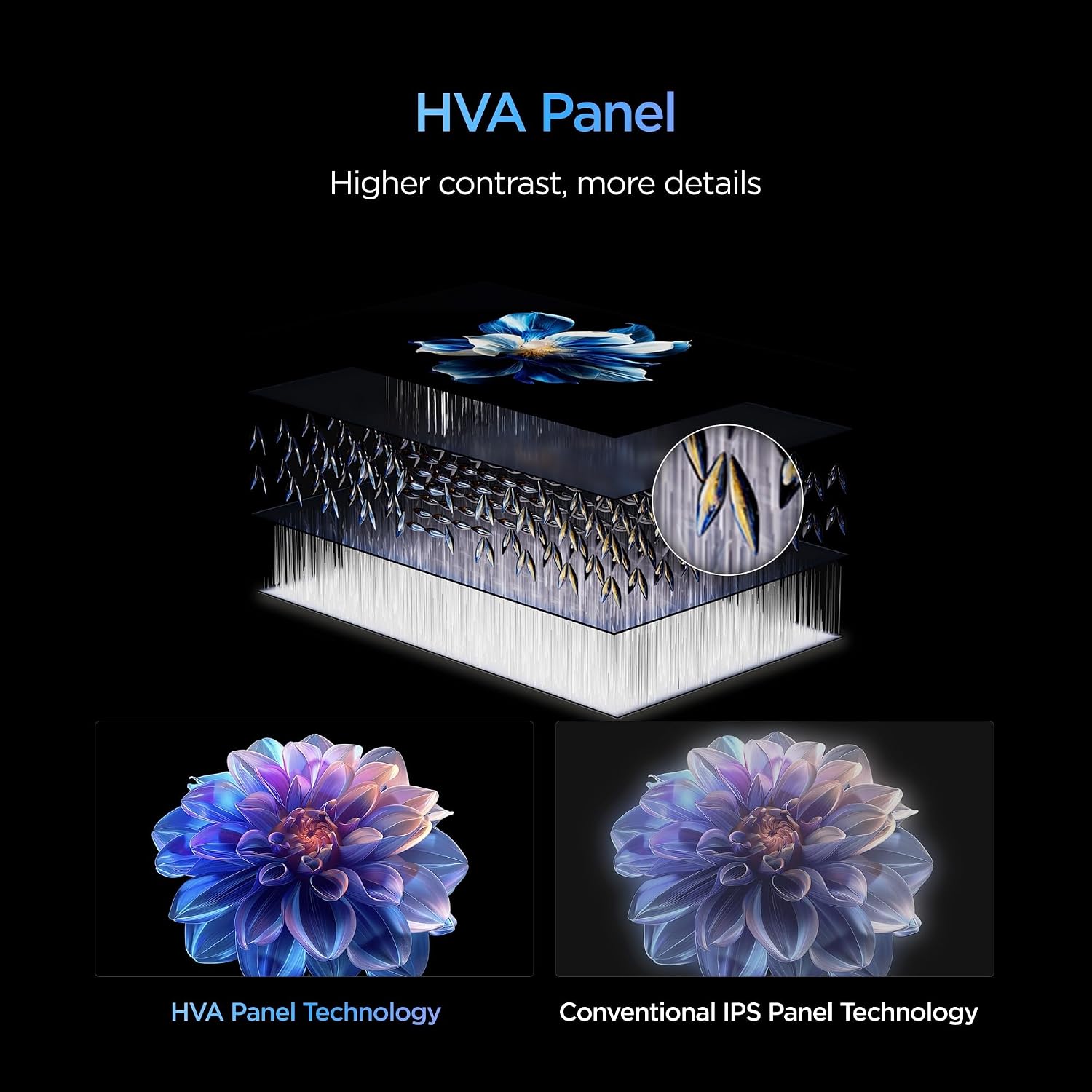
Image 5.2: Visual comparison of TCL's Colorful Quantum Crystal (QLED) technology against conventional QLED, highlighting the superior color vividness and accuracy.
5.4 Sound Settings
Experience rich and immersive audio with the integrated sound system:
- ONKYO 2.1 Hi-Fi System: The TV features a high-quality ONKYO 2.1 Hi-Fi sound system, delivering powerful and clear audio.
- Dolby Atmos: Enjoy three-dimensional surround sound with Dolby Atmos support, creating a more engaging audio experience.

Image 5.3: Features of the TV's sound system, including ONKYO 2.1 Hi-Fi, Dolby Audio for theatrical sound, DTS:X for virtualized 3D sound, and ONKYO Subwoofer for deep bass.
5.5 Connectivity
The TV offers various connectivity options:
- Wi-Fi: Connect to your home network for internet access and streaming.
- Bluetooth: Pair wireless headphones, speakers, or other Bluetooth-enabled devices.
- HDMI & USB: Use these ports for wired connections as described in the Setup section.
5.6 Gaming Features
Designed for gamers, the TV includes:
- 144Hz Native Refresh Rate: Experience ultra-smooth motion and reduced input lag, ideal for fast-paced gaming and action scenes.
- Game Master: Access dedicated gaming features and optimizations for a competitive edge.

Image 5.4: Visual representation of the 144Hz Native Refresh Rate, showcasing smooth motion for gaming and fast-action content.
5.7 AI Features
The TV incorporates artificial intelligence for enhanced performance:
- AI Mode: Optimizes picture and sound settings automatically based on content.
- AiPQ Pro Processor: This advanced processor performs pixel-level optimization, delivering lifelike depth and vibrant clarity to every frame.

Image 5.5: Depiction of the AiPQ Pro Processor, highlighting its role in intelligent image processing for enhanced visual quality.
5.8 Eye Care Features
The TV includes multiple eye care features to reduce strain during prolonged viewing:
- Low Blue Light: Reduces harmful blue light emissions.
- Flicker-Free: Minimizes screen flickering for comfortable viewing.
- Motion Compensation: Reduces motion blur for smoother images.

Image 5.6: Visual examples demonstrating the benefits of multiple eye care features, including Flicker-Free, Low Blue Light, and Motion Compensation, for a more comfortable viewing experience.
6. Maintenance
6.1 Cleaning the Screen
To clean the screen, first unplug the TV. Use a soft, lint-free cloth to gently wipe the screen. For stubborn marks, slightly dampen the cloth with water or a specialized screen cleaner, then wipe dry immediately. Do not spray liquid directly onto the screen.
6.2 General Care
- Keep the TV away from direct sunlight and heat sources.
- Ensure proper ventilation around the TV.
- Avoid placing heavy objects on top of the TV.
- Unplug the TV during lightning storms or when unused for long periods.
7. Troubleshooting
If you encounter issues with your TV, refer to the following common problems and solutions:
- No Power: Check if the power cable is securely plugged into both the TV and the wall outlet. Try a different outlet.
- No Picture, but Sound: Ensure the correct input source is selected. Check cable connections to external devices.
- No Sound, but Picture: Check the volume level and mute settings. Verify audio cable connections.
- Remote Control Not Working: Replace the batteries. Ensure there are no obstructions between the remote and the TV's IR sensor.
- Poor Picture Quality: Check the antenna or cable connection. Adjust picture settings (brightness, contrast, sharpness).
- Wi-Fi Connection Issues: Restart your router and the TV. Ensure the TV is within range of your Wi-Fi network.
For more complex issues, please refer to the online support resources or contact customer service.
8. Specifications
| Feature | Specification |
|---|---|
| Brand | TCL |
| Model Name | 55T8D |
| Model Year | 2026 |
| Screen Size | 55 Inches |
| Resolution | 4K |
| Display Technology | Mini LED |
| Refresh Rate | 144 Hz (Native) |
| Picture Quality Enhancement | Quantum Crystal |
| Supported HDR Format | HDR10+ |
| Display Backlight Configuration | Mini LED, Full Array Local Dimming |
| Speaker Description | ONKYO 2.1 Hi-Fi Sound System |
| Surround Sound Format | Dolby Atmos |
| Supported Internet Services | Google TV |
| Connectivity Technology | Bluetooth, HDMI, USB, Wi-Fi |
| Total HDMI Ports | 1 |
| Product Dimensions (D x W x H) | 7D x 122.4W x 70.8H centimeters (without stand) |
| Included Components | Stand |
| Smart Home Compatibility | Smart Home Compatible |
| Country of Origin | China |
9. Warranty and Support
9.1 Warranty Information
This TCL 55T8D television comes with a 2-YEAR manufacturer's warranty. Please retain your proof of purchase for warranty claims. The warranty covers manufacturing defects and malfunctions under normal use conditions.
9.2 Customer Support
For technical assistance, troubleshooting, or warranty service, please contact TCL customer support. Refer to the official TCL website or your product packaging for the most up-to-date contact information.
Online Resources: Visit the official TCL support website for FAQs, software updates, and additional product information.


