
1. Introduction
This manual provides instructions for the Generic i8 Mini 2.4GHz Wireless Keyboard with Touchpad. This compact device combines a full QWERTY keyboard with a multi-touch touchpad, designed for convenient control of various smart devices, computers, and gaming consoles.
The keyboard features a 2.4GHz wireless connection, LED backlighting, and a rechargeable lithium-ion battery, offering a versatile input solution for home entertainment systems, PCs, and more.

Image 1.1: Overview of the i8 Mini Wireless Keyboard with Touchpad.
2. Package Contents
Please check the package for the following items:
- 1 x Generic i8 Mini Wireless Keyboard with Touchpad
- 1 x USB Receiver
- 1 x USB Charging Cable
- 1 x User Manual (this document)
3. Setup
3.1 Charging the Keyboard
Before initial use, fully charge the keyboard. Connect the supplied USB charging cable to the keyboard's charging port and the other end to a USB power source (e.g., computer USB port, phone charger, power bank). The charging indicator light will illuminate during charging and turn off when fully charged. A full charge typically takes 3-4 hours.

Image 3.1: The keyboard can be charged via a computer USB port, phone charger, or power bank.
3.2 Locating and Connecting the USB Receiver
The 2.4GHz USB receiver is stored in the battery compartment at the back of the keyboard. Open the battery cover, remove the USB receiver, and then close the cover.
Insert the USB receiver into an available USB port on your device (Smart TV, Android TV Box, PC, etc.). No driver installation is required; the device will automatically recognize the keyboard.
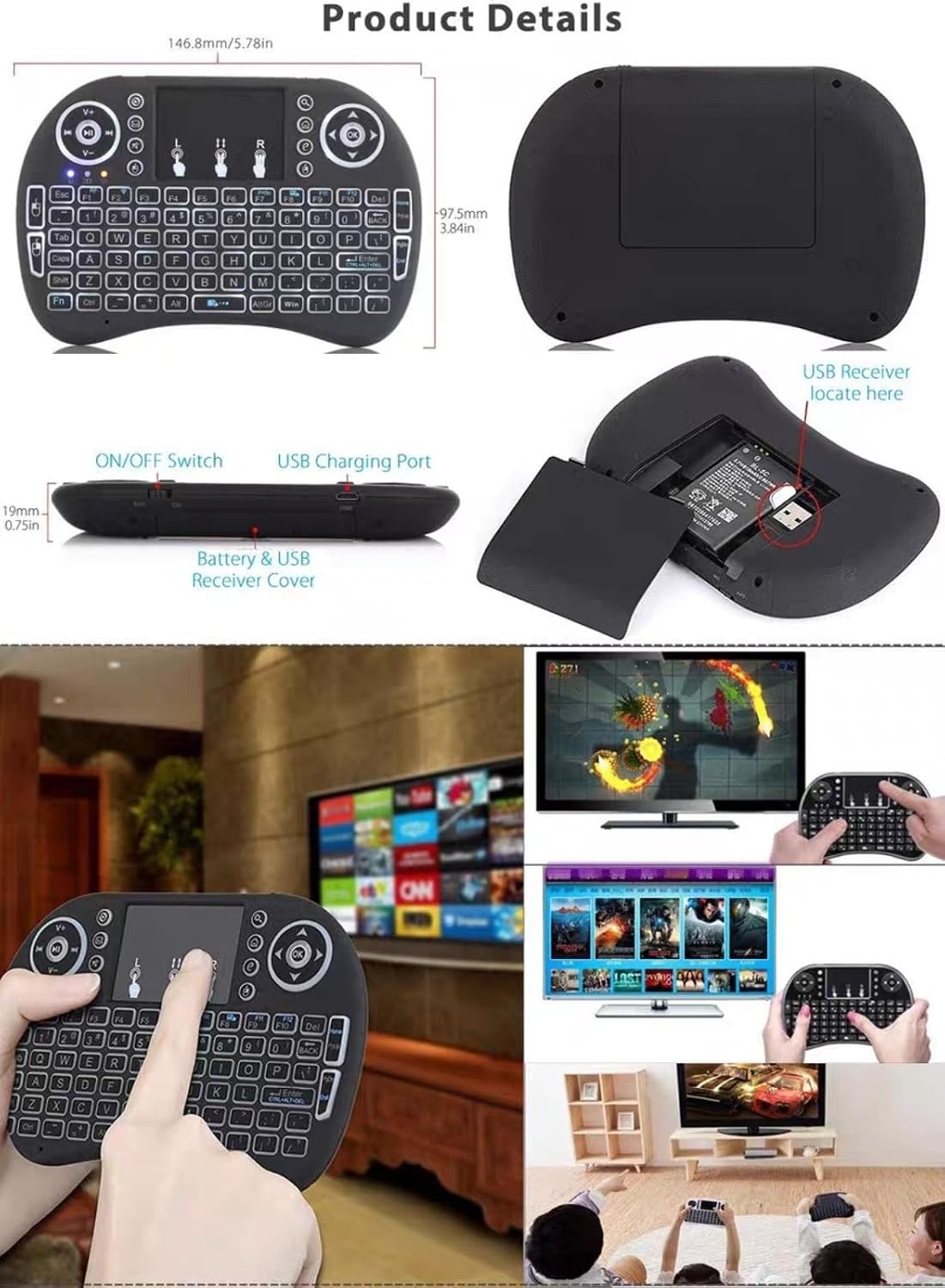
Image 3.2: Product details showing USB receiver storage.

Image 3.3: The USB receiver is located at the bottom of the keyboard and plugs into a USB port.
3.3 Powering On/Off
Locate the ON/OFF switch on the side of the keyboard. Slide the switch to "ON" to power on the device. Slide it to "OFF" when not in use to conserve battery life. The keyboard also features an automatic sleep mode to save power.

Image 3.4: Interface diagram highlighting the ON/OFF switch and charging port.
4. Operating Instructions
4.1 Keyboard Functions
The keyboard features a standard QWERTY layout with 92 keys, including dedicated multimedia controls and function keys. Press the Fn key in combination with other keys to access secondary functions (e.g., multimedia controls, backlight toggle).
4.2 Touchpad Functions
The high-sensitivity touchpad supports multi-touch gestures for intuitive navigation:
- Single Finger Tap: Left-click.
- Two Finger Tap: Right-click.
- Two Finger Drag: Scroll up/down or left/right.
- Pinch-to-Zoom: Enlarge or reduce content (if supported by the application).

Image 4.1: Demonstrates multi-touch gestures for click, enlarge, and right-click.
4.3 LED Backlight Control
The keyboard features an LED backlight for use in low-light conditions. To toggle the backlight on or off, press the dedicated backlight function key (often marked with a light bulb icon or combined with the Fn key).
4.4 Compatibility
This wireless keyboard is compatible with a wide range of devices and operating systems, including:
- Smart TVs
- Android TV Boxes
- Amazon Fire Stick
- Raspberry Pi
- PCs (Windows, Linux)
- Laptops
- Tablets
- PS3, Xbox
- HTPC, IPTV

Image 4.2: The keyboard is compatible with various devices including laptops, desktops, Smart TVs, Android TV Boxes, and gaming consoles.
5. Maintenance
5.1 Battery Care
The keyboard is powered by a rechargeable lithium-ion battery. To maximize battery life:
- Charge the keyboard fully before first use.
- Avoid completely draining the battery frequently.
- Store the keyboard in a cool, dry place if not used for extended periods.
- The keyboard automatically enters sleep mode when idle to conserve power.
5.2 Cleaning
To clean the keyboard, use a soft, dry cloth. For stubborn dirt, a slightly damp cloth can be used, but ensure no moisture enters the device. Do not use harsh chemicals or abrasive cleaners.
5.3 Storage
When not in use, store the keyboard in a safe place away from extreme temperatures, direct sunlight, and moisture. Ensure the power switch is in the "OFF" position to prevent accidental activation and battery drain.
6. Troubleshooting
6.1 Keyboard Not Responding
- Ensure the keyboard is powered on.
- Check if the USB receiver is securely plugged into the device's USB port.
- Verify the keyboard battery is charged. Recharge if necessary.
- Try plugging the USB receiver into a different USB port on your device.
- Restart your device.
6.2 Touchpad Not Working Correctly
- Ensure your fingers are clean and dry when using the touchpad.
- Check if the touchpad is enabled (some devices may have a function to disable it).
- Perform the steps for "Keyboard Not Responding" as the touchpad is integrated.
6.3 Backlight Not Turning On/Off
- Press the dedicated backlight function key (or Fn + backlight key) to toggle the backlight.
- Ensure the keyboard has sufficient battery charge.
6.4 Short Battery Life
- Ensure the keyboard is fully charged before use.
- Turn off the backlight when not needed.
- Switch the keyboard to "OFF" when not in use for extended periods.
7. Specifications
| Feature | Description |
|---|---|
| Model Name | WZNEG33 |
| Model Number | GKFFW58 |
| Connectivity Technology | 2.4GHz RF Wireless |
| Operating Range | Up to 10 meters (33 feet) |
| Keyboard Layout | QWERTY (92 keys) |
| Special Features | LED Backlight, Multi-touch Touchpad |
| Power Source | Rechargeable Lithium-ion Battery |
| Compatible Devices | Smart TV, Android TV Box, Fire Stick, Raspberry Pi, PC, Laptop, Tablet, PS3, Xbox, HTPC, IPTV |
| Compatible OS | Windows, Linux, Mac OS |
| Included Components | USB Receiver, USB Charging Cable |
| Color | Black |
8. Warranty and Support
This product comes with a standard manufacturer's warranty. For specific warranty details, please refer to the documentation provided at the time of purchase or contact your retailer.
For technical support or further assistance, please contact the seller or refer to the product's official support channels.