
Introduction
Thank you for choosing the SIXWIN Android 15 Car Radio. This manual provides essential information for the proper installation, operation, and maintenance of your new car multimedia system. Please read this manual thoroughly before installation and use to ensure optimal performance and safety.
Vehicle Compatibility
This car radio is designed for specific VW, Seat, and Skoda models. Before installation, it is crucial to confirm compatibility with your vehicle's original factory infotainment system, model year, and central control map. Incorrect installation may lead to functional issues.

Image Description: A detailed list of compatible vehicle models for Seat, VW, and Skoda, including specific model names and production years. This helps users verify if their car is supported.

Image Description: A side-by-side comparison showing a car dashboard with the factory stereo (left) and the same dashboard with the SIXWIN 9-inch car radio installed (right), demonstrating the visual integration.

Image Description: A warning message emphasizing the importance of checking vehicle compatibility before purchase. It includes visual examples of car dashboards that are compatible (green checkmark) and incompatible (red X) with the car radio, highlighting key differences in the original stereo's shape and connections.
If you have any questions regarding compatibility, please contact customer service with your vehicle details.
Package Contents
Verify that all items listed below are included in your package:
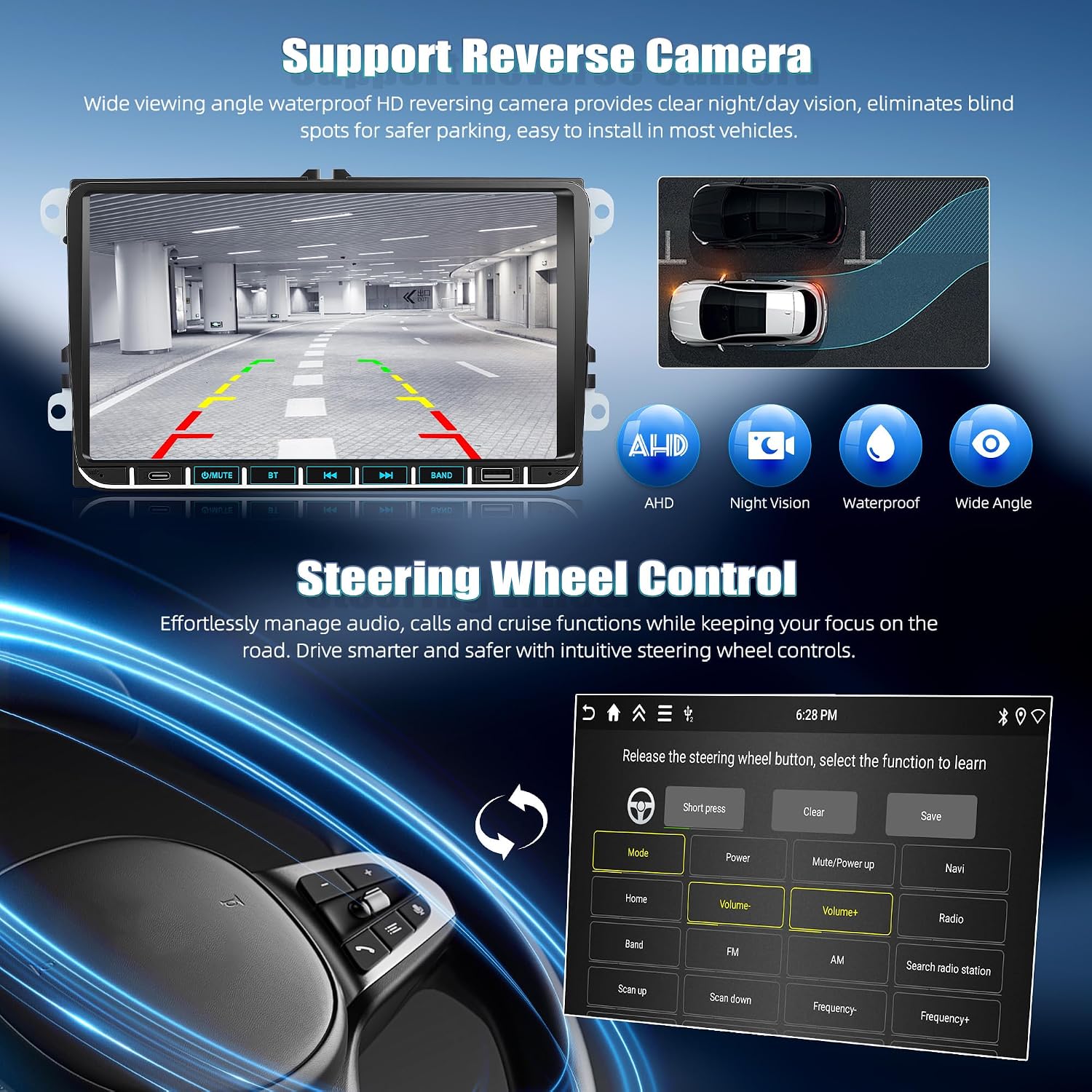
Image Description: An illustration detailing the main car radio unit with its dimensions and numbered ports, alongside images of all included accessories such as power cables, USB cables, GPS antenna, rear camera input cable, RCA cable, user manual, microphone, rear camera, installation tool, and Canbus.
- SIXWIN Android 15 Car Radio Unit
- Power Cable (6PIN)
- GPS Antenna
- Rear Camera Input Cable
- RCA Cable
- User Manual
- Microphone
- Rear Camera
- Installation Tool
- Canbus (if applicable for your vehicle)
Installation Guide
Pre-Installation Check
Before proceeding with installation, ensure your vehicle is compatible and that you have all necessary tools and components. Disconnect the vehicle's battery to prevent electrical damage.
Wiring Instructions
Follow the wiring diagram carefully during installation. Incorrect connections can prevent the unit from powering on or functioning correctly.

Image Description: A two-step wiring diagram showing the connection of the CAN box. Step 1 illustrates disconnecting the AB connector and then connecting the CAN box. Step 2 shows how to disconnect the CAN box and reconnect the AB connector if power fails, indicating a common troubleshooting step for power issues.
- Power Connection: Connect the main power harness to your vehicle's wiring. Ensure all connections are secure.
- CAN Box Connection: Disconnect the AB connector, then connect the CAN box. This is crucial for integrating with your vehicle's systems.
- Antenna Connections: Connect the GPS antenna and radio antenna to their respective ports on the unit. Position the GPS antenna in a location with a clear view of the sky.
- USB/Type-C: Connect any external USB or Type-C devices as needed.
- Rear Camera Connection: If installing the included rear camera, follow the specific wiring instructions below.
Rear Camera Installation
The included HD reversing camera provides a clear, wide-angle view for safer parking. Ensure proper connection for automatic activation when reversing.

Image Description: A diagram showing the wiring for the rear camera. It illustrates connecting the camera's power to the car's reversing light (positive and negative poles) and connecting the video signal cable to the car radio's reversing camera input. Numbered steps detail the connection process.
- Connect the red wire (positive) of the camera's power cable to the positive pole of the car's reversing light.
- Connect the black wire (negative) of the camera's power cable to the negative pole of the car's reversing light.
- Connect the video signal cable (yellow RCA) from the camera to the 'CAM IN' port on the car radio.
- Connect the small red wire on the video signal cable to the 'Reverse / Parking Sensor Control / Back In' wire (usually pink) from the car radio's harness.
Operating Your SIXWIN Car Radio
Wireless CarPlay & Android Auto
Seamlessly integrate your smartphone for navigation, calls, messages, and music.

Image Description: An illustration demonstrating the wireless connectivity options: Android Auto via Bluetooth for Android phones, CarPlay via Bluetooth for iOS phones, and Mirror Link via USB or WiFi for both Android and iOS devices. The car radio display shows various app icons.
- Wireless CarPlay: Connect your iPhone via Bluetooth/WiFi for instant access to CarPlay features.
- Wireless Android Auto: Pair your Android phone via Bluetooth/WiFi to use Android Auto.
- Mirror Link: Connect via USB or WiFi to mirror your phone's screen onto the car radio display.
Bluetooth 5.0
Enjoy hands-free calling and audio streaming with stable Bluetooth connectivity.

Image Description: A graphic highlighting Bluetooth 5.0 capabilities, including hands-free calling and music playback. It shows a driver interacting with the car radio for a call, with speech bubbles indicating a conversation.
- Hands-Free Calling: Make and receive calls directly from the car radio.
- Bluetooth Music: Stream audio from your smartphone or other Bluetooth-enabled devices.
- Phonebook Sync: Access your phone's contacts directly on the display.
GPS Navigation & WiFi
Navigate with ease using integrated GPS and stay connected with WiFi.

Image Description: A visual representation of GPS navigation, showing both online and offline map interfaces. It also displays various social media and streaming app icons, indicating the unit's WiFi connectivity for internet access and app usage.
- Integrated GPS: Supports both online and offline navigation maps.
- WiFi Connectivity: Connect to a WiFi hotspot to browse the internet, download apps, and stream content.
FM/RDS Radio & EQ Function
Access radio stations and customize your audio experience.

Image Description: Two screens from the car radio interface. One shows the FM/RDS radio tuner with frequency selection and station presets. The other displays the equalizer (EQ) settings, allowing users to adjust audio frequencies for a personalized sound experience.
- FM/RDS Tuner: Receive real-time traffic, news, and weather updates.
- Equalizer (EQ): Adjust audio settings to optimize sound quality for various music genres.
Steering Wheel Control
Maintain control of your car radio without taking your hands off the steering wheel.

Image Description: A composite image showing a car's steering wheel with control buttons and the car radio's interface for programming these controls. It also includes a view of the rear camera display, indicating its integration with the system.
- Programmable Controls: Map functions like volume, track skip, and mode selection to your steering wheel buttons.
Multimedia & Customization
The unit offers various multimedia inputs and customization options.

Image Description: A graphic showcasing multiple features: multimedia input for video playback, USB and Type-C ports for charging and data transfer, and customizable button illumination with various color options.
- USB & Type-C Ports: For fast charging and easy data transfer.
- Customizable Button Lighting: Choose from various colors to match your car's interior.
- Multiple UI Themes: Personalize the interface with different themes.
- Split Screen Function: Run two applications simultaneously, e.g., navigation and music.
- Subwoofer Output: Connect an external subwoofer for enhanced bass.
- AV Input: For connecting external monitors, such as headrest displays.
Care and Maintenance
To ensure the longevity and optimal performance of your SIXWIN car radio, follow these maintenance guidelines:
- Cleaning: Use a soft, dry cloth to clean the screen and unit. Avoid abrasive cleaners or solvents.
- Temperature: Avoid exposing the unit to extreme temperatures, direct sunlight for prolonged periods, or high humidity.
- Software Updates: Periodically check for available software updates to ensure the system runs efficiently and has the latest features.
- Connections: Ensure all cables and connections remain secure to prevent intermittent issues.
Troubleshooting
If you encounter any issues with your car radio, refer to the following common problems and solutions:
No Power / Unit Not Turning On
- Check Wiring: Ensure all power cables are correctly connected and secure. Refer to the installation section.
- CAN Box Connection: If power fails, disconnect the CAN box and reconnect the AB connector as shown in the wiring diagram. Incorrect CAN box connection is a common cause for power issues.
- Vehicle Compatibility: Double-check that your vehicle is fully compatible with the unit. Incompatible systems may prevent proper power-up.
No Sound
- Volume Level: Ensure the volume is not muted or set too low.
- Speaker Connections: Verify that all speaker wires are correctly connected to the unit and not short-circuited.
- Audio Source: Confirm the correct audio source (e.g., FM, Bluetooth, CarPlay) is selected.
GPS Signal Issues
- Antenna Placement: Ensure the GPS antenna is placed in a location with a clear, unobstructed view of the sky.
- Antenna Connection: Check that the GPS antenna is securely connected to the unit.
CarPlay/Android Auto Not Connecting
- Bluetooth/WiFi: Ensure Bluetooth and WiFi are enabled on both your phone and the car radio.
- Phone Settings: Check your phone's settings to ensure CarPlay or Android Auto is enabled and allowed to connect to the unit.
- USB Connection: If using a wired connection, try a different USB cable.
For persistent issues, please contact customer support.
Technical Specifications
| Feature | Specification |
|---|---|
| Operating System | Android 15 |
| Memory (RAM) | 4 GB |
| Storage (ROM) | 128 GB |
| Screen Size | 9 Inches |
| Screen Resolution | 1280x720 |
| Bluetooth Version | 5.0 |
| Connectivity | Bluetooth, USB, WiFi |
| Special Functions | CarPlay, Android Auto, Mirror Link, GPS, FM/RDS, EQ |
| Included Components | Autoradio, Rear Camera |
| Human Interface Input | Buttons, Microphone, Touchscreen |
| Vehicle Service Type | Car |
| Package Dimensions | 30.7 x 23.8 x 10.6 cm |
| Weight | 1.28 kg |
Warranty and Customer Support
Your SIXWIN car radio comes with a 2-year warranty from the date of purchase, covering manufacturing defects. Please retain your proof of purchase for warranty claims.
For technical assistance, troubleshooting, or warranty inquiries, please contact our customer support team:
- Email: SIXWINVIP@126.com
- Please provide your product model and a detailed description of the issue when contacting support.
