
1. Introduction
This manual provides detailed instructions for the installation, operation, and maintenance of your dehateo 10-inch Android 13 Car Radio Stereo. This unit is designed specifically for Chrysler Sebring models from 2007 to 2010. Please read this manual thoroughly before installation and use to ensure proper function and to maximize your experience with the product.
The dehateo car radio stereo features a 10-inch IPS touchscreen, 2GB RAM, 32GB ROM, Wireless CarPlay, Android Auto, Bluetooth, WiFi, GPS navigation, and FM/RDS radio capabilities. It is designed to enhance your in-car entertainment and connectivity.

Image: The dehateo 10-inch Android 13 Car Radio Stereo unit, shown both as a standalone device and integrated into a Chrysler Sebring dashboard, demonstrating its fit and user interface.
2. Product Overview and Features
The dehateo Android 13 Car Radio Stereo offers a range of features for an enhanced driving experience:
- Operating System: Android 13 with 2GB RAM and 32GB ROM for smooth performance.
- Display: 10-inch IPS Capacitive Touch Screen for vivid visuals and responsive interaction.
- Smartphone Integration: Supports Wireless CarPlay, Android Auto, and Mirror Link for seamless phone connectivity.
- Navigation: Built-in GPS with offline North America maps and support for online navigation via WiFi.
- Connectivity: Bluetooth for hands-free calling and audio streaming, Wi-Fi for internet access and app downloads.
- Audio: FM/RDS Radio with Stereo audio output mode, customizable EQ settings.
- Camera Support: Compatible with OEM CVBS 720P backup cameras; includes an AHD backup camera.
- Control: Supports Steering Wheel Control (SWC) and offers a split-screen function.
- Input: Integrated Microphone and Touchscreen for human-interface input.
3. Compatibility
This car radio stereo is designed for specific vehicle models. Please verify your vehicle's year, center console dimensions, and shape to ensure compatibility before installation.
Applicable Car Models:
- Chrysler Sebring: 2007-2010
- Jeep Patriot: 2009-2014
- Jeep Wrangler/Unlimited: 2007-2016
- Jeep Liberty: 2008-2011
- Jeep Commander: 2008-2011
- Jeep Compass: 2009-2014
- Chrysler 300C: 2007-2010
- Chrysler Aspen: 2007-2010
- Dodge Caliber: 2009-2011
- Dodge Journey: 2009-2011
- Dodge Dakota: 2009-2011
- Dodge Durango: 2009-2011
- Dodge Avenger: 2009-2011
- Dodge Grand Caravan: 2011-2013
- Dodge Ram: 2009-2012
- Dodge Challenger: 2009-2011

Image: Visual guide illustrating compatible and incompatible dashboard configurations for the dehateo car radio stereo, with specific examples for various car models.

Image: Examples of compatible car dashboards, marked with green checkmarks, demonstrating successful integration of the dehateo car radio stereo.
4. Setup & Installation
Professional installation is recommended. Ensure the vehicle's battery is disconnected before beginning installation to prevent electrical damage.
4.1. Pre-Installation Checks
- Confirm all components are present in the package.
- Verify the unit's compatibility with your vehicle's dashboard and wiring harness.
4.2. Wiring Diagram (General Guidance)
Refer to the specific wiring diagram included with your product packaging for detailed connections. General connections include:
- Power Wires: Connect the yellow wire to constant 12V, red wire to accessory 12V, and black wire to ground.
- Speaker Wires: Connect according to polarity (e.g., white/white-black for front left, grey/grey-black for front right, etc.).
- Antenna: Connect the radio antenna.
- GPS Antenna: Mount the GPS antenna in a location with a clear view of the sky.
- USB Cables: Route USB extension cables to an accessible location for external devices.
- Backup Camera: Connect the video input and power for the backup camera. Ensure the reverse trigger wire is connected to the vehicle's reverse light signal.
- Steering Wheel Control (SWC): Connect SWC wires if your vehicle supports it.
4.3. Physical Installation
- Carefully remove the factory radio and trim panels from your vehicle's dashboard.
- Connect the wiring harness from the new unit to the vehicle's wiring.
- Connect all necessary external components (GPS antenna, USB cables, backup camera, etc.).
- Mount the dehateo car radio stereo into the dashboard opening. Secure it using the provided brackets or screws.
- Before reassembling the dashboard, reconnect the vehicle's battery and perform a functional test of the unit.
- Once confirmed working, reassemble the trim panels.
5. Operating Instructions
5.1. Basic Operations
- Power On/Off: Press and hold the power button (usually on the front panel or screen) to turn the unit on or off. A short press typically mutes/unmutes audio.
- Volume Control: Adjust volume using the on-screen controls or physical buttons if available.
- Touch Screen: Navigate the Android interface by tapping, swiping, and pinching on the IPS capacitive touch screen.
- Brightness: Adjust screen brightness settings for optimal viewing during day and night driving.
5.2. Wireless CarPlay & Android Auto & Mirror Link
The unit supports both wired and wireless connections for CarPlay and Android Auto, as well as Mirror Link.
- Wireless CarPlay:
- Enable Bluetooth on your iPhone.
- Pair your iPhone with the car radio via Bluetooth.
- Open the "Car Link" application on the head unit to initiate CarPlay.
- Wireless Android Auto:
- Turn on Bluetooth on your Android phone and search for devices.
- Select the Bluetooth name of the car radio for pairing.
- Follow on-screen prompts to complete the Android Auto connection.
- Mirror Link: Allows you to project your phone's screen content onto the head unit. Access this feature through the dedicated Mirror Link app on the stereo.

Image: Visual representation of Wireless Apple CarPlay, Android Auto, and Mirror Link functionalities, showing how phone interfaces are mirrored or integrated into the car stereo display.
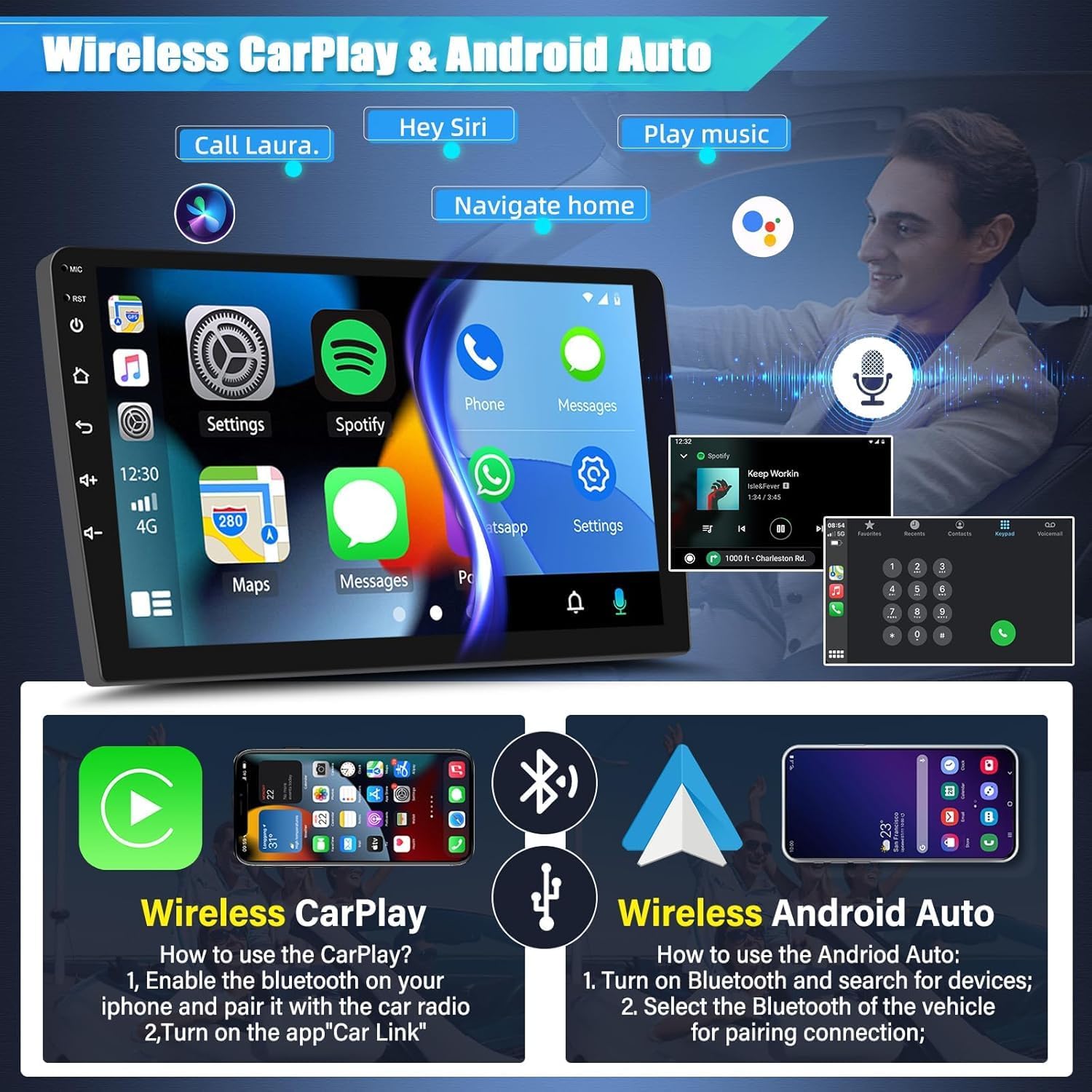
Image: Detailed instructions for setting up Wireless CarPlay and Android Auto, highlighting the use of Bluetooth pairing and voice commands for navigation and music playback.
5.3. GPS Navigation & WiFi
The unit comes with a built-in offline map for North America. For real-time traffic and online map services, connect to WiFi.
- Offline Navigation: Access the pre-installed navigation app to use the offline North America maps without an internet connection.
- WiFi Connection: Go to Settings > Network & Internet > Wi-Fi to connect to a local Wi-Fi network or your phone's hotspot.
- Online Maps: Once connected to Wi-Fi, you can download and use online navigation apps like Waze or Navitel for real-time traffic updates.

Image: Illustration of the GPS navigation interface with route display and various app icons, indicating the unit's WiFi connectivity for online services.
5.4. Backup Camera Function
The unit supports OEM CVBS 720P backup cameras. When the vehicle is shifted into reverse, the display will automatically switch to the camera view.
- Camera Compatibility: Only OEM CVBS 720P backup cameras are supported. 360-degree panoramic cameras are not compatible.
- Included Camera: If your vehicle's OEM backup camera is not compatible, use the included backup camera for proper functionality.
- Display Features: The reverse display includes reference lines, HD image quality, and night vision capabilities.

Image: Demonstration of the reverse camera display, featuring dynamic reference lines and clear night vision in a parking environment. Also shows the Steering Wheel Control interface.
5.5. Steering Wheel Control (SWC)
If your vehicle is equipped with steering wheel controls, you can configure them to operate the car radio stereo.
- Setup: Go to the "Steering Learn" or "SWC Settings" menu in the unit's settings.
- Programming: Follow the on-screen instructions to assign functions (e.g., volume up/down, track skip, mode) to your steering wheel buttons.
5.6. Bluetooth & FM/RDS Radio
- Bluetooth: Pair your phone via Bluetooth for hands-free calling and audio streaming. Access the Bluetooth app on the main screen.
- FM/RDS Radio: Select the Radio app to access FM stations. RDS (Radio Data System) provides station information where available.
6. Maintenance
- Screen Cleaning: Use a soft, lint-free cloth to clean the touchscreen. Avoid abrasive cleaners or solvents.
- Software Updates: Periodically check for software updates through the unit's settings or the manufacturer's website to ensure optimal performance and access to new features.
- General Care: Avoid exposing the unit to extreme temperatures, direct sunlight for prolonged periods, or excessive moisture.
7. Troubleshooting
| Problem | Possible Cause | Solution |
|---|---|---|
| Unit does not power on. | Incorrect wiring; blown fuse; vehicle battery disconnected. | Check power connections (yellow, red, black wires). Inspect vehicle fuses. Ensure battery is connected. |
| No sound. | Volume muted; incorrect speaker wiring; amplifier issue. | Check volume level and mute status. Verify speaker wire connections. If external amplifier is used, check its power and connections. |
| GPS signal lost or inaccurate. | GPS antenna obstructed or improperly mounted; software issue. | Ensure GPS antenna has a clear view of the sky. Check antenna connection. Restart the unit. |
| Backup camera not displaying. | Incorrect camera wiring; incompatible camera; reverse trigger not connected. | Verify camera video input and power connections. Ensure the reverse trigger wire is correctly connected. Confirm camera is CVBS 720P compatible. If OEM camera is not working, use the included camera. |
| CarPlay/Android Auto not connecting. | Bluetooth not paired; "Car Link" app not opened; phone settings. | Ensure Bluetooth is enabled and paired. Open the "Car Link" app. Check phone settings for CarPlay/Android Auto permissions. |
| Touchscreen unresponsive. | Temporary software glitch; screen damage. | Restart the unit. If the problem persists, contact customer support. |
If you encounter issues not listed here or if the suggested solutions do not resolve the problem, please contact dehateo customer support for assistance.
8. Specifications
| Feature | Detail |
|---|---|
| Brand | dehateo |
| Model Name | Y195 |
| Operating System | Android 13 |
| Memory Storage Capacity | 32 GB (ROM) |
| RAM | 2 GB |
| Screen Size | 10 inches |
| Display Type | IPS Capacitive Touch Screen |
| Connectivity Technology | Bluetooth, Wi-Fi |
| Supported Navigation System | GPS (North America maps included) |
| Audio Output Mode | Stereo |
| Special Features | Wireless Carplay & Android Auto & Mirror Link, Touchscreen & Microphone, Bluetooth FM RDS Radio EQ, AHD Backup Camera, SWC, Split Screen Function |
| Mounting Type | Panel Mount |
| Vehicle Service Type | Car |
9. Warranty & Support
For warranty information, please refer to the documentation included with your purchase or contact the retailer. For technical support, troubleshooting assistance, or inquiries regarding your dehateo car radio stereo, please contact dehateo customer service through the contact information provided at the point of purchase or on the official dehateo website.
Please have your product model (Y195) and purchase details ready when contacting support.