
1. Introduction
Thank you for choosing the Hovadova Computer Tower Stand. This adjustable stand is designed to elevate your PC tower, improve airflow, and provide mobility with its rolling casters. It features dual cooling fans, an integrated power strip, and RGB lighting to enhance your workspace. Please read this manual carefully before use to ensure proper setup and operation.
2. Safety Information
- Ensure the stand is placed on a stable, level surface.
- Do not exceed the maximum load capacity of 110 lbs (50 kg).
- Keep liquids away from the power strip and fan components.
- Unplug the power cord before cleaning or performing any maintenance.
- Do not attempt to disassemble or modify the product. Contact support if issues arise.
- Ensure proper ventilation around the stand and PC tower.
3. Product Features
- Adjustable Width: Accommodates various PC tower sizes from 9.05 to 12.59 inches.
- Dual Cooling Fans: Two integrated fans enhance airflow and heat dissipation.
- Integrated Power Strip: Features 4 outlets with a switch and surge protector (120V/12A/1500W).
- Mobile Casters: Four 360° rolling caster wheels for easy movement, with locking mechanism for stability.
- Guardrail Design: Raised side rails prevent the PC tower from slipping.
- RGB Gradient Lighting: Adds a modern visual effect.
- Heavy Load Capacity: Supports up to 110 lbs (50 kg).
4. Setup Instructions
4.1 Unpacking and Inspection
Carefully remove all components from the packaging. Inspect for any damage. If any parts are missing or damaged, please contact customer support.
4.2 Adjusting the Stand Width

The stand's width is adjustable to fit various PC tower sizes. Gently pull the two halves of the stand apart or push them together to achieve the desired width between 9.05 and 12.59 inches. Ensure the stand is securely set to the width of your PC tower for optimal stability.
4.3 Placing Your PC Tower

Carefully lift your PC tower and place it onto the adjusted stand. Ensure the PC tower is centered and rests securely within the guardrails on both sides to prevent accidental slipping.
4.4 Connecting Power

Plug the stand's power cord into a standard wall outlet. You can then plug your PC and other peripherals into the 4 integrated outlets on the stand. Use the red power switch to turn the power strip on or off.
5. Operating Instructions
5.1 Using the Cooling Fans

Once the stand is powered on, the dual cooling fans located beneath your PC tower will activate automatically. These fans help dissipate heat and improve airflow around your computer, contributing to its longevity and performance.
5.2 Utilizing the Power Strip
The integrated power strip provides convenient access to 4 power outlets. Use the red switch to control power to all connected devices. This feature helps organize cables and provides surge protection for your equipment.
5.3 Moving and Locking the Stand
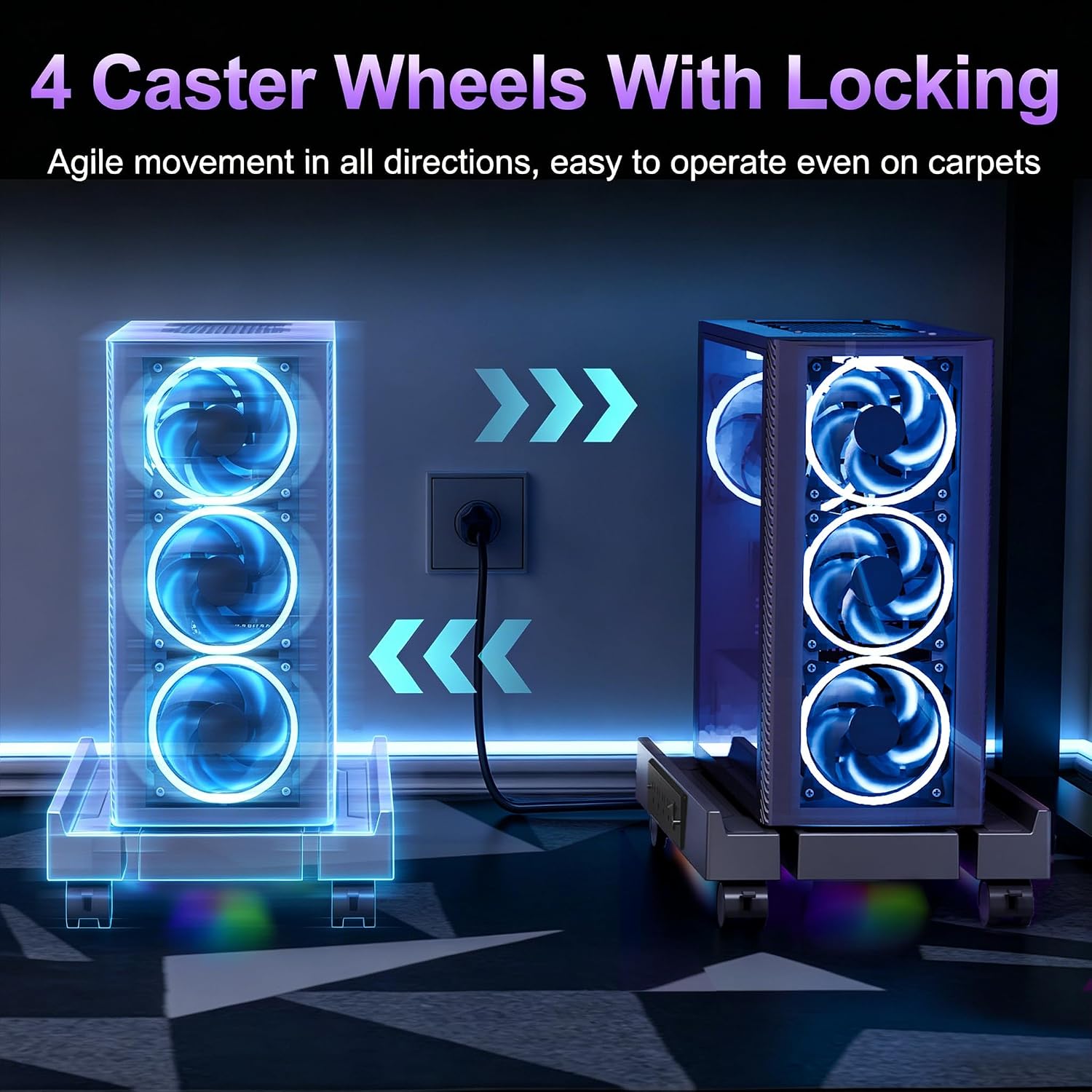
The four 360° rolling casters allow for easy movement of your PC tower. To move the stand, simply unlock the wheels by flipping the small levers on each caster. To secure the stand in place, push the levers down to lock the wheels. This is useful for cleaning, accessing cables, or repositioning your setup.
5.4 RGB Lighting

The stand features RGB gradient lighting that activates when the unit is powered on. This provides an aesthetic enhancement to your computer setup.
6. Maintenance
6.1 Cleaning
To clean the stand, first unplug it from the power source. Use a soft, dry cloth to wipe down surfaces. For stubborn dirt, a slightly damp cloth can be used, ensuring no moisture enters the fan vents or power outlets. Do not use abrasive cleaners or solvents.
6.2 Caster Care
Periodically check the caster wheels for any accumulated dust or debris that might hinder smooth movement. Clean as necessary to maintain optimal mobility.
7. Troubleshooting
- Fans not operating: Ensure the stand's power cord is securely plugged into a working outlet and the power strip switch is in the 'ON' position.
- Power outlets not providing power: Check the power strip switch. Verify the wall outlet is functional. If the issue persists, the surge protector may have tripped; try resetting it by unplugging and replugging the stand.
- Stand not moving smoothly: Check if the caster wheels are locked. Clean any debris from the wheels.
- RGB lights not illuminating: Ensure the stand is powered on. If fans are working but lights are not, contact customer support.
If you encounter any issues not listed here, please contact Hovadova customer support for assistance.
8. Specifications
| Feature | Specification |
|---|---|
| Adjustable Width | 9.05 - 12.59 inches (23 - 32 cm) |
| Total Length | 16.92 inches (43 cm) |
| Load Capacity | Up to 110 lbs (50 kg) |
| Power Strip Output | 120V / 12A / 1500W |
| Cooling Method | Air (Dual Fans) |
| Compatible Devices | Desktop PC Towers |
| Material | Steel and ABS |
| Casters | 4 x 360° Swivel with Locks |
| Lighting | RGB Gradient |

Note: Specifications are subject to change without notice.
9. Warranty and Support
Hovadova products are designed for reliability and performance. This product comes with a standard manufacturer's warranty. For specific warranty details, product support, or to report any issues, please contact Hovadova customer service through the retailer's platform or the official Hovadova website.
Please retain your proof of purchase for warranty claims.