
1. Introduction
Thank you for choosing the XTRONS TAD128S Car Stereo. This 2-DIN unit features a 10.1-inch QLED touchscreen display, powered by Android 14, offering a modern and comprehensive in-car infotainment experience. It integrates advanced connectivity options like Wi-Fi, Bluetooth, and USB, along with support for Apple CarPlay and Android Auto. This manual provides essential information for installation, operation, and maintenance to ensure optimal performance and longevity of your device.
2. Safety Information
- Professional Installation Recommended: Due to the complexity of car electrical systems, professional installation is highly recommended to prevent damage to the unit or your vehicle.
- Power Supply: Ensure the unit is connected to a 12V DC power supply with a negative ground. Incorrect voltage can cause damage.
- Wiring: Do not short-circuit any wires. Insulate all connections properly.
- Driving Safety: Do not operate the unit in a way that distracts you from driving. Always prioritize road safety.
- Temperature: Avoid exposing the unit to extreme temperatures or direct sunlight for prolonged periods.
- Moisture: Keep the unit away from water and excessive moisture.
3. Package Contents
Verify that all items listed below are present in your package:
- XTRONS TAD128S Car Stereo Unit
- Power Harness and Wiring Cables
- ADAS Camera
- GPS Antenna
- USB Cables
- Mounting Brackets and Screws
- User Manual (this document)

Figure 3.1: Included accessories and main unit.
4. Product Overview
The XTRONS TAD128S is a high-performance car stereo designed to enhance your driving experience with advanced features and a user-friendly interface.
- 10.1-inch QLED Display: A large, vibrant touchscreen for clear visuals and intuitive control.
- Android 14 Operating System: Provides a familiar and customizable smartphone-like experience with access to various applications.
- Powerful Performance: Equipped with 2GB RAM and 64GB internal storage for smooth operation and ample space for apps and media.
- Integrated GPS: Supports GPS, Galileo, GLONASS, and BeiDou for accurate navigation.
- High Audio Output: Delivers 180 watts of power for a rich and immersive audio experience.
- Built-in ADAS: Advanced Driver Assistance System for enhanced safety.

Figure 4.1: Front view of the XTRONS TAD128S unit.

Figure 4.2: Key features and components.
5. Installation (Setup)
Proper installation is crucial for the performance and safety of your car stereo. If you are unsure about any steps, consult a professional installer.
5.1 Pre-Installation Checks
- Disconnect the vehicle's negative battery terminal to prevent electrical shorts.
- Ensure you have all necessary tools and the included accessories.
- Confirm the vehicle's dashboard opening is compatible with a 2-DIN unit (178mm x 100mm chassis).
5.2 Wiring Connections
Refer to the wiring diagram provided with your unit for specific connections. General connections include:
- Power: Connect the yellow wire (constant 12V), red wire (accessory 12V), and black wire (ground).
- Speakers: Connect speaker wires to the corresponding vehicle speaker wires, ensuring correct polarity.
- Antennas: Connect the GPS antenna and any radio antennas. Position the GPS antenna in a location with a clear view of the sky.
- ADAS Camera: Connect the ADAS camera to its dedicated input.
- USB: Connect the provided USB cables for external devices or data transfer.
5.3 Mounting the Unit
- Secure the mounting brackets to the sides of the stereo unit using the provided screws.
- Slide the unit into the dashboard opening until it clicks into place or can be secured with screws.
- Reconnect the vehicle's negative battery terminal.
- Test all functions before reassembling the dashboard trim.

Figure 5.1: Unit dimensions for installation reference.
6. Operation
The XTRONS TAD128S operates primarily through its intuitive touchscreen interface, similar to a tablet or smartphone.
6.1 Basic Controls
- Power On/Off: The unit typically powers on with the vehicle's ignition. A physical power button or a long press on the home button may also control power.
- Volume Control: Adjust volume using the on-screen controls or steering wheel controls (if supported and wired).
- Home Button: Returns to the main Android home screen.
- Back Button: Navigates back to the previous screen or menu.
- Navigation Button: Launches the default navigation application.
6.2 Media Playback
Access various media sources from the main menu:
- Radio: Tune into FM/AM stations.
- USB: Play audio and video files from connected USB drives.
- Bluetooth Audio: Stream music wirelessly from your paired smartphone.
- Apps: Use installed streaming apps like Spotify, YouTube, etc., via Wi-Fi.
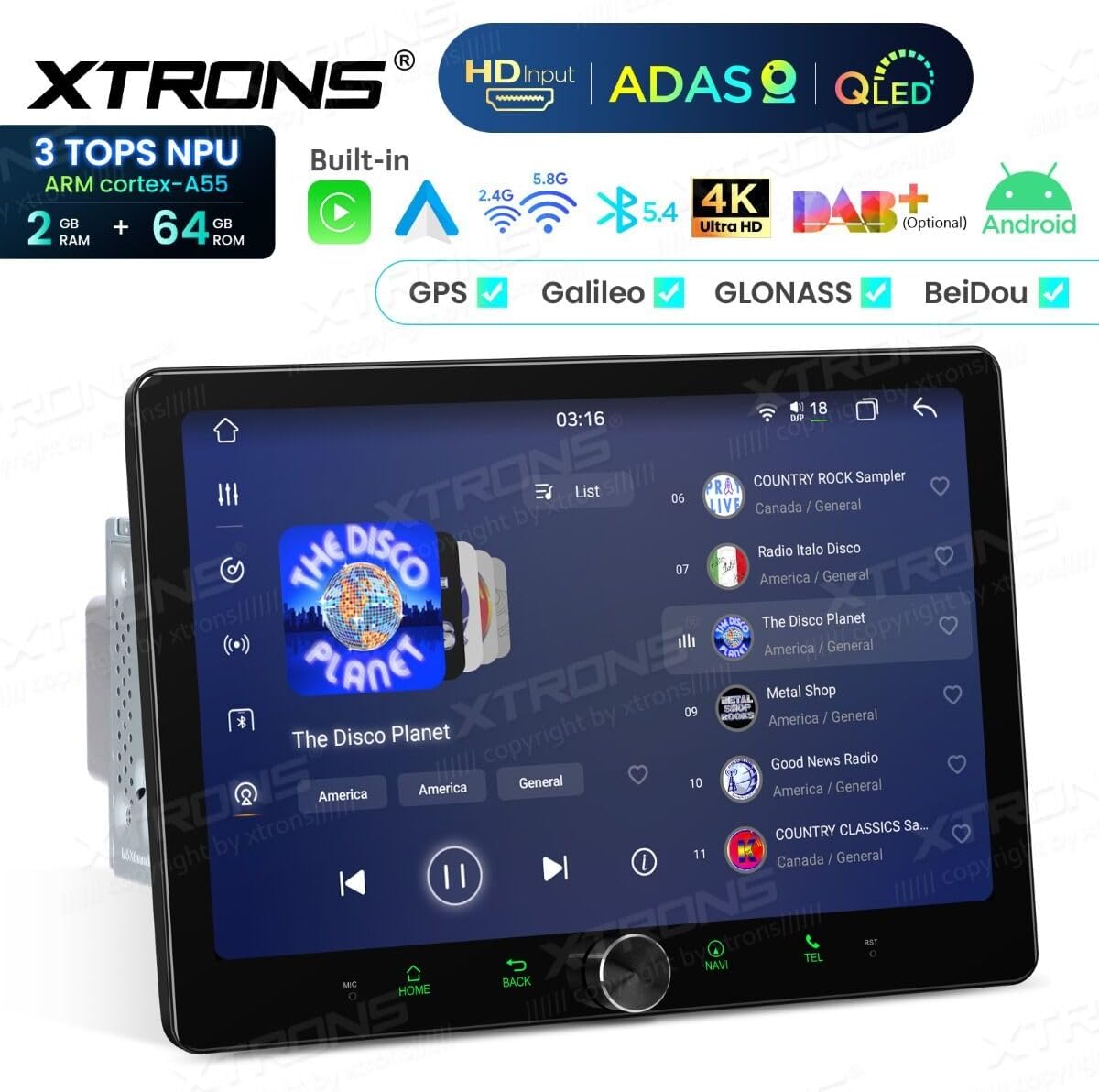
Figure 6.1: Media playback interface.
6.3 Navigation
The unit comes with pre-installed navigation capabilities. Ensure the GPS antenna is properly connected for accurate positioning.
- Tap the "Navi" icon to launch the navigation application.
- Enter your destination using the on-screen keyboard.
- Follow voice prompts and on-screen directions.
7. Connectivity
7.1 Wi-Fi
Connect to a Wi-Fi hotspot (e.g., from your smartphone or a portable hotspot) to access online features, download apps, and stream content.
- Go to Settings > Network & Internet > Wi-Fi.
- Turn Wi-Fi on and select your desired network.
- Enter the password if prompted.
7.2 Bluetooth
Pair your smartphone via Bluetooth for hands-free calling and audio streaming.
- Go to Settings > Connected devices > Bluetooth.
- Ensure Bluetooth is enabled on both the car stereo and your phone.
- Search for available devices on your phone and select "XTRONS TAD128S" (or similar name).
- Confirm the pairing code on both devices.
7.3 Apple CarPlay & Android Auto
Integrate your smartphone for a seamless in-car experience, supporting both wireless and wired connections.
- Wired Connection: Connect your smartphone to the unit's USB port using a high-quality USB cable. The system should automatically detect and launch CarPlay or Android Auto.
- Wireless Connection: Ensure Bluetooth and Wi-Fi are enabled on your phone. Follow the on-screen prompts on the car stereo to initiate wireless CarPlay/Android Auto pairing.
- Once connected, you can access navigation, music, messages, and other compatible apps directly from the car stereo's display.

Figure 7.1: Apple CarPlay and Android Auto interface.
8. ADAS Camera
The included ADAS (Advanced Driver Assistance System) camera enhances driving safety by providing real-time alerts and recording capabilities.
8.1 Installation and Calibration
- Mount the ADAS camera on your windshield, typically near the rearview mirror, ensuring a clear view of the road ahead.
- Connect the camera to the dedicated ADAS input on the car stereo.
- Access the ADAS application on the stereo and follow the on-screen instructions for calibration. This usually involves aligning reference lines with the road and your vehicle's hood.
8.2 Features
- Lane Departure Warning (LDW): Alerts you if your vehicle drifts out of its lane without signaling.
- Forward Collision Warning (FCW): Warns you of a potential frontal collision with the vehicle ahead.
- Driving Video Recorder (DVR): Records continuous footage of your drive, which can be useful for insurance purposes or incident analysis.

Figure 8.1: ADAS camera view and alerts.
9. Specifications
| Feature | Specification |
|---|---|
| Model Number | TAD128S |
| Brand | XTRONS |
| Display Size | 10.1 inches |
| Display Type | QLED Touchscreen |
| Operating System | Android 14 |
| RAM | 2GB |
| Internal Storage | 64GB |
| Connectivity | Wi-Fi (2.4G/5.8G), Bluetooth 5.4, USB |
| GPS Support | GPS, Galileo, GLONASS, BeiDou |
| Smartphone Integration | Apple CarPlay (Wireless & Wired), Android Auto (Wireless & Wired) |
| Audio Output Power | 180 Watts |
| Audio Channels | 2.0 Stereo |
| Video Encoding | H.264, MPEG-4 |
| Control Method | Touch |
| Dimensions (D x W x H) | 18P x 25l x 10H cm (approximate, refer to diagram for chassis) |
| Weight | 1.5 Kilograms |
| Color | Black |
10. Troubleshooting
Before contacting support, please refer to the following common issues and solutions:
| Problem | Possible Cause | Solution |
|---|---|---|
| No Power | Incorrect wiring, blown fuse, loose connection. | Check power (yellow, red, black) wires. Inspect vehicle and unit fuses. Ensure all connections are secure. |
| No Sound | Incorrect speaker wiring, volume too low, mute activated, incorrect audio source. | Verify speaker connections and polarity. Increase volume. Check if mute is active. Select the correct audio source. |
| GPS Signal Lost/Inaccurate | GPS antenna not properly connected or obstructed. | Ensure GPS antenna is securely connected and placed in a location with a clear view of the sky (e.g., dashboard, not under metal). |
| Bluetooth Not Connecting | Bluetooth off on either device, device not in pairing mode, interference. | Ensure Bluetooth is enabled on both devices. Put the unit in pairing mode. Delete previous pairings and try again. Move closer to the unit. |
| CarPlay/Android Auto Not Launching | Faulty USB cable, phone settings, app not installed/updated. | Use a high-quality, original USB cable. Ensure CarPlay/Android Auto is enabled on your phone. Update the respective apps. Try wireless connection if available. |
| Touchscreen Unresponsive | System freeze, temporary software glitch. | Perform a soft reset (refer to the unit's specific reset procedure, often a small reset button or holding the power button). If persistent, contact support. |
11. Maintenance
- Cleaning the Screen: Use a soft, lint-free cloth slightly dampened with water or a screen cleaner. Avoid harsh chemicals or abrasive materials.
- Software Updates: Periodically check for software updates from XTRONS to ensure optimal performance and access to new features.
- Environmental Care: Protect the unit from extreme temperatures, direct sunlight, and excessive dust.
12. Warranty and Support
The XTRONS TAD128S Car Stereo comes with a 2-year product warranty from the date of purchase, covering manufacturing defects. Please retain your proof of purchase for warranty claims.
For technical support, warranty service, or further inquiries, please contact XTRONS customer service through their official website or the retailer where you purchased the product. Provide your model number (TAD128S) and a detailed description of the issue for faster assistance.
XTRONS Official Website: www.xtrons.com


