
Introduction
This manual provides essential information for the safe and efficient operation of your Portronics Dash 14 120W Party Speaker. Please read these instructions carefully before using the device and retain them for future reference.
Package Contents
Verify that all items listed below are present in the package:
- Portronics Dash 14 Party Speaker (1 unit)
- Wireless Karaoke Microphone (1 unit)
- Power Adapter (1 unit)
- User Documentation (1 unit)
Product Overview
Control Panel and Ports
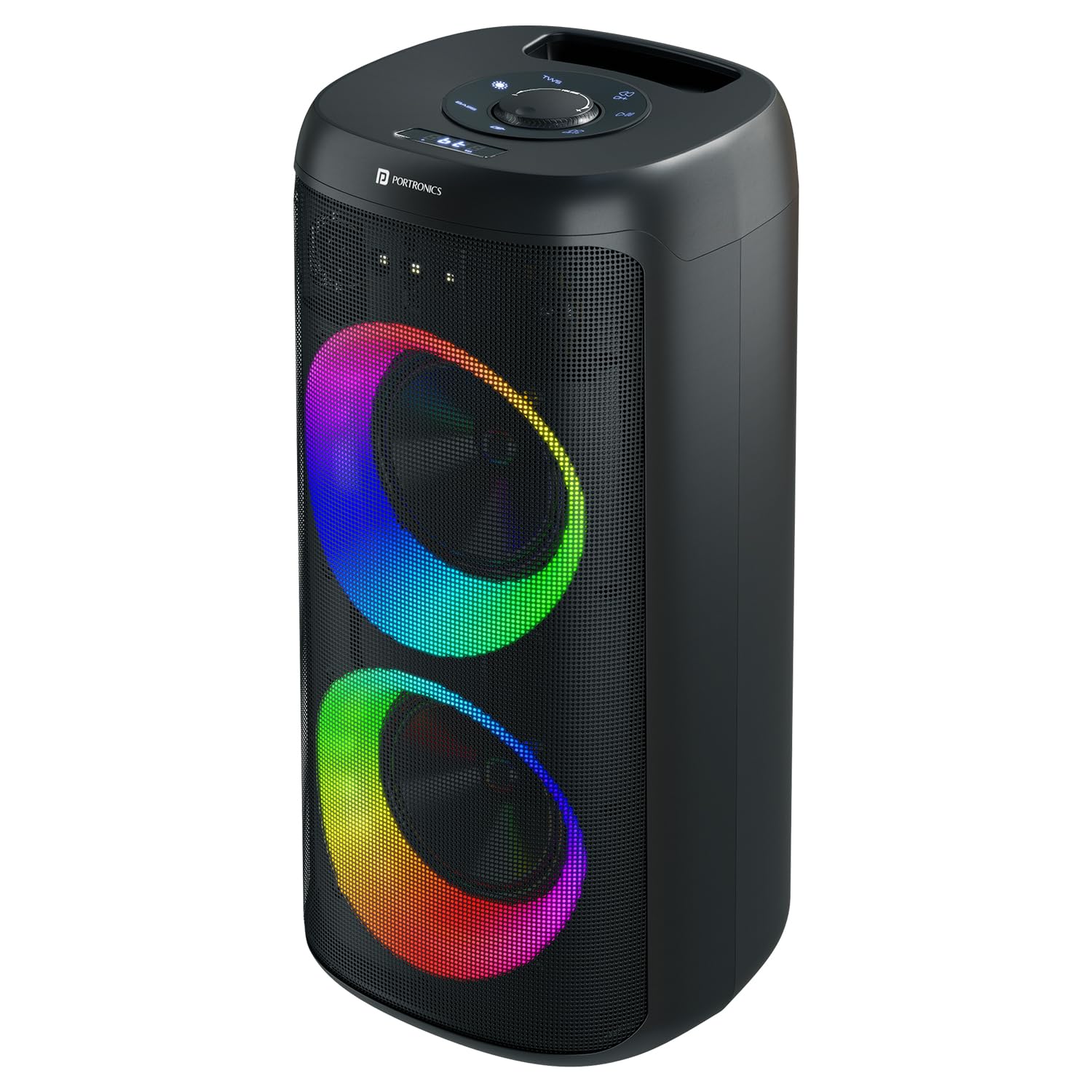
The Portronics Dash 14 features a top-mounted control panel and rear input/output ports for various functionalities.

Top Control Panel:
- Power Button: Turns the speaker on/off.
- Volume Knob: Adjusts the master volume.
- Bass Knob: Adjusts the bass level.
- Echo Knob: Adjusts the echo effect for the microphone.
- Mode Button: Switches between Bluetooth, USB, AUX, and FM radio modes.
- Play/Pause Button: Controls media playback.
- Previous/Next Track Buttons: Navigates through tracks.
- TWS Button: Initiates True Wireless Stereo pairing.
Rear Ports:
- USB Input: For playing audio from USB drives.
- AUX Input: For connecting external audio devices via a 3.5mm cable.
- Guitar Input: For connecting a guitar.
- Microphone Input: For wired microphones (in addition to the wireless mic).
- Type-C Charging Port: For charging the speaker.
Setup
1. Charging the Speaker
Before initial use, fully charge the speaker. Connect the provided power adapter to the Type-C charging port on the rear of the speaker and plug it into a power outlet. The charging indicator will illuminate. Once fully charged, the indicator may change color or turn off.
2. Powering On/Off
Press and hold the Power button on the top control panel to turn the speaker on or off.
3. Bluetooth Pairing
To connect your device via Bluetooth V5.3:
- Turn on the Portronics Dash 14 speaker. It will automatically enter Bluetooth pairing mode, indicated by a flashing LED.
- Enable Bluetooth on your smartphone, tablet, or other audio device.
- Search for "Portronics Dash 14" in the list of available Bluetooth devices.
- Select "Portronics Dash 14" to connect. A confirmation sound will indicate successful pairing.

4. Wireless Karaoke Microphone Setup
The included wireless microphone is pre-paired with the speaker. Simply turn on the microphone, and it will automatically connect to the speaker. Adjust the microphone volume and echo effect using the dedicated knobs on the speaker's control panel.

5. TWS (True Wireless Stereo) Pairing (Optional)
If you have two Portronics Dash 14 speakers, you can pair them for a stereo sound experience:
- Ensure both speakers are powered on and not connected to any Bluetooth device.
- On one speaker, press the TWS button. It will emit a sound indicating it's searching for another speaker.
- The two speakers will automatically connect to each other. A confirmation sound will indicate successful TWS pairing.
- Once TWS is established, connect your Bluetooth device to one of the speakers (the primary speaker) as described in the Bluetooth Pairing section. Both speakers will then play audio in stereo.
Operating Instructions
1. Music Playback
Bluetooth Mode: After successful pairing, play music from your connected device. Use the Play/Pause and Previous/Next Track buttons on the speaker or your device to control playback.
USB Mode: Insert a USB drive containing audio files into the USB port. The speaker will automatically switch to USB mode and begin playback. Use the control panel buttons for navigation.
AUX Mode: Connect an external audio device (e.g., MP3 player, laptop) to the AUX input using a 3.5mm audio cable. Press the Mode button to select AUX mode. Control playback from your external device.
2. Karaoke Function
With the wireless microphone connected, you can sing along to your music. Adjust the microphone volume and echo effect using the dedicated knobs on the speaker's control panel for a customized vocal experience.
3. Bass Boost Technology
The speaker features Bass Boost technology. Use the Bass knob on the control panel to increase or decrease the bass intensity according to your preference.
4. RGB LED Lights
The integrated RGB LED lights synchronize with the music. These lights automatically activate when the speaker is on. There may be a dedicated button or mode to cycle through light patterns or turn them off, if available (refer to specific product documentation for details).

5. Guitar Input
Connect your guitar to the dedicated Guitar Input port on the rear of the speaker. Adjust the guitar volume using the speaker's master volume or a separate guitar volume control.
Maintenance
- Cleaning: Use a soft, dry cloth to clean the speaker's exterior. Do not use abrasive cleaners or solvents.
- Storage: Store the speaker in a cool, dry place away from direct sunlight and extreme temperatures.
- Battery Care: To prolong battery life, avoid fully discharging the speaker frequently. Charge it regularly, even if not in use for extended periods.
- Handling: The speaker is portable but should be handled with care. Avoid dropping or subjecting it to strong impacts.

Troubleshooting
- No Power: Ensure the speaker is charged. Connect the power adapter and try again.
- No Sound: Check the volume levels on both the speaker and your connected device. Ensure the correct input mode (Bluetooth, USB, AUX) is selected.
- Bluetooth Disconnection: Ensure your device is within the effective range (up to 10 meters) and there are no obstructions. Try unpairing and re-pairing the device.
- Microphone Not Working: Ensure the wireless microphone is charged and powered on. Check its connection to the speaker.
- Distorted Sound: Reduce the volume on both the speaker and the source device. Ensure audio files are not corrupted.
Specifications
| Model Name | Dash 14 |
| Model Number | POR-3434 |
| Output Power | 120W Max |
| Connectivity | Bluetooth V5.3, USB, AUX, Guitar Input |
| Playtime | Up to 4 Hours |
| Charging Type | Type-C |
| Special Features | Wireless Karaoke Mic, Bass Boost, Dual Bass Driver, RGB LED Lights, Echo Control |
| Material | ABS Plastic |
| Dimensions (D x W x H) | 65.2D x 31W x 31H Centimeters |
| Weight | 7800 Grams |
| Battery Type | 1 D battery (included) |


Warranty and Support
Your Portronics Dash 14 Party Speaker comes with a 1-Year Warranty from the date of purchase.
For any assistance, technical support, or warranty claims, please contact Portronics customer service:
- Email: help@portronics.com
- Phone/WhatsApp: +91 9555-245-245
- Support Website: https://support.portronics.com
Please have your product model number (POR-3434) and proof of purchase ready when contacting support.


