
1. Introduction
Thank you for choosing the Generic 140W Smart Auto Stop Charging Adapter. This device is designed to provide efficient and safe charging for your USB-C compatible devices, featuring intelligent auto-disconnection technology to protect battery health and prevent overcharging. Please read this manual carefully before use to ensure proper operation and longevity of your device.
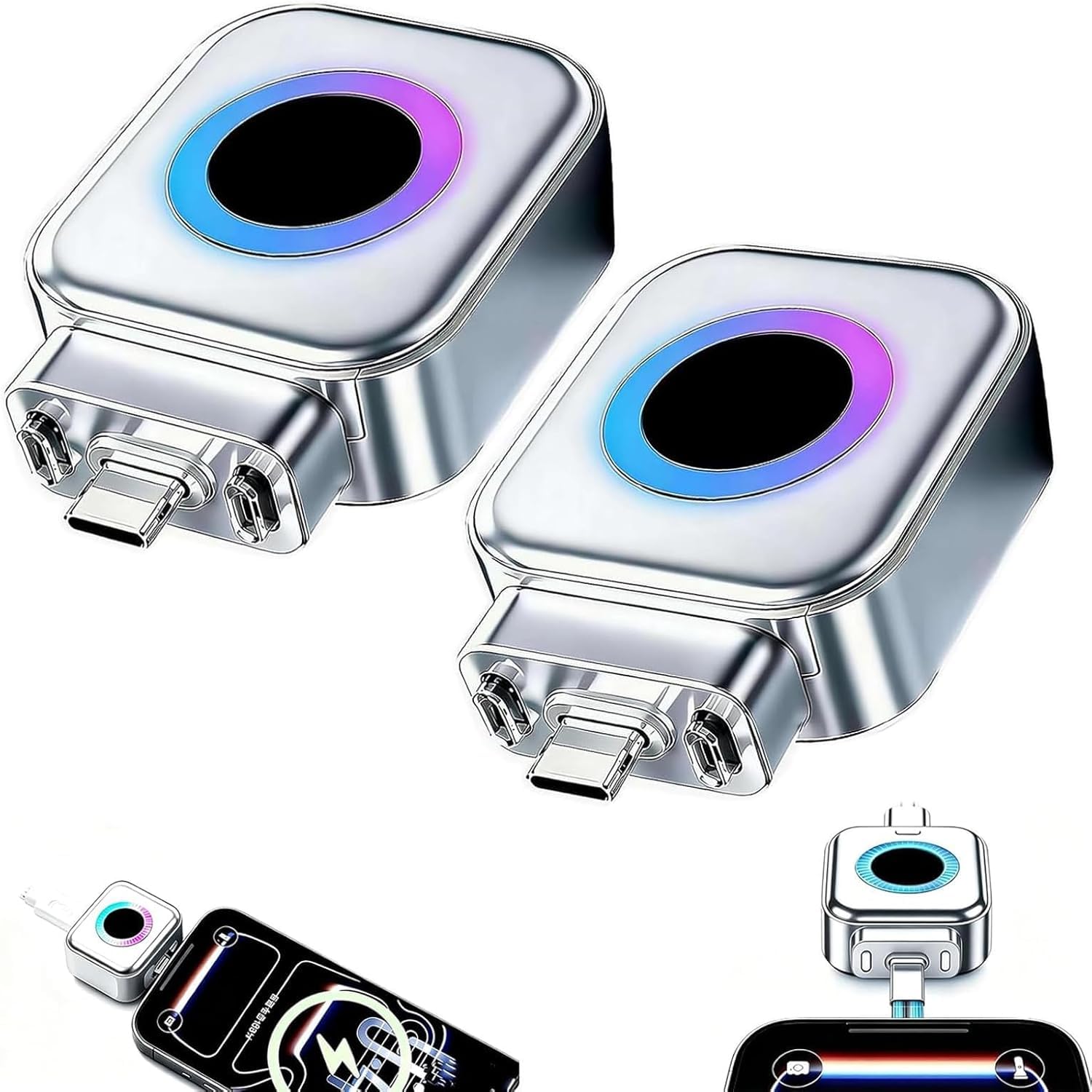
Image: The Generic 140W Smart Auto Stop Charging Adapter, a compact silver device with a colorful LED ring, shown connected to a charging cable.
2. Safety Information
- Do not expose the device to water, moisture, or extreme temperatures.
- Avoid dropping or subjecting the device to strong impacts.
- Do not attempt to disassemble, repair, or modify the device. This will void the warranty and may cause damage or injury.
- Use only compatible charging cables and power adapters.
- Keep out of reach of children.
- Ensure proper ventilation during use to prevent overheating.
3. Package Contents
- 140W Smart Auto Stop Charging Adapter (quantity may vary by package)
- User Manual
4. Setup
To begin using your Smart Auto Stop Charging Adapter, follow these steps:
- Connect your USB-C charging cable to the output port of the 140W Smart Auto Stop Charging Adapter.
- Plug the adapter into a compatible USB-C power source (e.g., wall charger, power bank, laptop port).
- Connect the other end of your USB-C charging cable to your device (phone, tablet, laptop, etc.).
- The adapter's atmosphere light ring will illuminate, indicating that it is powered on and ready to charge.

Image: The Smart Auto Stop Charging Adapter connected between a USB-C wall charger and a smartphone, illustrating the dual current separation mode.
For a visual guide on connecting the adapter, please watch the following video:
Video: A demonstration of the Smart Auto Stop Charging Adapter, showing its physical disconnection feature and ease of use with various devices.
5. Operating Instructions
5.1. 140W Ultra-Fast Charging
The adapter supports a maximum output of 140W for the separator itself, while the connected data cable can support up to 100W. This high power capacity allows for rapid charging of compatible laptops, smartphones, tablets, and other Type-C devices.

Image: Illustration highlighting the 140W adapter output and 100W connected cable support, demonstrating fast charging for laptops, phones, and tablets.
5.2. Smart Auto-Disconnection Technology
Equipped with an advanced intelligent chip, the adapter automatically identifies when your device reaches a full charge. It then performs a physical disconnection of internal connections, effectively stopping the charging process. This prevents overcharging, which can degrade battery health, making it ideal for overnight charging.

Image: The adapter shown in two states: charging (0-99%) and automatically disconnected (100%), illustrating its overcharge protection feature.
5.3. Colorful Atmosphere Light Indicator
The built-in colorful atmosphere light ring (or LED display showing "100%") provides a clear visual indication of the charging status. When charging, the light will be active. Upon full charge and auto-disconnection, the light may change or turn off, depending on the specific model, to indicate the completion of the charging cycle.
5.4. Wide Compatibility
This adapter is universally compatible with various Type-C devices, including but not limited to:
- Laptops
- Tablets
- Smartphones (supporting major protocols)
- Power Banks
- Small Fans
- Shavers
- Beauty Instruments
- Electronic Toys
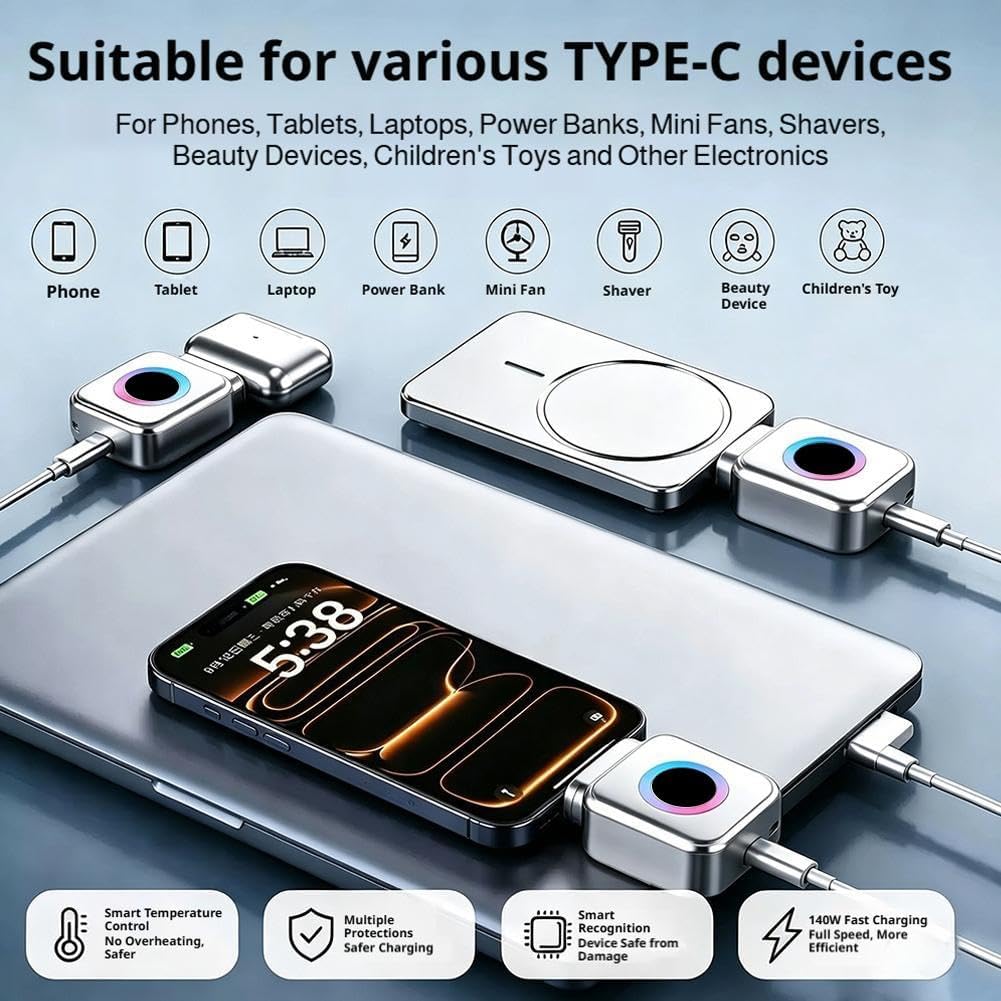
Image: The adapter surrounded by various compatible Type-C devices such as phones, tablets, laptops, power banks, and small electronics, demonstrating its broad utility.
6. Maintenance
- To clean the adapter, gently wipe it with a dry, soft cloth.
- Do not use liquid cleaners or abrasive materials.
- Store the adapter in a cool, dry place away from direct sunlight when not in use.
7. Troubleshooting
| Problem | Possible Cause | Solution |
|---|---|---|
| Device not charging. |
|
|
| Atmosphere light not illuminating. |
|
|
| Adapter feels warm during charging. |
|
|
8. Specifications
- Model Number: Generic841309
- Maximum Adapter Output: 140W
- Maximum Connected Cable Support: 100W
- Material: Robust and fire-resistant metal alloy
- Compatibility: Universal Type-C devices (laptops, tablets, smartphones, power banks, small electronics)
- Protection Features: Intelligent temperature control, over-current protection, over-voltage protection, short-circuit protection.
- Special Features: Smart auto-disconnection, colorful atmosphere light indicator.
9. Warranty Information
Warranty terms and conditions may vary. Please refer to the retailer or manufacturer's official website for detailed warranty information regarding your Generic 140W Smart Auto Stop Charging Adapter.
10. Customer Support
For technical assistance, troubleshooting, or any inquiries regarding your product, please contact your retailer or the manufacturer directly. Contact information can typically be found on the product packaging or the retailer's website.
