
Introduction
Thank you for choosing the Kreo Surge LITE Wired Gaming Controller. This manual provides detailed instructions for setting up, operating, maintaining, and troubleshooting your new gaming controller. Please read this manual thoroughly before use to ensure optimal performance and longevity of your device.

Front view of the Kreo Surge LITE Wired Gaming Controller, showcasing its ergonomic design and button layout.
Package Contents
Ensure all items are present in the package:
- Kreo Surge LITE Wired Gaming Controller
- User Manual (this document)
Controller Layout
Familiarize yourself with the buttons and features of your Kreo Surge LITE controller.

Diagram illustrating the key interfaces and button layout of the Kreo Surge LITE controller, including Left Stick, Right Stick, Directional Pad, ABXY Buttons, L/R Buttons, ZL/ZR Buttons, Home, Back, Start, Headphone Jack, Turbo Mode button, RGB Ring, Back Buttons M1/M2, and RGB Mode button.
- Left Stick / Right Stick: Hall Effect joysticks for precise movement and camera control.
- Directional Pad (D-Pad): For directional input.
- ABXY Buttons: Standard action buttons.
- L Button / R Button: Shoulder buttons.
- ZL Button / ZR Button: Hall Effect triggers for precise analog input.
- Home Button: Access system menus.
- Back Button: Typically used for menu navigation or specific in-game functions.
- Start Button: Typically used for pausing or starting games.
- Headphone Jack: 3.5mm port for audio output.
- Turbo Mode Button: Activates rapid-fire function for assigned buttons.
- RGB Ring: Customizable lighting around the joysticks.
- Back Buttons (M1/M2): Programmable macro buttons.
- RGB Mode Button: Controls RGB lighting effects.
Setup
Connecting to Your Device
The Kreo Surge LITE is a wired controller designed for plug-and-play compatibility with various platforms.
- Connect the USB-A Cable: Plug the USB-A connector of the controller's cable into an available USB port on your PC (Windows), Mac (macOS), or Android device.
- Automatic Recognition: Your operating system should automatically detect and install the necessary drivers. This process may take a few moments.
- Verify Connection: Once connected, the controller's indicator lights (e.g., RGB rings) should illuminate, indicating it is ready for use.
Compatibility Modes (X-Input / D-Input)
The controller supports both X-Input and D-Input modes for broad compatibility:
- X-Input: This is the standard for modern PC games and is typically recognized as an Xbox controller. Most games will automatically use this mode.
- D-Input: This mode is for older PC games or certain Android applications that require DirectInput. The controller will usually switch to the appropriate mode automatically based on the game or application. If manual switching is required, refer to specific game or emulator settings.
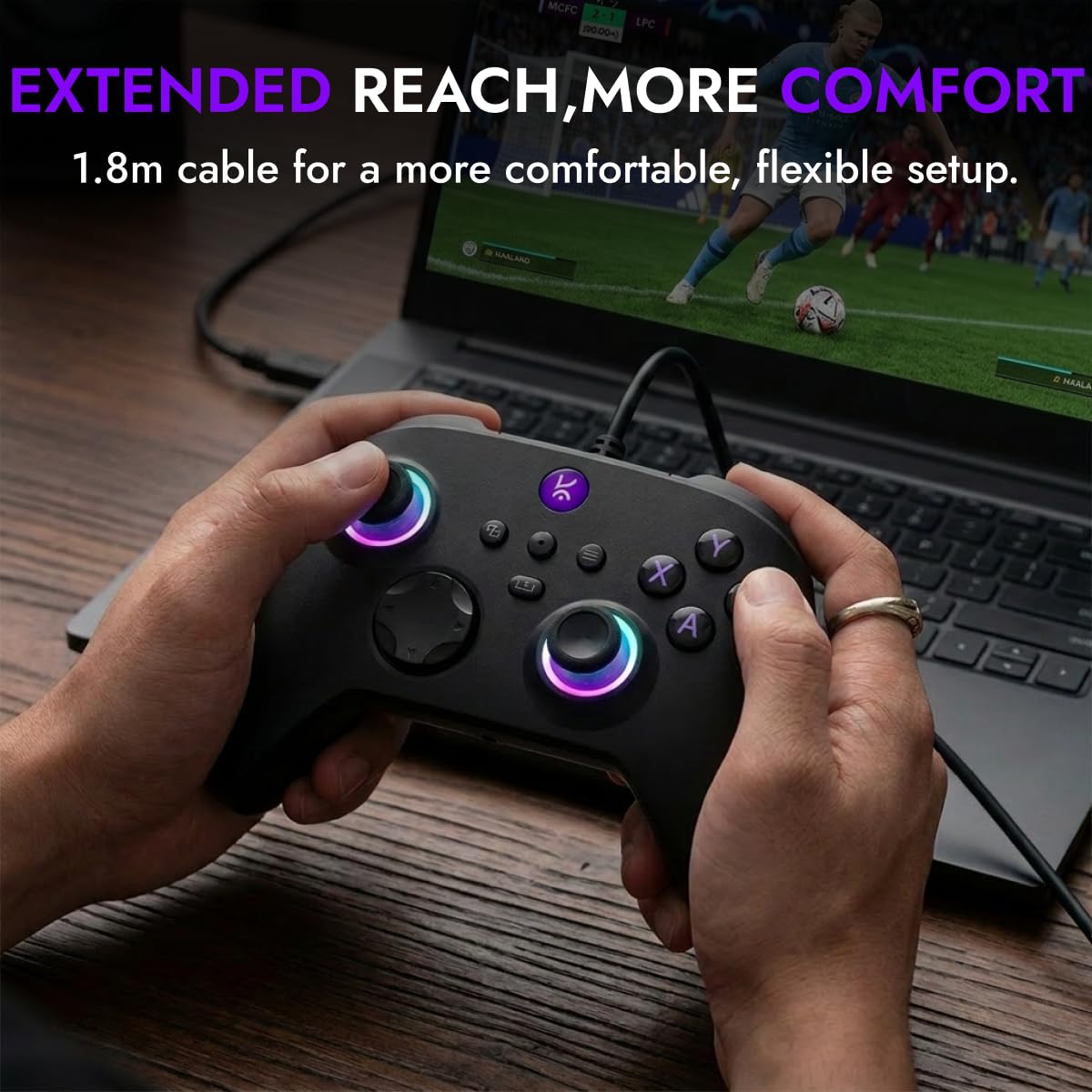
The Kreo Surge LITE controller connected via its 1.8m USB-A cable to a laptop, demonstrating its extended reach for comfortable gaming.
Operating Instructions
Hall Effect Joysticks and Triggers
The controller features Hall Effect joysticks and triggers. These components use magnetic sensors instead of physical contacts, providing:
- Enhanced Accuracy: More precise and consistent input.
- Reduced Drift: Significantly lowers the risk of stick drift over time due to wear.
- Increased Durability: Contactless design extends component lifespan.

An exploded view diagram illustrating the internal magnetic sensor mechanism of the Hall Effect joysticks and triggers, highlighting their drift-free operation.
1000Hz Polling Rate
The Kreo Surge LITE operates at a 1000Hz polling rate, meaning it sends input data to your device 1000 times per second. This results in:
- Faster Response: Minimal input lag for competitive gaming.
- Smoother Gameplay: More accurate and immediate reflection of your actions in-game.

A user holding the Kreo Surge LITE controller during gameplay, emphasizing the ultra-responsive experience provided by the 1000Hz wired polling rate.
Dual Asymmetric Rumble
Experience immersive feedback with dual asymmetric rumble motors. These motors provide varied vibration intensities to simulate in-game actions.
- Adjustable Levels: The controller offers 4 adjustable vibration levels. Refer to your game's settings or controller software (if available) to customize intensity.
Turbo Mode
Activate Turbo Mode for rapid-fire inputs, useful in arcade, action, and combat games.
- Assign Turbo: Press and hold the Turbo button, then press the desired action button (e.g., A, B, X, Y, L, R, ZL, ZR). The assigned button will now rapidly repeat its input when held down.
- Deactivate Turbo: To disable Turbo for a specific button, press and hold the Turbo button again, then press the assigned action button.
Programmable Macro Buttons (M1/M2)
The M1 and M2 buttons on the rear of the controller can be programmed to execute complex sequences or single button presses, allowing for faster actions without repositioning your thumbs.
- Enter Programming Mode: Press and hold the Macro button (located on the back, between M1 and M2) until the indicator light flashes.
- Select Macro Button: Press either M1 or M2. The indicator light will flash slower.
- Record Sequence: Input the desired button sequence (up to a certain number of presses, typically 10-15).
- Save Macro: Press the Macro button again to save the sequence. The indicator light will turn off.
- Clear Macro: To clear a macro, enter programming mode, select the M1 or M2 button, and then press the Macro button again without inputting any sequence.

Rear view of the Kreo Surge LITE controller, highlighting the M1 and M2 programmable macro buttons and the Macro button for programming.
3.5mm Headphone Jack
Connect any standard 3.5mm headset to the headphone jack on the controller for in-game audio and voice chat (if supported by your device and game).
RGB Lighting
The RGB rings around the joysticks provide customizable lighting effects. Use the RGB Mode button (located on the back) to cycle through different lighting modes or turn the lighting off.
Maintenance
Cleaning
- Use a soft, dry cloth to wipe the surface of the controller.
- For stubborn dirt, slightly dampen the cloth with water or a mild, non-abrasive cleaner.
- Do not use harsh chemicals, solvents, or abrasive materials, as these can damage the controller's finish.
- Avoid getting liquid into any openings or ports.
Storage
- Store the controller in a cool, dry place away from direct sunlight and extreme temperatures.
- Avoid wrapping the cable too tightly around the controller to prevent damage to the cable or connector.
Cable Care
- Always grasp the plug, not the cable, when connecting or disconnecting the controller.
- Avoid bending or twisting the cable excessively.
Troubleshooting
| Problem | Possible Cause | Solution |
|---|---|---|
| Controller not recognized by device. | Loose USB connection, incompatible USB port, driver issue. |
|
| Buttons or joysticks not responding correctly. | Software conflict, calibration issue, physical damage. |
|
| Rumble/Vibration not working. | Game settings, driver issue, vibration level setting. |
|
| Macro buttons not working. | Incorrect programming, macro cleared. |
|
If you continue to experience issues, please contact Kreo customer support.
Specifications
| Feature | Detail |
|---|---|
| Model | Kreo Surge LITE |
| Connectivity | Wired USB-A |
| Compatibility | Windows, macOS, Android (X-Input & D-Input) |
| Joysticks & Triggers | Hall Effect (Magnetic Sensors) |
| Polling Rate | 1000Hz |
| Vibration | Dual Asymmetric Rumble (4 adjustable levels) |
| Special Features | Turbo Mode, Programmable M1/M2 Macro Buttons, RGB Lighting, 3.5mm Headphone Jack |
| Ergonomics | Xbox-style layout, textured anti-slip grips |
| Cable Length | 1.8 meters (approx.) |
| Product Dimensions | 15.5 x 10.2 x 6.5 cm |
| Item Weight | 230 g |
Warranty and Support
Warranty Information
Kreo products are manufactured with quality and reliability in mind. For specific warranty terms and conditions, please refer to the warranty card included with your product or visit the official Kreo website. Keep your purchase receipt as proof of purchase for warranty claims.
Customer Support
If you require further assistance, have questions, or encounter issues not covered in this manual, please contact Kreo customer support:
- Email: help@kreo-tech.com
- Phone: 9611507877
- Manufacturer/Importer: Kreo, Koramangala 4-B Block, Bengaluru, Karnataka 560034
- Online Support: Visit the Kreo Store on Amazon for additional resources and product information.