
1. Introduction
This manual provides essential information for the safe and efficient use of your TCL 55A400M 55-inch QLED Mini LED 4K Smart TV. Please read it thoroughly before operating the device and retain it for future reference. Your new television features advanced display technologies like QLED and Mini LED for superior picture quality, a 144Hz Variable Refresh Rate (VRR) for smooth motion, and the Google TV operating system for a smart and connected entertainment experience.
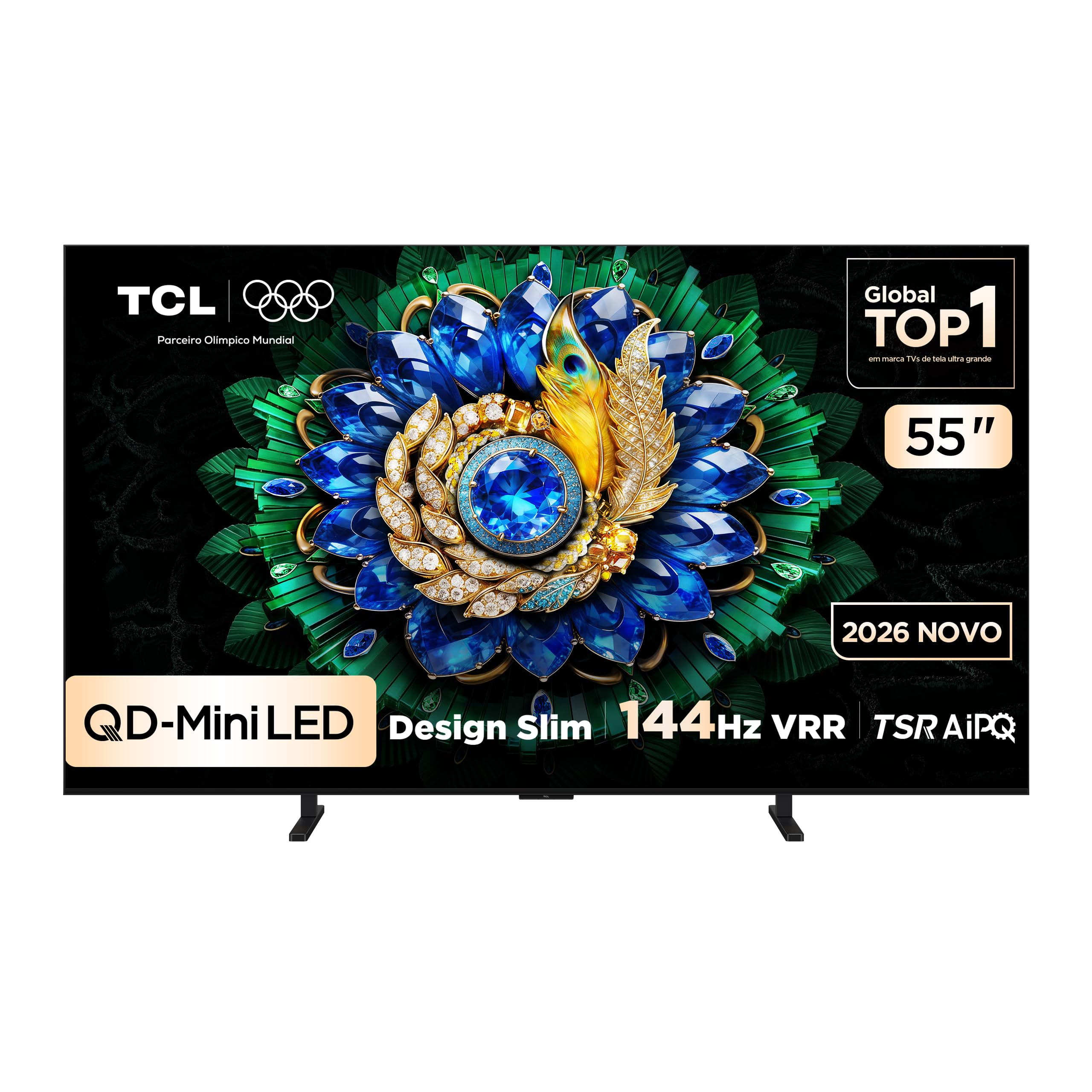
Image: Front view of the TCL 55A400M Smart TV, showcasing its vibrant display and slim bezels.
2. Safety Information
Always adhere to the following safety precautions to prevent fire, electric shock, or injury:
- Do not expose the TV to rain or moisture.
- Do not open the TV casing; refer all servicing to qualified personnel.
- Ensure proper ventilation around the TV. Do not block ventilation openings.
- Place the TV on a stable, level surface or mount it securely to a wall.
- Keep the TV away from heat sources and direct sunlight.
- Unplug the power cord during lightning storms or when unused for long periods.
- Handle the power cord carefully to avoid damage.
3. Package Contents
Verify that all items are present in the package:
- TCL 55A400M 55-inch Smart TV
- Remote Control
- Power Cable
- TV Stand (2 pieces)
- Screws for TV Stand
- User Manual (this document)
- Quick Start Guide

Image: The remote control included with the TCL 55A400M Smart TV.
4. Setup
4.1. Physical Setup
Stand Installation:
- Carefully place the TV face-down on a soft, flat surface to prevent screen damage.
- Align the TV stands with the corresponding slots on the bottom of the TV.
- Secure the stands using the provided screws.
Wall Mounting:
If you choose to wall-mount your TV, use a VESA-compatible wall mount kit (sold separately) and follow the instructions provided with the wall mount. Ensure the wall can support the weight of the TV. Professional installation is recommended.

Image: The TCL 55A400M TV mounted on a wall, showcasing its ability to display images with vibrant, contrasting colors.
4.2. Connecting Devices
Connect external devices to the appropriate ports on the back of your TV. Refer to the diagram below for port locations:
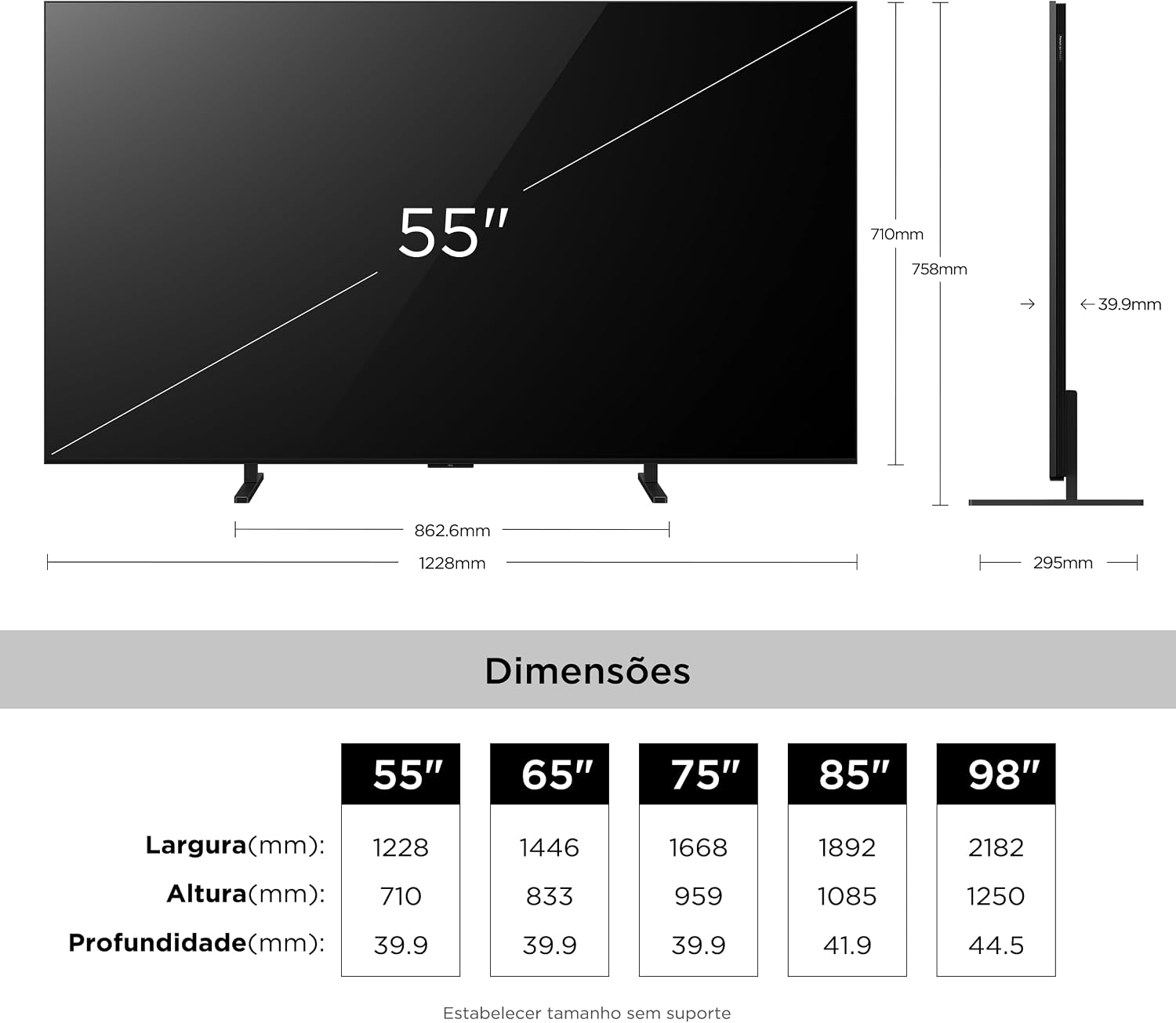
Image: Rear view of the TCL 55A400M Smart TV, detailing the various input and output ports.
- HDMI (1-4): Connect Blu-ray players, game consoles, cable/satellite boxes. HDMI 1 and 2 support 4K@144Hz. HDMI 1 supports eARC/ARC.
- USB (1-2): Connect USB storage devices for media playback. USB 1 is 3.0, USB 2 is 2.0.
- LAN: Connect an Ethernet cable for a wired internet connection.
- Cable/Antenna Input: Connect an antenna or cable TV signal.
- Digital Audio Out (Optical): Connect to an external audio receiver or soundbar.
4.3. Power On
After connecting all devices, plug the power cable into an electrical outlet. Press the power button on the remote control or on the TV to turn it on.
5. Operating Instructions
5.1. Remote Control Overview
Familiarize yourself with the remote control buttons for easy navigation and control of your TV's features.
5.2. Initial Setup (Google TV)
Upon first power-on, the TV will guide you through the initial setup process:
- Select your language.
- Connect to a Wi-Fi network or use a wired LAN connection.
- Sign in with your Google account to access Google TV features, apps, and personalized recommendations.
- Follow on-screen prompts to complete channel scanning and other settings.

Image: A screenshot of the Google TV interface, showing various streaming applications and content recommendations.
5.3. Basic Functions
- Power: Turn the TV on/off or to standby mode.
- Volume: Adjust the sound level.
- Channel: Change TV channels (if connected to an antenna/cable).
- Input: Select the desired input source (HDMI 1, HDMI 2, etc.).
5.4. Smart TV Features
Your TCL 55A400M TV runs on Google TV, offering a wide range of smart features:
- Google TV: Access a personalized home screen with content recommendations from your streaming services.
- Voice Assistant: Use the built-in Google Assistant via the remote control to search for content, control smart home devices, and get information.
- Apps: Download and install various applications from the Google Play Store.
- Google Meet: Conduct video calls directly from your TV (requires compatible USB camera, sold separately).

Image: A TV screen displaying a Google Meet video call, illustrating the TV's capability for video conferencing.
5.5. Picture and Sound Settings
Access the TV's settings menu to customize picture and sound:
- Picture Modes: Choose from various presets (Standard, Dynamic, Movie, Game) or customize brightness, contrast, color, and sharpness.
- HDR Support: Enjoy enhanced contrast and color with HDR10+ and Dolby Vision content.
- Sound Modes: Select audio presets (Standard, Music, Movie) or adjust equalizer settings.
- ONKYO Audio: Benefit from the integrated ONKYO sound system for a high-quality audio experience.

Image: A living room scene with sound waves emanating from the TV, emphasizing the immersive audio experience provided by the ONKYO sound system.
5.6. Gaming Features
The TCL 55A400M is designed for an optimal gaming experience:
- 144Hz VRR: Enjoy ultra-smooth gameplay with a native 144Hz refresh rate and Variable Refresh Rate (VRR) support, reducing screen tearing and stuttering.
- Game Accelerator 288Hz: Experience even smoother motion with 1080p content at 288Hz.
- Low Input Lag: Optimized for responsive gaming.

Image: A dynamic image of a sports car with a '288Hz' overlay, illustrating the TV's high refresh rate capabilities for gaming.
6. Maintenance
6.1. Cleaning
To clean your TV:
- Unplug the TV from the power outlet.
- Use a soft, dry, lint-free cloth to wipe the screen and cabinet.
- For stubborn marks, lightly dampen the cloth with water or a mild, non-abrasive screen cleaner.
- Never spray cleaner directly onto the screen.
6.2. Software Updates
Your TV may receive software updates automatically via the internet. You can also manually check for updates in the TV's settings menu to ensure optimal performance and access to the latest features.
7. Troubleshooting
If you encounter issues, try the following solutions:
| Problem | Solution |
|---|---|
| No power | Check if the power cable is securely plugged into the TV and the outlet. Try a different outlet. |
| No picture, but sound is present | Ensure the correct input source is selected. Check cable connections to external devices. |
| No sound, but picture is present | Check volume level and mute status. Verify audio cable connections. Check TV audio output settings. |
| Remote control not working | Replace batteries. Ensure no obstructions between the remote and the TV. Re-pair Bluetooth remote if applicable. |
| Network connection issues | Restart your router/modem. Check Wi-Fi password. Try a wired Ethernet connection. |
8. Specifications
Key technical specifications for the TCL 55A400M Smart TV:
| Feature | Detail |
|---|---|
| Model Name | 55A400M |
| Screen Size | 55 Inches |
| Display Technology | Mini LED, QLED |
| Resolution | 4K (3840 x 2160) |
| Refresh Rate | 144 Hz |
| HDR Format Support | Dolby Vision, HDR10+ |
| Operating System | Google TV |
| Connectivity | Bluetooth, HDMI (4 ports), USB (2 ports), Wi-Fi, LAN |
| Audio System | ONKYO |
| Special Features | Gemini, Google Assistant, Game Accelerator 288Hz |
| Dimensions (P x L x A) | 4P x 122.8L x 71A centimeters (without stand) |
| Item Weight | 16.4 Kilograms |
| Voltage | 110-220 Volts (Auto-sensing) |
9. Warranty Information
Your TCL 55A400M Smart TV comes with a 1-year limited warranty from the date of purchase. This warranty covers manufacturing defects in materials and workmanship under normal use. It does not cover damage caused by misuse, accidents, unauthorized modifications, or external factors. Please retain your proof of purchase for warranty claims.
For detailed warranty terms and conditions, please refer to the warranty card included in your product packaging or visit the official TCL support website.
10. Support
If you require further assistance or have questions not covered in this manual, please contact TCL Customer Support:
- Visit the official TCL support website for FAQs, software downloads, and contact information.
- Refer to the contact details provided in your product's quick start guide or warranty card.


