
1. Introduction
Thank you for choosing the HXVIEW 4K PTZ Security Camera. This manual provides detailed instructions for the installation, operation, and maintenance of your camera. This camera features 4K 8MP resolution, 50X optical zoom, 360° pan and 90° tilt capabilities, advanced AI detection for persons, vehicles, and pets, and robust IP66 weatherproofing. Please read this manual thoroughly before use to ensure proper setup and optimal performance.
2. Safety Information
- Ensure the power supply used is compatible with the camera's specifications (DC 12V).
- Do not expose the camera to extreme temperatures, humidity, or corrosive environments.
- Avoid direct exposure of the camera lens to strong light sources, as this may damage the image sensor.
- Installation should be performed by qualified personnel if working at heights or with electrical connections.
- Keep the camera and its accessories out of reach of children.
- Do not attempt to disassemble or modify the camera, as this will void the warranty.
3. Package Contents
Please check the package contents upon receipt. If any items are missing or damaged, contact customer support.
- HXVIEW 4K PTZ Security Camera
- Power Adapter
- Mounting Screws and Wall Plugs
- Waterproof Kit for Network Cable
- Quick Start Guide
4. Product Overview
The HXVIEW 4K PTZ camera features a robust design suitable for outdoor environments. Key components include the optical zoom lens, infrared LEDs, floodlights, microphone, speaker, and network interface.
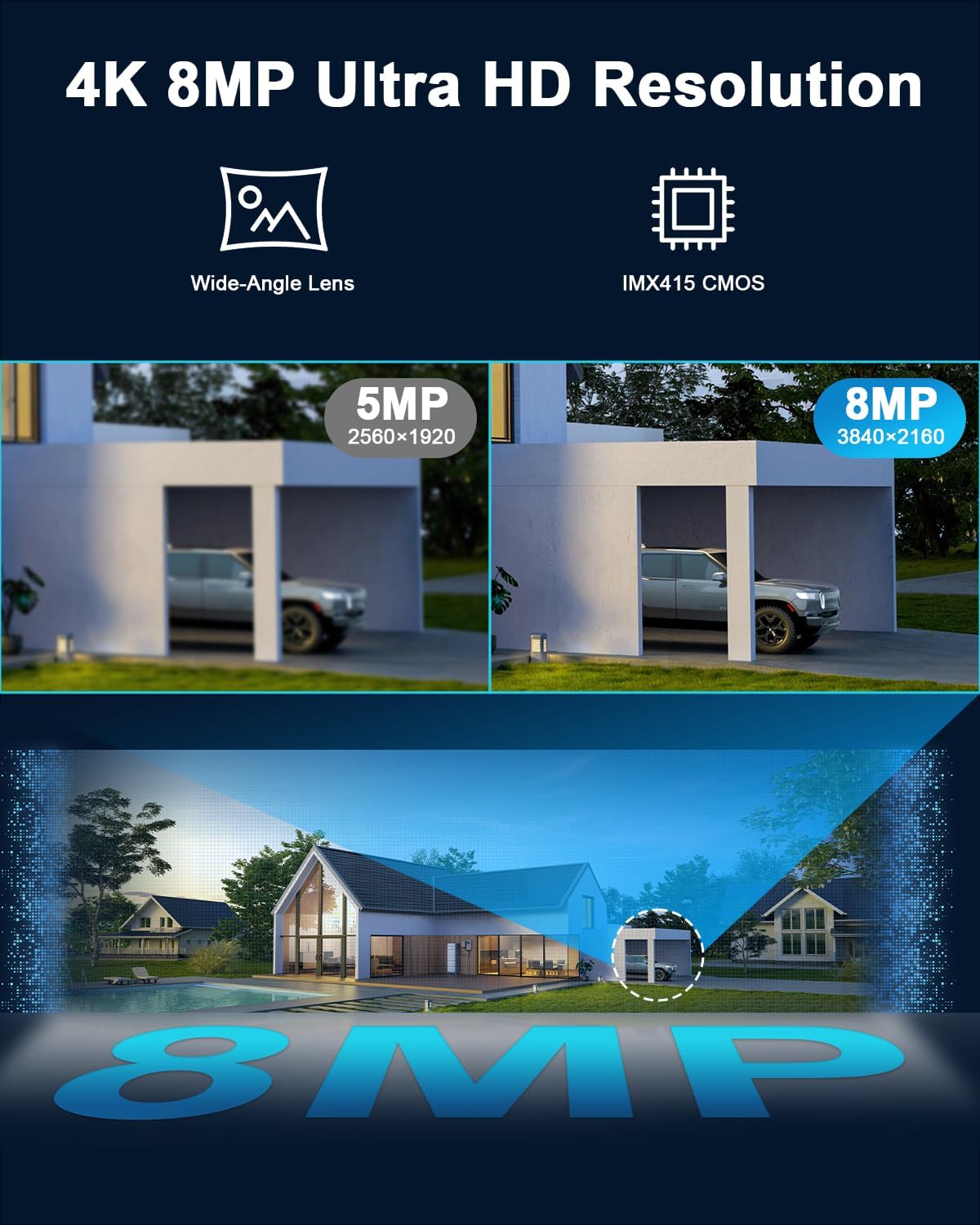
Image: Comparison of 5MP and 8MP (4K) resolution. The 8MP image (3840x2160) provides significantly more detail and clarity, as shown by the sharper image of a car in a garage compared to the blurrier 5MP image (2560x1920).
The camera is equipped with an 8MP sensor for 4K Ultra HD resolution, ensuring clear and detailed surveillance footage. It also features a wide-angle lens and an IMX415 CMOS sensor for superior image quality.
5. Setup
5.1 Physical Installation
Choose a suitable outdoor location for installation, ensuring a clear field of view and access to a power source. Use the provided mounting template to mark drill holes. Secure the camera firmly to the wall or ceiling using the screws and wall plugs.

Image: Close-up of the HXVIEW PTZ camera's metal housing, highlighting its IP66 waterproof rating. The image shows water droplets on the camera, indicating its resilience to rain and harsh weather conditions, with a temperature range of 14°F (-10°C) to 122°F (50°C).
The camera's durable aluminum shell and IP66 waterproof design ensure reliable operation in various weather conditions, from 14°F (-10°C) to 122°F (50°C).
5.2 Power Connection
Connect the provided power adapter to the camera's power input port and then plug it into a standard electrical outlet. Ensure the connection is secure and protected from moisture.
5.3 Network Connection (WiFi Setup)
For initial setup, it is recommended to connect the camera to your router via an Ethernet cable. Once connected, open the CamHipro app (see 5.4) to configure WiFi settings. After successful WiFi configuration, the Ethernet cable can be removed.
5.4 Micro SD Card Installation
The camera supports a Micro SD card up to 128GB for local storage. Locate the SD card slot (refer to the quick start guide for exact location, usually under a protective cover). Insert the Micro SD card with the contacts facing down until it clicks into place. Format the SD card via the CamHipro app after installation.
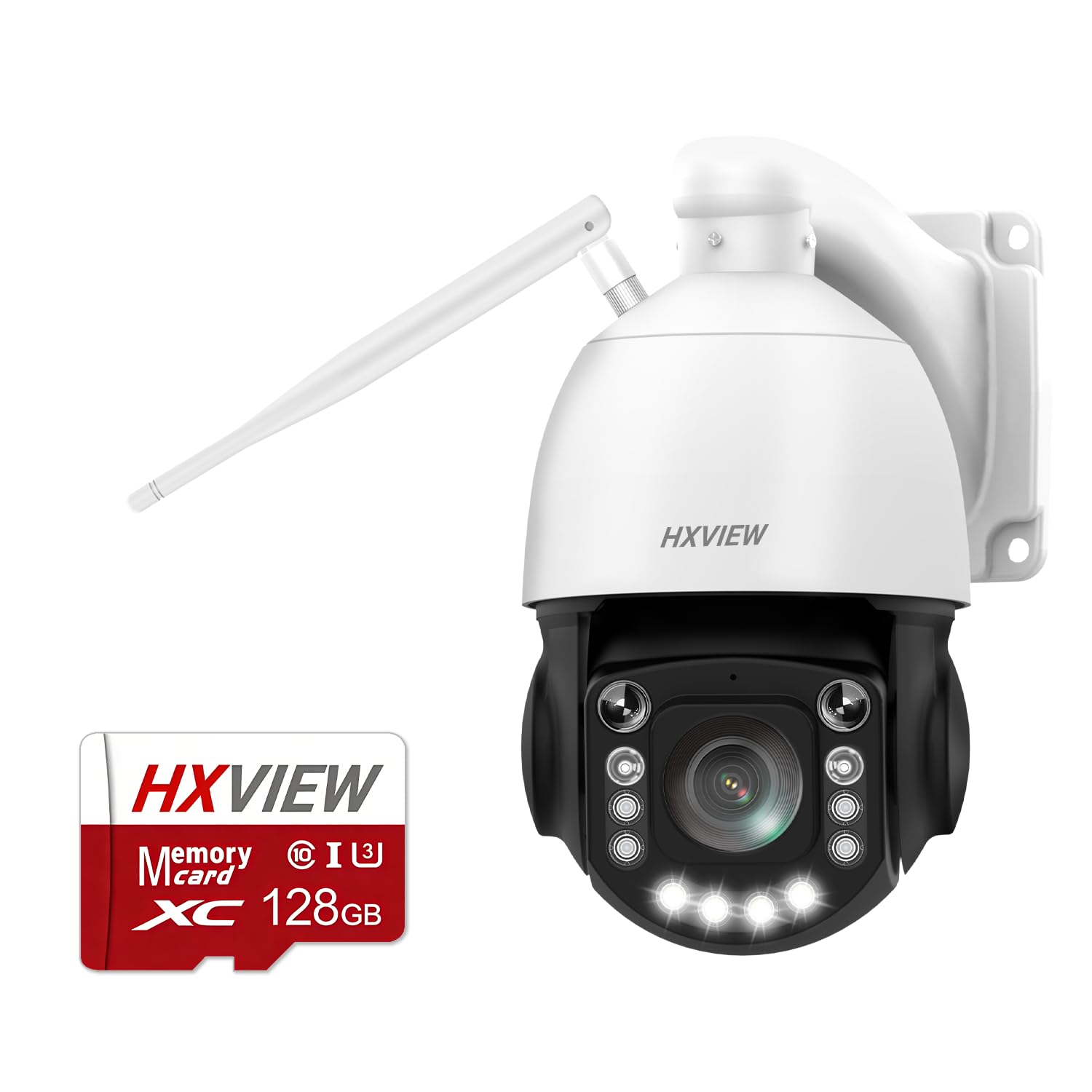
Image: An HXVIEW branded 128GB Micro SD card, highlighting its professional-grade speeds with a read speed of 100MB/s and a write speed of 90MB/s. These speeds are crucial for recording 4K security footage without lag.
Using a high-speed Micro SD card (e.g., Class 10 or U3 with read speeds of 100MB/s and write speeds of 90MB/s) is essential for reliable 4K video recording.
5.5 App Installation and Initial Setup (CamHipro)
Download the 'CamHipro' app from your smartphone's app store (iOS or Android). Register an account and follow the in-app instructions to add your camera. This typically involves scanning a QR code on the camera or searching for devices on the local network.
6. Operating Instructions
6.1 Live View and PTZ Control
Open the CamHipro app and select your camera to access the live view. Use the on-screen controls to pan (360° horizontally) and tilt (90° vertically) the camera. The camera supports high-speed movement at 1.4°-200° per second for both pan and tilt.

Image: Diagram illustrating the HXVIEW PTZ camera's 360° pan and 90° tilt capabilities, providing a true 360° view. It shows the camera rotating horizontally and vertically, with features like 1 Guard Point and Max. 30 Presets, and an example of setting up preset points (Preset 1, Preset 2, Preset 3) for auto cruise functionality over a large area.
The camera offers a true 360° view with its pan and tilt functions, allowing for comprehensive monitoring of large areas. You can set up to 30 preset positions for quick navigation.
6.2 Optical Zoom and Autofocus
Utilize the digital zoom controls within the app to activate the 50X optical zoom. The camera's autofocus feature will automatically adjust for clear images at various zoom levels, allowing you to observe distant targets without loss of image quality.

Image: Illustration of the camera's 50X optical zoom capability with autofocus. The top image shows a wide view of a city landscape, while the bottom image demonstrates the magnified view of a specific area (people on a waterfront) achieved with 50X optical zoom, highlighting the ability to capture distant details clearly.
The 50X optical zoom allows for precise magnification of distant objects, maintaining image clarity from 1X to 50X zoom levels.
6.3 Night Vision Modes
The camera supports two night vision modes:
- Infrared (IR) Night Vision: Equipped with 4 super infrared LEDs, providing a black and white view up to 1200 feet in complete darkness.
- Color Night Vision: Activated by 4 ultra-bright floodlights (1500 lumens), providing a full-color view up to 130 feet. This mode can be set to activate upon detection or manually.
6.4 Smart Detection and Auto Tracking
The camera's AI recognition chip can distinguish between people, vehicles, and pets. When a detected object enters the customized detection zone, the camera can automatically track its movement, keeping it centered in the frame. You can configure detection zones, sensitivity, and schedules in the app to minimize false alarms.

Image: Visual representation of the camera's smart detection and automatic tracking capabilities. It shows the camera identifying and tracking a person walking a dog, a vehicle, and another animal, demonstrating its ability to differentiate between these subjects and follow their movements in real-time.
The camera accurately identifies and tracks people, vehicles, and pets, ensuring relevant events are captured.
6.5 Alarm Notifications and Actions
Upon detection of an event, the camera can trigger various alarm actions:
- APP Push Notifications: Receive instant alerts on your smartphone.
- Siren: The camera can emit an audible siren to deter intruders.
- Floodlight Activation: The built-in floodlights can turn on to illuminate the area and act as a visual deterrent.

Image: Depiction of the camera's real-time alarm and defense features. It shows a person being detected by the camera, triggering an app push notification, a siren, and floodlight activation, effectively deterring an unwanted visitor.
The camera provides comprehensive real-time alarm notifications and active deterrence features.
6.6 Recording and Playback
The camera supports 24/7 continuous recording to a Micro SD card (up to 128GB). Access recorded footage through the CamHipro app's playback function. You can filter recordings by date, time, and event type.
6.7 RTSP Configuration
For advanced users, the camera supports RTSP (Real-Time Streaming Protocol) for integration with third-party NVRs or surveillance software. Refer to the CamHipro app's settings or the manufacturer's website for specific RTSP stream URLs and configuration details.
7. Maintenance
7.1 Cleaning
Regularly clean the camera lens and housing with a soft, damp cloth. Do not use harsh chemicals or abrasive cleaners. Ensure the protective cover for the SD card slot and other ports are securely closed after any maintenance.
7.2 Firmware Updates
Periodically check for firmware updates via the CamHipro app. Keeping the camera's firmware up-to-date ensures optimal performance, security, and access to new features.
7.3 Storage Management
Monitor the Micro SD card storage usage through the app. When the card is full, the camera will typically overwrite the oldest footage. Consider backing up important recordings regularly.
8. Troubleshooting
- Camera Offline: Check power connection, Wi-Fi signal strength, and router status. Try restarting the camera and router.
- No Recording: Ensure Micro SD card is inserted correctly, formatted, and not full. Check recording settings in the app.
- Poor Image Quality: Clean the lens. Check network bandwidth if streaming is affected. Ensure sufficient lighting for color night vision.
- False Alarms: Adjust detection zones, sensitivity, and detection types (person/vehicle/pet) in the app.
- PTZ Control Unresponsive: Check network connection. Restart the camera.
For further assistance, refer to the FAQ section in the CamHipro app or contact HXVIEW customer support.
9. Specifications
| Model | B0GXZT8KS9 |
| Resolution | 8MP (4K, 3840x2160) |
| Optical Zoom | 50X |
| Pan Range | 360° |
| Tilt Range | 90° |
| Pan/Tilt Speed | 1.4°-200°/second |
| Night Vision (IR) | Up to 1200 feet (4 Super IR LEDs) |
| Night Vision (Color) | Up to 130 feet (4 Ultra-Bright Floodlights) |
| Detection | Person, Vehicle, Pet (AI Recognition) |
| Storage | Micro SD Card (up to 128GB) |
| Connectivity | WiFi, Ethernet (RTSP support) |
| Weatherproof Rating | IP66 |
| Operating Temperature | 14°F to 122°F (-10°C to 50°C) |
10. Warranty and Support
HXVIEW products typically come with a limited warranty. Please refer to the warranty card included in your package or visit the official HXVIEW website for detailed warranty terms and conditions. For technical support, troubleshooting, or any inquiries, please contact HXVIEW customer service through the contact information provided on their official website or within the CamHipro app.


