
1. Introduction
This manual provides detailed instructions for the installation, operation, and maintenance of your Carpuride 6.25-inch Wireless Smart Monitor, model 602BS Pro. This device is designed to enhance your motorcycle riding experience by integrating wireless Apple CarPlay and Android Auto functionalities, along with advanced safety and convenience features.
2. Product Overview
The Carpuride 602BS Pro is a 6.25-inch smart monitor featuring a high-resolution IPS touch screen with up to 1000 nits brightness for clear visibility in various lighting conditions. It supports wireless connectivity for smartphones, enabling navigation, music playback, and communication. Key features include:
- Wireless Apple CarPlay and Android Auto compatibility.
- SOS Mode for emergency notifications.
- OTA (Over-The-Air) online software updates.
- IP67 waterproof and dustproof rating.
- Automatic light sensing for display brightness adjustment.
- Support for native BMW motorcycle wheel controller linkage (for compatible models).
- Integrated compass and barometer.

Image: The Carpuride 602BS Pro Smart Monitor integrated into a motorcycle cockpit, showing various functions like navigation, music, and phone calls, highlighting its multi-functional capabilities.
3. Setup and Installation
3.1 Compatibility
The 602BS Pro is compatible with various BMW motorcycle models for native wheel controller integration, including R1300GS (R1300GS Adv), R1250GS (R1250GS Adv), R1200GS, R1200GS LC, R1200GS K50, R1200GS Adv, R1200RS, and S1000XR.
Note: Some BMW models (R1200RT, R1250RT, K1600 GT, K1600 GTL) are not compatible with the controller function. Models like F900GS, F900XR, F850GS, F850GS Adv, F800GS, F750GS may cause the rear brake warning light to remain on.
Most AQUOS, Samsung S series, Note series, Huawei P series, Mate series, Xiaomi series (12 Pro, 11 lite, 9, 14T Pro, Poco X3 pro), and Oppo series (Reno 2, RenoZ, A16S) mobile phones are not compatible. Please verify your phone's compatibility before purchase.
3.2 Mounting the Device
To utilize the BMW wheel control function, the Carpuride unit must be mounted on an original BMW mount. The device is designed for easy installation onto existing BMW navigation bases.
- Ensure you have an original BMW navigation base.
- Align the Carpuride 602BS Pro with the BMW navigation base.
- Slide the monitor onto the base until it clicks securely into place.
- Verify the monitor is firmly attached before riding.

Image: Step-by-step visual guide demonstrating how to install the 602BS Pro monitor onto a compatible BMW motorcycle navigation mount.
3.3 Initial Power-On
After installation, connect the power cable. The device will automatically power on. Follow the on-screen prompts for initial setup, including language selection and time zone settings.
4. Operating Instructions
4.1 Wireless CarPlay / Android Auto Connection
The 602BS Pro supports wireless Apple CarPlay and Android Auto, allowing seamless integration with your smartphone for navigation, music, and communication.
- On the monitor, select either CarPlay or Android Auto.
- On your smartphone, enable Bluetooth and Wi-Fi.
- Search for the Carpuride device in your phone's Bluetooth settings and pair.
- Confirm the connection on both the monitor and your phone.

Image: A visual representation of connecting a smartphone to the Carpuride monitor via Bluetooth for wireless CarPlay or Android Auto functionality.
4.2 BMW Wheel Controller Linkage
For compatible BMW motorcycles, the native wheel controller can be used to operate the 602BS Pro, providing intuitive control without removing your hands from the handlebars.
- K1 (Back Button): Short press to return to the previous interface (BM motorcycle meter interface or Carpuride main interface).
- K2 (Confirm Button): Short press to confirm selected app or play/pause music.
- K3 (Previous Track/Select Left): Rotate left to select previous track or move cursor left.
- K4 (Next Track/Select Right): Rotate right to select next track or move cursor right.
- K5: In CarPlay/Android Auto mode, short press to move cursor up/down. Long press to confirm.
- K6: Press and hold for 5 seconds to switch to NAV mode (Carpuride screen).
- K7: Switch to TFT mode (return to BM display).

Image: Close-up of a BMW motorcycle handlebar showing the integrated wheel controller and its corresponding buttons, labeled K1 through K7, used to interact with the Carpuride monitor.
4.3 SOS Mode
The SOS mode detects collisions or falls. If an incident is detected, the system automatically initiates a 10-second countdown. If not manually canceled within this period, an emergency notification will be sent to your pre-set emergency contacts, enabling rapid assistance. This feature is active only when CarPlay or Android Auto mode is engaged.
- Go to Settings.
- Select 'SOS Mode'.
- Ensure the SOS mode switch is ON.
- Click 'Emergency Contact' to set up your emergency numbers.

Image: The SOS mode interface, showing how to configure emergency contacts and the visual alert displayed in case of a detected incident.
4.4 OTA Online Update
The device supports OTA (Over-The-Air) online updates, allowing you to receive and install the latest software versions via the internet. This ensures your device always has the most current features and improvements.
- Navigate to Settings > OTA > MPEG OTA.
- Connect to an available Wi-Fi network.
- After connecting, click to check for updates.
- Click 'Download' to download the latest software.
- Once the download is 100% complete, the update will begin, and the machine will automatically restart upon completion.

Image: The OTA update screen, detailing the steps to connect to Wi-Fi, check for updates, download, and install the latest firmware.
4.5 Bluetooth Audio (i-Play/A-Auto)
The device supports Bluetooth audio for connecting to headsets or intercoms, enabling communication and music playback.
- First, connect your mobile phone to CarPlay or Android Auto.
- Next, click 'Audio' and select 'i-Play/A-Auto'.
- Then, connect your mobile phone to a Bluetooth device to play audio.
Single Mode (BT Trans Mode - Bluetooth 1): Connect your smartphone to the Carpuride monitor via CarPlay or Android Auto. Then, select 'Audio' and choose 'BT Trans'. Search for your intercom device and connect. In this mode, do not connect your phone directly to the intercom.
2-Person Mode (Transceiver Mode and BT Trans Mode): The device can search for and connect to two different intercoms simultaneously, allowing two people to share music and use intercom functions. Note that Transceiver Mode and BT Trans Mode cannot be used at the same time; only one mode can be active. The effective Bluetooth range is approximately 10cm. Voice assistant broadcasts and calls from navigation are only transmitted to Bluetooth 1; the driver must be connected to Bluetooth 1.
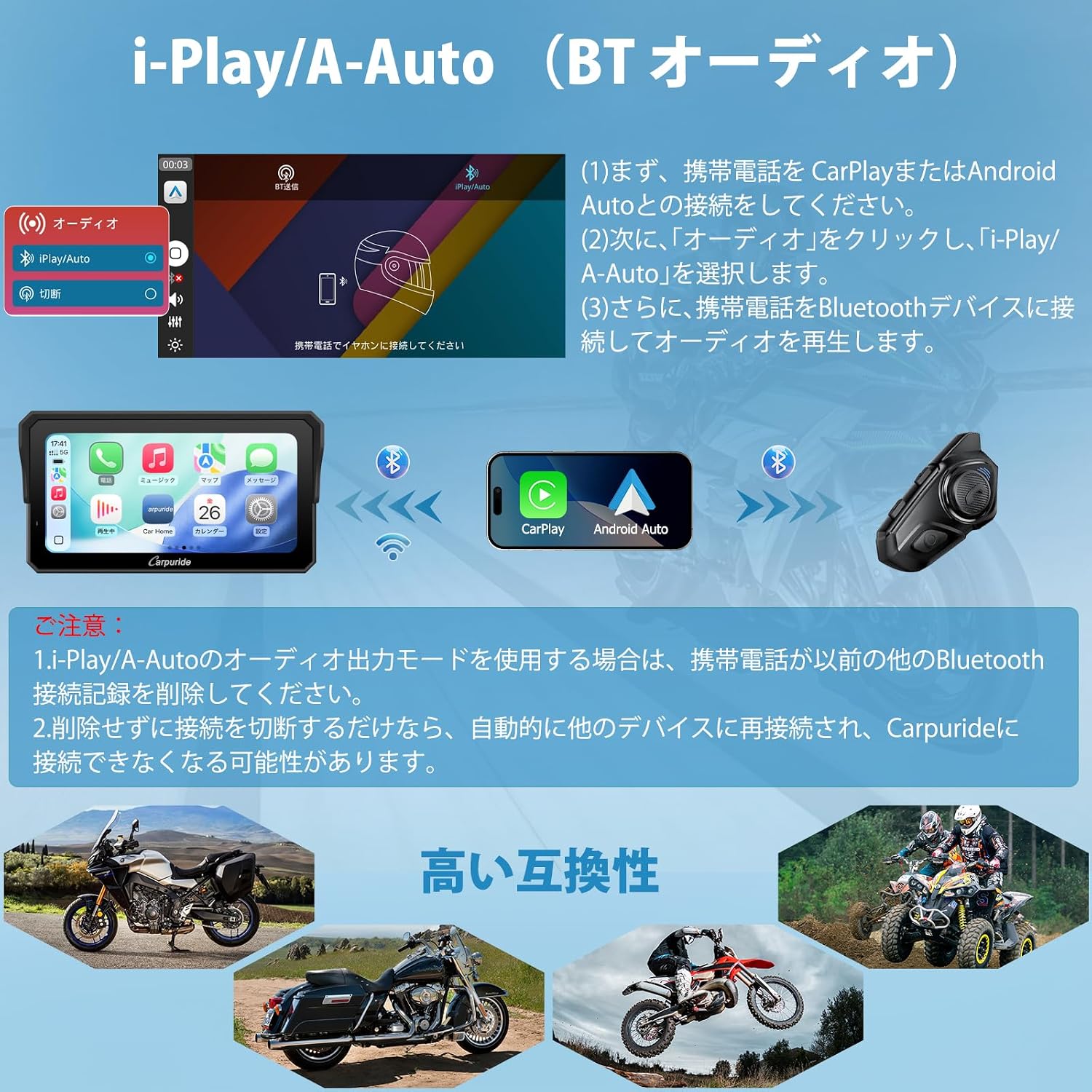
Image: Detailed explanation of Bluetooth audio modes, including single-user and two-person intercom connections, showing the flow of audio and communication.
4.6 Voice Control
Control navigation, make calls, and play music using Siri or Google Assistant. This hands-free operation enhances driving safety. Ensure your Bluetooth headset has a microphone function for voice commands.

Image: The monitor interface showing Siri and Google Assistant integration, demonstrating how voice commands can be used for various functions while riding.
4.7 Display Features
The 6.25-inch IPS LCD display offers ultra-high brightness (up to 1000 nits) and a resolution of 1080*540 pixels, providing a clear visual experience even in bright outdoor conditions. The automatic light sensing function adjusts screen brightness according to ambient light, improving usability.

Image: The 6.25-inch ultra-bright IPS LCD display on a motorcycle, illustrating its automatic light sensing feature that adjusts screen brightness for optimal visibility in varying environments.
4.8 Compass and Barometer
The device includes a compass to indicate the Earth's magnetic field direction, aiding in finding the correct path. A built-in barometer measures changes in atmospheric pressure to determine current altitude, enhancing safety during cycling.

Image: The monitor screen showing the compass and barometer functions, providing directional and altitude information for riders.
5. Maintenance
The Carpuride 602BS Pro is designed with an IP67 waterproof and dustproof rating, ensuring reliable performance in various weather conditions. To maintain its condition:
- Cleaning: Use a soft, damp cloth to wipe the screen and body. Avoid abrasive cleaners or solvents that could damage the display or casing.
- Water Exposure: While IP67 rated, avoid prolonged submersion. Ensure all ports are securely covered when exposed to water.
- Storage: When not in use for extended periods, store the device in a cool, dry place away from direct sunlight and extreme temperatures.

Image: The Carpuride 602BS Pro monitor being used on a motorcycle during rainfall, illustrating its IP67 waterproof design for reliable operation in wet conditions.
6. Troubleshooting
If you encounter issues with your Carpuride 602BS Pro, please refer to the following common solutions:
- Power Interruption: If the device experiences power drops during operation, ensure all power connections are secure and the motorcycle's power supply is stable. Check for loose cables or damaged connectors.
- Connection Issues (CarPlay/Android Auto):
- Ensure your smartphone's Bluetooth and Wi-Fi are enabled.
- Delete any previous Bluetooth pairing records on both your phone and the Carpuride device, then attempt to re-pair.
- If using the i-Play/A-Auto audio output mode, ensure your mobile phone does not have conflicting Bluetooth connection records. Simply disconnecting without deleting records may cause automatic reconnection to other devices, preventing connection to Carpuride.
- Display Not Responding: If the touch screen is unresponsive, try restarting the device. Ensure your gloves are compatible with touch screens if you are wearing them.
- Software Update Failure: If an OTA update fails, ensure a stable Wi-Fi connection. Try restarting the device and attempting the update again.
If problems persist, please contact customer support for further assistance.
7. Specifications
| Brand | CARPURIDE |
| Model Name | 602BS PRO |
| Screen Size | 6.25 inches |
| Display Type | IPS LCD |
| Resolution | 1080*540 pixels |
| Brightness | Max 1000 nits |
| Connectivity Technology | Wireless (Wi-Fi, Bluetooth) |
| Waterproof Rating | IP67 |
| Compatible Devices | Smartphones (Apple CarPlay, Android Auto) |
| Control Method | Touch Screen, Voice Control, BMW Wheel Controller (compatible models) |
| Memory Storage Capacity | 64 GB (microSD support) |
| Included Components | Warranty Card, Japanese Instruction Manual |
8. Warranty Information
The Carpuride 602BS Pro comes with a 1-year manufacturer warranty from the date of purchase. This warranty covers defects in materials and workmanship under normal use. Please retain your proof of purchase for warranty claims. The warranty does not cover damage caused by misuse, accidents, unauthorized modifications, or normal wear and tear.
9. Support
For technical assistance, troubleshooting not covered in this manual, or warranty inquiries, please contact Carpuride customer support. Refer to the contact information provided in your product packaging or on the official Carpuride website.
Manufacturer: CARPURIDE
Country of Origin: China