
1. Introduction
This manual provides essential information for the safe and efficient operation, maintenance, and troubleshooting of your Yeedi M12 PRO Gen2 Robot Vacuum and Mop. Please read this manual thoroughly before using the product and retain it for future reference.
The Yeedi M12 PRO Gen2 is an advanced robotic cleaning device designed to vacuum and mop various floor types, including hard floors and carpets. It features powerful suction, intelligent navigation, and an automatic OMNI Station for hands-free maintenance.
2. Safety Instructions
Always follow basic safety precautions when using electrical appliances to reduce the risk of fire, electric shock, and injury.
- Read all instructions before using the appliance.
- Do not allow children to play with the robot. Supervise children and pets when the robot is operating.
- Ensure the power voltage matches the rating label on the charging dock.
- Do not operate the robot in areas with open flames or flammable materials.
- Keep hair, loose clothing, fingers, and all parts of the body away from openings and moving parts.
- Do not use the robot to pick up large objects, sharp objects, or liquids.
- Only use accessories recommended or sold by the manufacturer.
- Unplug the charging dock from the outlet when not in use and before cleaning.
- Do not immerse the robot or charging dock in water.
- If the power cord is damaged, it must be replaced by the manufacturer or its service agent to avoid a hazard.
3. Package Contents
Verify that all items are present and in good condition upon unpacking.
- Robot Vacuum *1
- OMNI Station *1
- Station Pad *1
- Power Cord *1
- User Manual *1
- Mop Plate *2
- Washable Mop Pad *2
- Side Brush *1
- Main Brush & Cover *1
- Filter *1
- Dust Bag *1
- Clean Water Tank *1
- Waste Water Tank *1

4. Product Overview
Robot Vacuum
The robot vacuum features a compact design with integrated sensors for navigation and obstacle avoidance. It includes a main brush, side brushes, and mop pads for comprehensive cleaning.
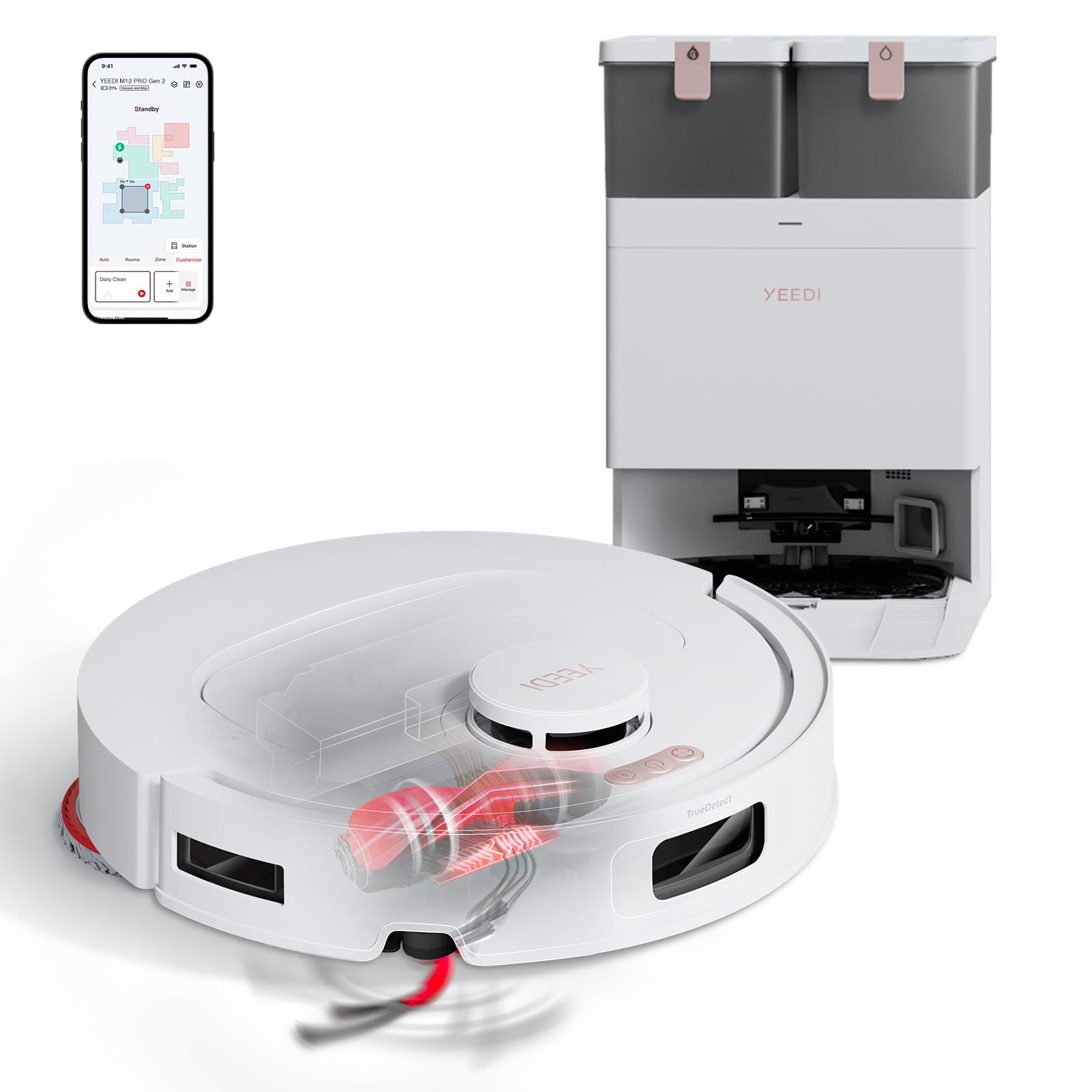
OMNI Station
The OMNI Station serves as the robot's charging dock and performs automatic dust emptying, water refilling, mop washing, and hot air drying, providing a truly hands-free cleaning experience.

5. Setup
5.1 Unpacking and Placement
- Remove all packaging materials from the robot and the OMNI Station.
- Place the OMNI Station on a hard, level surface against a wall, ensuring at least 0.5 meters (1.6 feet) of clear space on both sides and 1.5 meters (4.9 feet) in front. Avoid placing it near stairs or obstacles.
- Connect the power cord to the OMNI Station and plug it into a power outlet.
5.2 Initial Charge
Place the robot onto the OMNI Station. Ensure the charging contacts align. The robot will automatically begin charging. For optimal battery life, fully charge the robot before its first use.
5.3 App Connection
To unlock the full features of your Yeedi M12 PRO Gen2, connect it to the YEEDI App:
- Download the YEEDI App from your smartphone's app store.
- Ensure your phone is connected to a 2.4GHz Wi-Fi network, or a dual-band Wi-Fi network that supports both 2.4GHz and 5GHz.
- Open the YEEDI App and follow the on-screen instructions to add your device and complete the pairing process.
6. Operating Instructions
6.1 Mapping Your Home
The M12 PRO Gen2 uses TrueMapping 2.0 LDS Laser Navigation to create accurate maps of your home. For the first cleaning cycle, allow the robot to complete a full mapping run without interruption. This will enable efficient route planning and comprehensive coverage.

6.2 Cleaning Modes
- Vacuuming: The robot provides up to 25000Pa ultra-powerful suction to lift dust, pet hair, and debris.
- Mopping: OZMO Turbo 2.0 dual rotating mop pads apply consistent downward pressure for effective stain removal.
- Vacuuming & Mopping: The robot can perform both tasks simultaneously.
- Auto Mop Lift for Carpet: The robot intelligently detects carpets and automatically raises the mop pads while boosting suction for deeper carpet cleaning, preventing carpet wetting.

6.3 Starting a Cleaning Cycle
You can start a cleaning cycle using the physical button on the robot or through the YEEDI App.
- Robot Button: Press the power button once to start or pause cleaning. Press and hold to power off.
- YEEDI App: Use the app to initiate cleaning, select specific rooms, set no-go zones, adjust suction power, and configure mopping settings.
6.4 Voice Control
The Yeedi M12 PRO Gen2 is compatible with popular voice assistants:
- Amazon Alexa
- Google Assistant
- Siri Shortcut
Refer to the YEEDI App for instructions on connecting your robot to these voice services.
7. Maintenance
Regular maintenance ensures optimal performance and extends the lifespan of your robot vacuum and mop.
7.1 OMNI Station Maintenance
- Auto Dust Emptying: The OMNI Station automatically empties the robot's dustbin into a 3L dust bag, providing up to 60 days of hands-free cleaning. Replace the dust bag when full.
- Auto Water Refill: Ensure the clean water tank in the OMNI Station is filled to maintain consistent mopping performance. Empty the dirty water tank regularly.
- Auto Mop Washing: The station deep cleans the mop pads after every use.
- 113°F Hot Air Drying: After cleaning, the mop pads are automatically dried with 113°F hot air to prevent odors and mildew.

7.2 Robot Components Maintenance
- Main Brush: The ZeroTangle 3.0 Anti-Tangle Technology minimizes hair wrap. Periodically remove the main brush and clean any entangled hair or debris.
- Side Brushes: Check side brushes for wear and tear. Clean any hair or debris wrapped around them. Replace if damaged.
- Mop Pads: While the OMNI Station washes them, inspect mop pads periodically for excessive wear or stubborn stains. Replace as needed.
- Filter: Tap out dust from the filter after each cleaning cycle. Replace the filter every 3-6 months, depending on usage.
- Sensors: Wipe all sensors (LDS sensor, anti-drop sensors, obstacle avoidance sensors) with a clean, dry cloth to ensure proper function.
8. Troubleshooting
If you encounter issues with your Yeedi M12 PRO Gen2, refer to the following common solutions. For more detailed troubleshooting, consult the YEEDI App or contact customer support.
| Problem | Possible Cause | Solution |
|---|---|---|
| Robot does not start or respond. | Low battery; Power switch off; Robot stuck. | Charge the robot; Ensure power switch is ON; Clear any obstructions. |
| Poor cleaning performance. | Dustbin full; Brushes tangled; Filter clogged. | Empty dustbin; Clean main/side brushes; Clean or replace filter. |
| Robot cannot connect to Wi-Fi. | Incorrect Wi-Fi band; Wrong password; Router too far. | Ensure 2.4GHz Wi-Fi; Re-enter password; Move robot closer to router. |
| Mop pads not wet enough or leaving streaks. | Clean water tank empty; Mop pads dirty; Water flow setting too low. | Refill clean water tank; Allow OMNI Station to wash pads; Adjust water flow in app. |
| Robot gets stuck frequently. | Too many obstacles; Sensors dirty. | Clear clutter from floor; Clean all sensors. |
9. Specifications
| Feature | Specification |
|---|---|
| Brand | Yeedi |
| Model Name | M12 PRO Gen2 |
| Suction Power | 25000Pa |
| Navigation Type | TrueMapping 2.0 LDS Laser Navigation |
| Mopping System | OZMO Turbo 2.0 (Dual Rotating Mop Pads) |
| Anti-Tangle Technology | ZeroTangle 3.0 |
| Obstacle Avoidance | TrueDetect 3D |
| Mop Drying | 113°F Hot Air Drying |
| Dust Bag Capacity | 3 Liters (up to 60 days) |
| Battery Type | Lithium Ion |
| Battery Capacity | 5200mAh |
| Battery Life | Up to 220 minutes (Silent Mode, Hard Floors) |
| Control Method | App Control, Voice Control (Alexa, Google Assistant, Siri) |
| Robot Dimensions (L x W x H) | 13.90" x 13.86" x 3.95" |
| Station Dimensions (L x W x H) | 13.78" x 18.78" x 20.98" |
| Surface Recommendation | Hard Floor & Carpet |

10. Warranty and Support
10.1 Warranty Information
All Yeedi robot vacuums come with a 1-year free warranty covering manufacturing defects and quality issues. Please retain your proof of purchase for warranty claims.
10.2 Customer Support
For further assistance, technical support, or warranty inquiries, please contact Yeedi customer service through the official Yeedi website or your Amazon purchase platform. You can also visit the Yeedi Store on Amazon for more information and FAQs.


