
Introduction
This manual provides detailed instructions for the installation, operation, and maintenance of your H-Tech HT-3827CA Car Multimedia System. This 7-inch IPS Full Touch display unit integrates advanced features such as wireless CarPlay and Android Auto, Bluetooth connectivity, and multiple media playback options to enhance your driving experience. Please read this manual thoroughly before using the device to ensure proper function and safety.
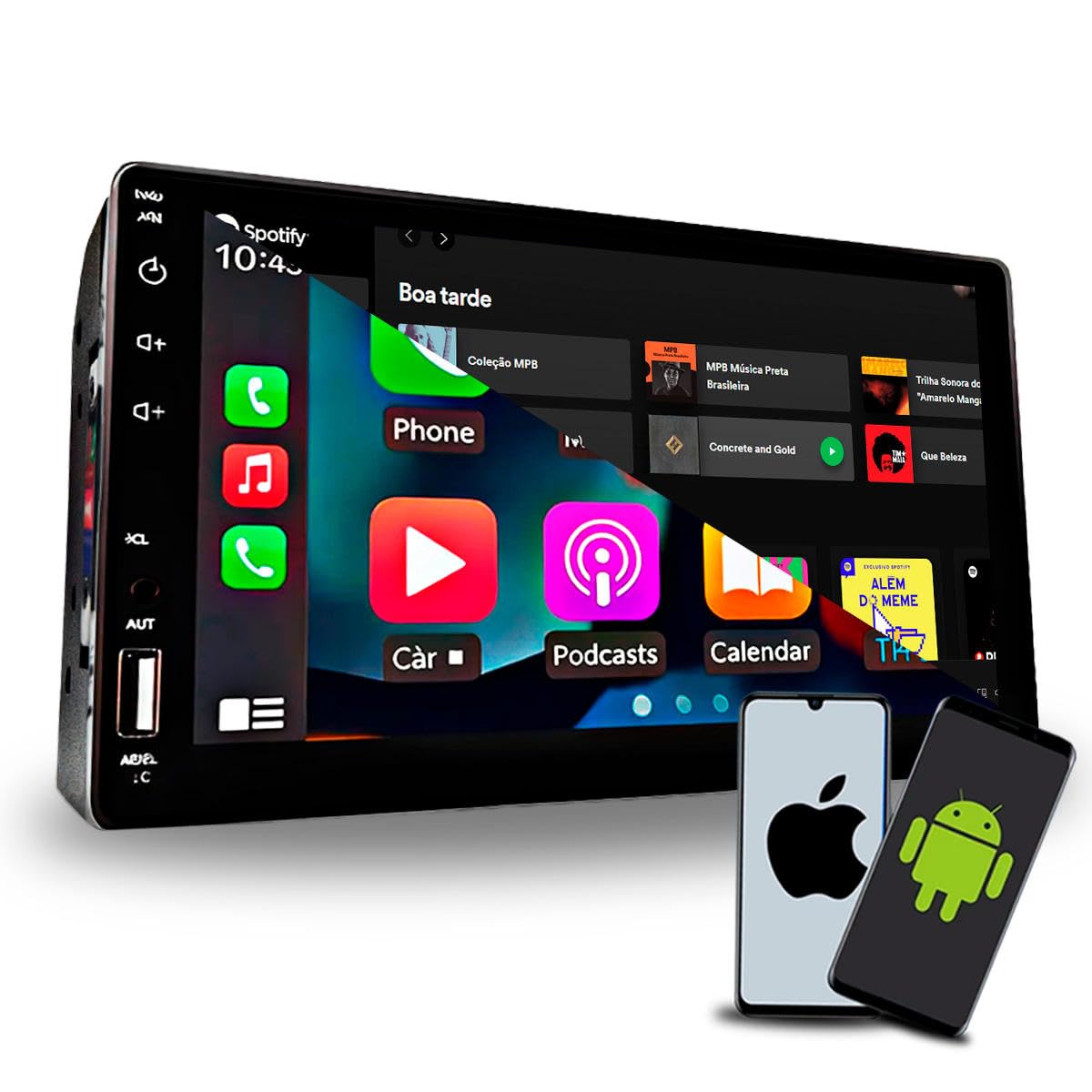
Image: Front view of the H-Tech HT-3827CA Car Multimedia System, showing the 7-inch touch screen interface.
Setup and Installation
Professional installation is recommended for this product. Ensure the vehicle's power is disconnected before beginning installation. Refer to your vehicle's specific wiring diagrams for proper connections.
Package Contents:
- 1x H-Tech HT-3827CA Multimedia System
- 1x Remote Control
- 1x User Manual (this document)
- Necessary wiring harnesses
Physical Installation:
- Remove the existing car stereo unit from the dashboard.
- Connect the provided wiring harnesses to the corresponding ports on the HT-3827CA unit and your vehicle's wiring. Ensure all connections are secure.
- Connect the antenna cable.
- If installing a rear-view camera (sold separately), connect its video input to the designated "CAM IN" port on the multimedia system.
- Carefully slide the HT-3827CA unit into the dashboard opening until it clicks into place or is secured with mounting brackets.
- Reconnect the vehicle's power supply.

Image: Rear view of the H-Tech HT-3827CA showing various connection ports and product dimensions (15cm width, 11cm height for screen, 20.5cm depth for unit).
Operating Instructions
Power On/Off:
Turn the vehicle's ignition to the ACC or ON position. The multimedia system will power on automatically. To turn off, turn the ignition to the OFF position.
Touch Screen Operation:
The 7-inch IPS Full Touch screen responds to finger gestures. Tap to select, swipe to navigate menus, and pinch to zoom (where applicable).
Remote Control:
Use the included remote control for convenient operation of various functions, including volume, mode selection, track skipping, and call management.

Image: The remote control for the multimedia system, alongside illustrations of the 7 customizable panel illumination colors.
CarPlay and Android Auto (Wireless/Wired):
The system supports both wireless and wired connections for Apple CarPlay and Android Auto. This allows seamless integration of your smartphone's navigation, music, messaging, and call functions directly onto the multimedia screen.
- Ensure your smartphone's Wi-Fi and Bluetooth are enabled.
- On the multimedia system, select the "CarPlay" or "Android Auto" icon.
- Follow the on-screen prompts to pair your phone via Bluetooth for wireless connection, or connect via a USB cable for wired connection.
- Once connected, your phone's compatible apps will appear on the multimedia display.

Image: The multimedia system screen showing a navigation app running via wireless CarPlay or Android Auto, emphasizing cable-free connectivity.

Image: The multimedia system screen showcasing popular apps like Spotify, GPS navigation, and YouTube Music integrated through CarPlay or Android Auto.
Bluetooth Connectivity:
Pair your smartphone via Bluetooth for hands-free calling and audio streaming.
- On the multimedia system, select the "Bluetooth" icon.
- Enable Bluetooth on your smartphone and search for available devices.
- Select "HT-3827CA" (or similar device name) from the list on your phone.
- Confirm the pairing code if prompted.
- Once paired, you can make/receive calls and play music wirelessly.
Media Playback (USB, SD, AUX):
The system supports media playback from USB drives, SD cards, and auxiliary input devices.
- USB: Insert a USB drive into the designated USB port. The system will automatically detect and display playable media files.
- SD Card: Insert an SD card into the SD card slot. The system will automatically detect and display playable media files.
- AUX: Connect an external audio device using a 3.5mm audio cable to the AUX input. Select "AUX" mode on the multimedia system.
Rear Camera Input:
When a compatible rear-view camera is connected, the display will automatically switch to the camera view when the vehicle is put into reverse gear, providing assistance for parking and maneuvering.
Panel Illumination:
Customize the panel illumination with 7 available colors to match your vehicle's interior lighting or personal preference. Refer to the system settings menu for illumination options.
Maintenance
Cleaning the Unit:
Use a soft, dry cloth to clean the screen and exterior of the unit. For stubborn marks, slightly dampen the cloth with water. Avoid using harsh chemicals, abrasive cleaners, or solvents, as these can damage the screen and finish.
Software Updates:
Periodically check the manufacturer's website for any available software updates. Updates can improve performance, add new features, or fix bugs. Follow the instructions provided with the update package carefully.
Troubleshooting
| Problem | Possible Cause | Solution |
|---|---|---|
| No power | Loose power connection; Blown fuse; Vehicle ignition off. | Check power wiring and fuse. Ensure vehicle ignition is on. |
| No sound | Volume too low; Mute function active; Speaker wiring issue. | Increase volume. Deactivate mute. Check speaker connections. |
| Bluetooth not connecting | Bluetooth not enabled on phone/unit; Incorrect pairing process. | Ensure Bluetooth is on for both devices. Re-attempt pairing. |
| CarPlay/Android Auto not working | Incorrect USB cable; Phone software outdated; App compatibility. | Use a high-quality USB cable. Update phone OS. Check app compatibility. |
| Rear camera not displaying | Camera not connected; Reverse trigger wire not connected. | Verify camera and trigger wire connections. |
Technical Specifications
- Model: HT-3827CA
- Screen Size: 7 inches
- Display Type: IPS Full Touch
- Connectivity: Bluetooth, USB
- Smartphone Integration: Wireless/Wired Apple CarPlay, Wireless/Wired Android Auto, Smartphone Mirroring
- Audio Output Power: 4x60W RMS
- Inputs: USB, SD Card, AUX, Rear Camera Input
- Outputs: 2x Audio/Video Outputs
- Panel Illumination: 7 customizable colors
- Dimensions (Product): 11cm (Height) x 15cm (Width) x 20.5cm (Depth)
- Manufacturer: H-Tech

Image: Visual summary of the H-Tech HT-3827CA's key features, including 7-inch IPS Full Touch screen, CarPlay/Android Auto, Bluetooth, USB/SD/AUX inputs, 4x60W RMS power, and customizable illumination.
Warranty Information
This H-Tech HT-3827CA Car Multimedia System comes with a 3-month warranty from the date of purchase. This warranty covers manufacturing defects under normal use. It does not cover damage caused by improper installation, misuse, accidents, unauthorized repairs, or normal wear and tear. Please retain your proof of purchase for warranty claims.
Customer Support
For technical assistance, troubleshooting beyond this manual, or warranty inquiries, please contact your retailer or the manufacturer's customer service. Refer to your purchase documentation for specific contact details. When contacting support, please have your product model number (HT-3827CA) and proof of purchase readily available.
