
1. Introduction
The OnePlus Stylo Pro is an advanced digital stylus designed to enhance your interaction with compatible OnePlus devices. Featuring 16,000 levels of pressure sensitivity and ultra-low latency, it provides a natural and precise writing and drawing experience. This manual will guide you through the setup, operation, maintenance, and troubleshooting of your Stylo Pro.
2. Parts of the OnePlus Stylo Pro
Familiarize yourself with the key components of your Stylo Pro:
- Stylus Tip: The fine point for precise input.
- Stylus Body: The main cylindrical part of the stylus.
- OnePlus Logo: Indicates the brand.
- Indicator Light: Provides status information (e.g., pairing, charging).
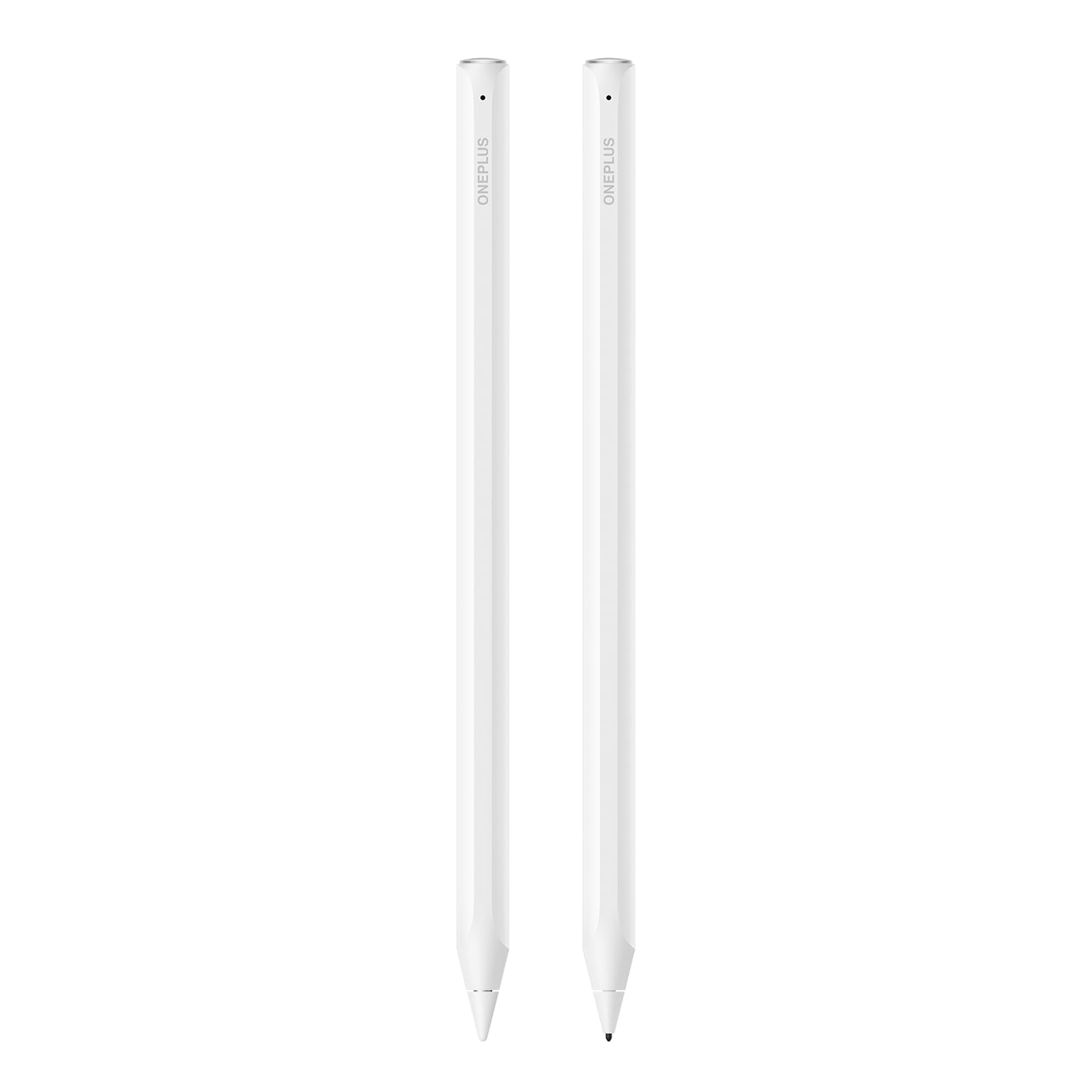
Image: Detailed view of the OnePlus Stylo Pro's tip and the end featuring the OnePlus branding and an indicator light.
3. Setup
3.1 Initial Pairing
- Ensure your compatible OnePlus tablet or device is powered on and Bluetooth is enabled.
- Attach the OnePlus Stylo Pro magnetically to the designated side of your tablet.
- A pairing prompt should appear on your tablet screen. Follow the on-screen instructions to complete the pairing process.
- Once paired, the indicator light on the Stylo Pro may change to a solid color, indicating a successful connection.
3.2 Charging
The OnePlus Stylo Pro charges wirelessly when magnetically attached to your compatible OnePlus tablet. Ensure the stylus is correctly aligned for charging to begin. The tablet's notification area will display the stylus battery level.
4. Operating the OnePlus Stylo Pro
4.1 Basic Usage
The Stylo Pro is designed for intuitive use. Simply touch the stylus tip to the screen of your compatible device to begin writing, drawing, or navigating. The stylus is ergonomically designed for comfortable use over extended periods.

Image: The OnePlus Stylo Pro in use, demonstrating its ergonomic design for natural and comfortable writing.
4.2 Pressure Sensitivity and Low Latency
The Stylo Pro features 16,000 levels of pressure sensitivity, allowing for subtle variations in line thickness and opacity based on how firmly you press the tip. Its ultra-low latency ensures that every stroke appears on screen almost instantly, mimicking the feel of pen on paper.

Image: Visual representation of the Stylo Pro's ultra-low latency and 16,000 pressure levels, highlighting precision.
4.3 Writing and Drawing
The stylus tip is designed for a steady, quiet, and slip-free experience, making it ideal for detailed writing and note-taking.

Image: The Stylo Pro's writing tip in action, providing a steady and precise input for notes and text.
For artistic endeavors, the drawing tip offers ultra-responsive accuracy, ensuring your sketches and illustrations are rendered perfectly.

Image: The Stylo Pro's drawing tip in use, illustrating its ultra-responsive accuracy for sketching.
4.4 Gesture Controls (If Applicable)
Some applications or system settings may allow for customizable gesture controls with the Stylo Pro. Refer to your device's settings or application documentation for details on available gestures, such as double-tap or squeeze functions, and how to configure them.
5. Maintenance
5.1 Cleaning
To clean your Stylo Pro, gently wipe the body with a soft, dry, lint-free cloth. For the stylus tip, use a slightly damp cloth if necessary, ensuring no moisture enters the stylus body. Avoid using harsh chemicals or abrasive materials.
5.2 Nib Replacement
Over time, the stylus tip (nib) may wear down. Replacement nibs are available from authorized OnePlus retailers or the official OnePlus website. To replace the nib:
- Gently pull the old nib straight out from the stylus body.
- Insert the new nib straight into the stylus body until it is firmly seated. Do not force it.
5.3 Storage
When not in use, store the Stylo Pro attached magnetically to your compatible tablet to ensure it remains charged and protected. Avoid exposing the stylus to extreme temperatures or direct sunlight.
6. Troubleshooting
- Stylus not connecting/pairing:
Ensure Bluetooth is enabled on your device. Detach and re-attach the stylus to your tablet. Restart your tablet and try pairing again. Ensure the stylus is charged. - Input lag or inaccuracy:
Check for any software updates for your tablet and the stylus firmware. Restart your tablet. Ensure there are no strong magnetic fields nearby that could interfere with the stylus. - Stylus not charging:
Ensure the stylus is correctly aligned and securely attached to the charging area of your tablet. Check if your tablet is charging or has sufficient battery. - Unintended gesture activation (e.g., 'squeeze' feature):
Review your tablet's stylus settings to adjust or disable specific gesture controls if they are being triggered accidentally. If the issue persists, it may indicate a hardware concern. - Stylus tip not responding:
Inspect the stylus tip for damage or wear. Replace the nib if necessary.
7. Specifications
| Feature | Detail |
|---|---|
| Model Number | OPN2504 |
| Color | White |
| Material | Plastic |
| Item Weight | 17.7 Grams |
| Item Dimensions (L x W x H) | 16.5 x 0.9 x 0.9 Centimeters |
| Pressure Levels | 16,000 |
| Latency | Ultra-Low |
| Batteries Required | No (Charges wirelessly via tablet) |
| Country of Origin | China |
8. Warranty Information
The OnePlus Stylo Pro comes with a 1-Year Limited Warranty from the date of purchase. This warranty covers manufacturing defects under normal use. It does not cover damage caused by accidents, misuse, unauthorized repairs, or normal wear and tear, including stylus nibs.
Please retain your proof of purchase for warranty claims. For detailed warranty terms and conditions, refer to the official OnePlus website or contact customer support.
9. Support
For further assistance, technical support, or service inquiries regarding your OnePlus Stylo Pro, please visit the official OnePlus support website or contact OnePlus customer service.
- OnePlus Official Website: www.oneplus.in/support (or your regional OnePlus support page)
- Manufacturer: ONEPLUS TECHNOLOGY (SHENZHEN) CO., LTD.
- Importer/Packer: ONEPLUS TECHNOLOGY INDIA PRIVATE LIMITED.


