
Introduction
This manual provides detailed instructions for the installation, operation, and maintenance of your E-YEEGER GT830 Dash Cam. Please read this manual thoroughly before using the device to ensure proper functionality and to maximize your user experience. The GT830 is a dual-channel dash camera system designed to record both front and rear views of your vehicle in high definition, offering enhanced security and evidence recording capabilities.
Package Contents
Verify that all items listed below are included in your package:
- E-YEEGER GT830 Front Dash Cam
- Rear Camera Kit
- Car Charger (11.5ft)
- 32GB Micro SD Card (pre-installed)
- Spare 3M Adhesive Pad
- Electrostatic Sticker (x2)
- Easy Pry Tool
- User Manual (this document)
- Quick Guide
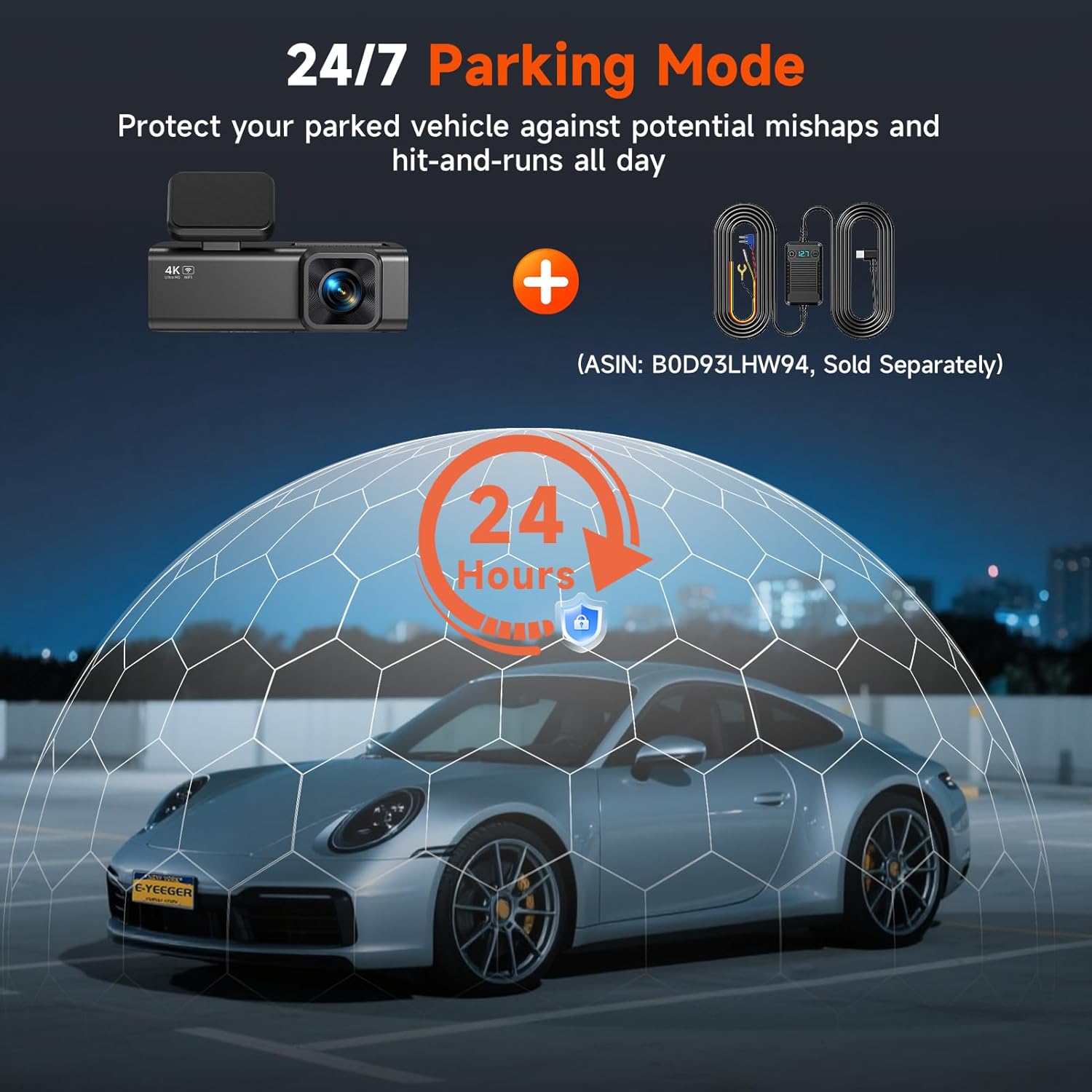
Image: All components included in the E-YEEGER GT830 Dash Cam package, laid out for inspection.
Product Overview
The E-YEEGER GT830 features a compact design with a 1.97-inch IPS screen. It records 4K Ultra HD video from the front camera and 1080P video from the rear camera. Key features include Wi-Fi connectivity for app control, G-Sensor for impact detection, and loop recording.

Image: The E-YEEGER GT830 front dash camera and its separate rear camera unit.
Setup
1. Inserting the Micro SD Card
The GT830 comes with a 32GB Micro SD card pre-installed. If you need to insert or replace the card, ensure the dash cam is powered off. Gently push the Micro SD card into the slot until it clicks into place. To remove, push it again until it springs out. The device supports up to 256GB Micro SD cards.

Image: A visual guide showing the insertion of a 32GB Micro SD card into the dash camera unit.
2. Mounting the Front Dash Cam
- Clean the windshield area where you intend to mount the dash cam.
- Attach an electrostatic sticker to the clean area. This helps prevent adhesive residue on your windshield.
- Peel off the protective film from the 3M adhesive pad on the dash cam mount.
- Firmly press the dash cam mount onto the electrostatic sticker, ensuring it is positioned behind your rearview mirror for an unobstructed view.
- Adjust the lens angle to capture the road ahead.
3. Installing the Rear Camera
- Connect the rear camera cable to the main dash cam unit.
- Route the rear camera cable neatly along the vehicle's headliner and trim to the rear of the vehicle. Use the provided pry tool to tuck the cable.
- Mount the rear camera on the rear windshield using its adhesive pad. Ensure the lens has a clear view of the rear.
- Adjust the rear camera angle as needed.

Image: An overhead diagram illustrating the recommended cable routing for the front and rear dash cameras and power supply within a vehicle.
4. Power Connection
Plug the car charger into your vehicle's cigarette lighter socket. Connect the other end of the car charger cable to the main dash cam unit. The dash cam will automatically power on and begin recording when your vehicle starts.
Operating Instructions
Basic Recording
Once powered on, the GT830 will automatically start recording. The front camera records in 4K UHD and the rear camera in 1080P. The 1.97-inch IPS screen displays the live view. Recording indicators will be visible on the screen.

Image: A split view demonstrating the simultaneous 4K front and 1080P rear recording capabilities of the dash cam.
Loop Recording
The dash cam utilizes loop recording, which means it continuously records and overwrites the oldest files when the Micro SD card is full. This ensures that you always have the most recent footage. Video segments are typically recorded in 1, 3, or 5-minute intervals.

Image: A visual representation of loop recording, where the dash cam continuously records and replaces the oldest video files when the memory card reaches its capacity.
G-Sensor (Emergency Recording)
The built-in G-Sensor detects sudden impacts or collisions. When triggered, it automatically locks the current video segment, preventing it from being overwritten by loop recording. These emergency files are stored in a separate folder on the SD card.
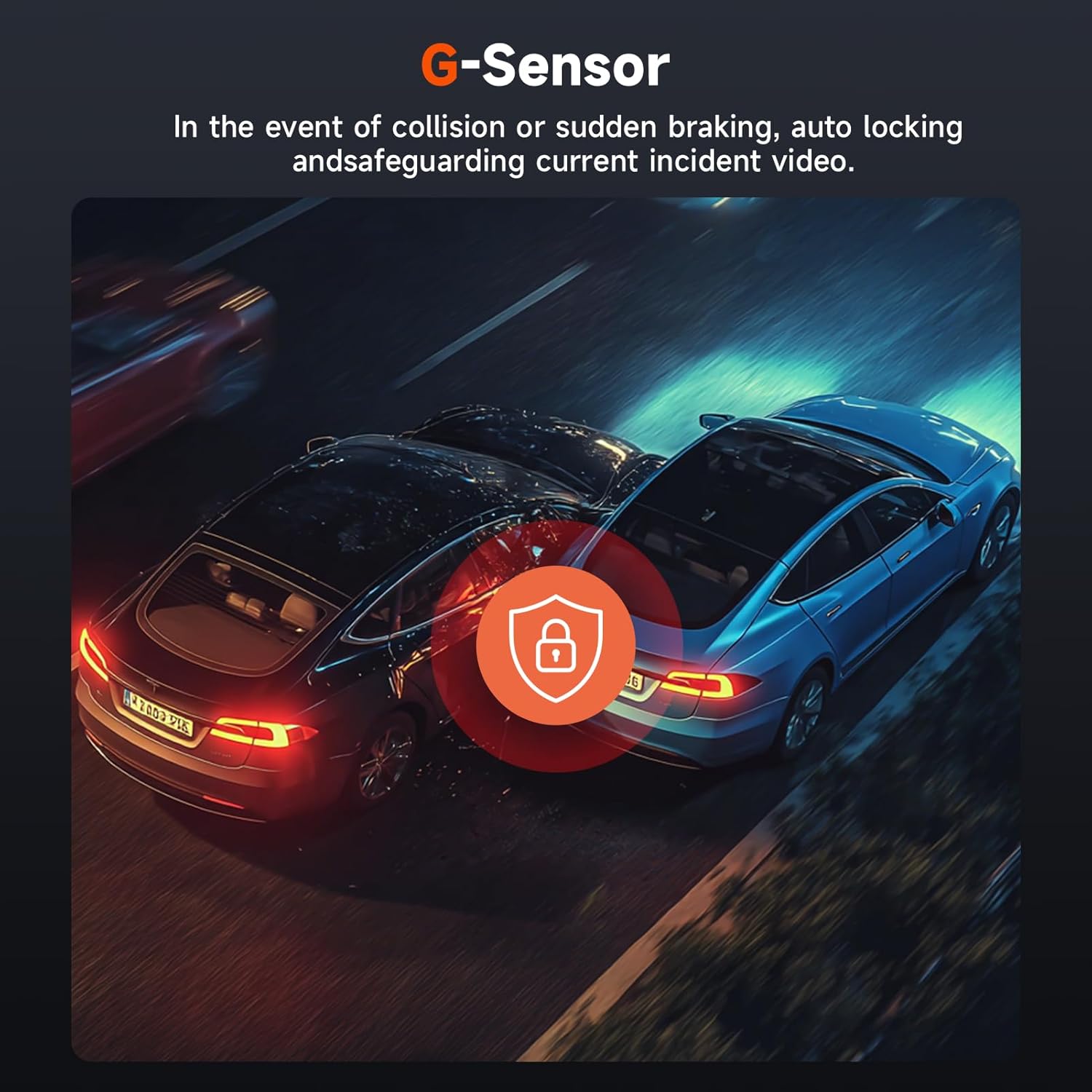
Image: A graphic illustrating the G-Sensor's function, which automatically locks and protects video footage during a collision or sudden impact.
24-Hour Parking Surveillance
To enable 24-hour parking monitoring, a Type-C hardwire kit (not included) is required. When properly installed, the dash cam will automatically detect motion or impact while your vehicle is parked and begin recording, providing protection against scratches, theft, or vandalism.

Image: A visual representation of the 24/7 parking mode, showing a car under a protective dome, enabled by the dash cam and an optional hardwire kit.
Wi-Fi Connectivity & App Control
The GT830 features built-in 2.4G Wi-Fi for seamless connection to the VeeCar App (available on Android and iOS). This allows you to:
- View real-time footage on your smartphone.
- Download recorded videos directly to your phone.
- Share clips easily without removing the SD card.
- Adjust dash cam settings.

Image: A smartphone screen showing the VeeCar app, demonstrating its interface for viewing, downloading, and sharing dash cam footage.
Night Vision
Equipped with an F1.6 large aperture and a 6-glass lens, the GT830 enhances recording quality in low-light conditions, providing clearer and more balanced footage during nighttime driving.

Image: A comparison demonstrating the superior night vision capabilities of the E-YEEGER GT830 dash cam, showing a clearer view of a license plate at night.
Maintenance
SD Card Management
It is recommended to format the Micro SD card regularly (e.g., once a month) to maintain optimal performance and prevent data corruption. This can usually be done through the dash cam's settings menu or via the VeeCar app. Always back up important footage before formatting.
Cleaning the Device
Use a soft, dry cloth to clean the dash cam's lens and screen. Avoid using abrasive cleaners or solvents, as these can damage the device. Ensure the lenses are clean for clear video recording.
Troubleshooting
| Problem | Possible Solution |
|---|---|
| Dash cam does not power on. |
|
| Recording stops or freezes. |
|
| Video footage is blurry or unclear. |
|
| Wi-Fi connection issues. |
|
Specifications
| Feature | Detail |
|---|---|
| Brand | E-YEEGER |
| Model Name | GT830 |
| Video Capture Resolution | Front: 4K (2160p), Rear: 1080P |
| Field Of View | Front: 170 Degrees, Rear: 160 Degrees |
| Display Type | 1.97" IPS LCD |
| Connectivity Technology | Wi-Fi (2.4G) |
| Special Features | App Control, Built-In Display, Built-In WiFi, G-Sensor, Loop Recording, 24H Parking Mode (with optional hardwire kit) |
| Flash Memory Type | microSD |
| Included Memory Card Size | 32 GB |
| Flash Memory Supported Size Maximum | 256 GB |
| Mounting Type | Windshield Mount |
| Maximum Aperture | F1.8 |
| Item Dimensions (D x W x H) | 1.25"D x 3.6"W x 1.9"H |
Warranty and Support
The E-YEEGER GT830 Dash Cam comes with a 12-month warranty from the manufacturer. E-YEEGER also provides lifetime technical support and 24/7 customer service. For any setup guidance, troubleshooting assistance, or warranty claims, please contact the E-YEEGER support team through their official channels. Refer to the Quick Guide or product packaging for specific contact information.
Manufacturer: E-YEEGER