
Introduction
Thank you for choosing the Faadar Wireless Keyboard and Mouse Combo. This manual provides detailed instructions for setting up, operating, and maintaining your new wireless peripheral set. Please read this manual carefully before use to ensure optimal performance and longevity of your devices.
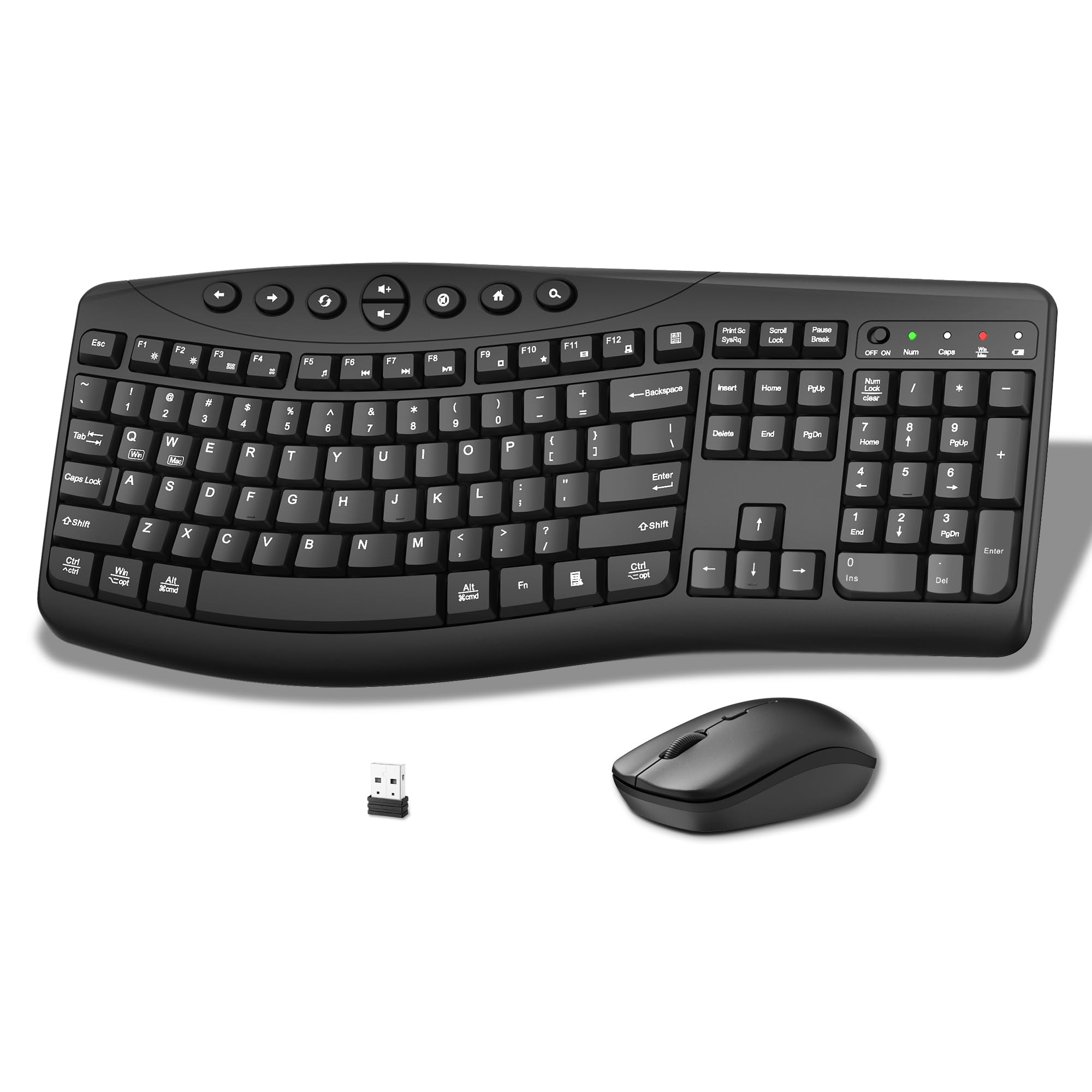
Image: The Faadar Wireless Keyboard and Mouse Combo, featuring an ergonomic curved keyboard and a silent mouse.
Setup Instructions
1. Package Contents
- Wireless Ergonomic Keyboard
- Wireless Silent Mouse
- 2.4GHz USB Receiver (stored in the mouse battery compartment)
- User Manual
2. Battery Installation
The keyboard and mouse each require one AA battery (not included).
- For the Mouse: Open the battery compartment cover on the underside of the mouse. Insert one AA battery, ensuring correct polarity (+/-). Close the cover. The 2.4GHz USB receiver is stored in this compartment. Remove it before closing.
- For the Keyboard: Open the battery compartment cover on the underside of the keyboard. Insert one AA battery, ensuring correct polarity (+/-). Close the cover.

Image: Detailed view of the mouse underside, showing the battery slot and the storage location for the USB receiver.
3. Connecting the USB Receiver
- Locate the 2.4GHz USB receiver inside the mouse's battery compartment.
- Plug the USB receiver into an available USB port on your computer.
- The keyboard and mouse will automatically connect to your computer. No additional drivers are typically required.

Image: Illustration of the 2.4GHz wireless connection, highlighting plug-and-play functionality and compatibility with Windows, Mac OS, and Linux.
4. Video Guide: Setup and Features
Video: An official product video from FaadarDirect demonstrating the setup process and key features of the Wireless Keyboard and Mouse Combo.
Operating Instructions
1. Ergonomic Design and Typing Comfort
The keyboard features a scientific curved key design that promotes a natural typing posture, reducing wrist strain during extended use. The soft membrane keys provide a quiet and comfortable typing experience. The mouse is symmetrically designed for both left and right-handed users, offering smooth cursor movement.

Image: Illustrates the silent structure of the keyboard keys and the noiseless click of the mouse, ensuring a quiet working environment.
2. Adjustable Tilt Legs
The keyboard is equipped with four adjustable leg rests on the back, allowing you to choose from three different tilt positions. This enables you to find your ideal typing posture, promoting a more relaxed arm position and reducing wrist fatigue.
- Front Stand: Opens the front stand for a 6-degree angle.
- Rear Stand: Opens the rear stand for a different angle.
- Both Stands: Opens both front and rear stands for a 1.5-degree angle, suitable for standing desk use.
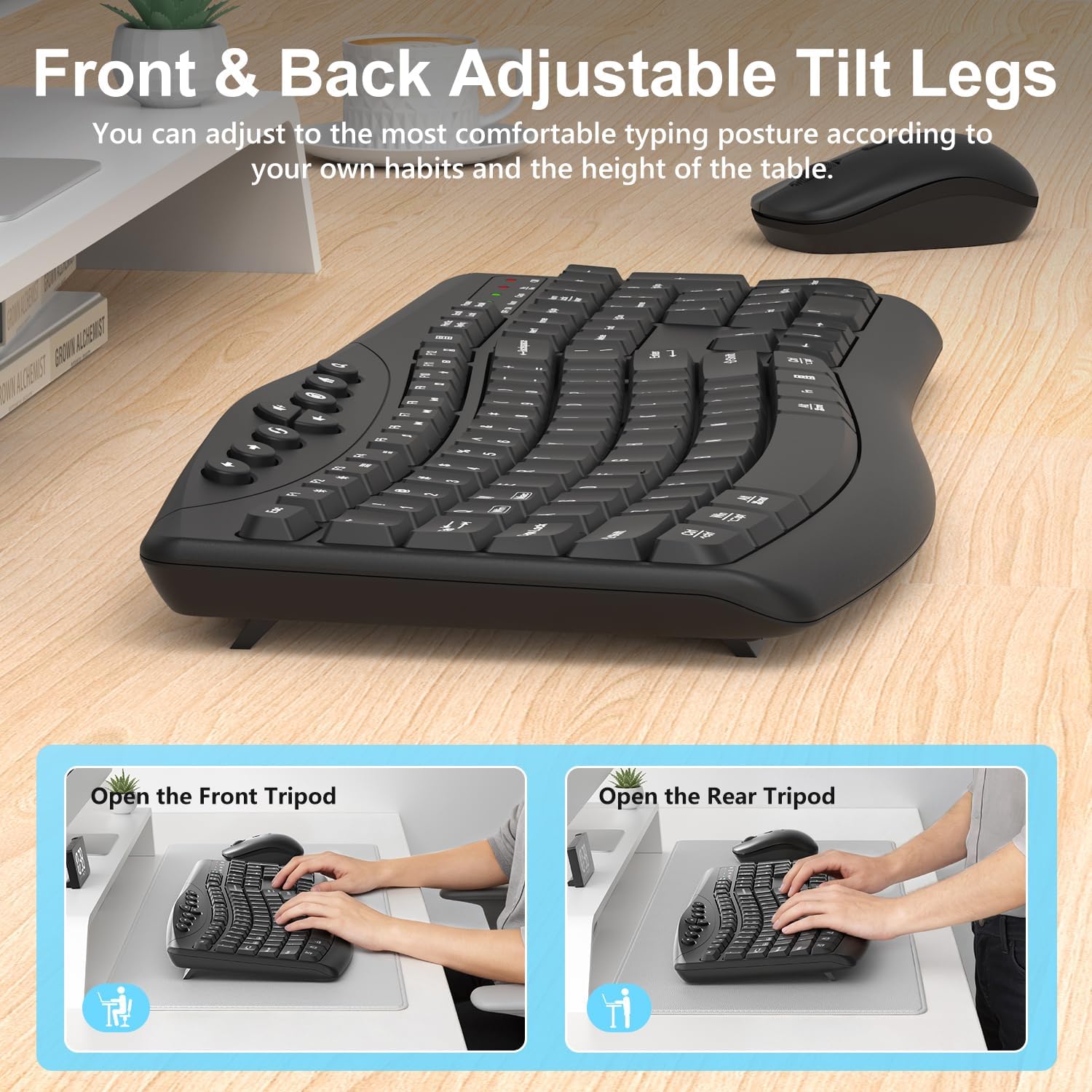
Image: Demonstrates the three adjustable tilt positions of the keyboard using its front and rear leg rests.
3. Multimedia and Shortcut Keys
The keyboard includes dedicated multimedia buttons and FN+ shortcut key combinations for enhanced productivity and convenience.
- Independent Multimedia Buttons: Easily control functions like Back, Forward, Refresh, Volume Up, Volume Down, Mute, Home Page, and Search.
- FN+ Shortcut Keys: Combine the 'FN' key with other keys to quickly adjust screen brightness, switch multitasking windows, play/pause media, or access email.
- Calculator Shortcut: A dedicated button provides instant access to the system calculator for quick calculations.

Image: Highlights the 8 multimedia and shortcut keys located above the function row for quick access to common functions.

Image: Shows the dedicated calculator shortcut key for quick access to the system calculator.
4. 3-Level Adjustable DPI for Mouse
The wireless mouse offers three adjustable DPI settings (800/1200/1600 DPI) to customize cursor sensitivity according to your needs. Press the DPI button on the mouse to cycle through the settings.
- 800 DPI: Suitable for daily office work or watching videos.
- 1200 DPI: Ideal for design drawings and fine detailing.
- 1600 DPI: Best for multi-screen office environments and quick switching.

Image: Illustrates the 3-level DPI adjustment feature of the mouse, with recommended uses for each setting.
5. System Compatibility
The combo is compatible with Windows, macOS, and Chromebook systems. You can quickly switch between Windows and macOS layouts using the following shortcut keys:
- FN + Q: Switch to Windows layout.
- FN + W: Switch to macOS layout.
Image: Demonstrates how to switch between Windows and Mac OS layouts using the FN+Q and FN+W shortcut keys.
6. Automatic Power Saving Function
To conserve battery life, both the keyboard and mouse feature an automatic power-saving mode:
- The keyboard enters sleep mode after 5 seconds of inactivity.
- The mouse enters sleep mode after 15 minutes of inactivity.
To reactivate either device, simply click any key on the keyboard or move/click the mouse.

Image: Explains the automatic power-saving feature for both the keyboard and mouse, detailing sleep modes and reactivation.
Maintenance
1. Cleaning
To clean your keyboard and mouse, use a soft, damp cloth. Avoid using harsh chemicals or abrasive cleaners. Ensure no liquid enters the devices.
2. Spill-Proof Design
The keyboard features a spill-proof design, which helps protect it from accidental liquid spills. In case of a spill, immediately disconnect the device and allow it to dry completely before reuse.

Image: Illustrates the splash-proof design of the keyboard, showing water droplets on the surface.
Troubleshooting
1. No Connection / Unresponsive Devices
- Check Batteries: Ensure fresh AA batteries are correctly installed in both the keyboard and mouse.
- USB Receiver: Verify the USB receiver is securely plugged into a working USB port on your computer. Try a different USB port.
- Distance: Ensure the devices are within the effective range of 33 feet (10 meters) from the USB receiver.
- Interference: Move the devices away from other wireless devices or large metal objects that might cause interference.
- Re-pair: In rare cases, you might need to re-pair the devices. This usually involves removing and reinserting the USB receiver, then turning the devices off and on.
2. Lag or Delays
- Battery Level: Low batteries can cause performance issues. Replace them if necessary.
- USB Port: Try plugging the USB receiver into a different USB port, preferably a direct port on the computer rather than a hub.
- Interference: Reduce potential wireless interference from other devices.
Specifications
| Feature | Detail |
|---|---|
| Brand | Faadar |
| Model Number | CK30Pro |
| Connectivity Technology | 2.4GHz Wireless (USB Receiver) |
| Wireless Range | Up to 33 feet (10 meters) |
| Keyboard Type | Full-Size, Ergonomic Curved, Multimedia |
| Mouse Type | Optical, Silent, Symmetrical |
| Mouse DPI Settings | 800 / 1200 / 1600 DPI (Adjustable) |
| Power Source | 1x AA Battery for Keyboard, 1x AA Battery for Mouse (Not Included) |
| Special Features | Dustproof, Ergonomic, Lightweight, Spillproof, Automatic Power Saving |
| Compatible Devices | Laptop, Personal Computer |
| Compatible OS | Windows, macOS, Chromebook systems |
| Item Weight | 1.5 Pounds |

Image: Provides detailed dimensions for the keyboard, mouse, and USB receiver.
Warranty and Support
1. Warranty Information
This Faadar Wireless Keyboard and Mouse Combo comes with a worry-free 12-month warranty from the date of purchase. This warranty covers manufacturing defects and ensures reliable performance under normal use.
2. Customer Support
For any questions, technical assistance, or warranty claims, please contact Faadar customer service. Refer to the product packaging or the official Faadar website for the most current contact information.
