
1. Introduction
This manual provides essential information for setting up, operating, and maintaining your TCL 50-inch Q51K QLED 4K UHD HDR+ Google TV. Please read this manual thoroughly before using your television to ensure proper and safe operation. Keep this manual for future reference.
The TCL Q51K series offers an enhanced viewing experience with Quantum Dot technology for vibrant colors, 4K UHD resolution, HDR PRO+ with Dolby Vision, and the intelligent AIPQ Processor. Enjoy seamless entertainment with Google TV, Dolby Atmos, and DTS Virtual:X audio.
2. Safety Information
Always follow basic safety precautions when using this television to reduce the risk of fire, electric shock, and injury.
- Power Source: Connect the TV to an AC 110V 60Hz power supply. Do not overload power outlets.
- Ventilation: Ensure adequate ventilation around the TV. Do not block ventilation openings.
- Water and Moisture: Do not expose the TV to rain or moisture. Do not place objects filled with liquids, such as vases, on the TV.
- Cleaning: Unplug the TV before cleaning. Use a soft, dry cloth. Do not use liquid or aerosol cleaners.
- Mounting: If wall-mounting, ensure the wall mount is securely installed and can support the TV's weight. Follow the wall mount instructions carefully.
- Children: Do not allow children to climb on the TV or stand.
- Lightning: Unplug the TV during lightning storms or when unused for long periods.
3. What's in the Box
Carefully unpack the box and ensure all items are present and undamaged.
- TCL 50-inch Q51K QLED 4K UHD HDR+ Google TV
- Remote Control
- Power Cable
- Wall Bracket
- Quick Start Guide (not included in this manual)

Figure 3.1: Included components and TV dimensions.
4. Setup
4.1 Physical Installation
Your TCL Q51K TV comes with a wall bracket for mounting. Alternatively, you can use a compatible TV stand (sold separately if not included in your specific package).
Wall Mounting (Recommended)
The included wall bracket allows for flexible placement. Ensure the wall can support the TV's weight (19.8 lbs without stand). The VESA mount standard for this TV is 300 x 200 mm. Follow the specific instructions provided with the wall bracket for safe and secure installation.
Stand Installation (Optional)
If using a stand, carefully attach the stand legs to the designated slots at the bottom of the TV, securing them with the provided screws. Place the TV on a stable, level surface.

Figure 4.1: Front view of the TCL 50Q51K TV.

Figure 4.2: Side view of the TCL 50Q51K TV.
4.2 Connecting Devices
The TV features multiple ports for connecting external devices.
- HDMI Ports (x3): Connect Blu-ray players, game consoles, cable boxes, etc.
- USB Port (x1): Connect USB drives for media playback.
- Optical Audio Output: For connecting to soundbars or home theater systems.
- Antenna/Cable Input: For connecting an antenna or cable TV.

Figure 4.3: Rear view with connectivity ports.
4.3 Power Connection
After connecting all necessary devices, plug the power cable into the TV's power input and then into a wall outlet.
4.4 Initial Setup (Google TV)
Upon first power-on, the TV will guide you through the Google TV setup process. This includes:
- Language selection.
- Connecting to a Wi-Fi network.
- Signing in with your Google account.
- Installing essential apps.
5. Operating Your TV
5.1 Remote Control
The included Bluetooth remote control allows for easy navigation and control of your TV. Ensure batteries are inserted correctly.
- Power Button: Turns the TV on/off.
- Google Assistant Button: Activates voice commands.
- Navigation Pad: For menu navigation.
- Volume Up/Down: Adjusts audio level.
- Channel Up/Down: Changes channels.
- Home Button: Returns to the Google TV home screen.
- App Shortcut Buttons: Quick access to popular streaming services.
5.2 Google TV Interface
Google TV organizes your favorite content from various streaming services into one personalized home screen. You can browse recommendations, access your apps, and manage your watch list.

Figure 5.1: Google TV home screen.

Figure 5.2: Google TV applications.
6. Connectivity
6.1 Wireless Connectivity
- Wi-Fi: Connect to your home wireless network for internet access and streaming.
- Bluetooth 5.1: Pair wireless headphones, soundbars, or other Bluetooth-enabled devices.
6.2 Screen Mirroring
The TV supports various screen mirroring technologies:
- Google Cast: Cast content from compatible apps on your smartphone or tablet.
- AirPlay 2: Stream content from Apple devices.
- SmartShare: Share content from other compatible devices.
7. Picture and Sound Settings
7.1 Picture Quality Features
- QLED Quantum Dot Color: Experience over a billion vibrant shades for richer, more realistic colors.
- High Brightness LED Backlighting: Produces brighter images for an enhanced viewing experience, even in well-lit rooms.
- HDR PRO+ with Dolby Vision, HDR10+, and HLG: Enjoy enhanced contrast, accurate colors, and sharp details with support for leading HDR formats.
- TCL AIPQ Processor: Optimizes every scene in real-time for brightness, contrast, color, clarity, motion, and upscaling.
- Motion Rate 240 with MEMC Frame Insertion: Provides exceptional motion clarity for fast-paced content.

Figure 7.1: QLED Quantum Dot Color enhancement.

Figure 7.2: High Brightness LED Backlight in action.

Figure 7.3: The AiPQ Processor.

Figure 7.4: HDR PRO+ with Dolby Vision, HDR10+, and HLG.
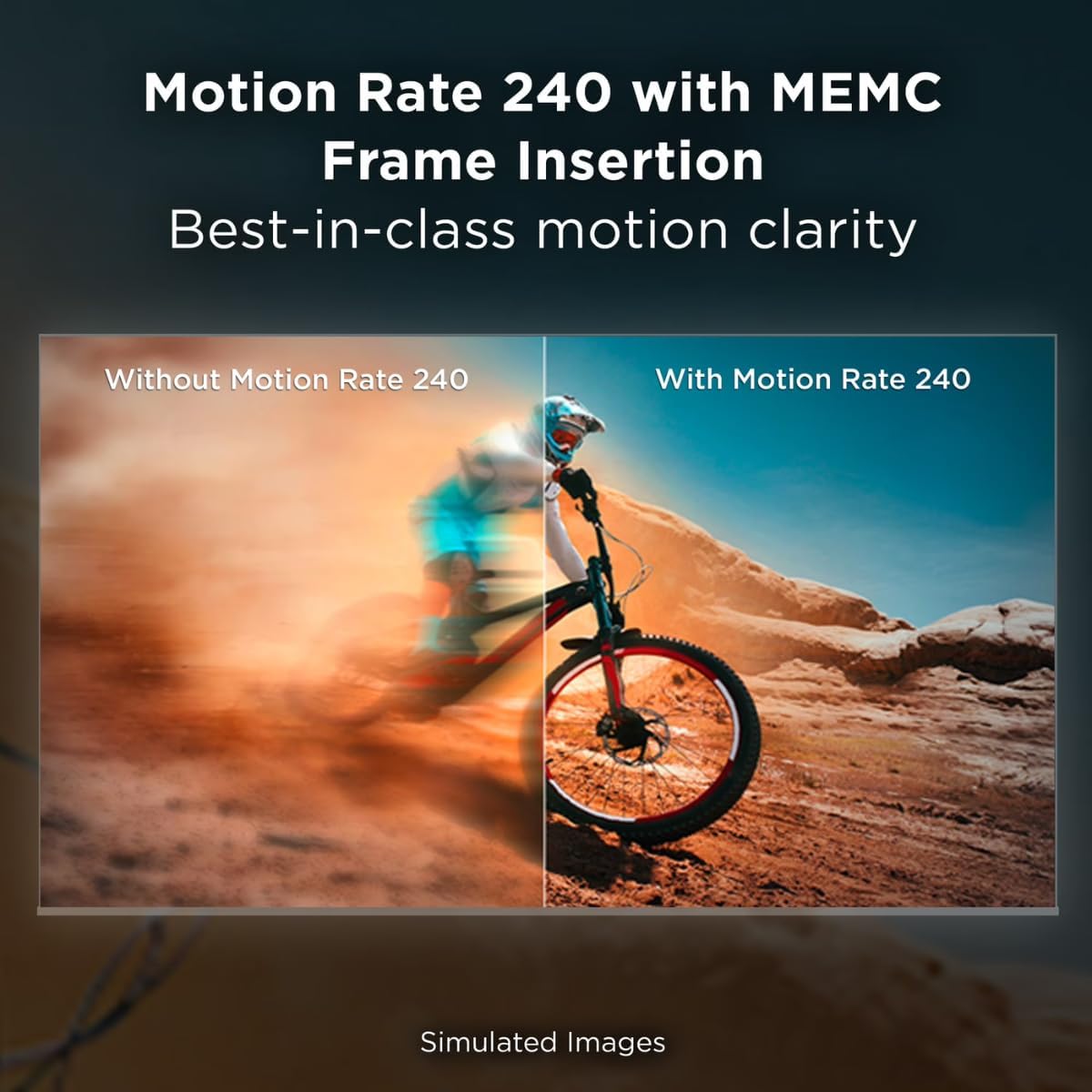
Figure 7.5: Motion Rate 240 with MEMC Frame Insertion.
7.2 Audio Features
- Dolby Atmos: Delivers immersive, multi-dimensional sound that moves around you.
- DTS Virtual:X: Provides an immersive audio experience without the need for additional speakers.
8. Maintenance
8.1 Cleaning the TV Screen
Gently wipe the screen with a soft, lint-free cloth. For stubborn marks, slightly dampen the cloth with water or a specialized screen cleaner. Never spray liquid directly onto the screen.
8.2 Cleaning the TV Body
Use a soft, dry cloth to wipe the TV's frame and back. Avoid abrasive materials or harsh chemicals.
8.3 General Care
- Avoid placing heavy objects on the TV.
- Keep the TV away from direct sunlight and heat sources.
- Ensure proper ventilation to prevent overheating.
9. Troubleshooting
If you encounter issues with your TV, refer to the following common solutions:
- No Power: Check if the power cable is securely connected to both the TV and the wall outlet. Try a different outlet.
- No Picture/Sound: Ensure the correct input source is selected. Check all cable connections (HDMI, antenna).
- Remote Not Working: Replace the batteries in the remote control. Ensure there are no obstructions between the remote and the TV. Re-pair the Bluetooth remote if necessary.
- Poor Picture Quality: Check the signal source. Adjust picture settings (brightness, contrast, color). For streaming, check your internet connection speed.
- No Internet Connection: Verify your Wi-Fi network is active and other devices can connect. Restart your router and modem. Reconnect the TV to the Wi-Fi network in the settings.
- Apps Not Loading: Ensure the TV is connected to the internet. Try restarting the TV. Clear the cache of the problematic app in the TV settings.
If the problem persists after trying these steps, please contact TCL customer support.
10. Specifications
| Model Name | 50Q51K |
| Screen Size | 50 inches (49.5" diagonal) |
| Display Technology | QLED |
| Resolution | 4K UHD (3840 x 2160) |
| Refresh Rate | 60 Hz (Motion Rate 240 with MEMC) |
| Processor | AIPQ Processor |
| HDR Support | HDR PRO+ (Dolby Vision, HDR10+, HLG) |
| Audio Technology | Dolby Atmos, DTS Virtual:X |
| Operating System | Google TV |
| Connectivity | 3 x HDMI, 1 x USB, Wi-Fi, Bluetooth 5.1, Optical Audio Out |
| Screen Mirroring | AirPlay 2, Google Cast, SmartShare |
| Product Dimensions (WxDxH, without stand) | 43.7" x 3.2" x 25.4" |
| Weight (without stand) | 19.8 lbs |
| VESA Mount Standard | 300 x 200 mm |
| Power Supply | 110 VAC 60 Hz |
| Included Components | Power Cable, Remote Control, Wall Bracket |
11. Warranty and Support
11.1 Warranty Information
This TCL 50Q51K television, being a renewed product, comes with a 90-day limited warranty. Please refer to the warranty card included with your product for specific terms and conditions. This warranty covers manufacturing defects and does not cover damage caused by misuse, accidents, or unauthorized modifications.
11.2 Customer Support
For technical assistance, troubleshooting beyond this manual, or warranty claims, please contact TCL Customer Support. You can typically find contact information (phone number, website) on the manufacturer's official website or in the quick start guide provided with your TV.
When contacting support, please have your TV's model number (50Q51K) and serial number ready. The serial number is usually located on a sticker on the back of the TV.


