
Product Overview
The YUYIU 2.4GHz Wireless Controller is designed for use with Xbox One, Xbox Series X|S consoles, and PC Windows (version 10 and above). It features 2.4GHz wireless connectivity, a built-in 1000mAh rechargeable battery, customizable RGB lighting, programmable buttons, Turbo function, dual vibration motors, and a 3.5mm audio jack.
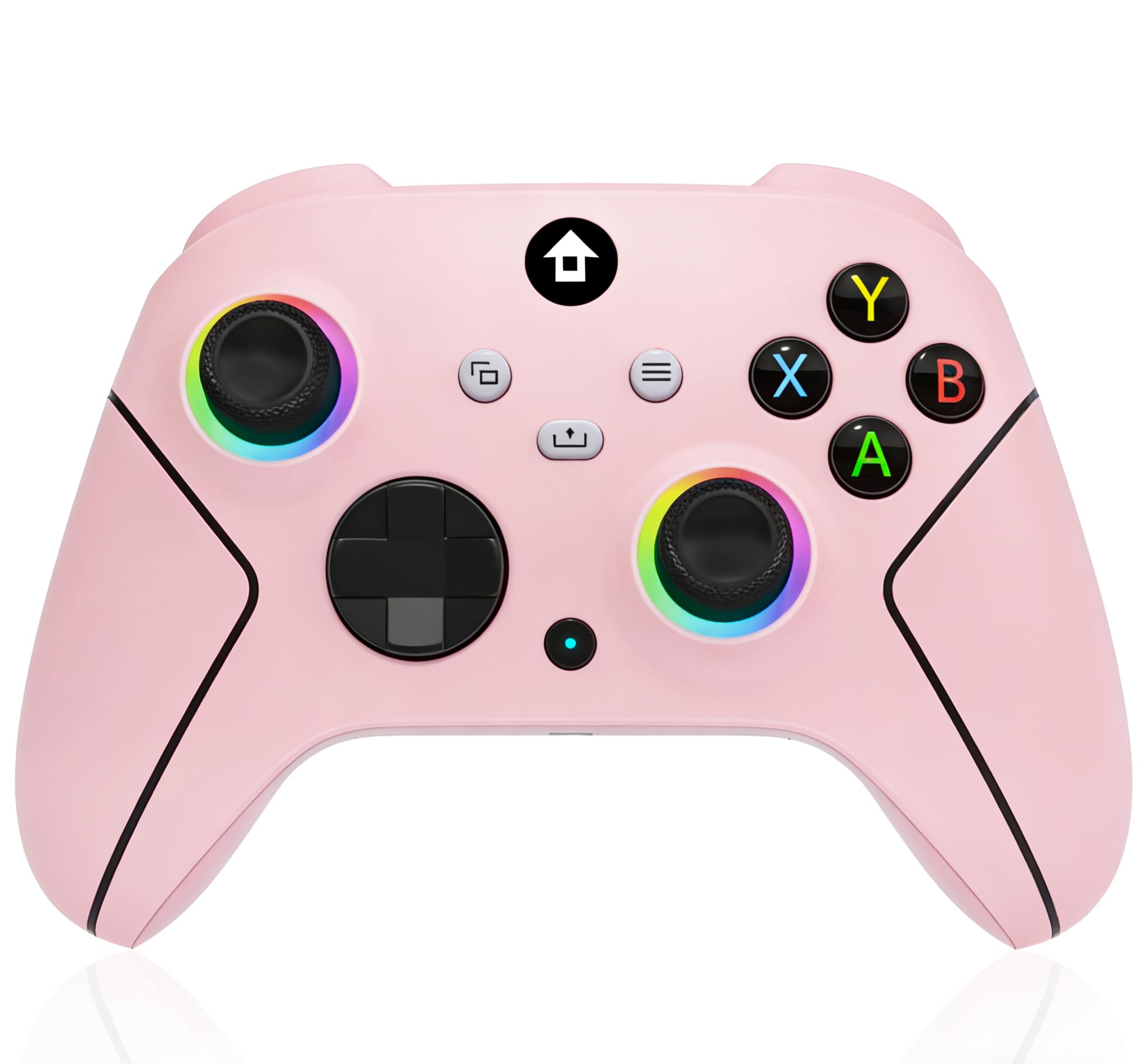
Image: Front view of the YUYIU 2.4GHz Wireless Controller, showcasing its design and RGB light features.
Package Contents
- YUYIU 2.4GHz Wireless Controller
- 2.4GHz Wireless Adapter
- Type-C Charging Cable
- User Manual (this document)
Setup Instructions
1. Charging the Controller
Before initial use, fully charge the controller. Use the provided Type-C charging cable.
- Connect the Type-C end of the cable to the controller's charging port.
- Connect the USB-A end to a USB power source (e.g., console, PC, USB wall adapter).
- The indicator light on the controller will flash slowly during charging.
- Once fully charged (approximately 2-3 hours), the indicator light will remain on.
A full charge provides approximately 10-14 hours of gameplay.
2. Connecting to Xbox Consoles (Xbox One, Xbox Series X|S)
The controller connects wirelessly via the 2.4GHz adapter. It does not use Bluetooth.
- Insert the 2.4GHz wireless adapter into an available USB port on your Xbox console.
- Turn on the controller by pressing the Xbox button.
- The controller should automatically pair with the adapter. The indicator light will become solid once connected.
- If connection issues occur, ensure the adapter is securely inserted and try restarting both the console and controller.
3. Connecting to PC Windows (Windows 10 and above)
For PC use, Windows 10 or above is recommended. The controller is plug-and-play, requiring no additional drivers.
- Insert the 2.4GHz wireless adapter into an available USB port on your PC.
- Turn on the controller by pressing the Xbox button.
- The PC should recognize the controller automatically. The indicator light will become solid once connected.
- Alternatively, you can connect the controller directly to your PC using the Type-C charging cable for a wired connection.
Note:
- This controller is not compatible with TVs or mobile phones.
- The controller requires the 2.4G receiver to connect to the host and computer.
Operating Instructions
1. RGB Lighting Modes
The controller features 7 colors of RGB lighting with multiple modes:
- Monochrome Light Constant On Mode: Press the Light Setting Key + A Key.
- Breathing Mode: Press the Light Setting Key + B Key.
- Circle Running Marquee Changing Mode: Press the Light Setting Key + Y Key.
2. Programmable Keys (ML/MR)
The "ML" and "MR" buttons on the back of the controller can be programmed to map basic function keys or a combination of keys.
- Press and hold the Program Key (usually a small button near ML/MR). The indicator light will flash.
- Press the ML or MR button you wish to program.
- Press the desired function key(s) (e.g., A, B, X, Y, LB, RB, L3, R3, D-PAD) or a sequence of up to 16 keys.
- Press the Program Key again to save the setting. The indicator light will stop flashing.
3. AUTO TURBO Function
The Turbo function allows for rapid, repeated input of a button press.
- Set Turbo: Press the desired function key (e.g., A, B, X, Y, L1, L2, R1, R2) once, then press the Turbo Key. The Turbo light will flash.
- Set Auto Turbo: Press the same function key and Turbo Key again. The Turbo light will flash continuously. This enables automatic rapid firing without holding the button.
- Clear Turbo Function: Press the same function key and Turbo Key a third time to clear the Turbo setting for that specific button. The Turbo light will turn off.
4. Dual Vibration Motor
The controller features dual vibration motors that provide tactile feedback for in-game actions, enhancing immersion.
5. 3.5mm Audio Jack
Connect a headset with a 3.5mm jack to the controller to enable audio output and microphone input simultaneously.
Maintenance
1. Battery Care
- Avoid fully discharging the battery frequently to prolong its lifespan.
- Charge the controller regularly, even if not in constant use.
- Store the controller in a cool, dry place when not in use for extended periods.
2. Cleaning
- Use a soft, dry cloth to wipe the controller's surface.
- For stubborn dirt, slightly dampen the cloth with water or a mild cleaning solution, then wipe dry immediately.
- Avoid using harsh chemicals or abrasive materials, as these can damage the controller's finish.
Troubleshooting
- Controller not connecting:
- Ensure the 2.4GHz wireless adapter is securely plugged into a USB port on your console or PC.
- Verify the controller is charged.
- Restart your console/PC and the controller.
- For PC, ensure you are running Windows 10 or above.
- Battery drains quickly or doesn't hold charge:
- Ensure the charging cable is fully inserted into both the controller and the power source.
- Check if the charging indicator light behaves as described in the "Charging the Controller" section. If it never stays solid, the controller may not be fully charging.
- Avoid using the controller while it is charging, as this can sometimes affect charging efficiency.
- Buttons are unresponsive or inconsistent:
- Ensure the controller's firmware is up to date (if applicable, check the manufacturer's website for updates).
- Clean around the buttons to remove any debris that might be obstructing their movement.
- Test the controller with different games or applications to determine if the issue is specific to one title.
- Audio jack not working:
- Ensure your headset is fully plugged into the 3.5mm audio jack.
- Test the headset with another device to confirm it is functioning correctly.
- Check audio settings on your console or PC to ensure the controller's audio output is selected.
Specifications
| Feature | Detail |
|---|---|
| Model | B0GWPLDKLR |
| Connectivity | 2.4GHz Wireless (via USB adapter), Wired (Type-C) |
| Compatible Devices | Xbox One, Xbox Series S, Xbox Series X, PC Windows 10+ |
| Battery Capacity | 1000mAh Lithium Battery |
| Charging Time | 2-3 hours |
| Operating Time | 10-14 hours (approx.) |
| Wireless Range | Up to 33 feet (10 meters) |
| Audio Jack | 3.5mm Stereo Jack |
| Special Features | 7 Colors RGB Light, Programmable Keys, Turbo Function, Dual Vibration Motor, 360° Joystick |
Warranty and Support
YUYIU is committed to providing quality products and customer satisfaction. If you encounter any problems during the use of your controller, please contact YUYIU customer service via email.
Please refer to your purchase documentation or the YUYIU official website for specific warranty terms and contact information.
Note: Specific warranty duration and detailed terms are not provided in this manual.