
1. Introduction
Thank you for choosing Bucephalus T20 Wireless Earbuds. This manual provides essential information for setting up, operating, and maintaining your earbuds. Please read it carefully before use and retain it for future reference.
Package Contents
- Bucephalus T20 Wireless Earbuds (Left and Right)
- Smart Charging Case
- USB-C Charging Cable
- User Manual
2. Safety Information
- Do not disassemble or modify the product.
- Keep the earbuds and charging case away from extreme temperatures, humidity, and liquids.
- Avoid prolonged exposure to high volume levels to prevent hearing damage.
- Clean the earbuds and charging case with a soft, dry cloth.
- Dispose of the product responsibly according to local regulations.
3. Product Overview
Familiarize yourself with the components of your Bucephalus T20 Wireless Earbuds and Smart Charging Case.

Figure 3.1: Earbuds in Smart Charging Case with Touchscreen Display. The display shows various functions and settings accessible via the case.
Earbud Components
- Touch Control Area
- Microphone
- Charging Contacts
- Speaker
Charging Case Components
- Smart Touchscreen Display
- Earbud Charging Slots
- USB-C Charging Port (typically on the back or bottom)
4. Setup
4.1 Charging the Earbuds and Case
Before first use, fully charge the earbuds and charging case.
- Connect the USB-C charging cable to the charging port on the case and to a power source.
- The touchscreen display on the case will indicate the charging status.
- Place the earbuds into the charging slots inside the case. They will begin charging automatically.
- A full charge for the case takes approximately 1.5 hours. Earbuds charge within the case.
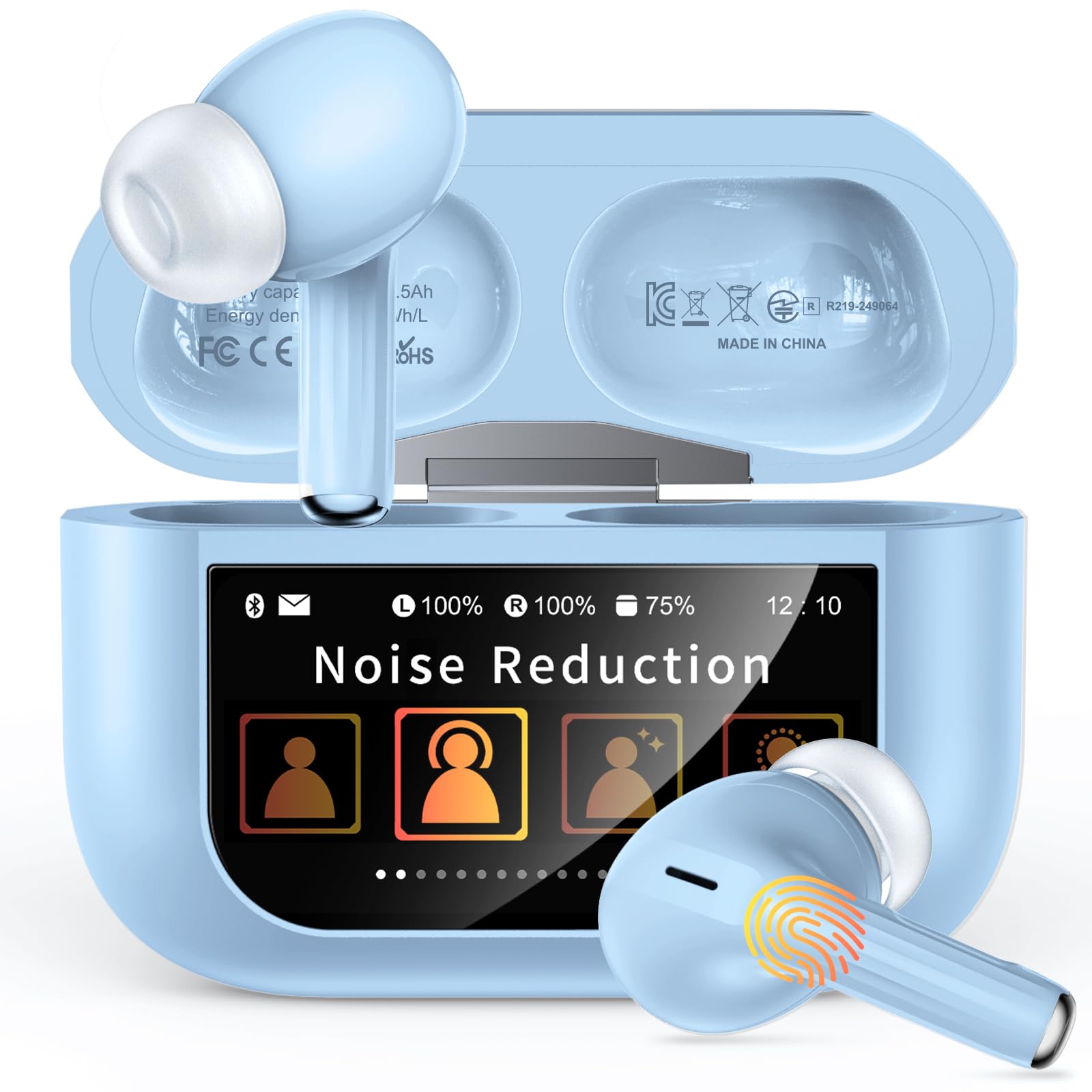
Figure 4.1: Bucephalus T20 Earbuds in Charging Case. Ensure earbuds are correctly seated for charging.
4.2 Bluetooth Pairing
To connect your earbuds to a device:
- Ensure the earbuds are charged and placed inside the charging case.
- Open the lid of the charging case. The earbuds will automatically enter pairing mode.
- On your device (smartphone, tablet, etc.), enable Bluetooth.
- Search for available Bluetooth devices and select "Bucephalus T20" from the list.
- Once connected, the earbuds will automatically pair with this device in the future when the case lid is opened.
5. Operating Instructions
5.1 Touch Controls
The earbuds feature touch-sensitive areas for various functions:

Figure 5.1: Earbud Touch Control Functions. Specific gestures control playback, calls, and voice assistants.
- Play/Pause: Single tap on either earbud.
- Next Track: Double tap on the right earbud.
- Previous Track: Double tap on the left earbud.
- Answer/End Call: Single tap on either earbud.
- Reject Call: Press and hold either earbud for 2 seconds.
- Activate Voice Assistant (Siri/Google Assistant): Triple tap on either earbud.
- Volume Up: Press and hold the right earbud.
- Volume Down: Press and hold the left earbud.
5.2 Active Noise Cancellation (ANC)
The Bucephalus T20 earbuds feature Active Noise Cancellation to reduce ambient sound.

Figure 5.2: Active Noise Cancellation in use. This feature helps to minimize external distractions.
- To toggle ANC/Transparency Mode/Normal Mode: Press and hold the touch control area on either earbud for 2 seconds until you hear an audible prompt.
- The Smart Charging Case display may also show the current noise cancellation mode.
5.3 Smart Charging Case Touchscreen
The charging case features a touchscreen display for quick access to settings and information.
- Battery Level: Displays the battery percentage of the case and individual earbuds.
- ANC Mode: Shows the current noise cancellation setting.
- Equalizer Settings: Allows selection of different audio profiles.
- Find My Earphone: Initiates a sound from the earbuds to help locate them.

Figure 5.3: Using the 'Find My Earphone' Feature. The case's screen assists in locating misplaced earbuds.
Swipe left or right on the case's touchscreen to navigate through different functions and settings.
6. Maintenance
6.1 Cleaning
- Regularly clean the earbuds and charging case to ensure optimal performance.
- Use a soft, dry, lint-free cloth to wipe the surfaces.
- Gently clean the charging contacts on both the earbuds and the case with a dry cotton swab.
- Do not use abrasive cleaners, alcohol, or chemical solvents.
6.2 Storage
- When not in use, store the earbuds in their charging case to protect them and keep them charged.
- Store the product in a cool, dry place, away from direct sunlight and extreme temperatures.
7. Troubleshooting
If you encounter issues with your Bucephalus T20 Wireless Earbuds, refer to the following solutions:
| Problem | Possible Solution |
|---|---|
| Earbuds not pairing |
|
| No sound from one earbud |
|
| Charging case not charging |
|
| Touch controls unresponsive |
|
8. Specifications
| Feature | Detail |
|---|---|
| Model Name | T20 |
| Brand | Bucephalus |
| Connectivity Technology | Wireless (Bluetooth) |
| Bluetooth Version | 5.4 |
| Bluetooth Range | Up to 33 Feet (10 meters) |
| Active Noise Cancellation (ANC) | Yes |
| Control Type | Touch Control |
| Audio Driver Type | Dynamic Driver |
| Audio Driver Size | 6 mm |
| Audio Latency | 40 Milliseconds |
| Impedance | 32 Ohms |
| Sensitivity | 105 dB |
| Battery Charge Time (Case) | Approx. 1.5 Hours |
| Total Playtime | Up to 48 Hours (with charging case) |
| Water Resistance Level | Water Resistant |
| Charging Port | USB-C |
| Material | Plastic |
9. Warranty Information
Bucephalus T20 Wireless Earbuds come with a limited warranty. Please refer to the warranty card included in your package or visit the official Bucephalus website for detailed warranty terms and conditions. This warranty typically covers manufacturing defects for a period of one year from the date of purchase.
10. Customer Support
For further assistance, technical support, or warranty claims, please contact Bucephalus customer service through the following channels:
- Official Website: Visit the Bucephalus official website for FAQs, support resources, and contact information.
- Email Support: Refer to your product packaging or warranty card for a support email address.
Please have your product model number (T20) and proof of purchase ready when contacting support.