
1. Introduction
The Visiocore CP19W1 is a versatile 2K Clock Camera designed for indoor security. It combines the functionality of a digital alarm clock with a high-definition security camera, offering features such as 2K full-color night vision, human motion detection, and dual-band Wi-Fi connectivity (2.4GHz & 5GHz). This device allows for continuous monitoring of your home, children, pets, or elderly family members, providing real-time alerts and flexible storage options.
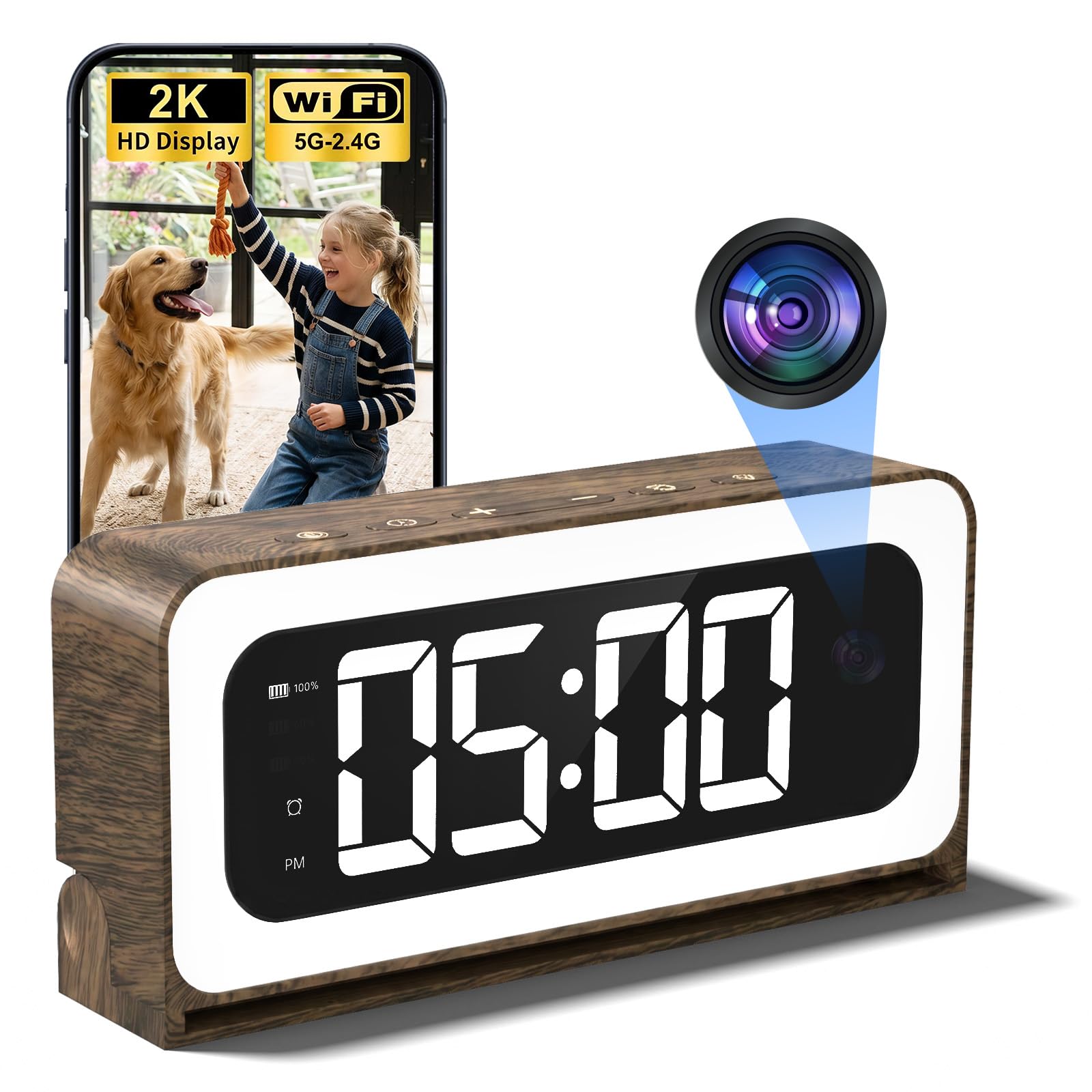
Figure 1: Visiocore CP19W1 2K Clock Camera.
2. Setup Guide
2.1 Package Contents
Ensure all items are present in the package:
- Visiocore CP19W1 Clock Camera
- Charging Cable (USB-C)
- User Manual (this document)
2.2 Physical Setup
- Place the clock camera on a stable, flat surface in your desired monitoring area.
- Connect the provided USB-C charging cable to the camera and a power adapter (not included).
- Plug the power adapter into a wall outlet. The clock display will illuminate.

Figure 2: Connecting the power supply to the clock camera.
2.3 App Download and Registration
To access camera features, download the companion mobile application:
- Scan the QR code provided in the quick start guide or visit http://api.smartcloudcon.com/ipserve/store/qxprocode to download the app.
- Install the app on your smartphone.
- Open the app and follow the on-screen instructions to register a new account.
- Allow notification permissions when prompted to receive alerts.

Figure 3: App download and device addition process.
2.4 Wi-Fi Connection
The camera supports both 2.4GHz and 5GHz Wi-Fi networks for stable connectivity.
- In the app, tap "Add Device" or the '+' icon.
- The app will automatically search for nearby devices. Select your Visiocore CP19W1.
- Follow the prompts to connect the camera to your home Wi-Fi network. Ensure your phone is connected to the same Wi-Fi network during setup.
- Once connected, you can name your device (e.g., "Living Room Camera").
Video 1: Instructions on how to connect the clock camera to your Wi-Fi network using the mobile application.
Video 2: Demonstrating the dual-band (5G & 2.4G) Wi-Fi connectivity of the indoor security camera.
2.5 Micro SD Card Installation (Optional)
For local storage, insert a Micro SD (TF) card (not included) into the designated slot. The camera supports cards from 8GB to 256GB, Class 10 or higher speed, formatted to FAT32.

Figure 4: Micro SD card slot location.
3. Operation
3.1 Clock and Night Light Functions
The device functions as a digital clock with adjustable display brightness and an integrated night light.
- Time Display Brightness: In normal mode, a single click of the "." button adjusts the time indicator light through three levels: dim, bright, or off.
- Night Light: A single press of the night light button adjusts the night light through three levels: dim, bright, or off.

Figure 5: Adjusting time display and night light brightness.
3.2 Alarm Clock Settings
To set or adjust the alarm:
- Press the alarm button once to display the current alarm setting time.
- Press and hold the alarm button to enter alarm setting mode. The hour digits will flash. Use the '+' or '-' buttons to adjust the hour.
- Press the alarm button again to move to minute adjustment. Use the '+' or '-' buttons to adjust the minutes.
- Press the alarm button again to set the snooze time (5-60 minutes). Use the '+' or '-' buttons to adjust.
- Press the alarm button one last time to save settings and exit.
- To turn the alarm on or off, press the alarm button once. An alarm indicator icon will appear on the left when the alarm is active.
- When the alarm sounds, press the '+' or '-' buttons to enter snooze mode. Press the alarm button to turn it off.

Figure 6: Alarm setting instructions.
3.3 Camera Functions
- 2K HD Video: The camera captures clear 2K resolution video.
- Full-Color Night Vision: Equipped with a built-in spotlight, the camera provides full-color video even in low-light conditions, with a range of up to 33 feet.
- Motion Detection & Alerts: The highly sensitive motion sensor detects human movement. When human body detection is enabled in the app, the camera records and sends instant notifications to your phone, reducing false alarms.
- Remote Viewing: Access live video feeds from anywhere, anytime, via the mobile app.

Figure 7: Clear IR Night Vision in 2K clarity.

Figure 8: AI-powered motion detection and real-time alerts.
3.4 Storage Options
- Local Storage: Supports Micro SD (TF) cards up to 256GB for continuous recording.
- Cloud Storage: Optional cloud storage is available via a paid subscription within the app, offering secure data backup and remote access to recordings.

Figure 9: Local and cloud storage options.
4. Maintenance
- Cleaning: Use a soft, dry cloth to clean the device. Avoid abrasive cleaners or solvents.
- Battery: The built-in 5200mAh rechargeable battery provides up to 12 hours of operation. Recharge using the provided USB-C cable and a compatible power adapter.
- Firmware Updates: Regularly check the mobile app for available firmware updates to ensure optimal performance and security.
- Placement: Avoid placing the camera in direct sunlight, near heat sources, or in areas with high humidity.

Figure 10: Information on the device's long-lasting battery.
5. Troubleshooting
| Issue | Possible Cause | Solution |
|---|---|---|
| Device not powering on | No power, low battery, faulty cable/adapter | Ensure charging cable is securely connected. Try a different USB-C cable or power adapter. Charge the device for at least 30 minutes. |
| Unable to connect to Wi-Fi | Incorrect Wi-Fi password, weak signal, wrong frequency band | Verify Wi-Fi password. Ensure the camera is within range of your router. Confirm your router supports 2.4GHz or 5GHz and select the correct band in the app. Restart your router and the camera. |
| No motion detection alerts | Motion detection off, app notifications disabled, sensitivity too low | Enable human body detection in the app settings. Check phone notification settings for the app. Adjust motion detection sensitivity in the app. |
| Poor video quality at night | Insufficient ambient light, lens obstruction | Ensure the built-in spotlight is enabled for full-color night vision. Clean the camera lens. |
| SD card not recording | Incorrect format, incompatible card, full card | Ensure SD card is FAT32 formatted, Class 10 or higher, and within 8GB-256GB capacity. Reformat the card if necessary. Check recording settings in the app. |
6. Specifications
| Feature | Detail |
|---|---|
| Model Name | CP19W1 |
| Video Capture Resolution | 2K (1440p) |
| Connectivity Technology | Wireless (Wi-Fi) |
| Wireless Technology | Wi-Fi (2.4GHz & 5GHz Dual Band) |
| Night Vision | Full Color Night Vision (up to 33 feet) |
| Special Feature | Night Vision, Motion Detection, Alarm, Digital Clock |
| Indoor/Outdoor Usage | Indoor |
| Compatible Devices | Smartphone (Android) |
| Power Source | Corded Electric, 5200mAh Rechargeable Battery |
| Voltage | 5 volts |
| Wattage | 5 watts |
| Viewing Angle | 120 degrees |
| Item Dimensions | 2 x 4 x 3 inches |
| Storage Support | Micro SD (TF) card (8G-256G, Class 10+, FAT32), Cloud Storage (subscription required) |
| Material | Acrylonitrile Butadiene Styrene (ABS) |
| UPC | 744585955101 |
7. Warranty & Support
7.1 Manufacturer's Warranty
The Visiocore CP19W1 Clock Camera comes with a 1-Year Manufacturer's Warranty from the date of purchase. This warranty covers defects in materials and workmanship under normal use. It does not cover damage caused by misuse, accidents, unauthorized modifications, or external causes.
Please retain your proof of purchase for warranty claims.
7.2 Customer Support
For technical assistance, troubleshooting, or warranty inquiries, please contact Visiocore customer support through the following channels:
- Email: Refer to the contact information provided in your product packaging or the mobile application.
- Online: Visit the official Visiocore website for FAQs and support resources.
When contacting support, please have your product model (CP19W1) and purchase details ready.