
1. Introduction
This manual provides essential information for the safe and efficient use of your OPPO K14 G smartphone. Please read it thoroughly before operating your device to ensure proper functionality and to understand its features.
The OPPO K14 G is designed for speed and performance, featuring advanced 5G connectivity, a powerful processor, 6GB RAM, and 256GB internal storage. It includes a versatile camera system, a high-capacity 7000mAh battery with 45W fast charging, and an IP69 water and dust resistance rating for enhanced durability.
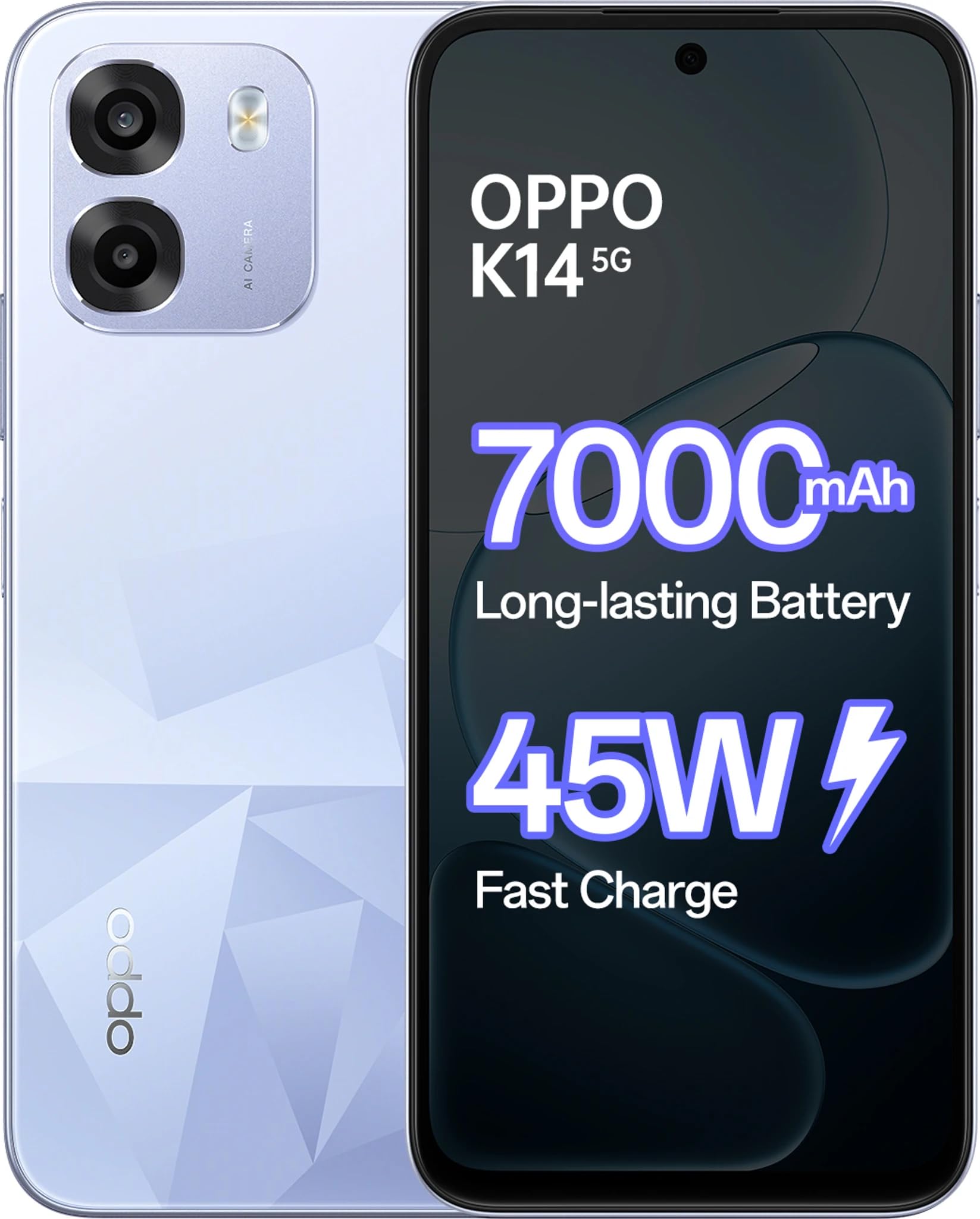
Figure 1: OPPO K14 G Smartphone in Icy Blue color, showcasing its sleek design.
2. What's in the Box
Verify that all items are present in the package:
- OPPO K14 G Smartphone
- Phone Case
- Power Adapter (45W)
- USB Cable (Type-C)
- Quick Start Guide
- SIM Tray Ejector
3. Setup
3.1. Inserting the SIM Card and microSD Card
- Locate the SIM card tray on the side of your device.
- Insert the SIM Tray Ejector into the small hole next to the tray and press firmly until the tray pops out.
- Place your Nano-SIM card(s) and/or microSD card into the tray with the gold contacts facing down, ensuring they are correctly aligned.
- Carefully push the tray back into the slot until it is flush with the device.
3.2. Powering On/Off
- To power on: Press and hold the Power Button until the OPPO logo appears.
- To power off: Press and hold the Power Button, then tap "Power off" on the screen.
- To restart: Press and hold the Power Button, then tap "Restart" on the screen.
3.3. Initial Setup
Upon first power-on, follow the on-screen instructions to:
- Select your language.
- Connect to a Wi-Fi network.
- Set up your Google account.
- Configure security settings (fingerprint, face unlock, PIN/pattern).
3.4. Charging the Device
Connect the USB Type-C cable to the charging port on your phone and the other end to the provided 45W Power Adapter. Plug the adapter into a power outlet. The device supports 45W fast charging for quick power replenishment.
4. Operating Instructions
4.1. Basic Navigation
- Touch Gestures: Tap to select, swipe to scroll, pinch to zoom.
- Home Screen: Access apps, widgets, and notifications.
- Notification Panel: Swipe down from the top of the screen to view notifications and quick settings.
4.2. Making Calls and Sending Messages
- Calls: Open the Phone app, enter the number, or select a contact, then tap the call icon.
- Messages: Open the Messages app, tap to start a new conversation, enter recipient and message, then send.
4.3. Camera Usage
The OPPO K14 G features a versatile camera system for capturing photos and videos.
- Open Camera: Tap the Camera app icon.
- Switch Modes: Swipe left or right on the viewfinder to select modes like Photo, Video, Portrait, Night, etc.
- Take Photo/Record Video: Tap the shutter button to take a photo or start/stop video recording.
- Front Camera: Tap the camera switch icon to use the 8 MP front camera.
4.4. Connectivity
- Wi-Fi: Go to Settings > Wi-Fi to connect to available networks.
- Bluetooth: Go to Settings > Bluetooth to pair with other devices like headphones or speakers.
- Mobile Data (5G): Ensure your SIM card has an active 5G plan. Enable mobile data in Quick Settings or Settings > Mobile Network.
5. Maintenance
5.1. Cleaning Your Device
Use a soft, lint-free cloth to clean the screen and body of your phone. Avoid using harsh chemicals, abrasive cleaners, or compressed air, as these can damage the device's finish or internal components.
5.2. Software Updates
Regularly check for and install software updates to ensure your device has the latest features, security patches, and performance improvements. Go to Settings > About device > Up to date to check for updates.
5.3. Battery Care
- Avoid exposing the device to extreme temperatures (very hot or very cold), as this can degrade battery life.
- Do not leave the device charging for extended periods after it has reached 100% to prolong battery health.
- For optimal performance, use the original OPPO 45W Power Adapter and USB cable.
5.4. Water and Dust Resistance (IP69)
The OPPO K14 G is rated IP69 for water and dust resistance. This means it is protected against high-pressure, high-temperature water jets and dust ingress. However, this resistance is not permanent and may decrease over time with normal wear. Avoid intentional submersion, exposure to seawater, chlorinated water, or liquids other than fresh water. If the device gets wet, dry it thoroughly before charging or using ports.
6. Troubleshooting
6.1. Device Not Responding
If your device freezes or becomes unresponsive, perform a force restart by pressing and holding the Power Button and Volume Up Button simultaneously for about 10-15 seconds until the device restarts.
6.2. Charging Issues
- Ensure the charging cable and adapter are securely connected and undamaged.
- Try using a different power outlet.
- Clean the charging port gently with a soft, dry brush to remove any debris.
6.3. Network Problems
- Check if Airplane Mode is enabled. Disable it if it is.
- Ensure your SIM card is properly inserted and active.
- Go to Settings > Mobile Network and check network settings. Try resetting network settings if issues persist.
6.4. App Crashing or Freezing
- Close and reopen the app.
- Clear the app's cache and data (Settings > Apps > [App Name] > Storage > Clear cache/Clear data).
- Uninstall and reinstall the app.
7. Specifications
| Feature | Detail |
|---|---|
| Brand | OPPO |
| Model | K14 G |
| Operating System | Android 15 |
| RAM | 6 GB |
| Internal Storage | 256 GB |
| CPU Model | Mediatek Dimensity 6300 |
| CPU Speed | 2.4 GHz |
| Display Size | 6.75 Inches |
| Resolution | 720 x 1600 |
| Battery Capacity | 7000 mAh |
| Charging | 45W Fast Charging |
| Front Camera | 8 MP |
| Water Resistance | IP69 (Waterproof) |
| Connectivity | 5G, LTE |
| Connector Type | USB Type C |
| Item Weight | 216 Grams |
| Item Dimensions | 16.6 x 7.8 x 1 Centimeters |
8. Warranty and Support
8.1. Warranty Information
Your OPPO K14 G smartphone comes with a 1 year manufacturer Warranty from the date of purchase. This warranty covers manufacturing defects under normal use. Please retain your proof of purchase for warranty claims. The warranty does not cover damage caused by misuse, accidents, unauthorized modifications, or normal wear and tear.
8.2. Customer Support
For further assistance, technical support, or service inquiries, please visit the official OPPO website or contact an authorized OPPO service center. You can find contact details and service center locations on the official OPPO support page.
Official OPPO Store: OPPO Brand Store on Amazon


