
1. Introduction
The Yamnweo TF-800 is an 8-channel power mixer designed for professional audio applications. It integrates a powerful 650+650W amplifier, 99 built-in reverb effects, Bluetooth and USB connectivity, and 48V phantom power. This mixer is suitable for various environments including KTV, bar DJ setups, lectures, and live stage performances. This manual provides detailed instructions for setting up, operating, and maintaining your TF-800 mixer.
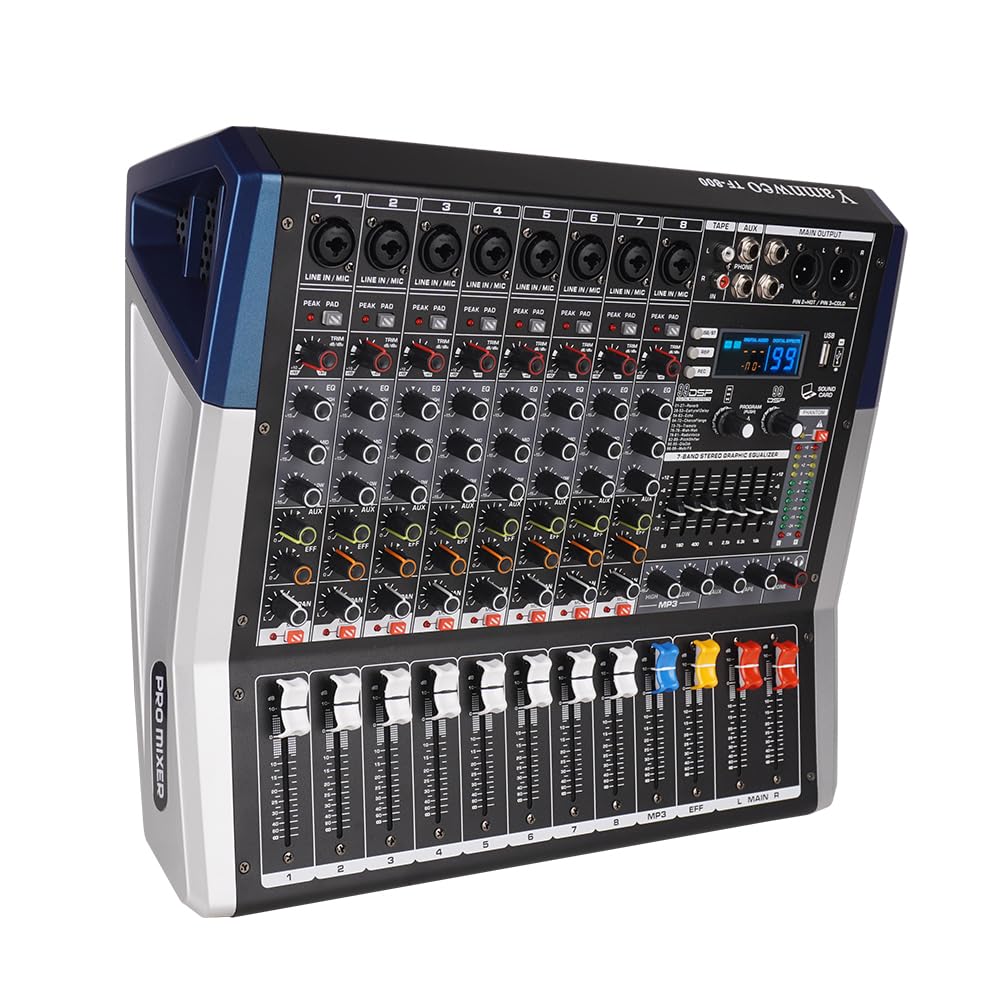
Figure 1: Front view of the Yamnweo TF-800 8-Channel Power Mixer.
2. Setup
2.1 Unpacking and Inspection
Carefully remove the mixer from its packaging. Inspect the unit for any signs of damage during transit. Ensure all accessories are present.
2.2 Power Connection
Connect the provided power cable to the mixer's power input and then to a suitable AC power outlet. Ensure the mixer's power switch is in the OFF position before connecting to power.
2.3 Connecting Inputs
The TF-800 features 8 input channels. Each channel supports both XLR (microphone) and 1/4" TRS/TS (line-in) connections.
- Microphones: Connect dynamic or condenser microphones to the XLR inputs. For condenser microphones, activate the 48V phantom power switch (see Section 2.5).
- Line-Level Devices: Connect instruments, keyboards, or other audio sources to the 1/4" TRS/TS line inputs.

Figure 2: Rear panel connections for inputs and outputs.
2.4 Connecting Outputs
- Main Outputs: Connect your main speakers to the Left and Right Main Channel Outputs (XLR or 1/4" jacks). The TF-800's integrated amplifier can drive two 15-inch professional speakers.
- Monitoring Headphone Output: Connect headphones to the dedicated headphone jack for monitoring.
- AUX Output: Use the AUX output to send a mix to external monitors or effects processors.
- Record Output: Connect a recording device to the Record Output for capturing your mix.
2.5 Activating 48V Phantom Power
The TF-800 provides 48V phantom power for condenser microphones. Locate the 48V phantom power switch on the mixer. Activate this switch only when using condenser microphones that require phantom power. Ensure all connections are made before activating phantom power to prevent damage to equipment.
3. Operation
3.1 Channel Controls
Each input channel features the following controls:
- Gain Adjustment: Adjusts the input sensitivity for the connected microphone or line-level device. Set this to an appropriate level to avoid clipping (distortion).
- 3-Band EQ (Treble/Midrange/Bass): Allows you to shape the tone of each channel.
- Auxiliary Send: Controls the amount of signal sent to the AUX output.
- Effect Send: Controls the amount of signal sent to the internal effects processor.
- One-Touch Mute Switch: Quickly mutes or unmutes the individual channel.
- Channel Volume Fader: Adjusts the output level of the individual channel to the main mix.

Figure 3: Detailed view of channel controls, including the one-touch mute switch.
3.2 Reverb Effects Selection and Adjustment
The TF-800 includes 99 built-in digital effects. Use the Effect Selection Knob to browse and select desired effects such as Reverb, Delay, Echo, Chorus, Flange, Tremolo, Wah-Wah, RadioVoice, PitchShifter, DisOdr, and Multi FX. The large-screen spectrum display will show the selected effect number and level.

Figure 4: Digital effects display and controls.
The following table lists the effect types and their corresponding ranges:
| Effect Type | Range |
|---|---|
| Reverb | 01-27 |
| Delay | 28-53 |
| Echo | 54-63 |
| Chorus/Flange | 64-72 |
| Tremolo | 73-75 |
| Wah-Wah | 76-78 |
| RadioVoice | 79-81 |
| PitchShifter | 82-89 |
| DisOdr | 90-95 |
| Multi FX | 96-99 |
3.3 Bluetooth Connectivity
To stream audio wirelessly from a smartphone or tablet:
- Activate Bluetooth mode on the mixer using the Function Mode Selection.
- On your device, search for available Bluetooth devices and select "Yamnweo TF-800" (or similar).
- Once paired, you can stream audio directly to the mixer.

Figure 5: Bluetooth wireless playback setup.
3.4 USB Playback and Recording
Insert a USB drive into the USB port for direct audio playback or internal recording. Use the Function Mode Selection to switch between playback and recording modes. The mixer supports plug-and-play functionality for USB devices.
3.5 Main Output Control
Adjust the overall volume of the main mix using the MAIN main output slider. Monitor your levels using the peak level indicator lights to prevent clipping.
Video 1: Overview of the Yamnweo TF-800 mixer's features, including faders and display. This video demonstrates the physical controls and digital display of the mixer.
4. Maintenance
4.1 Cleaning
To clean the mixer, use a soft, dry cloth. For stubborn dirt, a slightly damp cloth with mild soap can be used, followed by a dry cloth. Avoid using abrasive cleaners, solvents, or waxes, as these can damage the finish and internal components. Ensure the mixer is powered off and unplugged before cleaning.
4.2 Storage
When not in use, store the mixer in a cool, dry place away from direct sunlight and extreme temperatures. If transporting, use appropriate protective casing to prevent physical damage.
5. Troubleshooting
| Problem | Possible Cause | Solution |
|---|---|---|
| No sound output |
|
|
| Distorted sound |
|
|
| Bluetooth connection issues |
|
|
| USB playback/recording not working |
|
|
6. Specifications

Figure 6: Product dimensions and detailed component labels.
| Feature | Detail |
|---|---|
| Brand | Yamnweo |
| Model | TF-800 |
| Number of Channels | 8 |
| Amplifier Power | 650W + 650W |
| Product Dimensions (L x W x H) | 41.5 cm x 35.5 cm x 13 cm (approx. 16.3" x 14" x 5.1") |
| Item Weight | 2.76 Pounds (approx. 1.25 kg) |
| Connectivity | Bluetooth, USB |
| Phantom Power | 48V |
| Reverb Effects | 99 Built-in DSP Effects |
| Frequency Response | 20 Hz - 20 KHz (typical) |
| Noise Level | 92 dB |
7. Warranty & Support
7.1 Warranty Information
This product is covered by a 30-day return and exchange policy. Please refer to your purchase documentation for specific terms and conditions.
7.2 Customer Support
For technical assistance, troubleshooting beyond this manual, or warranty inquiries, please contact the seller or manufacturer directly through the platform where the product was purchased. Provide your model number (TF-800) and purchase date for faster service.