
1. Introduction
The Beelink SER5 5500U Mini PC is a compact and powerful desktop computer designed for various applications, including business, office tasks, creative design, and daily multitasking. It features an AMD Ryzen 5 5500U processor, high-speed DDR4 RAM, and expandable NVMe SSD storage. This manual provides essential information for setting up, operating, maintaining, and troubleshooting your Mini PC.

Image 1.1: The Beelink SER5 PRO 5500U Mini PC, a compact solution for work and entertainment.
Key Features:
- Powerful AMD Ryzen 5 5500U Processor: 6 Cores/12 Threads, up to 4.0GHz, 8MB L3 cache, built on 7nm architecture.
- High-Speed DDR4 RAM & Expandable Storage: Equipped with 16GB DDR4 RAM (expandable up to 64GB) and a 480GB M.2 NVMe SSD (expandable up to 4TB). Includes a 2.5-inch 7mm SATA HDD slot (max 2TB, not included).
- Stunning Triple 4K@60Hz Display: Supports simultaneous connection to three monitors via HDMI, DisplayPort, and Type-C (Data & Video) for 4K ultra-high-definition output.
- Ultra-Stable WiFi 6 & Bluetooth 5.2: Ensures faster speeds, lower latency, and stable connections for wireless peripherals.
- Compact Design & Efficient Cooling: Measures 4.96 x 4.44 x 1.65 inches with an optimized thermal engineering system for quiet and stable operation.

Image 1.2: The Beelink SER5 Mini PC is versatile for various applications such as home theater, education, office work, and meetings.
2. Setup Guide
2.1 Unboxing and Package Contents
Carefully unpack your Beelink SER5 5500U Mini PC and verify all components are present. The standard package includes:
- 1 x Beelink SER5 5500U Mini PC
- 1 x Power Adapter (US Standard)
- 1 x HDMI Cable (100CM)
- 1 x VESA Mount
- 1 x User Manual

Image 2.1: What's included in the Beelink SER5 Mini PC package.
2.2 Connecting Peripherals
- Connect Display: Use the provided HDMI cable or a DisplayPort/Type-C cable to connect your monitor(s) to the Mini PC. The device supports up to three 4K@60Hz displays simultaneously.
- Connect Keyboard and Mouse: Plug your USB keyboard and mouse into any available USB ports. The Mini PC has USB 3.2 Gen2 and USB 2.0 ports. Wireless peripherals can be connected via Bluetooth 5.2.
- Connect Network: For a wired connection, plug an Ethernet cable into the 2.5G LAN port. For wireless, the Mini PC supports WiFi 6.
- Connect Power: Plug the power adapter into the DC-in port on the Mini PC, then connect the adapter to a power outlet.

Image 2.2: Front and rear ports of the Beelink SER5 Mini PC for connecting various devices.
2.3 Initial Power-On and Operating System Setup
- Press the power button on the front of the Mini PC.
- The Mini PC comes with Windows 11 Pro pre-installed. Follow the on-screen instructions to complete the initial Windows setup, including language, region, network connection, and user account creation.
- Ensure all drivers are up to date for optimal performance. You can check for updates through Windows Update or the Beelink support website.
3. Operating Instructions
3.1 Basic Operation
Once the initial setup is complete, your Beelink SER5 5500U Mini PC is ready for use. You can perform standard desktop tasks, browse the internet, run office applications, and enjoy multimedia content.
3.2 Triple Display Setup
The Mini PC supports connecting up to three displays simultaneously for enhanced productivity or immersive entertainment. Use the HDMI, DisplayPort, and Type-C (Data & Video) ports. To configure multiple displays in Windows 11:
- Right-click on the desktop and select "Display settings."
- Windows should automatically detect all connected displays.
- Arrange your displays, choose their orientation, and select display modes (e.g., Extend, Duplicate, Show only on 1).

Image 3.1: Maximize productivity with a triple screen workflow using the Beelink SER5 Mini PC.
3.3 Network and Wireless Connectivity
The Beelink SER5 5500U Mini PC offers robust connectivity options:
- WiFi 6: For high-speed wireless internet access. Connect to your preferred Wi-Fi network through Windows settings.
- Bluetooth 5.2: For connecting wireless peripherals such as keyboards, mice, headphones, and game controllers. Pair devices through Windows Bluetooth settings.
- 2.5G LAN: Provides a fast and stable wired network connection, ideal for demanding network tasks.

Image 3.2: Fast, stable, and seamless connectivity with WiFi 6, Bluetooth 5.2, and 2.5G LAN.
4. Maintenance
4.1 Cooling System
The Beelink SER5 5500U Mini PC features an optimized cooling system with a cooling fan, heat sink, and full metal mesh design to ensure stable and efficient performance. To maintain optimal cooling:
- Ensure the Mini PC is placed in a well-ventilated area.
- Avoid blocking the ventilation openings.
- Periodically clean dust from the vents using compressed air.

Image 4.1: The optimized cooling system of the Beelink SER5 Mini PC ensures stable performance.
4.2 Storage Expansion
The Mini PC offers flexible storage expansion options:
- M.2 NVMe SSD: The existing 480GB M.2 NVMe SSD can be upgraded to a larger capacity, up to 4TB.
- 2.5-inch SATA HDD/SSD: An additional 2.5-inch 7mm SATA HDD/SSD (up to 2TB) can be installed for massive internal capacity. This drive is not included and must be purchased separately.
Consult the detailed instructions for opening the chassis and installing new storage devices to avoid damage.

Image 4.2: The Beelink SER5 Mini PC offers expandable RAM and storage options.
4.3 General Care
- Keep the Mini PC away from liquids and excessive humidity.
- Avoid exposing the device to extreme temperatures.
- Use a soft, dry cloth to clean the exterior.
5. Troubleshooting
This section addresses common issues you might encounter with your Beelink SER5 5500U Mini PC.
5.1 No Power
- Ensure the power adapter is securely connected to both the Mini PC and a working power outlet.
- Verify the power outlet is functional by plugging in another device.
- Check the power adapter for any visible damage.
5.2 No Display Output
- Confirm that the HDMI, DisplayPort, or Type-C cable is securely connected to both the Mini PC and the monitor.
- Ensure the monitor is powered on and set to the correct input source.
- Try connecting the Mini PC to a different monitor or using a different cable to rule out faulty components.
5.3 Network Connectivity Issues
- Wired (LAN): Check if the Ethernet cable is properly connected. Verify your router/modem is working correctly.
- Wireless (WiFi): Ensure Wi-Fi is enabled in Windows settings. Check if you are connected to the correct network and that the password is accurate. Restart your router/modem.
5.4 System Slowdown or Freezing
- Close unnecessary applications running in the background.
- Check for and install any pending Windows updates.
- Ensure the cooling vents are not obstructed and the device is not overheating.
- Run a disk cleanup and defragmentation (for HDD) or TRIM (for SSD) to optimize storage.
6. Specifications
Detailed technical specifications for the Beelink SER5 5500U Mini PC:
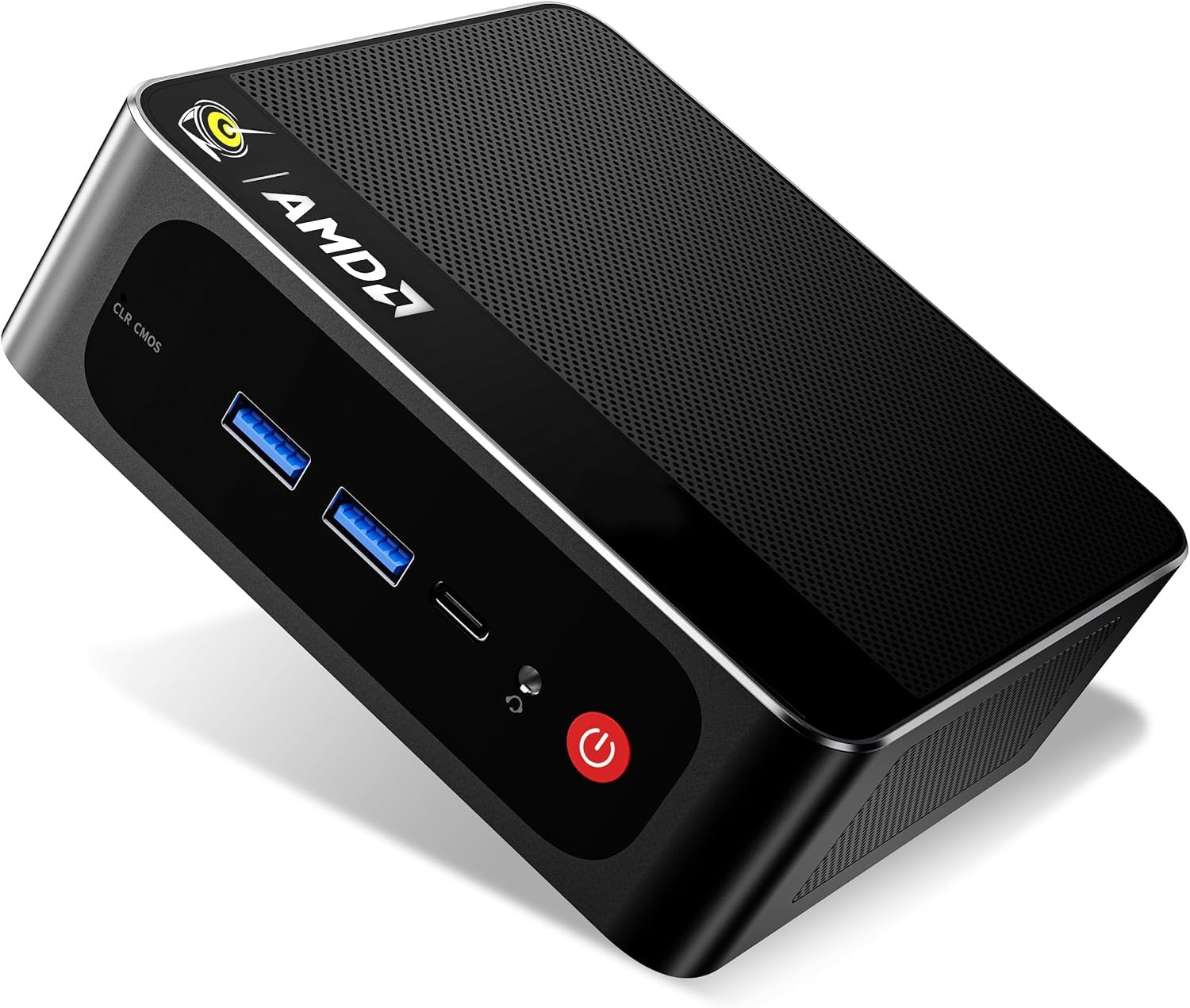
Image 6.1: Overview of the Beelink SER5 PRO 5500U Mini PC's core components and features.
| Feature | Detail |
|---|---|
| Brand | Beelink |
| Model Name | SER5 5500U |
| Operating System | Windows 11 Pro |
| CPU Model | AMD Ryzen 5 5500U (6C/12T) |
| CPU Speed | 2.1 GHz (Base) - 4.0 GHz (Max Boost) |
| Graphics Coprocessor | AMD Radeon Graphics 7CUs 1800MHz |
| RAM Memory Installed | 16 GB DDR4 (Dual-channel) |
| RAM Memory Maximum Size | 64 GB |
| Memory Speed | 3200 MHz |
| Hard Disk Description | 480GB M.2 NVMe SSD |
| Storage Expansion | M.2 slot (up to 4TB), 2.5-inch 7mm SATA HDD slot (up to 2TB) |
| Video Output | HDMI, DisplayPort, Type-C (Data & Video) |
| Display Resolution Maximum | 4K@60Hz (3840x2160) |
| Connectivity Technology | Bluetooth 5.2, HDMI, LAN (2.5Gbps), USB, Wi-Fi 6 (802.11ax) |
| Total USB Ports | 5 (USB 3.2 Gen2, USB 2.0, Type-C) |
| Cooling Method | Fan |
| Dimensions | 4.96 x 4.44 x 1.65 inches |
| Compatible Devices | Headphone, Monitor, Projector, Speaker, Television, Keyboard, Mouse |
7. Warranty & Support
7.1 Product Warranty
The Beelink SER5 5500U Mini PC comes with a 3-Year Warranty. This warranty covers manufacturing defects and hardware malfunctions under normal use conditions. Please retain your proof of purchase for warranty claims.
7.2 Customer Support
For technical assistance, troubleshooting, or warranty inquiries, please contact Beelink customer support. You can typically find support contact information on the official Beelink website or through the retailer where you purchased the product.
If purchased through Amazon, you can reach out to the seller "THYPC-Beelink" by logging into your Amazon account, navigating to "Your Orders," and selecting "Ask Product Question" for the Beelink SER5 5500U Mini PC.
Beelink offers:
- 7D + 24H Customer Service
- 1-Year New Replacement
- 2-Year Free Repair
- Lifetime Technical Support


