
1. Introduction and Overview
This manual provides detailed instructions for the Redmi 15A 5G smartphone. It covers essential information regarding device setup, operation, maintenance, troubleshooting, and technical specifications. Please read this manual thoroughly to ensure proper use and to maximize the performance of your device.
What's in the Box
- Redmi 15A 5G Smartphone
- Charger
- USB Type-C Cable
- SIM Eject Tool
- Warranty Card
- User Guide (this document)
- Protective Case
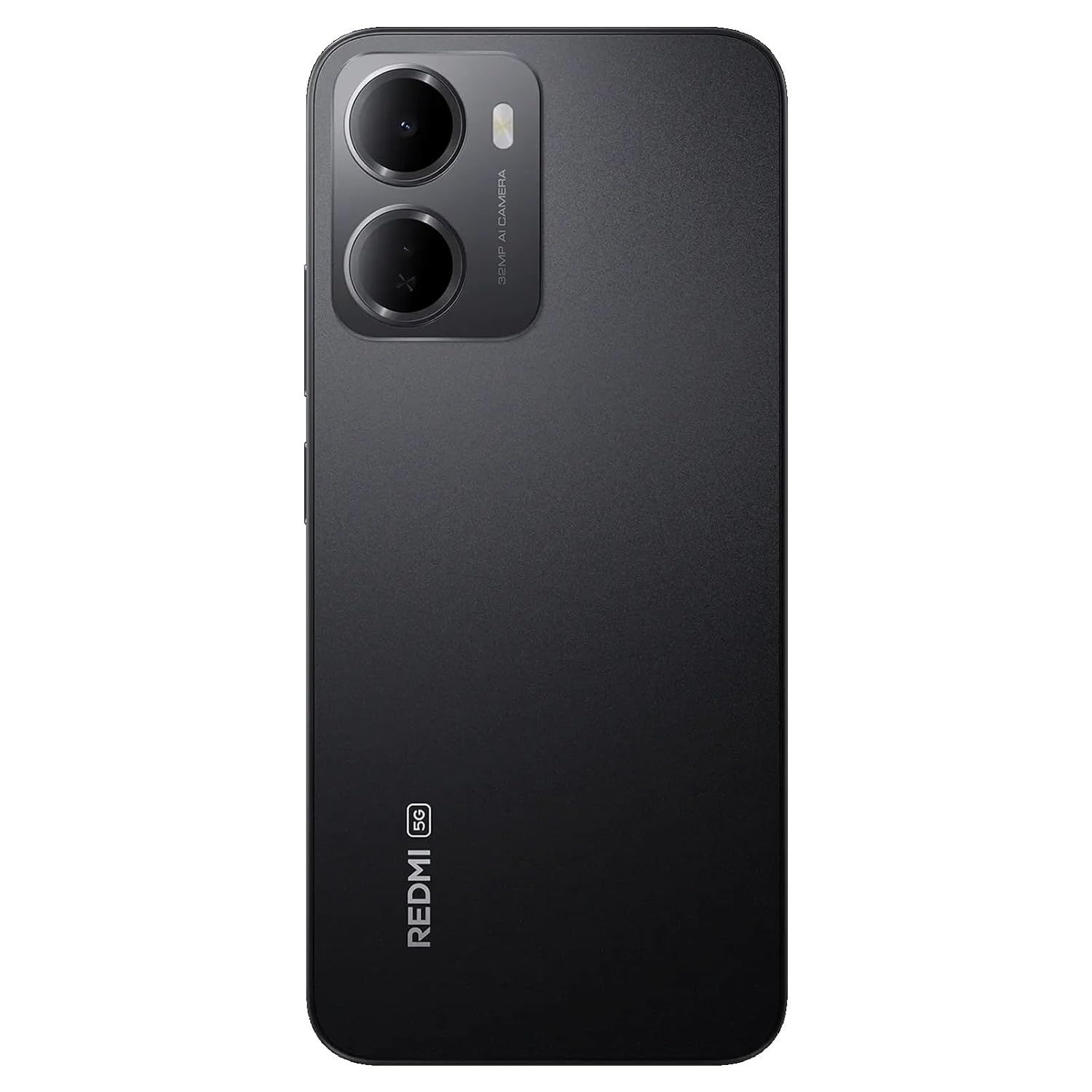
Figure 1: Redmi 15A 5G Smartphone (Front and Back View)
2. Device Setup
2.1. SIM Card and microSD Card Installation
To install your SIM card(s) and/or microSD card:
- Locate the SIM card tray on the side of your device.
- Insert the SIM eject tool into the small hole next to the tray and press firmly until the tray pops out.
- Place your Nano-SIM card(s) and/or microSD card into the designated slots on the tray, ensuring the gold contacts face downwards.
- Carefully push the tray back into the device until it clicks into place.

Figure 2: Side View with SIM Tray
2.2. Charging the Device
Before first use, it is recommended to fully charge your Redmi 15A 5G. Connect the USB Type-C cable to the charging port at the bottom of the phone and plug the other end into the provided charger. Plug the charger into a power outlet. The battery indicator on the screen will show the charging status.
2.3. Powering On and Initial Setup
To power on your device, press and hold the Power button located on the side until the Redmi logo appears. Follow the on-screen instructions to complete the initial setup, including language selection, Wi-Fi connection, Google account setup, and security settings.
3. Operating Instructions
3.1. Basic Navigation
The Redmi 15A 5G features a touchscreen interface. Use gestures such as tapping, swiping, pinching, and spreading to navigate. The Power button controls screen on/off and device power, while the Volume buttons adjust audio levels.
3.2. Making Calls and Sending Messages
To make a call, open the Phone app, enter the number, and tap the call icon. To send a message, open the Messages app, tap the new message icon, enter the recipient's number or select from contacts, and type your message.
3.3. Connecting to Networks
- Wi-Fi: Go to Settings > Wi-Fi, turn Wi-Fi on, and select your desired network. Enter the password if prompted.
- Mobile Data (5G): Go to Settings > SIM cards & mobile networks, select your SIM, and ensure 'Mobile data' is enabled.
- Bluetooth: Go to Settings > Bluetooth, turn Bluetooth on, and pair with available devices.
3.4. Camera Usage
Open the Camera app from your home screen or app drawer. Tap the shutter button to take a photo. Swipe left or right to switch between different modes like Video, Portrait, and more. Tap on the screen to focus on a specific area.
3.5. Security Features
Your device supports various security features:
- Screen Lock: Set a PIN, pattern, or password via Settings > Password & security.
- Fingerprint Unlock: Register your fingerprint(s) via Settings > Password & security > Fingerprint unlock.
- Face Unlock: Set up face recognition via Settings > Password & security > Face unlock.
4. Maintenance
4.1. Cleaning Your Device
Use a soft, lint-free cloth to gently wipe the screen and body of your phone. Avoid using harsh chemicals, abrasive cleaners, or aerosol sprays, as these can damage the device's finish and coatings. Do not expose the device to excessive moisture.
4.2. Battery Care
To prolong the life of your 6300mAh battery:
- Avoid extreme temperatures.
- Do not let the battery completely drain frequently.
- Use only the provided charger and cable.
- Unplug the charger once the battery is full.
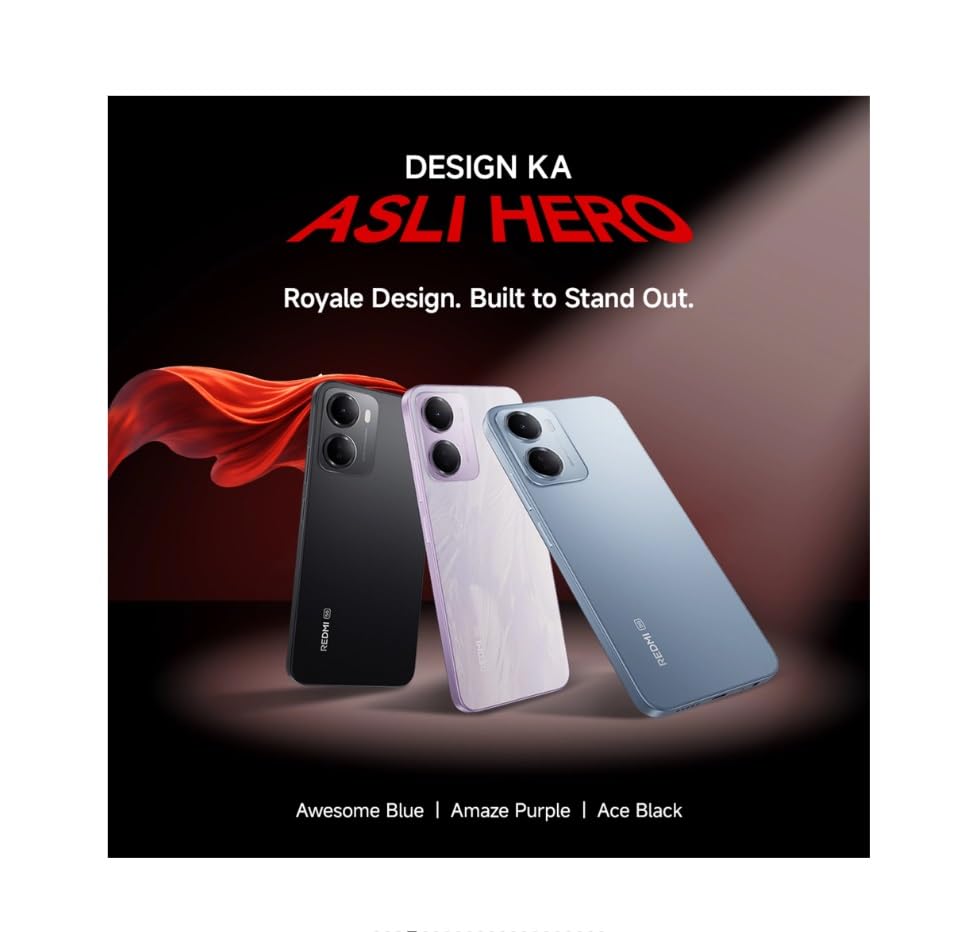
Figure 3: Redmi 15A 5G Battery Capacity (6300mAh)
4.3. Software Updates
Regularly check for and install software updates to ensure your device has the latest features, security patches, and performance improvements. Go to Settings > About phone > MIUI version (or Android version) to check for updates.
4.4. Data Backup
It is recommended to regularly back up your important data (photos, contacts, documents) to a cloud service or a computer to prevent data loss in case of device malfunction or loss.
5. Troubleshooting
5.1. Device Not Powering On
- Ensure the battery is charged. Connect the charger and wait a few minutes before attempting to power on.
- Press and hold the Power button for at least 10-15 seconds to force a restart.
5.2. Network Connectivity Issues
- Wi-Fi: Restart your router. Forget and reconnect to the Wi-Fi network on your phone.
- Mobile Data: Ensure mobile data is enabled and you have an active plan. Try toggling Airplane Mode on and off.
- Calls/SMS: Check SIM card insertion. Ensure you have network signal.
5.3. Application Performance Issues
- Close background applications.
- Clear the cache of the problematic app (Settings > Apps > Manage apps > [App Name] > Clear cache).
- Restart the device.
5.4. Factory Reset
Warning: A factory reset will erase all data on your device. Back up important data before proceeding.
If other troubleshooting steps fail, you may perform a factory reset: Go to Settings > About phone > Factory reset. Follow the on-screen prompts.
6. Specifications
| Feature | Specification |
|---|---|
| Brand | Redmi |
| Model | 15A 5G |
| Operating System | Android 16, HyperOS 3 |
| RAM Memory | 4 GB |
| Memory Storage Capacity | 64 GB |
| CPU Model | Core 2 Duo T8300 |
| CPU Speed | 2.2 GHz |
| Battery Power | 6300 mAh |
| Display Type | LCD |
| Cellular Technology | 5G |
| Wireless Network Technology | LTE |
| Connector Type | USB Type C |
| Item Dimensions | 17.2 x 7.9 x 0.8 Centimeters |
| Item Weight | 210 Grams |
| Model Year | 2026 |
7. Warranty Information
The Redmi 15A 5G comes with a 1-year manufacturer warranty for the device from the date of purchase. In-box accessories, including batteries, are covered by a 6-month manufacturer warranty from the date of purchase. Please retain your proof of purchase for warranty claims.
8. Customer Support
For technical assistance, service, or warranty inquiries, please contact Redmi customer support. You can find contact details on the official Redmi website or refer to the warranty card included in your product box.
Manufacturer: DBG Technology (India) Pvt Ltd, PLOT NO-2, BAWAL, SECTOR-8, Rewari, Haryana, 123501.
Importer: Xiaomi Technology India Private Limited, Building Orchid. Block E, Embassy Tech Village, Marathahalli Outer Ring Road, Devarabisanahalli, Bengaluru 560103.


