
1. Introduction
The SJCAM SJ30 is a versatile handheld action camera designed for capturing high-quality video and photos in various environments. It features dual lenses for day and night recording, advanced stabilization, a flip touch screen, and multiple recording modes. This manual provides essential information for setting up, operating, maintaining, and troubleshooting your SJ30 camera.

Image: The SJCAM SJ30 Action Camera with its included accessories.
2. What's in the Box
Verify that all items are present in your package:
- SJCAM SJ30 Camera
- Power Handle (with built-in 4200mAh battery)
- Type-C to Type-C Cable
- Storage Bag
- Vertical-Horizontal Frame
- Thumb Screw
- USB Cable
- Microphone Protective Cover
- Detachable Wind Guard (x2)
- Magnetic Mount
- Wipe Cloth
- Mount Adapter Set
- 1/4"-20 Tripod Mount Adapter Set
- Curved and Flat Mounts
- 3M Adhesive Stickers (x2)

Image: The SJCAM SJ30 camera shown with several included mounting accessories.
3. Setup
3.1 Initial Charging
Before first use, fully charge the camera's internal 2000mAh battery and the external 4200mAh power handle. Connect the camera to a power source using the provided USB cable. The charging indicator will show the charging status.
3.2 Inserting a MicroSD Card
The SJ30 requires a MicroSD card (not included) for storing recordings. Locate the MicroSD card slot, typically on the side or bottom of the camera. Insert the card with the contacts facing the correct direction until it clicks into place. Ensure the card is formatted within the camera settings for optimal performance.
3.3 Attaching Accessories
The SJ30 comes with various mounts and accessories. Use the magnetic mount for quick attachment and detachment. The vertical-horizontal frame allows for different orientations. Utilize the 1/4"-20 tripod mount adapter for compatibility with standard tripods and selfie sticks, including the power handle.

Image: The SJCAM SJ30 camera mounted on its power handle, demonstrating the flip screen functionality.
4. Operating the Camera
4.1 Power On/Off
To power on the camera, press and hold the Power button until the screen illuminates. To power off, press and hold the Power button again until the camera shuts down.
4.2 Recording Video
The SJ30 supports various video resolutions, including 8K at 20fps, 6K at 30fps, and 4K at 60fps. Navigate through the menu using the touch screen to select your desired resolution and frame rate. Press the Shutter/Record button to start and stop recording.
SteadyMotion 2.0 & Horizon Lock
The camera features 6-axis gyroscope stabilization with SteadyMotion 2.0 to reduce shakes. The 45° Horizon Lock maintains a level horizon in your footage, even during dynamic movements.
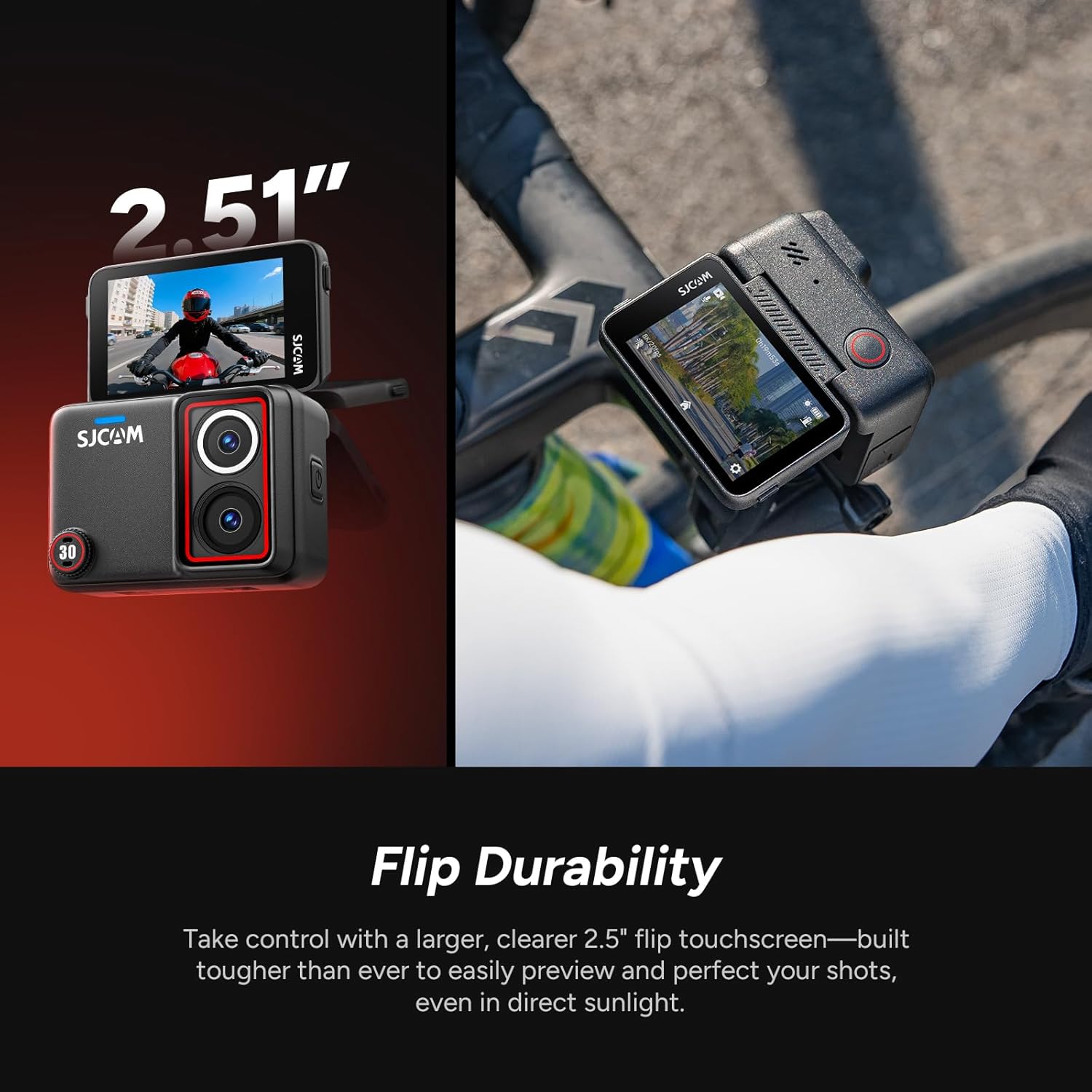
Image: Visual representation of SteadyMotion 2.0 stabilization and Horizon Lock in action, showing clear footage during movement.
Native Vertical Shooting Mode
For social media content, the SJ30 supports native vertical recording (9:16 aspect ratio) without cropping, preserving resolution for platforms like Instagram Reels and TikTok.
4.3 Taking Photos
Switch to photo mode via the touch screen. The camera captures photos at up to 48MP resolution. Press the Shutter/Record button to take a picture.
4.4 Dual-Lens System
The SJ30 is equipped with a dual-lens system: a 1/2.0" daylight sensor for vibrant colors and a 1/1.8" starlight night vision sensor with an F1.8 aperture for enhanced low-light performance. The camera automatically switches between lenses or allows manual selection depending on the mode.

Image: A detailed view of the SJCAM SJ30's dual-lens optics, highlighting the daylight and starlight sensors.
4.5 Flip Touch Screen
The 2.51-inch flip-out touchscreen allows for easy framing of shots from various angles, including selfies and vlogging. Tap the screen to access settings and playback options.
4.6 Voice Control
Use hands-free voice commands to control the camera. Say specific phrases (e.g., "Video Start", "Take Photo") to initiate recording or capture images when your hands are occupied. Supported languages include Chinese, English, Japanese, Russian, Vietnamese, and Thai.
Video: Demonstrates the control button operation of the SJCAM SJ30 camera.
4.7 Wireless Audio
The SJ30 is compatible with the SJCAM M4 wireless microphone (sold separately) for improved audio quality. Refer to the M4 microphone's manual for pairing instructions.
Video: Instructions on how to connect the SJCAM SJ30 with a wireless microphone.
4.8 App Connection (Wi-Fi)
Connect your SJ30 to the SJCAM Zone App on your smartphone via dual-band 2.4GHz/5GHz Wi-Fi for remote control, live preview, footage transfer, editing, and sharing. Follow the app's instructions for pairing.
Video: Guide on connecting the SJCAM SJ30 to its mobile application.
4.9 Special Recording Modes
- Pre-recording: Captures up to 51 seconds of footage before you press the record button, ensuring you don't miss critical moments.
- Motion Detection: Starts recording automatically when motion is detected.
- Loop Recording: Records continuously, overwriting older footage when the memory card is full.
- Slow Motion: Records at high frame rates (up to 240fps) for dramatic slow-motion playback.
- Time-Lapse: Captures a series of photos at set intervals to create a time-lapse video.
5. Maintenance
5.1 Waterproofing
The SJ30 camera body is waterproof up to 5 meters (16ft) without additional housing. For depths up to 30 meters (100ft), use the included waterproof housing. Ensure all ports and covers are securely closed before exposing the camera to water.

Image: The SJCAM SJ30 camera shown underwater, highlighting its waterproof design.
5.2 Cleaning
Use a soft, lint-free cloth to clean the camera body and lenses. For stubborn dirt, slightly dampen the cloth with water. Avoid using harsh chemicals or abrasive materials. Ensure the camera is dry before closing any ports or covers.
5.3 Storage
Store the camera in a cool, dry place away from direct sunlight and extreme temperatures. Remove the MicroSD card and ensure the battery is partially charged (around 50%) if storing for extended periods.
6. Troubleshooting
- Camera Not Powering On: Ensure the battery is charged. Connect to a power source and try again.
- Video Footage is Shaky: Verify that SteadyMotion 2.0 stabilization is enabled in the settings. For 8K/20fps, some motion blur may be more noticeable due to the lower frame rate.
- Poor Audio Quality: Ensure the microphone protective cover and wind guards are correctly installed. For professional audio, consider using the compatible SJCAM M4 wireless microphone.
- Wi-Fi Connection Issues: Ensure the SJCAM Zone App is updated to the latest version. Restart both the camera and your smartphone, then attempt to reconnect.
- MicroSD Card Errors: Reformat the MicroSD card within the camera settings. If the issue persists, try a different, high-speed MicroSD card.
7. Specifications
| Brand | SJCAM |
| Model Name | SJ30 |
| Photo Sensor Technology | CMOS |
| Video Capture Resolution | 8K (20fps), 6K (30fps), 4K (60fps) |
| Effective Still Resolution | 48 MP |
| Maximum Aperture | 1.8 f_stop |
| Flash Memory Type | Micro SD |
| Screen Size | 2.51 inches |
| Connectivity Technology | Wi-Fi |
| Special Features | Low Light, Night Vision, Slow Motion, Touchscreen, Wind Noise Reduction, Dual-Lens, Horizon Lock, Voice Control, Pre-recording, Loop Recording |
| Water Resistance Level | Waterproof (5m body, 30m with housing) |
| Image Stabilization | Electronic (6-axis gyroscope, SteadyMotion 2.0) |
| Battery Average Life | Up to 7 hours (with power handle) |
| Lens Type | Wide Angle (140°) |
8. Warranty and Support
For warranty information and technical support, please refer to the official SJCAM website or contact their customer service directly. Keep your proof of purchase for warranty claims.


