
Introduction
Welcome to the RUPA HS86 PRO13 Android TV Box. This manual provides essential instructions for the proper setup, operation, and maintenance of your device. Please read this guide thoroughly before using the product to ensure optimal performance and safety.
Safety Information
To prevent damage to the device or injury to yourself, please observe the following safety precautions:
- Use only the power adapter supplied with this device.
- Do not expose the device to water, moisture, or extreme temperatures.
- Avoid placing the device near heat sources such as radiators, stoves, or other heat-producing appliances.
- Ensure adequate ventilation around the device to prevent overheating.
- Do not attempt to disassemble, modify, or repair the device yourself. Refer all servicing to qualified personnel.
- Keep the device and accessories out of reach of children.
Package Contents
Please verify that all the following items are included in your product package:

Image: Contents of the HS86 PRO13 package, including the TV box, remote control, power adapter, HDMI cable, and user manual.
- 1 x RUPA HS86 PRO13 TV Box
- 1 x Bluetooth Voice Remote Control
- 1 x Power Adapter
- 1 x HDMI Cable
- 1 x User Manual
Product Overview
The RUPA HS86 PRO13 is an advanced Android TV Box designed to deliver a high-quality entertainment experience. It features a powerful RK3528 chipset, supports 4K and 8K Ultra HD resolution, and includes Wi-Fi 6 and Bluetooth 5.0 connectivity for seamless streaming and interaction.

Image: The RUPA HS86 PRO13 Android TV Box, showing its compact design and front display.
Setup
Connecting the TV Box
Follow these steps to connect your RUPA HS86 PRO13 TV Box:
- Connect one end of the HDMI cable to the HDMI output port on the TV Box and the other end to an available HDMI input port on your television.
- Connect the power adapter to the DC port on the TV Box, then plug the adapter into a standard electrical outlet.
- For a wired internet connection, connect an Ethernet cable from your router to the RJ45 port on the TV Box. For Wi-Fi, you will configure this after powering on the device.
- (Optional) Connect USB devices such as external storage, a keyboard, or a mouse to the USB 2.0 or USB 3.0 ports.
- (Optional) Insert a TF card into the TF card slot for expanded storage capacity.

Image: Detailed view of the HS86 PRO13 TV Box's interface ports, including power, audio, video, and data connections.
Operating Instructions
Powering On/Off
After connecting all necessary cables, the device should power on automatically. If it does not, press the power button on the included remote control.
Initial Setup and Network Configuration
Upon first power-on, follow the on-screen prompts to complete the initial setup. To connect to a Wi-Fi network:
- Navigate to Settings from the home screen.
- Select Network & Internet.
- Choose your desired Wi-Fi network from the list and enter the password when prompted.

Image: Comparison of Wi-Fi 6 and Wi-Fi 5 performance, highlighting the improved speed and efficiency of Wi-Fi 6.
Using the Voice Remote Control
The included Bluetooth voice remote control allows for intuitive navigation and convenient voice commands:
- If not already paired, pair the remote control with the TV Box via the Bluetooth settings menu.
- Press the dedicated voice button on the remote and speak your command clearly (e.g., "Open YouTube," "Play an action documentary").

Image: A user interacting with the HS86 PRO13 TV Box using the intelligent voice remote control.
Screen Mirroring
You can display content from your compatible smartphone or tablet directly onto your TV via screen mirroring. Ensure both your mobile device and the TV Box are connected to the same Wi-Fi network. Refer to your mobile device's instructions for initiating screen mirroring.
Specifications and Features
The RUPA HS86 PRO13 TV Box offers a range of advanced features for an immersive and responsive entertainment experience.
Key Features
- 4K & 8K Ultra HD Resolution: Supports 2K, 4K, and 8K Ultra HD for exceptionally sharp and vivid visuals. Includes HDR10+ for enhanced contrast and richer, more detailed colors.
- RK3528 Chipset: Powered by a Quad-Core 64bit Cortex-A53 processor and Mali 450 MP2 GPU, ensuring smooth operation and efficient multitasking.
- Wi-Fi 6 Dual-Band: Provides stable and fast internet access with both 2.4 GHz and 5.8 GHz bands, optimizing streaming and online activities.
- Bluetooth 5.0: Allows for easy connection of wireless devices such as headphones, speakers, keyboards, or game controllers.
- Android 14.0: Runs on the latest Android system, offering advanced security features, optimized performance, and broad application compatibility.
- Memory: This model comes with 4GB RAM and 64GB internal storage, expandable via TF card.
- Connectivity: Equipped with multiple ports including DC, HDMI, SPDIF, USB 2.0, USB 3.0, RJ45 (100M Ethernet), TF card slot, and AV output.
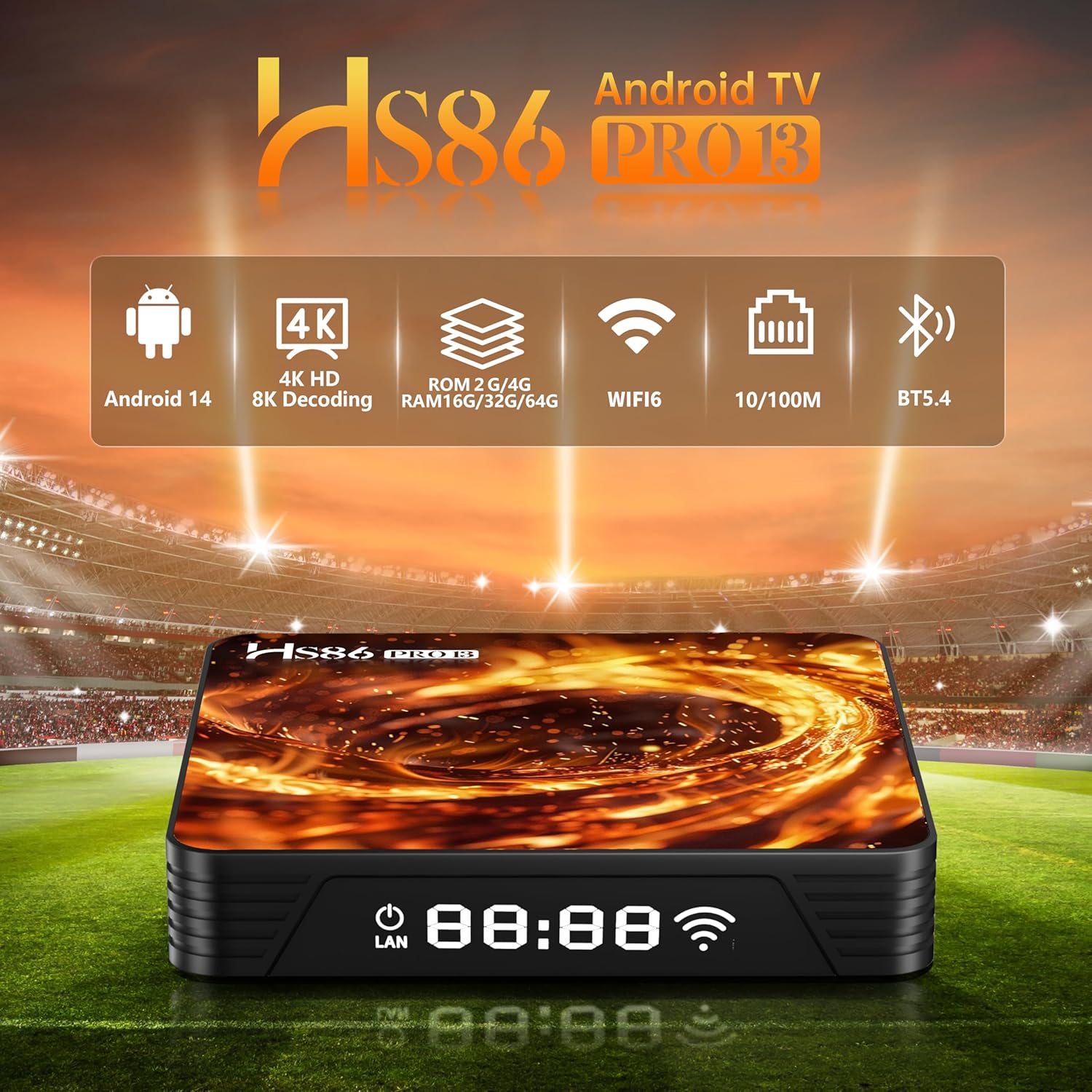
Image: Visual representation of the 4K@60fps and HDR10+ capabilities of the TV box, showing a high-quality image on a television screen.
Technical Specifications
| Feature | Specification |
|---|---|
| Model | HS86 PRO13 |
| Operating System | Android 14.0 |
| Processor | RK3528 Quad-Core 64bit Cortex-A53 |
| GPU | Mali 450 MP2 |
| RAM | 4GB |
| Internal Storage | 64GB |
| Video Output | 4K, 8K Ultra HD, HDR10+ |
| Wi-Fi | Wi-Fi 6 Dual-Band (2.4G/5.8G) |
| Bluetooth | Bluetooth 5.0 |
| Ethernet | 100M RJ45 |
| Ports | 1x DC, 1x HDMI, 1x SPDIF, 1x USB 2.0, 1x USB 3.0, 1x RJ45, 1x TF Card, 1x AV |
| Dimensions | 2.5"L x 2.5"W x 0.5"H |
Maintenance
Proper maintenance ensures the longevity and optimal performance of your TV Box:
- Cleaning: Use a soft, dry cloth to clean the exterior of the device. Do not use liquid cleaners, aerosols, or abrasive materials.
- Software Updates: Regularly check for system updates in the device's settings menu. Installing updates helps improve performance, security, and adds new features.
- Storage Management: Periodically clear application caches and uninstall unused applications to free up storage space and maintain smooth operation.
Troubleshooting
If you encounter issues with your RUPA HS86 PRO13 TV Box, refer to the following common problems and solutions:
- No Power:
- Ensure the power adapter is securely connected to both the TV Box's DC port and a functional electrical outlet.
- No Picture on TV:
- Verify that the HDMI cable is correctly connected to both the TV Box and your television. Confirm that your TV is set to the correct HDMI input source.
- No Wi-Fi Connection:
- Check if your Wi-Fi router is powered on and functioning correctly. Re-enter the Wi-Fi password in the TV Box's network settings. Try restarting both the TV Box and your router.
- Remote Control Not Responding:
- Check the batteries in the remote control and replace them if necessary. Ensure the remote is properly paired with the TV Box via Bluetooth. Re-pair if the issue persists.
- Slow Performance or App Lag:
- Close any unused applications running in the background. Clear the cache of frequently used apps. Consider expanding storage with a TF card if internal storage is low.
Warranty and Support
This RUPA product is covered by a standard manufacturer's warranty. For detailed information regarding warranty terms and conditions, please refer to the warranty card included in your product package or visit the official RUPA website.
If you encounter any technical difficulties, require assistance with setup, or have questions about your device, please contact RUPA customer support. Contact details can typically be found on the product packaging or the brand's official website.

