
1. Introduction
Thank you for choosing the Insoma Wi-Fi Water Timer. This device allows you to remotely control your garden watering schedules via a smartphone application, integrate with voice assistants like Alexa and Google Assistant, and manage irrigation efficiently. This manual provides comprehensive instructions for setup, operation, and maintenance to ensure optimal performance and longevity of your water timer.
2. Product Overview
Key Features
- 100% Wi-Fi Connection: No gateway required. Connects directly to 2.4GHz Wi-Fi for remote control from anywhere.
- Easy App Operation: Manage watering programs and review history via the Smart Life app.
- Smart Voice Control: Compatible with Alexa and Google Assistant for hands-free operation.
- Manual Watering & Weather Delay: Manually water for 1 minute to 24 hours. Use weather delay to pause schedules for 24, 48, or 72 hours.
- Multiple Schedule Settings: Supports up to 20 watering schedules (10 normal, 10 cycle/soak) to meet diverse irrigation needs.
- Durable Design: Features brass water inlet and outlet, IP55 waterproof and UV-resistant ABS resin construction, and a sealed battery compartment.
Components
The Insoma Wi-Fi Water Timer consists of the main timer unit, a brass water inlet connector, and a hose outlet connector.
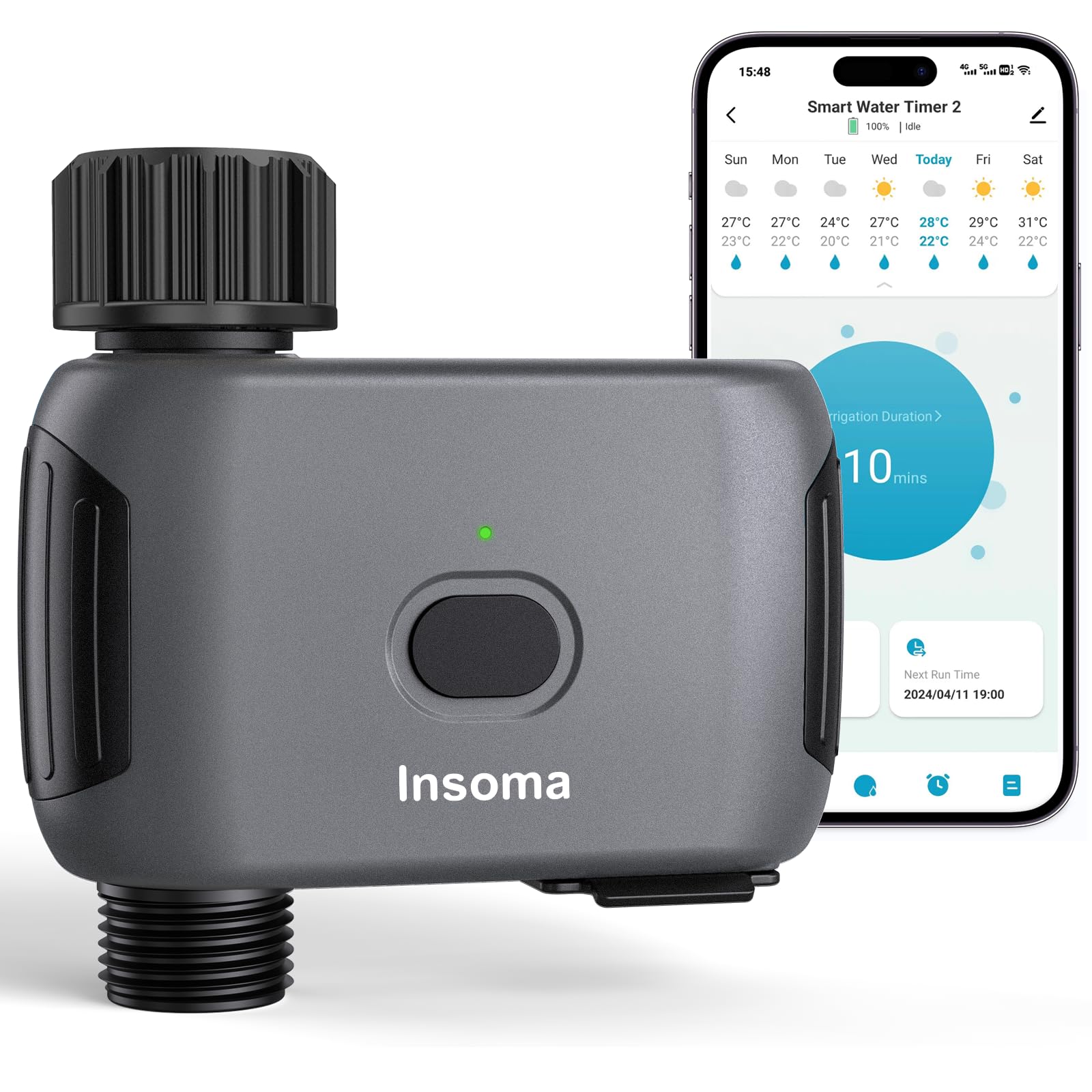
Figure 2.1: Insoma Wi-Fi Water Timer main unit.

Figure 2.2: Reinforced water inlet with filter.
3. Setup Guide
3.1 Battery Installation
- Open the battery compartment cover on the back of the timer.
- Insert four (4) AA alkaline batteries (not included), ensuring correct polarity.
- Securely close the battery compartment cover to maintain the IP55 waterproof rating. The sealing strip inside prevents water intrusion.
3.2 Physical Installation
- Connect the water timer to your outdoor faucet. Ensure a tight fit to prevent leaks. The brass inlet provides a secure connection.
- Attach your garden hose to the outlet of the water timer.
3.3 App Installation and Wi-Fi Connection
- Download the Smart Life app from your smartphone's app store (iOS or Android).
- Register or log in to your Smart Life account.
- Ensure your smartphone is connected to a 2.4GHz Wi-Fi network. The Insoma Water Timer only supports 2.4GHz Wi-Fi.
- In the Smart Life app, tap the "+" icon to add a new device.
- Follow the on-screen instructions to add the Insoma Wi-Fi Water Timer. This typically involves putting the device into pairing mode (refer to the device's LED indicator for status) and confirming your Wi-Fi network details.
- Once connected, you can rename the device for easier identification.
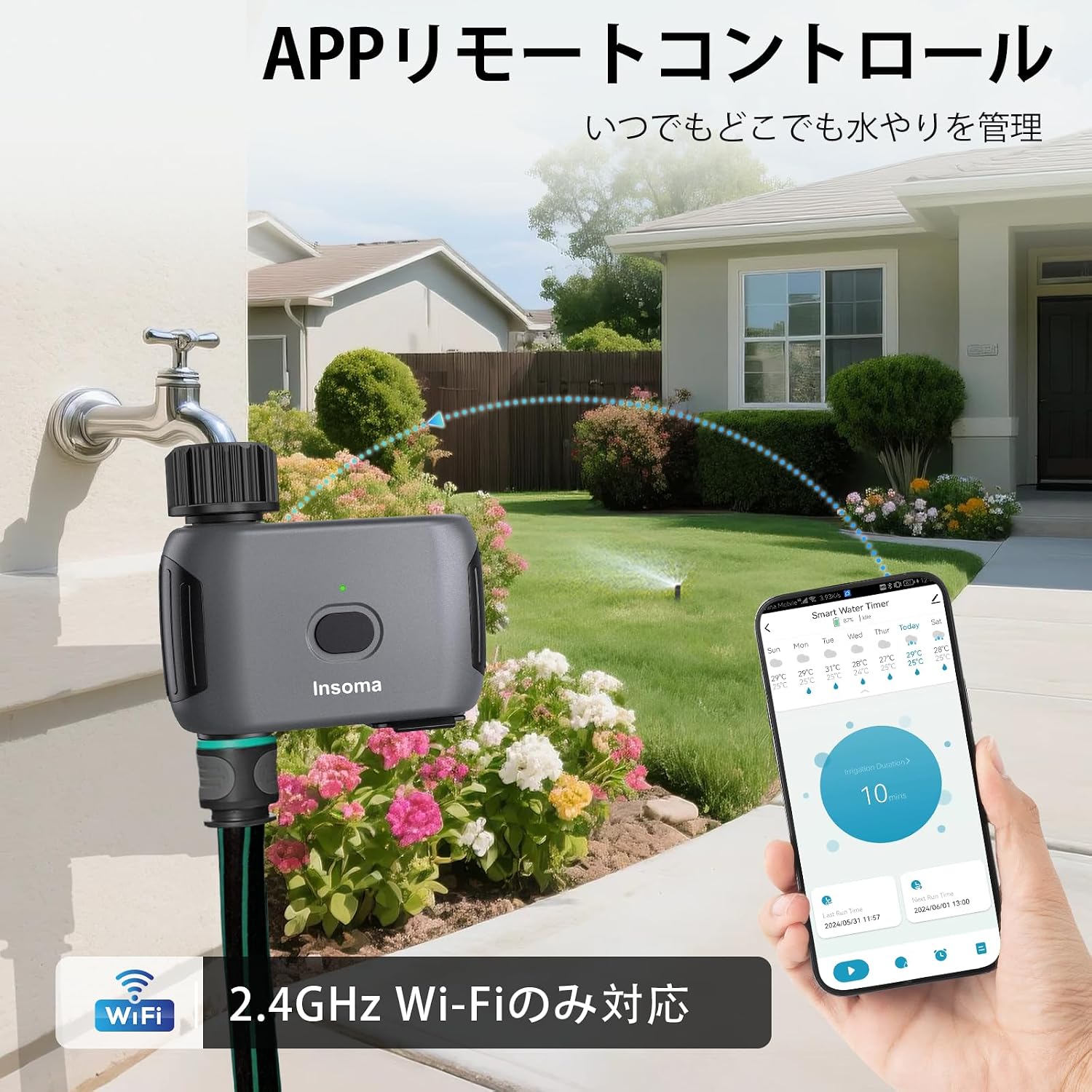
Figure 3.1: App remote control interface.
3.4 Voice Assistant Integration
- Open the Alexa or Google Home app on your smartphone.
- Enable the "Smart Life" skill/service.
- Link your Smart Life account with your voice assistant account.
- Discover devices. Your Insoma Wi-Fi Water Timer should appear.
- You can now use voice commands such as "Alexa, turn on the water timer" or "Hey Google, turn off the garden sprinkler."

Figure 3.2: Voice control integration.
4. Operating Instructions
4.1 Scheduling Watering Programs
The Smart Life app allows you to set up to 20 different watering schedules.
- Normal Schedule: Set specific start times, watering durations (1 minute to 24 hours), and days of the week for regular irrigation.
- Cycle/Soak Schedule: Ideal for efficient watering, this mode allows you to set a cycle duration (e.g., water for 10 minutes, then pause for 20 minutes) within a specified start and end time, and on selected days. This helps water penetrate the soil better and reduces runoff.
To create a schedule:
- Open the Smart Life app and select your water timer.
- Navigate to the scheduling section.
- Choose "Normal Schedule" or "Cycle/Soak Schedule."
- Configure the start time, duration, frequency, and other parameters as needed.
- Save the schedule.

Figure 4.1: Schedule setting options in the app.
4.2 Manual Watering
You can initiate manual watering at any time, overriding current schedules temporarily.
- Via App: In the Smart Life app, select your water timer and choose the manual watering option. Set the desired duration (1 minute to 24 hours) and start watering.
- Via Device Button: Press the button on the water timer to initiate manual watering. The default duration can often be configured in the app.
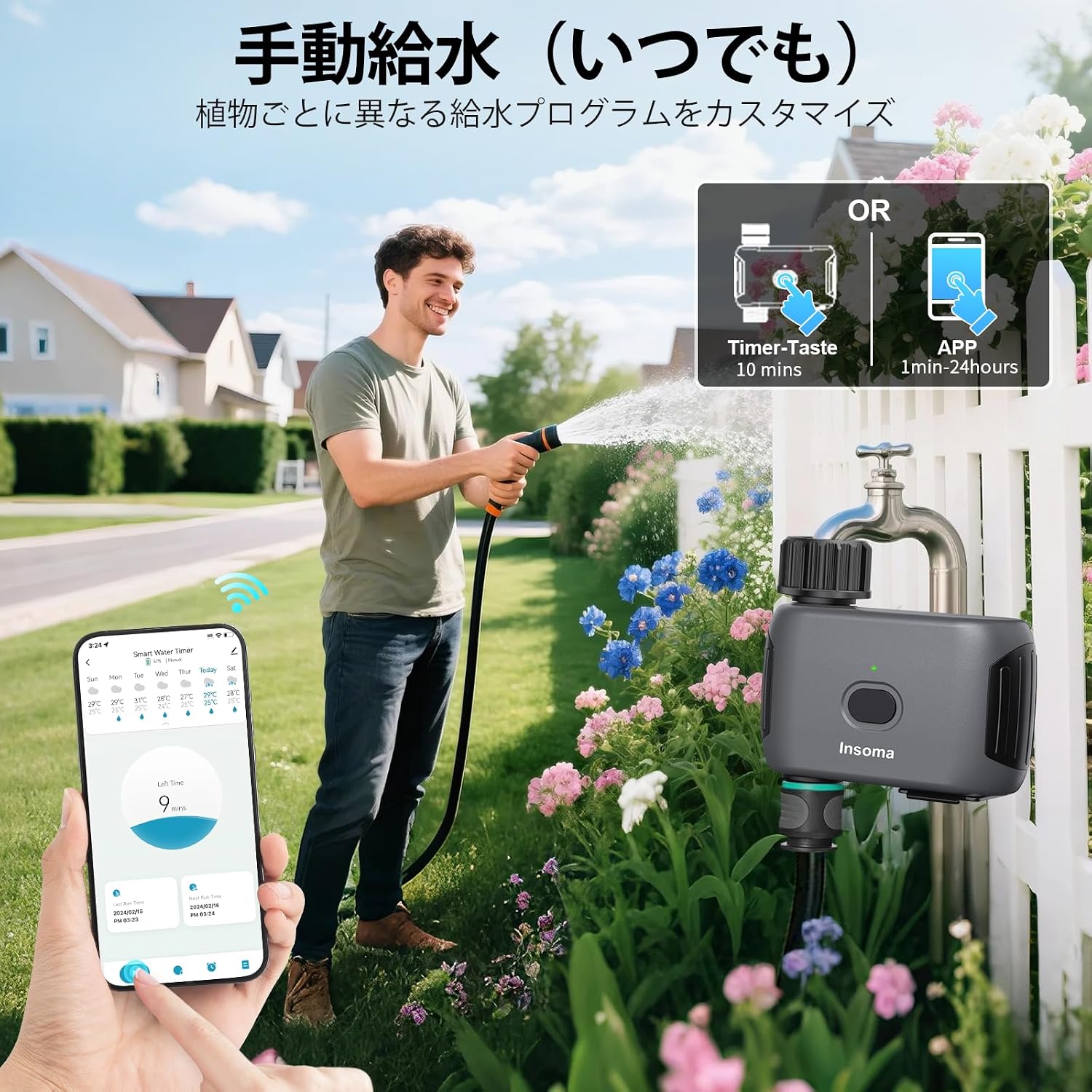
Figure 4.2: Manual watering options.
4.3 Weather Delay Function
To prevent overwatering during rain, use the weather delay function. This feature temporarily pauses all programmed schedules.
- In the Smart Life app, navigate to the weather delay settings for your water timer.
- Select a delay period: 24 hours, 48 hours, or 72 hours.
- Confirm the delay. Schedules will automatically resume after the selected period.

Figure 4.3: Weather delay function.
5. Maintenance
5.1 Cleaning
- Periodically check the water inlet filter for debris. If clogged, remove and rinse it under running water.
- Wipe the exterior of the timer with a damp cloth. Do not use abrasive cleaners or immerse the unit in water.
5.2 Battery Replacement
The timer uses 4 AA alkaline batteries, which can last up to 1 year under normal use. Replace batteries when the low battery indicator appears in the app or on the device, or if the device becomes unresponsive. Follow the battery installation steps in Section 3.1.
5.3 Winterization
Before the first frost, disconnect the water timer from the faucet and hose. Remove the batteries. Store the unit indoors in a dry, protected area to prevent damage from freezing temperatures.
6. Troubleshooting
| Problem | Possible Cause | Solution |
|---|---|---|
| Device won't connect to Wi-Fi. | Incorrect Wi-Fi band (not 2.4GHz), weak signal, incorrect password. | Ensure your router is broadcasting a 2.4GHz signal. Move the timer closer to the router. Double-check Wi-Fi password. Reset the timer and try pairing again. |
| No water flow. | Faucet off, low water pressure, clogged filter, dead batteries. | Ensure the faucet is fully open. Check water pressure (operating pressure: 7.26-116 PSI). Clean the inlet filter. Replace batteries. |
| Schedules not running. | Weather delay active, incorrect schedule settings, low batteries. | Check if weather delay is active in the app. Verify schedule times and days. Replace batteries. |
| Water leakage. | Loose connections, damaged O-rings. | Ensure all connections are tightened. Check O-rings for damage and replace if necessary. |
7. Specifications
- Brand: Insoma
- Model Number: SGW03WF-G-JP
- Color: Black
- Dimensions (D x W x H): 115 mm x 45 mm x 115 mm
- Battery Type: 4 x AA Alkaline (not included)
- Operating Water Pressure: 7.26 - 116 PSI
- Waterproof Rating: IP55
- Wi-Fi Frequency: 2.4GHz only
- Max Schedules: 20 (10 Normal, 10 Cycle/Soak)
- Country of Origin: China
8. Warranty and Support
For product support, troubleshooting assistance, or warranty inquiries, please contact Insoma customer service through the retailer where you purchased the product or visit the official Insoma website. Please retain your proof of purchase for warranty claims.
