
1. Introduction
Thank you for choosing the PHEZEN 7-inch Android 13 Car Stereo. This manual provides essential information for the proper installation, operation, and maintenance of your new car stereo system. Please read this manual thoroughly before using the product to ensure optimal performance and safety. This unit is designed specifically for Chrysler Town & Country models from 2011 to 2016.

Image: The PHEZEN 7-inch Android 13 Car Stereo seamlessly integrated into the dashboard of a Chrysler Town & Country.
2. Product Overview
Key Features
- 7-inch Touchscreen Navigation System with Android 13 Operating System.
- 4-core CPU, 4GB RAM, and 64GB ROM for efficient multitasking and storage.
- Integrated Wireless CarPlay and Android Auto for seamless smartphone integration via Bluetooth and Wi-Fi.
- Dual navigation system supporting both offline and online maps.
- Steering Wheel Control compatibility for user-friendly operation.
- Includes a reversing camera with 170° wide-angle, IP68 waterproof rating, and night vision.
- Bluetooth for hands-free calling and music streaming with built-in microphone support.
- FM Radio function with preset stations for real-time traffic, news, and music.
- WiFi Hotspot connectivity for app installation and online media access.
Package Contents
The following items are included in your car radio set:
- PHEZEN 7-inch Car Stereo Unit
- Power Cable
- RCA Input/Output Cables
- 2 USB Cables
- Camera Input Cable
- GPS Antenna
- Instruction Manual
- Canbus Box
- Radio Adaptor
- Backup Camera
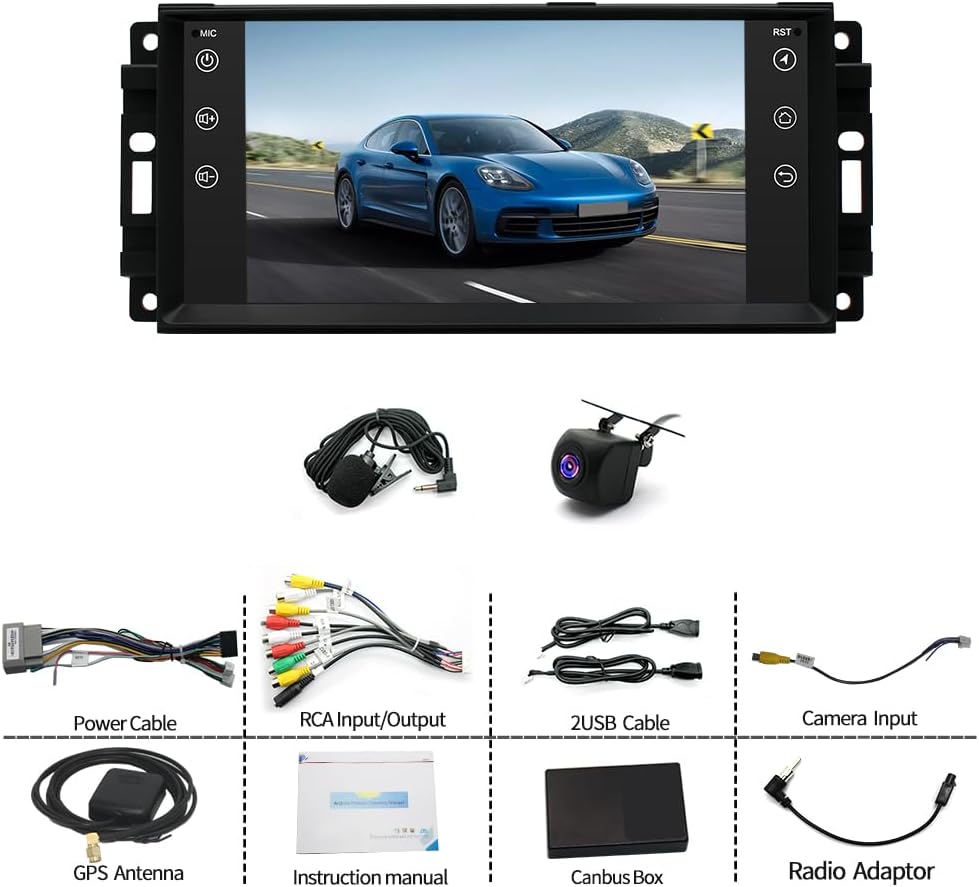
Image: All components included in the PHEZEN car stereo package, laid out for identification.
3. Setup and Installation
Professional Installation Recommended
Due to the complexity of automotive electrical systems and the specific fitment for Chrysler Town & Country (2011-2016), professional installation by a qualified technician is highly recommended. Incorrect installation can lead to damage to the unit, vehicle, or personal injury.
Wiring Connections
Ensure all wiring connections are made securely and correctly according to the provided wiring diagram. Pay close attention to power, ground, speaker, and accessory connections. The included Canbus box facilitates integration with your vehicle's existing systems.

Image: A comprehensive view of the wiring harness and connections for the car stereo.
Initial Power-On
- After installation, turn on your vehicle's ignition.
- The car stereo should power on automatically. If not, press the power button on the unit.
- Follow any on-screen prompts for initial setup, such as language selection and time zone.
4. Operating Instructions
User Interface
The unit features a responsive 7-inch touchscreen display. Navigate through menus and applications by tapping, swiping, and pinching gestures similar to a smartphone.
CarPlay & Android Auto
Connect your smartphone to access CarPlay (for iOS) or Android Auto (for Android) functionalities. This allows you to use your phone's navigation, make calls, send messages, and play music directly from the car stereo's screen.
- Connection: Connect wirelessly via Bluetooth and Wi-Fi, or via a USB cable.
- Voice Control: Use Siri or Google Assistant for hands-free operation.

Image: The car stereo displaying various applications accessible through CarPlay, Android Auto, and Mirror Link.
Mirror Link
The Mirror Link feature allows you to mirror your smartphone's screen directly onto the car stereo display. This is useful for viewing content or using apps not natively supported by CarPlay or Android Auto.
GPS Navigation
The unit features a built-in GPS module supporting both offline and online navigation. Download offline maps for areas with limited mobile signal. Connect to Wi-Fi for real-time traffic updates and online map services.

Image: The car stereo showing GPS navigation with map data and an illustration of WiFi hotspot connectivity.
WiFi Hotspot
Connect the car stereo to a Wi-Fi hotspot (e.g., from your smartphone) to access the internet. This enables downloading apps from the Play Store, streaming online videos, and using online navigation services.
Bluetooth
Pair your smartphone via Bluetooth for hands-free calling and audio streaming (A2DP). The unit includes a built-in microphone and supports an external microphone for clear communication.
- Pairing: Go to Bluetooth settings on the stereo and your phone to pair.
- Hands-Free Calls: Make and receive calls directly from the stereo screen.
- Music Streaming: Play audio from your phone through the car's speakers.

Image: The car stereo interface displaying Bluetooth connection status, FM radio tuner, and audio equalizer settings.
FM/RDS Radio
Tune into your favorite FM radio stations. The RDS (Radio Data System) feature provides additional information such as station name, song title, and real-time traffic updates where available. You can save up to 18 common stations.
Steering Wheel Control
If your vehicle is equipped with steering wheel controls, this unit supports integration, allowing you to manage audio, calls, and other functions without taking your hands off the wheel. Refer to the system settings for steering wheel control learning/mapping.

Image: Visual representation of the automatic reversing display and the customizable steering wheel control interface.
Backup Camera
The included reversing camera automatically displays the rear view on the stereo screen when the vehicle is shifted into reverse gear. This camera features a 170° wide-angle lens, IP68 waterproof rating, and night vision capabilities for enhanced visibility in various conditions.
Audio Equalizer (EQ)
Customize your audio experience using the built-in equalizer. Adjust various sound parameters to achieve your preferred audio quality for different music genres.
5. Maintenance
Screen Cleaning
To clean the touchscreen, power off the unit and gently wipe the screen with a soft, lint-free cloth. For stubborn smudges, use a screen cleaner specifically designed for electronic displays. Avoid abrasive materials or harsh chemicals.
Software Updates
Periodically check the manufacturer's website or the unit's system settings for available software updates. Keeping your system updated ensures optimal performance, new features, and bug fixes.
6. Troubleshooting
If you encounter issues with your PHEZEN car stereo, refer to the following common problems and solutions:
| Problem | Possible Cause | Solution |
|---|---|---|
| Unit does not power on. | Incorrect wiring, blown fuse, vehicle power issue. | Check power and ground connections. Inspect vehicle fuses. Consult a professional installer. |
| No sound from speakers. | Incorrect speaker wiring, volume too low, mute activated. | Verify speaker connections. Increase volume. Check if mute is active. |
| GPS signal lost or inaccurate. | GPS antenna obstruction, antenna not connected. | Ensure GPS antenna has a clear view of the sky. Check antenna connection. |
| Bluetooth connection issues. | Device not in pairing mode, interference, incorrect pairing process. | Ensure both devices are in pairing mode. Delete previous pairings and try again. Move closer to the unit. |
| Backup camera not displaying. | Camera not connected, reverse trigger wire issue, camera malfunction. | Check camera input connection. Verify reverse trigger wire connection. Test camera functionality. |
7. Specifications
Below are the technical specifications for the PHEZEN 7-inch Android 13 Car Stereo (4+64GB model):
- Brand: PHEZEN
- Model: 4+64GB
- Operating System: Android 13
- Display: 7-inch Touchscreen
- Memory: 4GB RAM, 64GB ROM
- Connectivity Technology: Bluetooth, Wi-Fi
- Controller Type: Android, iOS (via CarPlay/Android Auto)
- Special Features: Android Auto, Apple CarPlay, Built-In Bluetooth, GPS Navigation, Mirror Link, WiFi Hotspot, Backup Camera Support, Steering Wheel Control
- Compatible Devices: Smartphone
- Connector Type: RCA
- Audio Output Mode: Stereo
- Built-In Media: Car radio set
8. Warranty and Support
Warranty Information
This product comes with a 1-year warranty. Please retain your proof of purchase for any warranty claims. The warranty covers manufacturing defects under normal use. It does not cover damage caused by improper installation, misuse, accidents, or unauthorized modifications.
Customer Support
For technical assistance, troubleshooting, or warranty inquiries, please contact PHEZEN customer support through the retailer where the product was purchased or visit the official PHEZEN website for contact information.