
Introduction
This manual provides comprehensive instructions for the HP 14-inch Laptop, Model 2026 Essential. It covers initial setup, daily operation, maintenance tips, and troubleshooting common issues. Please read this manual thoroughly to ensure proper use and longevity of your device.

Figure 1: HP 14-inch Essential Laptop highlighting key features like Intel Processor N150, 4GB LPDDR5 RAM, 628GB storage, Windows 11 Pro, HD anti-glare display, Intel Graphics, Wi-Fi 6, Microsoft Copilot Key, HD camera, integrated digital mics, and stereo speakers.
1. Setup
1.1 Unboxing and Package Contents
Carefully unpack your HP 14-inch Laptop and verify all components are present.
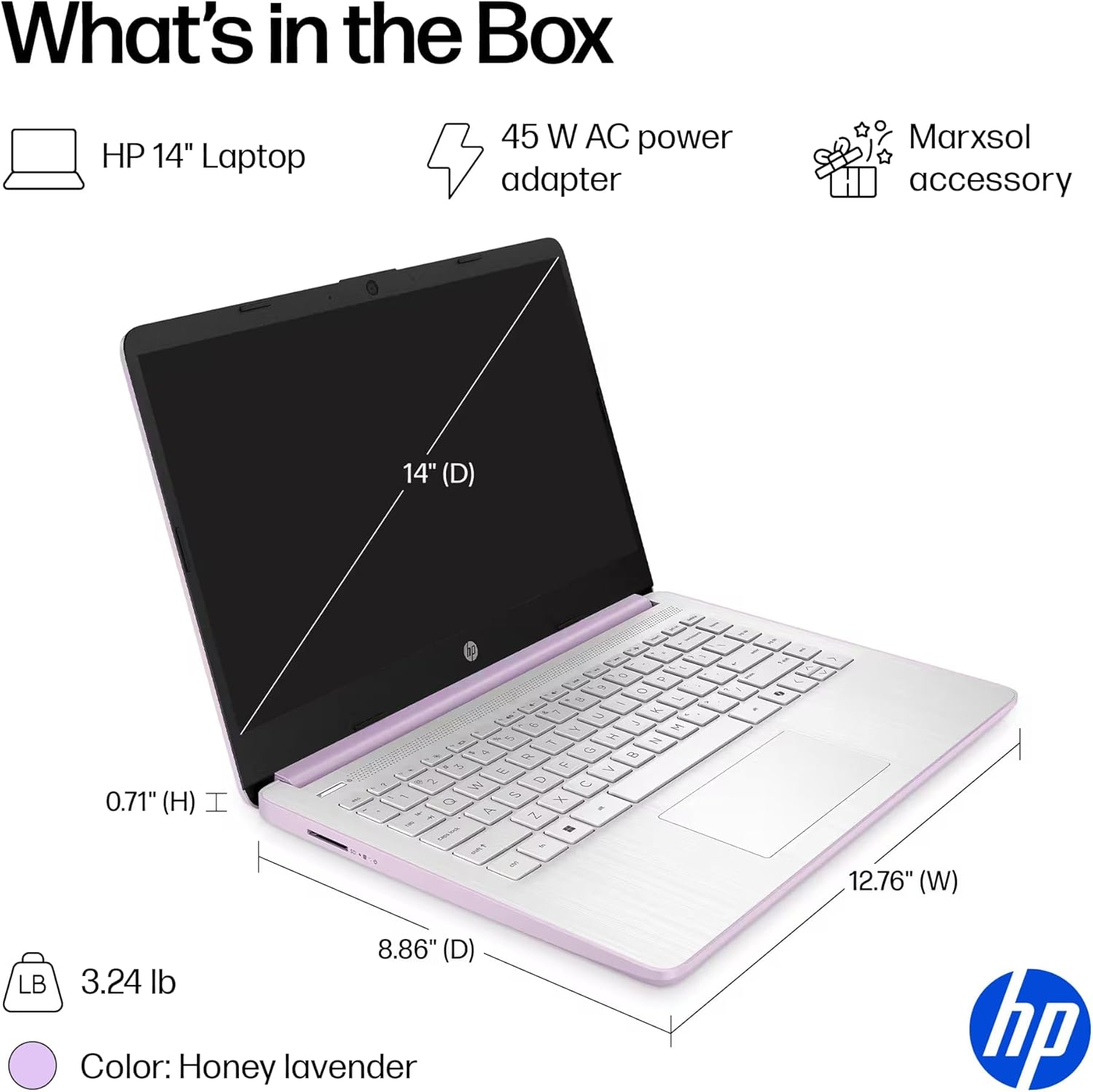
Figure 2: The package includes the HP 14-inch Laptop, a 45W AC power adapter, and the Marxsol accessory bundle. The laptop dimensions are 12.76" (W) x 8.86" (D) x 0.71" (H) and it weighs 3.24 lbs.
Your package should contain:
- HP 14-inch Laptop
- 45W AC Power Adapter
- Marxsol Accessory Bundle:
- 6-in-1 USB-C Docking Station Hub
- 500GB External Drive
- USB Extension Cord
- HDMI Cable
- Mouse Pad
- Wireless Mouse

Figure 3: The Marxsol accessory bundle includes a 6-in-1 USB-C Docking Station, Wireless Mouse, Mouse Pad, USB Extension Cable, HDMI Cable, and a 500GB External Drive.
1.2 Connecting Power
Connect the AC power adapter to the laptop's AC Smart pin port and then plug the adapter into a power outlet. The battery will begin charging automatically. It is recommended to fully charge the battery before first use.
1.3 Initial Boot and Windows 11 Pro Setup
Press the power button to turn on the laptop. Follow the on-screen instructions to complete the initial setup of Windows 11 Pro. This process typically involves selecting your region, language, connecting to a Wi-Fi network, and creating a user account.

Figure 4: The laptop comes pre-installed with Windows 11 Pro and includes Microsoft Office 2024.
2. Operating Your Laptop
2.1 Power On/Off and Sleep Mode
- Power On: Press the power button located on the keyboard.
- Power Off: Click the Start button, then Power, and select "Shut down."
- Sleep Mode: Close the lid or click the Start button, then Power, and select "Sleep."
2.2 Keyboard and Touchpad
The laptop features a full-size English keyboard and a multi-touch touchpad.
- Touchpad Gestures: Refer to Windows 11 settings for customizable touchpad gestures (e.g., two-finger scroll, pinch-to-zoom).
- Function Keys: Use the Fn key in combination with the function keys (F1-F12) for quick access to features like volume control, screen brightness, and Wi-Fi toggle.
2.3 Connecting Peripherals (Ports)
Your laptop is equipped with various ports for connecting external devices.
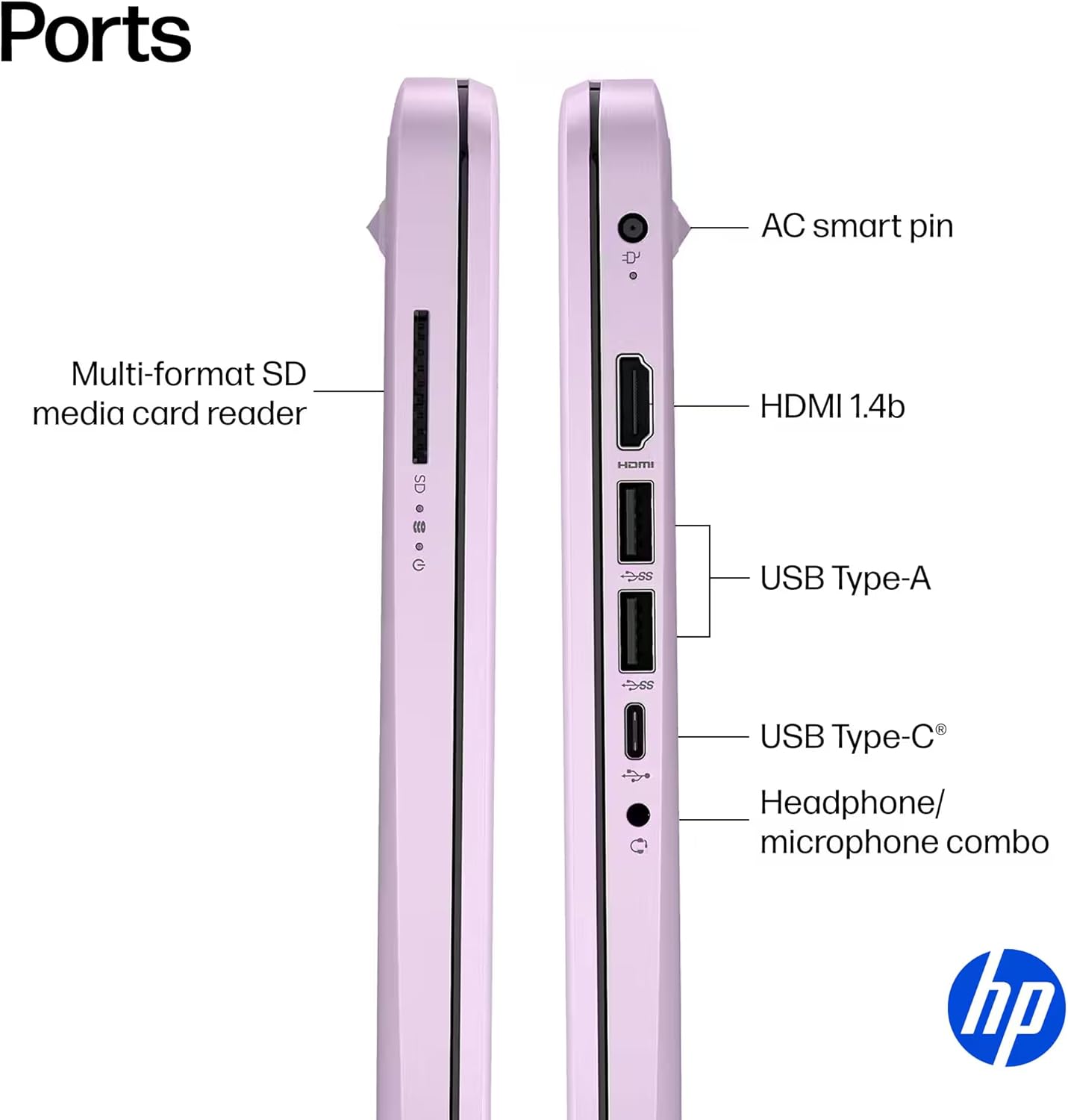
Figure 5: Side view of the HP 14-inch laptop showing available ports.
- USB Type-C (5Gbps signaling rate): For data transfer only.
- USB Type-A (5Gbps signaling rate): For connecting USB devices like external drives, keyboards, and mice.
- HDMI 1.4b: For connecting to external displays or projectors.
- Headphone/Microphone Combo Jack: For connecting headphones or a headset with a microphone.
- Multi-format SD Media Card Reader: For reading SD cards.
- AC Smart Pin: For connecting the power adapter.
2.4 Wireless Connectivity
The laptop supports Wi-Fi 6 (802.11ax) and Bluetooth 5.4 for high-speed wireless connections.
- Wi-Fi: To connect to a wireless network, click the Wi-Fi icon in the taskbar, select your network, and enter the password if required.
- Bluetooth: To pair Bluetooth devices, go to Windows Settings > Bluetooth & devices, and follow the pairing instructions.
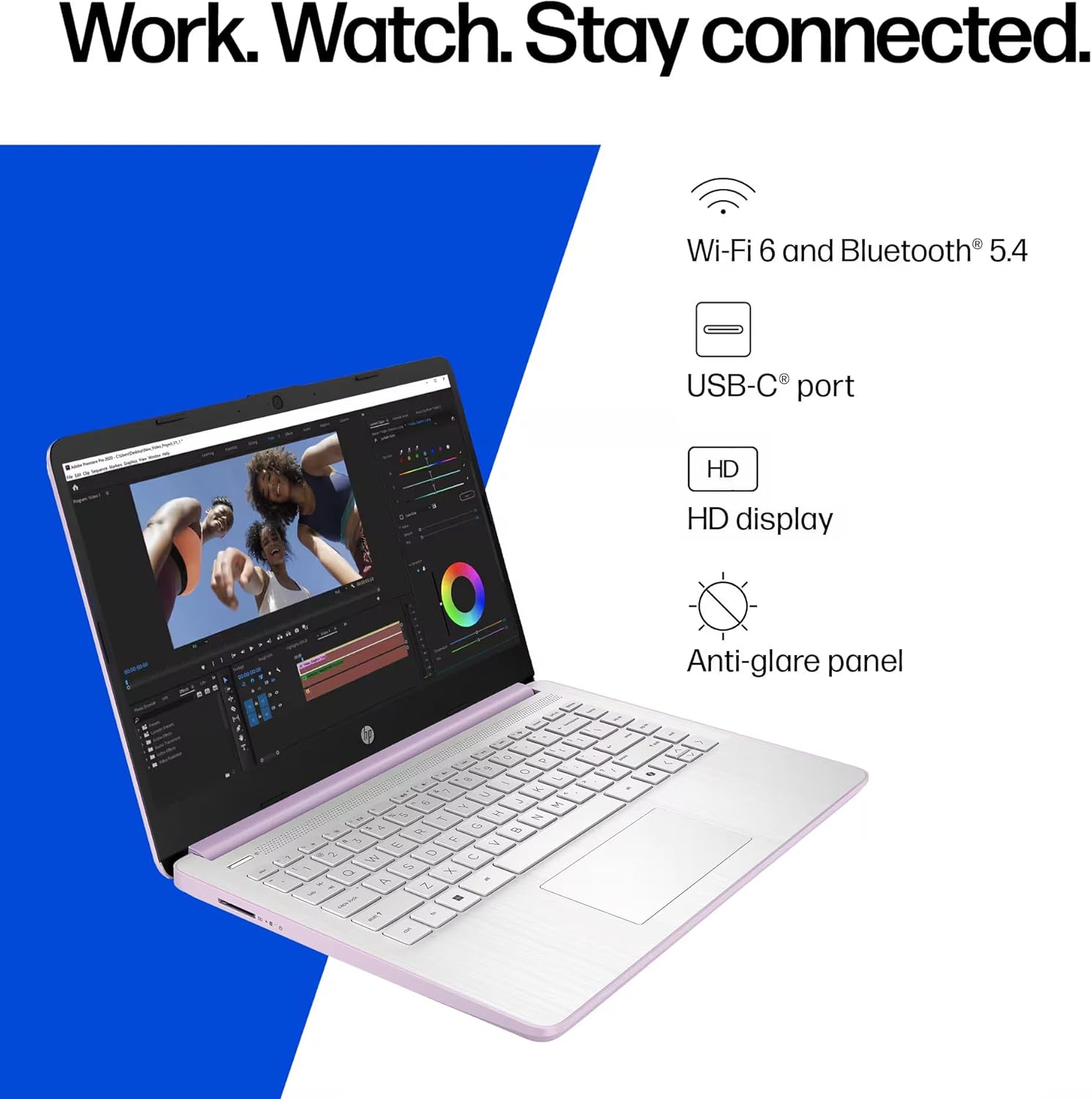
Figure 6: The laptop offers Wi-Fi 6 and Bluetooth 5.4 for robust wireless connectivity, alongside a USB-C port, HD display, and anti-glare panel.
2.5 Microsoft Copilot Key
The dedicated Microsoft Copilot key provides instant access to AI assistance. Press this key to launch Copilot and interact with it for various tasks, information, and creative assistance.

Figure 7: The Microsoft Copilot key on the keyboard provides quick access to AI features.
3. Maintenance
3.1 Battery Care
- To maximize battery lifespan, avoid frequently discharging the battery completely.
- Store the laptop in a cool, dry place if not used for extended periods.
- The laptop features a 3-cell, 41 Wh Li-ion battery, providing up to 9 hours of usage.
3.2 Cleaning Your Laptop
- Screen: Use a soft, lint-free cloth lightly dampened with water or a screen cleaner. Do not spray liquid directly onto the screen.
- Keyboard and Chassis: Use a soft, dry cloth. For stubborn dirt, a slightly damp cloth can be used, ensuring no liquid enters openings.
- Ports: Keep ports free of dust and debris. Use compressed air if necessary, holding the can upright.
3.3 Software Updates
Regularly update your Windows 11 Pro operating system and drivers to ensure optimal performance, security, and compatibility.
- Go to Settings > Windows Update to check for and install updates.
- Ensure your antivirus software is up-to-date.
4. Troubleshooting
This section addresses common issues you might encounter with your HP 14-inch Laptop.
4.1 Power Issues
- Laptop does not turn on:
- Ensure the AC adapter is securely connected to both the laptop and a working power outlet.
- Verify the power outlet is functional by plugging in another device.
- If the battery is completely drained, allow it to charge for at least 30 minutes before attempting to power on.
- Battery not charging:
- Check the power adapter and cable for any damage.
- Ensure the AC adapter is correctly seated in the laptop's charging port.
- Try restarting the laptop.
4.2 Display Issues
- Screen is blank or black:
- Ensure the laptop is powered on and not in sleep mode.
- Connect an external monitor via HDMI to check if the issue is with the laptop's display or graphics output.
- Adjust screen brightness using the function keys.
- Flickering screen:
- Update your graphics drivers.
- Check display settings in Windows for refresh rate compatibility.
4.3 Connectivity Issues (Wi-Fi/Bluetooth)
- Cannot connect to Wi-Fi:
- Ensure Wi-Fi is enabled (check function keys or Windows settings).
- Restart your router and modem.
- Forget the network in Windows settings and try reconnecting.
- Update network drivers.
- Bluetooth device not pairing:
- Ensure Bluetooth is enabled on both the laptop and the device.
- Place the Bluetooth device in pairing mode.
- Remove previously paired instances of the device from Windows settings and try pairing again.
For further assistance, refer to the HP support website or contact customer service.
5. Specifications
Detailed technical specifications for the HP 14-inch Laptop (Model 2026 Essential).
| Feature | Description |
|---|---|
| Model Name | 2026 Essential HP 14 Laptop |
| Processor | Quad-Core Intel Processor N150 (Up to 3.6 GHz Max Turbo Frequency, 6 MB Intel Smart Cache, 4 cores, 4 threads) |
| Graphics | Integrated Intel Graphics |
| Operating System | Windows 11 Pro |
| Software Included | Microsoft Office 2024 |
| Memory (RAM) | 4GB LPDDR5 RAM |
| Storage | 128GB UFS (Universal Flash Storage) + 500GB External Drive |
| Display | 14-inch diagonal, HD (1366 x 768), micro-edge, anti-glare, 250 nits, LED |
| Connectivity | Wi-Fi 6 (802.11ax) and Bluetooth 5.4 combo |
| Audio | HD Audio with stereo speakers |
| Webcam | HP True Vision 720p HD camera with temporal noise reduction and integrated dual array digital microphones |
| Ports |
|
| Battery | 3-cell, 41 Wh Li-ion battery, Up to 9 hours usage |
| Dimensions (W x D x H) | 12.76 x 8.86 x 0.71 inches |
| Weight | 3.24 lbs |
| Color | Honey Lavender |

Figure 8: Intel Processor N150 specifications, highlighting its 4 cores, 4 threads, 6 MB cache, and up to 3.6 GHz Turbo Boost frequency.
6. Warranty and Support
For warranty information, please refer to the documentation included with your product or visit the official HP support website. HP provides various support resources, including drivers, software updates, and troubleshooting guides.
If you encounter issues that cannot be resolved using the troubleshooting steps in this manual, please contact HP Customer Support for assistance. Have your product model number (2026 Essential HP 14 Laptop) and serial number ready when contacting support.
Online Support: Visit support.hp.com


