
1. Introduction and Overview
The ZTE K20 is a high-performance 4G LTE Cat7 modem router designed to provide robust and reliable internet connectivity. It integrates 4G LTE mobile broadband with dual-band AC1200 Wi-Fi, making it suitable for homes, small offices, or any location requiring flexible internet access. This device allows you to share a 4G LTE connection with up to 64 devices simultaneously, offering both wired and wireless networking options.
Key Features:
- 4G LTE Cat7 Support: Provides high-speed mobile broadband with download speeds up to 300Mbps and upload speeds up to 100Mbps.
- Dual-Band AC1200 Wi-Fi: Delivers fast and stable wireless connections across 2.4GHz and 5GHz bands, with speeds up to 1200Mbps.
- Extensive Device Support: Connects up to 64 Wi-Fi enabled devices concurrently.
- Multiple Ethernet Ports: Equipped with 4 Ethernet ports for reliable wired connections to computers, gaming consoles, or other network devices.
- High-Gain Antennas: Features two external high-gain antennas to enhance Wi-Fi coverage and signal strength.
- Optional Backup Battery Slot: Includes a slot for an optional 2550mAh backup battery (not included) to ensure continuous operation during power outages.
2. Package Contents
Please check the package carefully to ensure all items are present:
- ZTE K20 Modem Router
- Power Adapter
- Quick Start Guide (if included)
3. Product Layout
Familiarize yourself with the router's physical components.

Image 3.1: Front view of the ZTE K20 4G LTE Modem Router. This image displays the sleek, white design of the router with the ZTE logo prominently featured on the front panel.
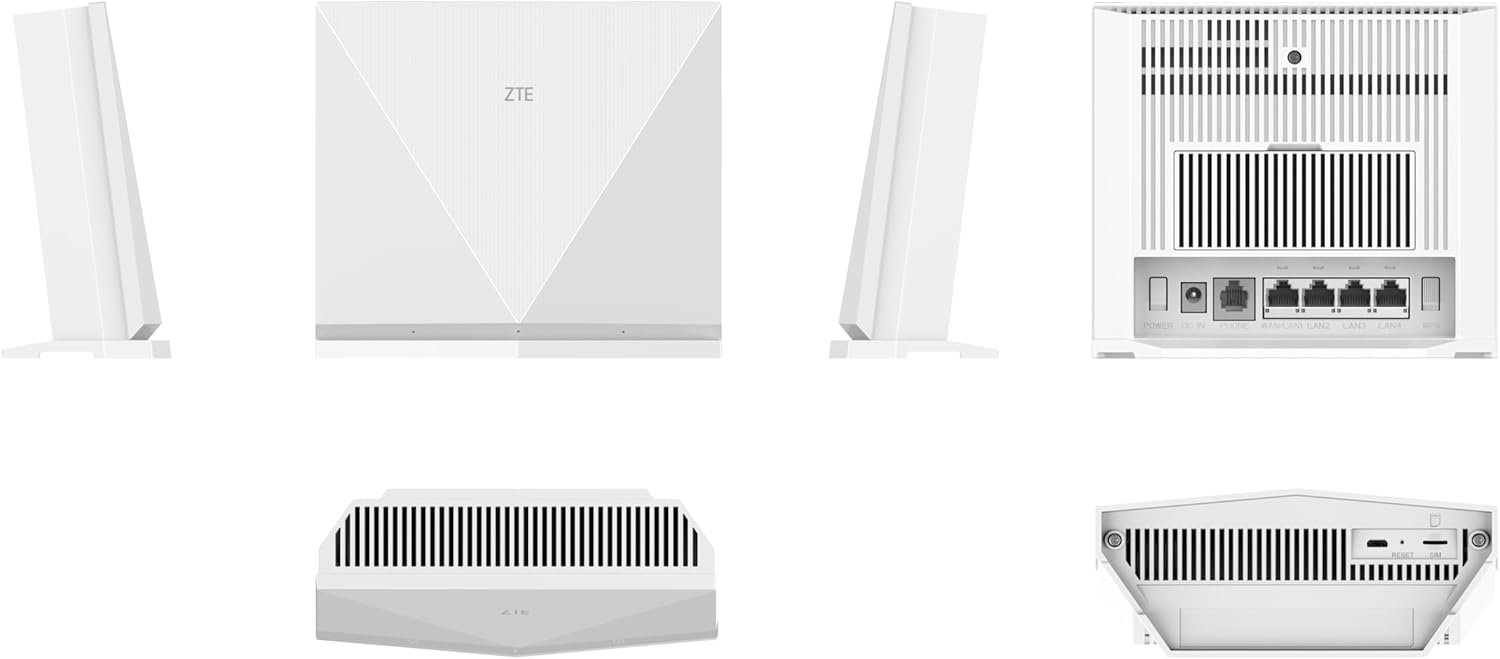
Image 3.2: Rear and side views of the ZTE K20 4G LTE Modem Router. This image provides a comprehensive look at the router's rear panel, highlighting the power input, Ethernet ports (LAN1-LAN4), and the SIM card slot. Side views also show the ventilation grilles and the reset button.
Port and Indicator Descriptions:
- Power Port: Connects to the included power adapter.
- LAN Ports (1-4): Ethernet ports for wired network connections.
- SIM Card Slot: Insert your 4G LTE Nano-SIM card here.
- Reset Button: Used to restore factory default settings.
- LED Indicators: (Specific LED functions are typically detailed in a quick start guide or on the device itself, e.g., Power, Wi-Fi, 4G Signal Strength).
4. Setup Instructions
Follow these steps to set up your ZTE K20 Modem Router.
4.1. SIM Card Installation
- Ensure the router is powered off.
- Locate the SIM card slot on the router (refer to Image 3.2).
- Insert your Nano-SIM card into the slot with the gold contacts facing down and the notched corner oriented correctly. Push until it clicks into place.
4.2. Power Connection
- Connect one end of the power adapter to the Power port on the router.
- Plug the other end of the power adapter into a standard electrical outlet.
4.3. Initial Power On
- The router will automatically power on. Observe the LED indicators. The Power LED should turn solid, and the 4G/LTE signal indicator should light up, indicating a successful connection to the mobile network.
- Wait for approximately 1-2 minutes for the router to fully boot up and establish a network connection.
4.4. Connecting Devices
Wired Connection:
- Connect an Ethernet cable from one of the LAN ports on the router to the Ethernet port on your computer or other network device.
Wireless Connection:
- On your Wi-Fi enabled device (smartphone, tablet, laptop), search for available Wi-Fi networks.
- Locate the default Wi-Fi network name (SSID) and password, usually found on a label on the bottom or back of the router.
- Select the SSID and enter the password to connect.
5. Operating Instructions
This section covers basic operation and configuration of your router.
5.1. Accessing the Web Management Interface
- Open a web browser on a device connected to the router (either wired or wirelessly).
- In the address bar, type the default IP address of the router (e.g.,
192.168.0.1or192.168.1.1). Refer to the label on your router for the exact IP address. - Enter the default username and password when prompted. These are typically
adminfor both, but check the router label for specific credentials.
5.2. Basic Wi-Fi Configuration
It is recommended to change the default Wi-Fi name (SSID) and password for security reasons.
- Log in to the web management interface.
- Navigate to the Wi-Fi Settings or Wireless Settings section.
- Change the SSID for both 2.4GHz and 5GHz networks to a name of your choice.
- Change the Wi-Fi password (WPA/WPA2-PSK) to a strong, unique password.
- Save your changes. Your devices will need to reconnect using the new SSID and password.
5.3. Advanced Settings (Overview)
The web interface provides access to advanced features such as:
- Network Settings: DHCP server, LAN IP address configuration.
- Firewall: Security settings to protect your network.
- Port Forwarding: Allows specific network traffic to reach devices on your local network.
- SMS Management: View and send SMS messages via the inserted SIM card.
- System Tools: Firmware upgrade, backup/restore configuration, reboot.
Refer to the router's full user manual (if available digitally) for detailed instructions on advanced configurations.
6. Maintenance
Proper maintenance ensures the longevity and optimal performance of your ZTE K20 router.
6.1. Firmware Updates
Periodically check for firmware updates to improve performance, add new features, and enhance security.
- Log in to the web management interface.
- Navigate to the System Tools or Firmware Upgrade section.
- Follow the on-screen instructions to check for and install any available updates. Do not power off the router during a firmware update.
6.2. Cleaning
Keep the router clean to prevent dust buildup, which can affect performance and cooling.
- Use a soft, dry cloth to wipe the exterior of the router.
- Avoid using liquid cleaners or abrasive materials.
- Ensure ventilation grilles are free from obstruction.
6.3. Factory Reset
A factory reset will revert all settings to their default values. This can be useful for troubleshooting or when reconfiguring the device.
- With the router powered on, locate the Reset button (often a small pinhole, refer to Image 3.2).
- Use a paperclip or a similar pointed object to press and hold the Reset button for about 5-10 seconds.
- Release the button when the LED indicators flash or the router reboots.
- The router will restart with factory default settings.
7. Troubleshooting
This section addresses common issues you might encounter.
7.1. No Internet Connection
- Check SIM Card: Ensure the SIM card is correctly inserted and active with a data plan.
- Signal Strength: Verify the 4G/LTE signal indicator on the router. If the signal is weak or absent, try relocating the router to an area with better reception.
- APN Settings: Log in to the web management interface and check the APN (Access Point Name) settings. These should typically be configured automatically, but manual adjustment might be needed for some carriers.
- Reboot Router: Power off the router, wait 10 seconds, then power it back on.
7.2. Slow Wi-Fi Speed
- Signal Interference: Move the router away from other electronic devices (microwaves, cordless phones) that might cause interference.
- Distance and Obstacles: Reduce the distance between your device and the router, and minimize physical obstructions like thick walls.
- Network Congestion: If many devices are connected, consider disconnecting unused ones.
- Band Selection: For faster speeds, connect devices to the 5GHz Wi-Fi band if they support it.
7.3. Cannot Access Web Management Interface
- IP Address: Ensure you are using the correct IP address (e.g.,
192.168.0.1). - Network Connection: Verify your device is properly connected to the router's Wi-Fi or via an Ethernet cable.
- Browser Cache: Clear your web browser's cache and cookies, or try a different browser.
- Factory Reset: If all else fails, perform a factory reset (see Section 6.3) and try accessing with default credentials.
8. Specifications
Detailed technical specifications for the ZTE K20 Modem Router.
| Feature | Specification |
|---|---|
| Brand | ZTE |
| Model Name | K20 |
| Connectivity Technology | Ethernet, LTE, Wi-Fi |
| Wireless Communication Standard | 802.11ac (Wi-Fi 5) |
| Frequency Band Class | Dual-Band (2.4GHz & 5GHz) |
| Data Transfer Rate (Wi-Fi) | Up to 1200 Mbps |
| 4G LTE Category | Cat7 |
| Max Download Speed (LTE) | 300 Mbps |
| Max Upload Speed (LTE) | 100 Mbps |
| Number of Ethernet Ports | 4 |
| Max Connected Devices | 64 |
| Special Features | High-gain antennas, Power adapter included, Backup battery slot (battery not included) |
| Color | White |
| Country of Origin | China |
9. Warranty and Support
9.1. Product Warranty
The ZTE K20 Modem Router comes with a 2-year manufacturer's warranty from the date of purchase. This warranty covers defects in materials and workmanship under normal use. Please retain your proof of purchase for warranty claims.
The warranty does not cover damage caused by:
- Accident, abuse, misuse, or improper installation.
- Natural disasters or acts of God.
- Unauthorized repairs or modifications.
- Use of non-original accessories.
9.2. Technical Support
For technical assistance, troubleshooting beyond this manual, or warranty inquiries, please contact ZTE customer support. Refer to the official ZTE website or the product packaging for the most up-to-date contact information for your region.
Before contacting support, please have the following information ready:
- Product Model: ZTE K20
- Serial Number (found on the device label)
- Description of the issue
- Steps already taken to resolve the issue


