
1. Introduction
Thank you for choosing the Tibuta 10.1-inch Android 14 Tablet, Model E100. This manual provides essential information for the safe and efficient use of your device. Please read it thoroughly before operating your tablet and retain it for future reference.
The Tibuta E100 tablet features a vivid 10.1-inch HD IPS display, a powerful quad-core processor, 6GB RAM, and 128GB of internal storage, expandable up to 512GB. Running on Android 14 with full GMS certification, it offers access to a wide range of applications from the Google Play Store.
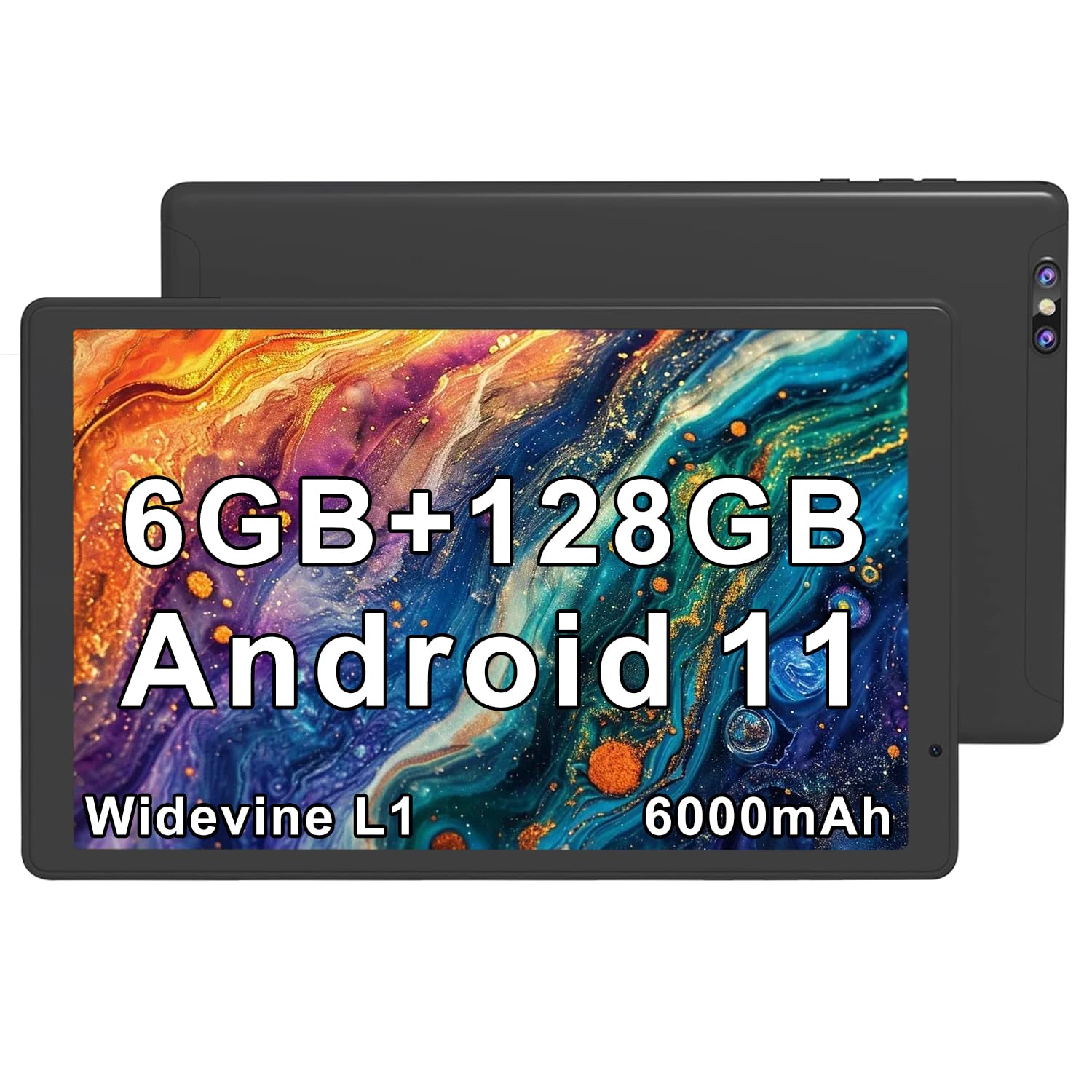
Image 1.1: Tibuta 10.1-inch Android 14 Tablet with included protective case.

Image 1.2: Key performance features of the Tibuta E100 tablet.
2. Package Contents
Please check the package contents upon unboxing. If any items are missing or damaged, contact Tibuta customer support.
- Tibuta 10.1-inch Android 14 Tablet (Model E100)
- Protective Case
- Charger (USB-C cable and power adapter)
- User Manual (this document)
3. Tablet Layout
Familiarize yourself with the physical features and ports of your Tibuta tablet.

Image 3.1: Overview of tablet ports and buttons.
- 1. 2 MP Front-facing Camera: For video calls and selfies.
- 2. USB-C (2.0) Port: For charging and data transfer.
- 3. 5 MP Rear Camera: For taking photos and videos.
- 4. 3.5mm Stereo Jack: For connecting headphones or external speakers.
- 5. Volume Buttons: Adjust audio volume.
- 6. Power Button: Press and hold to power on/off or restart; press briefly to sleep/wake.
- 7. Built-in Microphone: For voice input during calls or recordings.
- 8. Speaker: For audio output.
- 9. MicroSD Card Slot: For expanding storage (card not included).
- 10. SIM Card Slot: For cellular data connectivity (if applicable to your model).
4. Setup
4.1 Charging the Battery
Before first use, fully charge your tablet.
- Connect the USB-C cable to the tablet's USB-C port.
- Connect the other end of the cable to the power adapter.
- Plug the power adapter into a wall outlet.
- The battery icon on the screen will indicate charging status.
Note: Use only the provided charger or a certified compatible charger to avoid damage.
4.2 Powering On/Off
- To Power On: Press and hold the Power Button until the Tibuta logo appears.
- To Power Off: Press and hold the Power Button until the power options menu appears, then select "Power off".
- To Restart: Press and hold the Power Button until the power options menu appears, then select "Restart".
- Sleep/Wake: Briefly press the Power Button to put the tablet to sleep or wake it up.
4.3 Initial Setup
The first time you power on your tablet, you will be guided through the initial setup process.
- Select your preferred language.
- Connect to a Wi-Fi network.
- Sign in with your Google Account or create a new one. This is necessary to download apps from the Google Play Store.
- Follow the on-screen prompts to complete the setup, including setting up screen lock and Google services.
4.4 Inserting a MicroSD Card
You can expand the tablet's storage up to 512GB using a microSD card (sold separately).
- Locate the microSD card slot on the side of the tablet (refer to Image 3.1).
- Gently insert the microSD card into the slot with the gold contacts facing down until it clicks into place.
- The tablet will detect the card and prompt you to format it for use. Follow the on-screen instructions.

Image 4.1: Tablet with visual representation of expandable storage.
4.5 Inserting a SIM Card (for Cellular Models)
If your Tibuta E100 model supports cellular connectivity (5G), you can insert a Nano-SIM card for mobile data.
- Power off the tablet before inserting or removing a SIM card.
- Locate the SIM card slot (refer to Image 3.1).
- Use the provided SIM ejector tool (if included) to open the SIM tray.
- Place the Nano-SIM card into the tray with the gold contacts facing down, ensuring it fits securely.
- Carefully reinsert the tray into the tablet.
- Power on the tablet. You may need to configure APN settings in the tablet's network settings.
Note: Not all models support cellular connectivity. Refer to your product packaging or specifications for confirmation.
5. Operating Your Tablet
5.1 Basic Navigation
- Tap: Select an item or activate a button.
- Tap & Hold: Access contextual menus or move icons.
- Swipe: Scroll through screens, lists, or pages.
- Pinch-to-Zoom: Zoom in or out on images and web pages.
5.2 Display Features
The 10.1-inch HD IPS display provides crisp visuals and rich colors with a resolution of 1280x800 pixels.
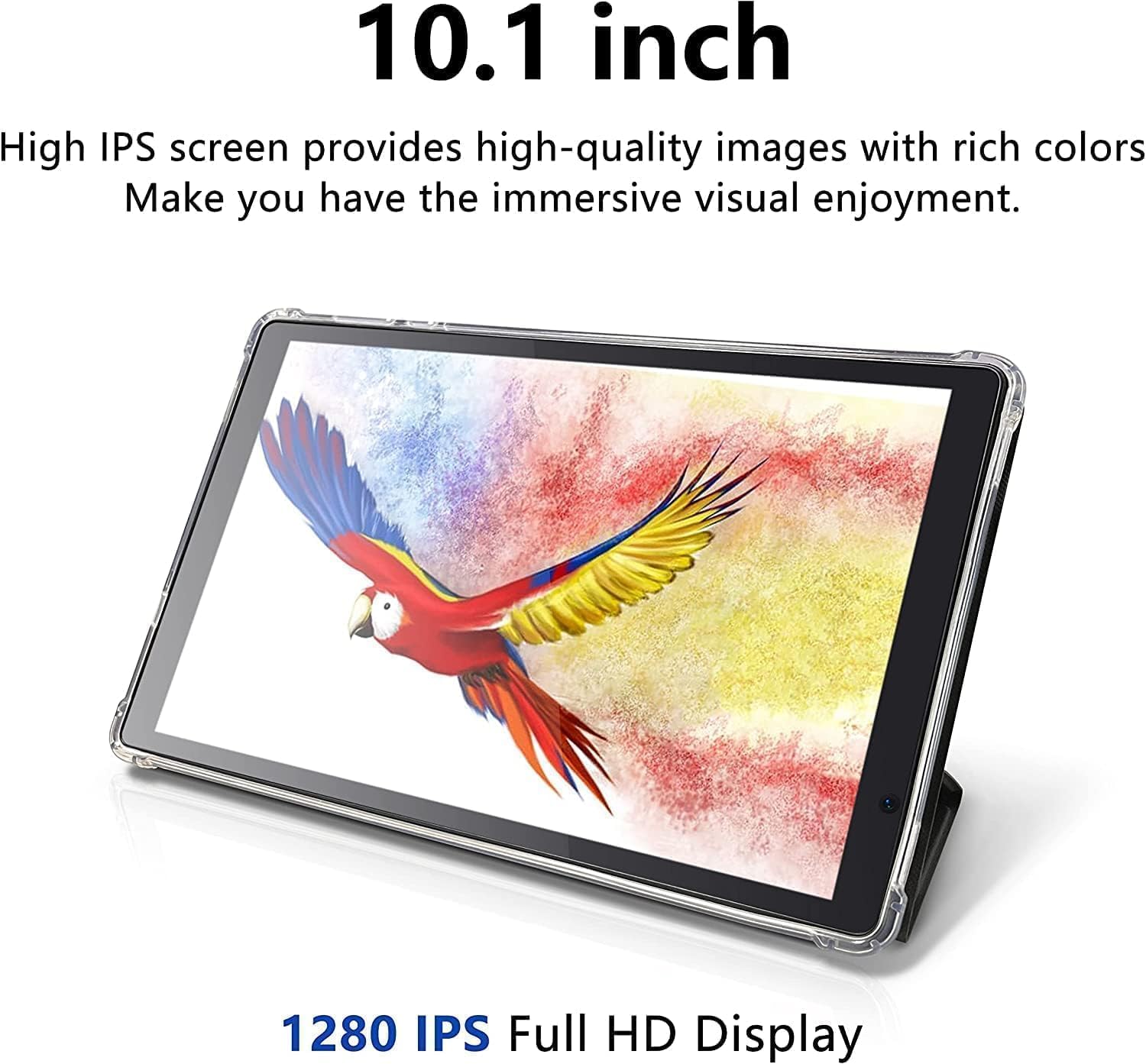
Image 5.1: The tablet's 10.1-inch HD IPS display offers high-quality visuals.
5.3 Connecting to Wi-Fi
- Go to Settings > Network & internet > Wi-Fi.
- Toggle Wi-Fi On.
- Select your desired Wi-Fi network from the list.
- Enter the password if prompted, then tap Connect.
5.4 Bluetooth Pairing
- Go to Settings > Connected devices > Bluetooth.
- Toggle Bluetooth On.
- Ensure the device you want to pair is in pairing mode.
- Select the device from the list of available devices and follow any on-screen prompts to complete pairing.
5.5 Using the Cameras
Your tablet is equipped with a 2MP front-facing camera and a 5MP rear camera.
- Open the Camera app from the home screen or app drawer.
- Tap the camera icon to switch between front and rear cameras.
- Tap the shutter button to take a photo or start/stop video recording.

Image 5.2: Tablet showcasing dual camera capabilities for capturing moments.
5.6 Managing Storage
The tablet has 128GB of internal storage. You can view and manage storage usage in Settings > Storage.
- Free up space: Delete unnecessary files, uninstall unused apps, or move files to your microSD card.
- MicroSD card: Ensure your microSD card is properly formatted and mounted for use.
5.7 Downloading Apps
Access millions of apps, games, movies, and books through the pre-installed Google Play Store.
- Ensure you are connected to Wi-Fi and signed into your Google Account.
- Open the Play Store app.
- Search for the desired app and tap Install.
5.8 Battery Management
The 6000mAh battery provides extended usage. To optimize battery life:
- Reduce screen brightness.
- Turn off Wi-Fi, Bluetooth, or cellular data when not in use.
- Close unused applications running in the background.
- Enable Battery Saver mode in Settings > Battery.

Image 5.3: Visual representation of the tablet's extended battery life for various activities.
6. Maintenance
6.1 Cleaning the Tablet
- Use a soft, lint-free cloth to clean the screen and body.
- Do not use liquid cleaners, aerosols, or abrasive materials.
- Avoid getting moisture into openings.
6.2 Software Updates
Keep your tablet's software up to date for optimal performance and security.
- Go to Settings > System > System update.
- Check for available updates and follow the on-screen instructions to install them.
6.3 Storage Management
Regularly manage your tablet's storage to maintain performance.
- Periodically review and delete old photos, videos, and documents.
- Uninstall apps you no longer use.
- Clear cache data for apps in Settings > Apps > [App Name] > Storage & cache.
7. Troubleshooting
If you encounter issues with your tablet, try the following solutions before contacting support.
| Problem | Solution |
|---|---|
| Tablet does not power on. | Ensure the battery is charged. Connect the charger and wait a few minutes before attempting to power on again. |
| Tablet is unresponsive. | Perform a force restart by pressing and holding the Power Button for approximately 10-15 seconds until the tablet restarts. |
| Cannot connect to Wi-Fi. | Check if Wi-Fi is enabled in Settings. Ensure the Wi-Fi password is correct. Restart your Wi-Fi router and the tablet. |
| Apps are crashing or running slowly. | Close background apps. Clear app cache (Settings > Apps > [App Name] > Storage & cache). Ensure sufficient free storage space. Restart the tablet. |
| MicroSD card not detected. | Ensure the card is inserted correctly. Try reinserting the card. Check if the card is damaged by testing it in another device. |
8. Specifications
Detailed technical specifications for the Tibuta 10.1-inch Android 14 Tablet (Model E100).
| Feature | Detail |
|---|---|
| Brand | Tibuta |
| Model Name | E100 |
| Operating System | Android 14 |
| Processor Brand | Allwinner (Quad-core) |
| RAM Memory Installed | 6 GB |
| Memory Storage Capacity | 128 GB (Expandable up to 512 GB via microSD) |
| Screen Size | 10.1 Inches |
| Display Type | LCD, HD IPS |
| Display Resolution Maximum | 1280*800 Pixels |
| Battery Cell Type | Lithium Polymer |
| Lithium-Battery Energy Content | 6000 Milliampere Hour (mAh) |
| Front Camera | 2 MP |
| Rear Camera | 5 MP |
| Wireless Technology | Bluetooth, Wi-Fi |
| Cellular Technology | 5G (Note: Requires compatible SIM card and service plan) |
| Item Dimensions L x W x Thickness | 20"L x 10"W x 3"Th |
| Built-In Media | Charger |
9. Warranty Information
The Tibuta 10.1-inch Android 14 Tablet (Model E100) comes with a 1-year limited warranty from the date of purchase. This warranty covers manufacturing defects and workmanship under normal use. It does not cover damage caused by misuse, accidents, unauthorized modifications, or normal wear and tear.
Please retain your proof of purchase for warranty claims. For full warranty terms and conditions, please refer to the official Tibuta website or contact customer support.
10. Customer Support
For any questions, technical assistance, or warranty inquiries regarding your Tibuta tablet, please contact our dedicated customer support team.
- Online Support: Visit the official Tibuta website for FAQs, troubleshooting guides, and contact forms.
- Email Support: Refer to your product packaging or the Tibuta website for the customer support email address.
- Amazon Store: You can also visit the Tibuta Store on Amazon for product information and support options.


