
Introduction
This manual provides essential information for the safe and efficient operation of your Metz 32MQH7000Z Smart Google QLED+ LED TV. Please read it thoroughly before using the television and retain it for future reference.
The Metz MQH7000 TV features Gen6 QLED+ technology, delivering excellent image quality and vibrant colors. The enhanced stability of QLED+ technology also extends the TV's lifespan, ensuring reliable use.
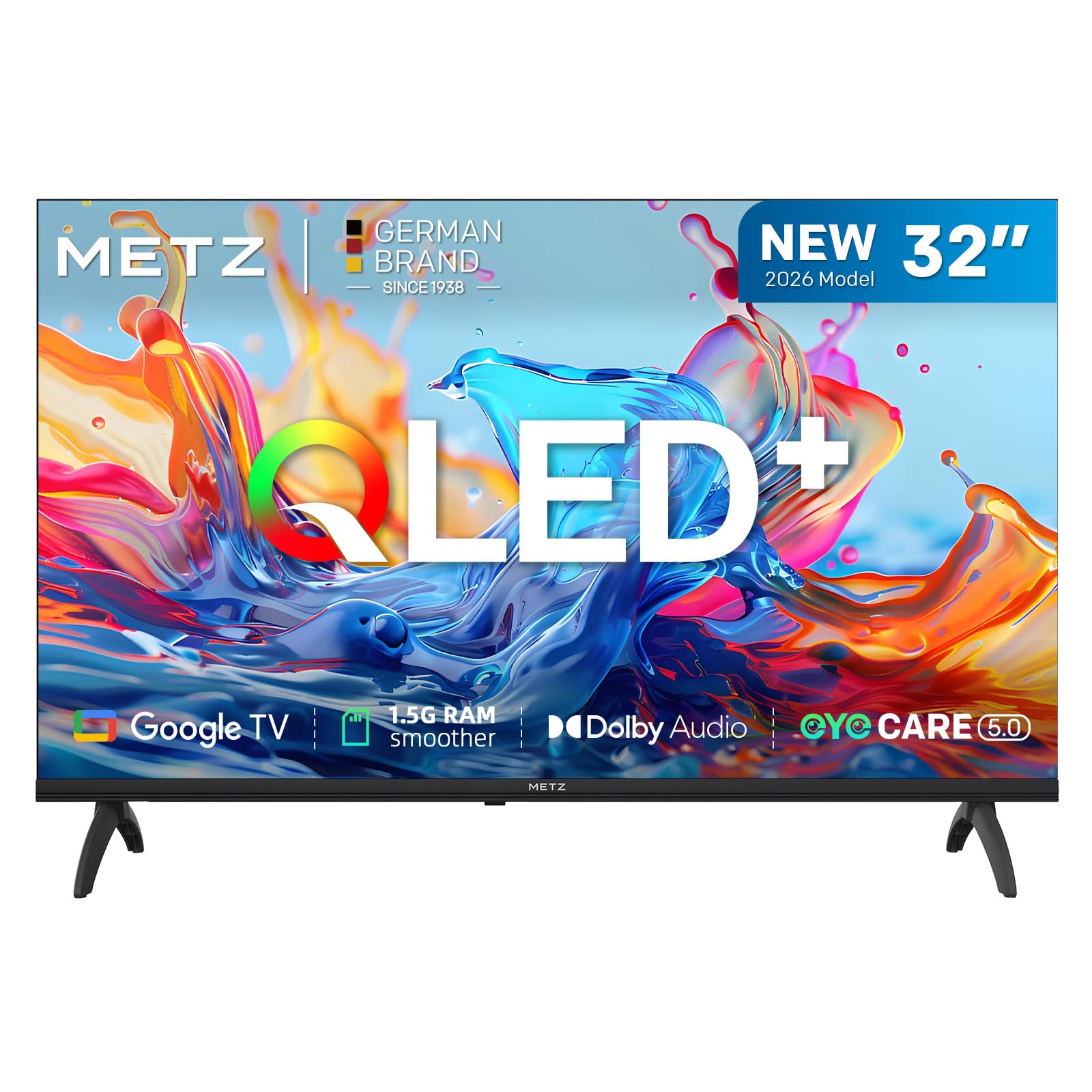
Image: Front view of the Metz 32MQH7000Z 32-inch Smart Google QLED+ LED TV.
What's in the Box
Verify that all components are present in the packaging:
- Remote Control
- Power Cable
- User Manual
- TV Bases (2)
- Screws for Bases
- AAA Batteries (2)

Image: Contents of the Metz 32MQH7000Z TV box, including remote control, power cable, user manual, TV bases, and screws. The image also displays the TV's dimensions and available input/output ports.
Setup
1. Attaching the TV Bases
- Carefully place the TV screen-down on a soft, flat surface to prevent damage.
- Align each base with the corresponding slots on the bottom of the TV.
- Secure the bases using the provided screws. Ensure they are firmly attached.
2. Connecting External Devices
Refer to the diagrams below for port locations:
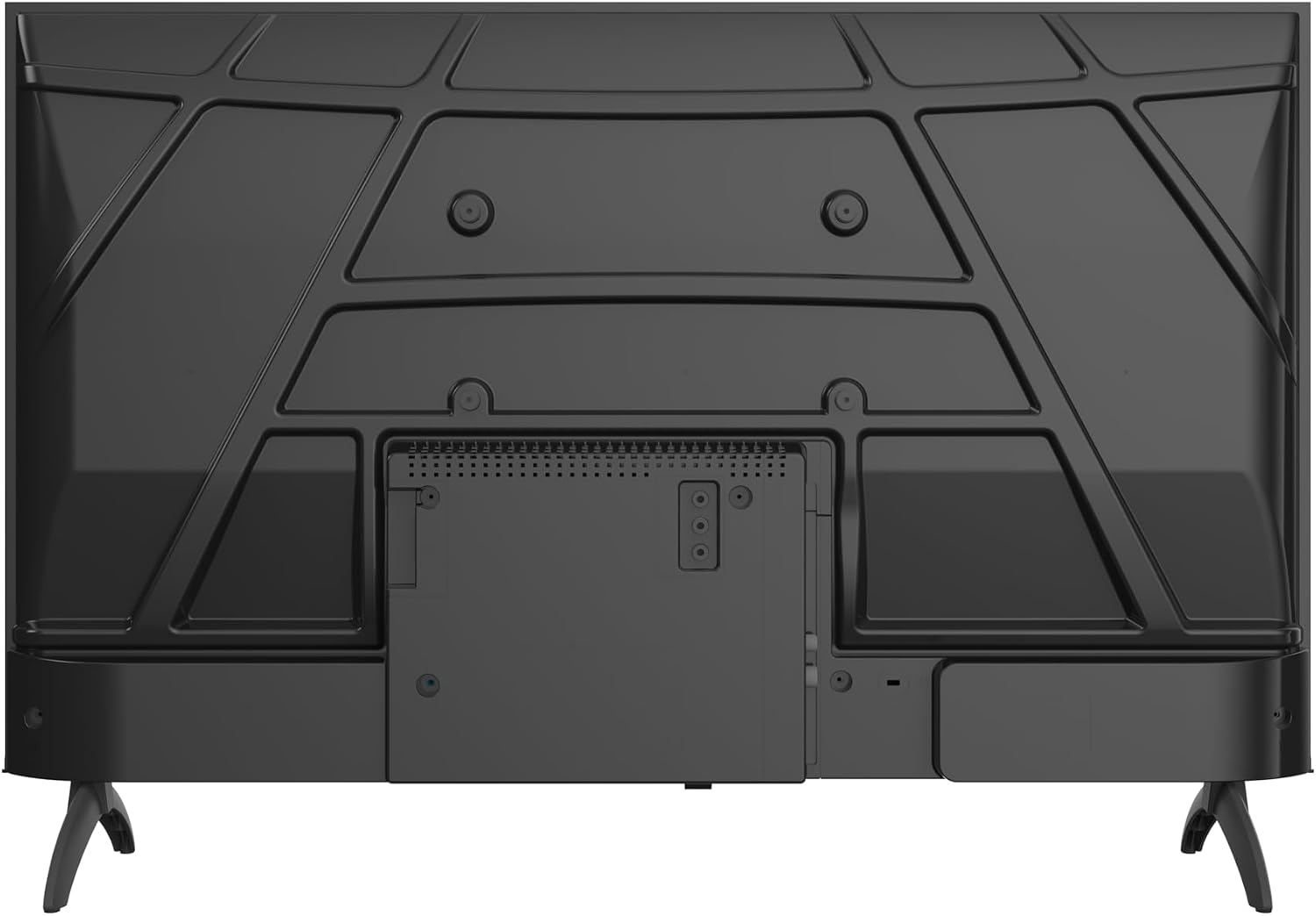
Image: Rear view of the Metz 32MQH7000Z TV, highlighting the VESA mounting points and the main connection panel.

Image: Side view of the Metz 32MQH7000Z TV, illustrating the location of various input ports including HDMI and USB.
- HDMI Ports (x2): Connect Blu-ray players, game consoles, or other HDMI-enabled devices.
- USB Ports (x2): Connect USB storage devices for media playback or software updates.
- Antenna/Cable Input (DVB-T/T2/C/S/S2): Connect your antenna or cable for terrestrial, cable, or satellite broadcasts.
- CI+ Slot: Insert a CI+ module for encrypted channels.
- LAN Port: Connect an Ethernet cable for a wired internet connection.
- Headphone Output: Connect headphones for private listening.
- Digital Audio Out: Connect to an external audio system for enhanced sound.
3. Power Connection
- Connect the power cable to the TV's power input.
- Plug the other end of the power cable into a wall outlet.
Operating Instructions
1. Initial Setup
Upon first power-on, the TV will guide you through the initial setup process, including language selection, network connection, and Google TV account login.
2. Google TV Interface
Your Metz TV features Google TV, providing a personalized experience with access to popular streaming apps and content recommendations.

Image: The Google TV interface, displaying a selection of streaming application icons and personalized content suggestions.
- Accessing Apps: Navigate through the home screen to find and launch applications like Netflix, YouTube, Prime Video, and Disney+.
- Voice Control: Use the remote control's microphone button to issue voice commands for searching content, controlling playback, and more.
3. Picture Settings (Gen 6 QLED+, HDR10 & HLG)
Your TV utilizes Gen 6 QLED+ technology for superior image quality. Adjust picture settings via the TV menu to optimize your viewing experience.

Image: A close-up view of the television screen, highlighting the vibrant and rich color reproduction achieved by QLED+ technology.
The TV supports HDR10 and HLG for enhanced contrast and color accuracy in compatible content. These technologies automatically adjust to provide deeper blacks and brighter highlights.

Image: A diagram illustrating the multi-layered Quantum Dot structure, designed to maintain color stability and vibrancy for over 10 years, comparing Metz QLED performance to conventional QLED over time.

Image: A side-by-side comparison demonstrating the visual improvement with HDR10 & HLG enabled, showing more vibrant colors and deeper contrast compared to a standard picture.
4. Sound Settings (Dolby Audio)
The integrated Dolby Audio system provides powerful and clear surround sound. Access the sound settings in the TV menu to customize audio profiles (e.g., Standard, Cinema, Music, Speech).

Image: An overhead perspective of a person seated on a sofa, watching the TV, with visual representations of Dolby Audio sound waves extending from the screen, indicating an immersive audio experience.
5. Connectivity
- Bluetooth 5.1: Connect wireless headphones, soundbars, or other Bluetooth-enabled devices.

Image: A graphic illustrating Bluetooth 5.1 connectivity, featuring a sleek sports car to symbolize fast, intelligent, and reliable wireless connections.
- Wi-Fi: Connect to your home wireless network for internet access and streaming.
- Multi-Screen Casting (Chromecast): Cast content from your smartphone, tablet, or computer directly to the TV screen using Chromecast built-in.

Image: A visual representation of multi-screen casting, demonstrating how content can be streamed from a smartphone or laptop to the television for an immersive viewing experience.
6. Eye Care Features
The TV includes Eye Care features designed to reduce eye strain during prolonged viewing.
- Low Blue Light: Reduces harmful blue light emissions.
- Flicker-Free: Minimizes screen flickering for a more comfortable viewing experience.
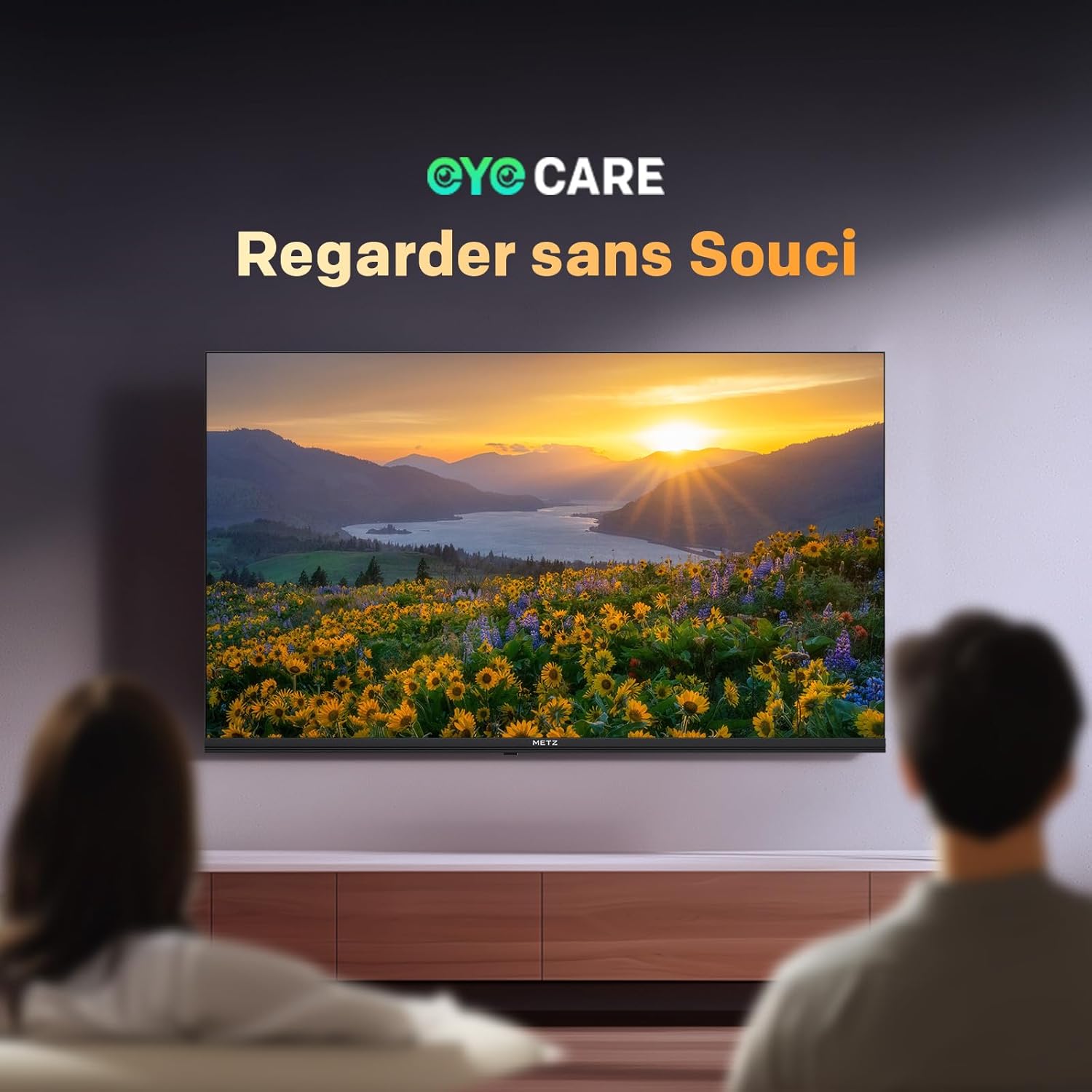
Image: A scene depicting individuals comfortably watching television, illustrating the benefits of the TV's Eye Care features for a relaxed viewing experience.

Image: Two comparative images demonstrating the benefits of Low Blue Light and Flicker-Free technologies. The top image shows a scene with and without low blue light, while the bottom image illustrates the difference with and without flicker-free technology for reduced eye fatigue.
7. Enhanced Performance (1.5 GB RAM)
The TV is equipped with 1.5 GB of RAM, providing a 50% increase in memory compared to previous models. This enhancement ensures smoother operation, faster application loading, and improved multitasking capabilities, reducing lag and enhancing overall responsiveness.

Image: A graphic representation highlighting the upgrade to 1.5 GB RAM, indicating a 50% increase in memory for improved television performance and responsiveness.
Maintenance
Cleaning the Screen
Gently wipe the screen with a soft, lint-free cloth. For stubborn marks, lightly dampen the cloth with water or a specialized screen cleaner. Avoid using harsh chemicals or abrasive materials.
Cleaning the TV Casing
Use a soft, dry cloth to wipe the TV casing. Do not use liquid cleaners directly on the TV.
General Care
- Unplug the TV from the power outlet before cleaning or if it will be unused for an extended period.
- Keep the TV away from direct sunlight, heat sources, and excessive dust.
- Ensure proper ventilation around the TV to prevent overheating.
Troubleshooting
If you encounter issues with your TV, refer to the following common solutions:
| Problem | Possible Solution |
|---|---|
| No Power | Check if the power cable is securely plugged into both the TV and the wall outlet. Ensure the power outlet is functional. |
| No Picture, but Sound is Present | Verify the correct input source is selected. Check cable connections (HDMI, antenna). Try another HDMI port. |
| No Sound, but Picture is Present | Check the volume level and mute status. Ensure external audio devices are correctly connected and powered on. Check audio output settings in the TV menu. |
| Remote Control Not Working | Replace the batteries in the remote control. Ensure there are no obstructions between the remote and the TV's IR sensor. |
| Poor Picture Quality | Adjust picture settings (brightness, contrast, sharpness). Check antenna or cable connection for signal strength. For streaming, ensure a stable internet connection. |
| Cannot Connect to Wi-Fi | Ensure your Wi-Fi router is on and within range. Re-enter the Wi-Fi password. Try restarting both the TV and the router. |
Specifications
| Feature | Detail |
|---|---|
| Model Name | MQH7000 |
| Model Number | 32MQH7000Z |
| Screen Size | 32 Pouces (80 cm) |
| Display Technology | QLED (Gen 6 QLED+, Quantum Dot QLED) |
| Resolution | 768p (1366 x 768 pixels) |
| Refresh Rate | 60 Hz |
| HDR Support | HDR10, HLG |
| Operating System | Google TV |
| RAM | 1.5 GB |
| Audio Technology | Dolby Audio, Dolby Digital, Dolby Digital Plus |
| Connectivity | Bluetooth 5.1, Wi-Fi, USB (x2), HDMI (x2), LAN |
| Tuner | DVB-T/T2/C/S/S2, CI+ |
| Special Features | Auto Volume Leveller, Bezel-Less Design, Chromecast, Eye Comfort Mode, Game Mode |
| VESA Mounting Standard | 200 x 100 mm |
| Product Dimensions (with stand) | 21.4P x 71.5l x 47.5H cm |
| Model Year | 2026 |
| Country of Origin | Poland |

Image: The energy efficiency label for the Metz 32MQH7000Z TV, indicating an energy class of E and power consumption details. For more information, visit the official EU EPREL database: https://eprel.ec.europa.eu/qr/2590878
Warranty and Support
Your Metz 32MQH7000Z TV comes with a 2-year warranty from the date of purchase. Please retain your proof of purchase for warranty claims.
For technical assistance, troubleshooting beyond this manual, or warranty service, please contact Metz customer support. Contact information can typically be found on the official Metz website or in the documentation included with your product.
For additional resources and product information, visit the official Metz brand store: Metz Brand Store


