
Introduction
This manual provides detailed instructions for the assembly, operation, and maintenance of your CHOEZON Corner TV Stand. Please read carefully before beginning assembly or use to ensure proper installation and safe operation. Retain this manual for future reference.
Safety Information
- Read all instructions thoroughly before assembly and use.
- Keep children and pets away from the assembly area to prevent accidents.
- Ensure all connections are secure and tightened before placing a television or other items on the stand.
- Do not exceed the maximum weight capacity for the shelves or the adjustable TV mount. Refer to the specifications section for details.
- Always place the TV stand on a level and stable surface to prevent tipping.
- Disconnect power to the charging station and LED lights before cleaning or performing any maintenance.
- Avoid exposing the product to excessive moisture or direct sunlight for extended periods.
Package Contents
Before beginning assembly, verify that all components listed below are present and undamaged. If any parts are missing or damaged, please contact CHOEZON customer support for assistance.
- Particleboard Panels (Top, Bottom, Side Shelves)
- Metal Frame Components
- Adjustable TV Mount Assembly
- Fabric Drawer
- LED Light Strip with Controller
- Integrated Charging Station (with power cord)
- Adjustable Leveling Feet (6 pieces)
- Hardware Pack (screws, bolts, tools if included)
- Instruction Manual
Setup and Assembly
Follow these steps carefully for proper assembly. It is recommended to have two people for certain steps to ensure stability and ease of construction.
Step 1: Prepare the Base Frame
Assemble the main metal frame components. Connect the vertical and horizontal metal bars using the provided hardware. Ensure all screws are finger-tightened initially, then fully tighten once the frame is stable.

Image: The fully assembled CHOEZON Corner TV Stand, showcasing its design and functionality with a television and media devices.
Step 2: Attach Panels and Shelves
Secure the particleboard panels to the metal frame. Begin with the bottom and side shelves, then attach the middle shelf and finally the top panel. Use the appropriate screws and ensure each panel is flush with the frame.

Image: The TV stand integrated into a gaming setup, highlighting the LED lighting and storage for consoles and accessories.
Step 3: Install the Drawer
Assemble the fabric drawer according to its individual instructions. Once assembled, slide it into its designated compartment within the stand's frame.

Image: A close-up of the fabric drawer, designed for storing remotes and small items.
Step 4: Mount the TV Bracket
Attach the adjustable TV mount to the rear frame of the stand using the provided hardware. Ensure it is securely fastened. Refer to the TV mount's specific instructions for attaching it to your television, paying attention to VESA patterns and weight limits.

Image: Diagram showing the height adjustment mechanism of the TV mount, indicating vertical movement.
Step 5: Connect LED Lighting and Charging Station
Install the LED light strip into the designated channel on the stand. Connect the LED strip to its power source and controller. Plug the charging station's power cord into a standard wall outlet.

Image: Close-up of the charging station, detailing its 2 AC outlets, 1 USB port, and 1 Type-C port, along with a phone charging.
Step 6: Adjust Feet
Screw the 6 adjustable leveling feet into the bottom of the stand. Adjust each foot individually by rotating it to ensure the stand is stable and level on uneven floors. This also helps protect your floor from scratches.
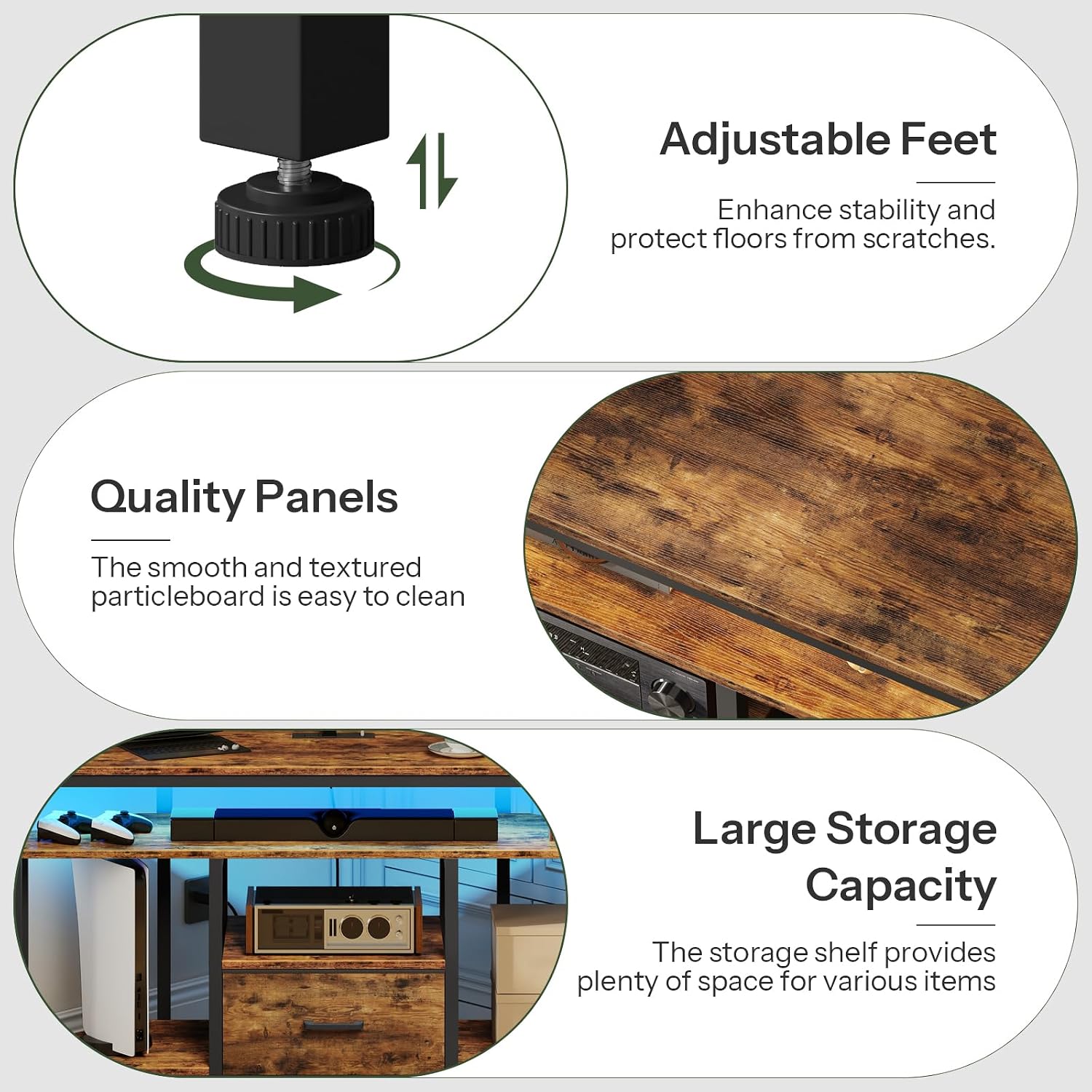
Image: Detail of the adjustable foot, demonstrating its 360-degree rotation for leveling and floor protection.
Operating Instructions
Using the Adjustable TV Mount
The integrated TV mount supports televisions up to 75 inches. To adjust the height, carefully loosen the adjustment screws on the vertical bars of the mount, slide the TV to your desired viewing height, and then securely re-tighten the screws. Always ensure the TV is balanced and stable after adjustment.

Image: The TV stand with a large television, demonstrating its capacity to hold TVs up to 75 inches.
Using the LED Lighting
The integrated LED light strip provides ambient lighting. Use the included remote control to power the lights on/off, change colors, adjust brightness, and select various lighting modes. Refer to the separate LED remote control instructions for specific functions and advanced settings.
Using the Charging Station
The built-in charging station offers convenient power access with 2 AC outlets, 1 USB port, and 1 Type-C port. Simply plug in your electronic devices to charge or power them. Ensure the main power cord for the charging station is securely plugged into a live wall outlet.
Maintenance
Cleaning
To clean the surfaces of the TV stand, use a soft, damp cloth. Avoid using harsh chemicals, abrasive cleaners, or scouring pads, as these can damage the finish. For the metal frame, a mild soap solution can be used if necessary, followed by wiping dry.
Care
Periodically check all assembly screws and connections to ensure they remain tight. Re-tighten any loose fasteners as needed. Do not place excessively hot or cold items directly on the particleboard surfaces without protective coasters. Avoid dragging the stand when moving it; lift it to prevent damage to the feet and floor.
Troubleshooting
Stand is wobbly or unstable
- Solution: Ensure all assembly screws are fully tightened. Adjust the 6 leveling feet on the bottom of the stand to compensate for uneven floors. Rotate each foot until the stand is stable.
LED lights not working
- Solution: Check if the LED power cable is securely plugged into a working wall outlet. Verify that the remote control batteries are functional and correctly inserted. Ensure the LED strip is properly connected to its power source and controller.
Charging station not providing power
- Solution: Confirm the main power cord for the charging station is securely plugged into a live wall outlet. Test with different devices and cables to rule out device-specific issues. Check if the outlet itself is functional by plugging in another appliance.
Specifications
| Feature | Detail |
|---|---|
| Model Number | TDS05UDBF |
| Brand | CHOEZON |
| Color | Rustic Brown and Black |
| Material | Particleboard, Metal, Non-Woven Fabric |
| Dimensions (L x W x H) | 47.2 x 13.2 x 50.4 inches (120 x 33.5 x 128 cm) |
| TV Size Support | Up to 75 inches |
| Charging Station | 2 AC Outlets (125V/12A), 1 USB Port (5V/2A), 1 Type-C Port (5V/2A) |
| Power Cord Length | 4.9 feet |
| Number of Drawers | 1 |
| Adjustable Feet | 6 |

Image: Dimensional drawing of the TV stand, providing measurements for length, width, and height in both centimeters and inches.
Warranty and Support
For specific warranty information, technical support, or to report missing/damaged parts, please contact CHOEZON customer service directly. Keep your purchase receipt as proof of purchase for any warranty claims.
For further assistance and product information, you may visit the official CHOEZON store on Amazon: CHOEZON Store