
1. Introduction
Thank you for choosing the CHIVALZ A10a Thermal Printer. This compact and inkless portable printer is designed for convenient printing from your phone or laptop, supporting both 8.5'' x 11'' and A4 thermal paper. This manual provides essential information for the safe and efficient operation of your device. Please read it thoroughly before use and retain it for future reference.
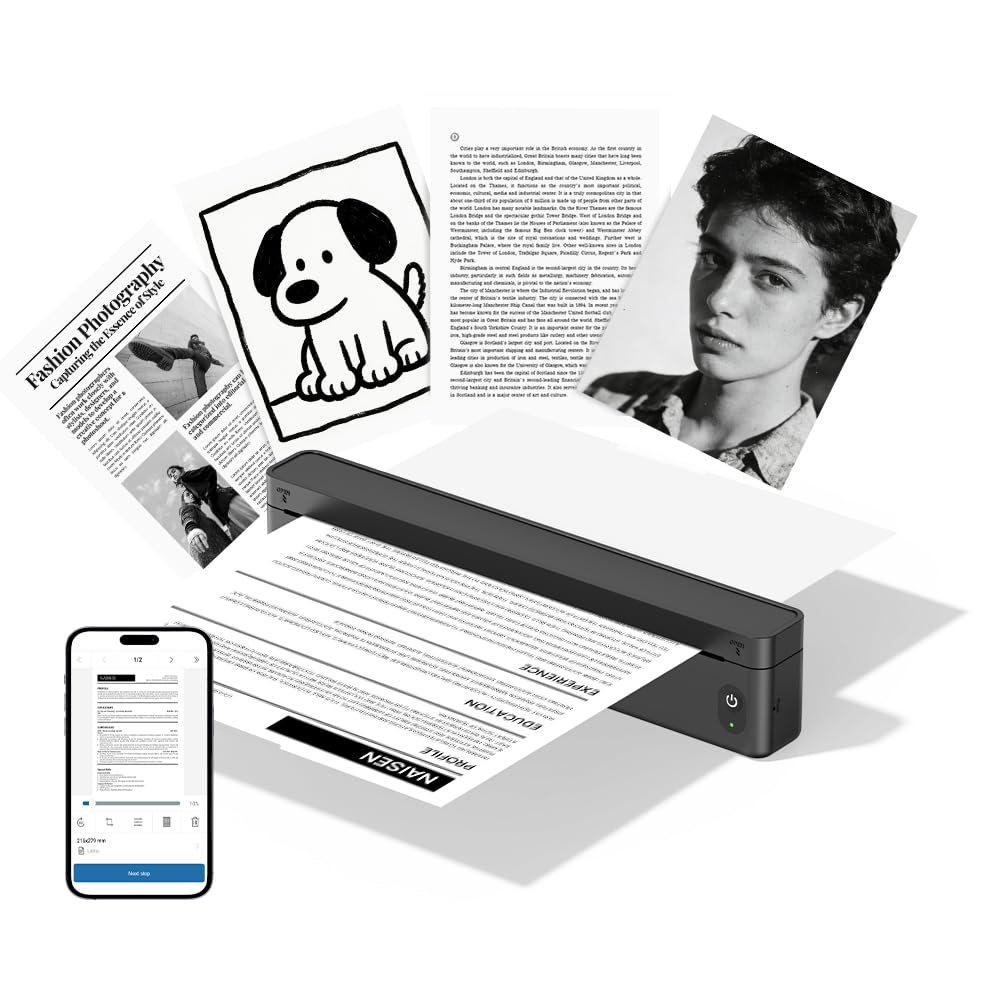
Figure 1.1: The CHIVALZ A10a Thermal Printer. This image displays the compact, black thermal printer, highlighting its portable design suitable for various environments.
2. Package Contents
Please check the package contents upon unpacking. If any items are missing or damaged, contact customer support immediately.
- CHIVALZ A10a Thermal Printer
- USB Charging Cable
- Starter Roll of Thermal Paper
- User Manual (this document)
3. Safety Information
To ensure safe operation and prevent damage to the printer, please observe the following safety precautions:
- Do not expose the printer to water, moisture, or extreme temperatures.
- Avoid dropping or subjecting the printer to strong impacts.
- Use only the provided or recommended charging cable.
- Do not attempt to disassemble or repair the printer yourself. Contact qualified service personnel.
- Keep the printer away from children.
- Use only approved thermal paper to prevent damage to the print head.
4. Setup Guide
4.1. Charging the Printer
- Connect the USB charging cable to the printer's charging port.
- Plug the other end of the USB cable into a compatible USB power adapter (not included) or a computer's USB port.
- The indicator light will show charging status (e.g., red for charging, green for fully charged). Allow approximately 2-3 hours for a full charge.
4.2. Loading Thermal Paper
- Gently open the paper compartment cover.
- Insert the thermal paper roll with the printing side facing up. Ensure the paper is aligned correctly and smoothly.
- Pull a small amount of paper out beyond the cutting edge.
- Close the paper compartment cover firmly until it clicks into place.
4.3. Installing the Printing Application
For optimal performance and features, download the dedicated printing application for your CHIVALZ A10a printer. Refer to the packaging or a quick start guide for the specific app name and download instructions (usually available on app stores for iOS/Android or a website for Windows/macOS).
4.4. Connecting via Bluetooth
- Ensure the printer is charged and powered on. The Bluetooth indicator light should be blinking, indicating it's ready for pairing.
- On your phone or laptop, enable Bluetooth.
- Search for available devices. The printer should appear as "CHIVALZ A10a" or a similar name.
- Select the printer to pair. If prompted for a PIN, enter "0000" or "1234".
- Once paired, the Bluetooth indicator light on the printer will become solid.
5. Operating Instructions
5.1. Powering On/Off
- Power On: Press and hold the power button for approximately 3 seconds until the indicator lights illuminate.
- Power Off: Press and hold the power button for approximately 3 seconds until the indicator lights turn off.
5.2. Printing from Your Device
- Ensure the printer is powered on and successfully connected via Bluetooth to your phone or laptop.
- Open the document, image, or content you wish to print in your dedicated printing application or standard print dialogue.
- Select the print option.
- Choose "CHIVALZ A10a" from the list of available printers.
- Adjust print settings (e.g., paper size, orientation) as needed within the application.
- Confirm and initiate the print job.
6. Maintenance
6.1. Cleaning the Print Head
Regular cleaning of the print head ensures optimal print quality. Clean the print head if print quality deteriorates or after every few paper roll changes.
- Turn off the printer and disconnect it from power.
- Open the paper compartment cover.
- Gently wipe the print head (the dark strip inside the compartment) with a soft, lint-free cloth lightly dampened with isopropyl alcohol.
- Allow the print head to dry completely before closing the cover and powering on the printer.
6.2. Paper Handling and Storage
- Use only high-quality thermal paper recommended for your printer.
- Store thermal paper in a cool, dry place away from direct sunlight and heat to preserve its printability.
- Avoid touching the thermal paper's surface excessively, as oils from your skin can affect print quality.
7. Troubleshooting
If you encounter issues with your CHIVALZ A10a printer, refer to the following common problems and solutions:
| Problem | Possible Cause | Solution |
|---|---|---|
| Printer does not power on. | Low battery or no power. | Charge the printer fully. Ensure the charging cable is securely connected. |
| Poor print quality (faint, blank lines). | Dirty print head; incorrect paper loading; old/damaged thermal paper. | Clean the print head (see Section 6.1). Ensure thermal paper is loaded correctly with the printing side up. Try a new roll of thermal paper. |
| Cannot connect via Bluetooth. | Printer not in pairing mode; Bluetooth off on device; interference. | Ensure printer is on and Bluetooth indicator is blinking. Turn Bluetooth off and on again on your device. Move closer to the printer. Forget and re-pair the device. |
| Paper jam. | Improper paper loading; foreign object. | Turn off the printer. Open the paper compartment and carefully remove any jammed paper or obstructions. Reload paper correctly. |
| Printer stops printing mid-job. | Out of paper; low battery; connection lost. | Check paper supply and reload if necessary. Charge the printer. Verify Bluetooth connection. |
8. Specifications
Below are the technical specifications for the CHIVALZ A10a Thermal Printer:
| Feature | Detail |
|---|---|
| Model Name | A10a |
| Brand | CHIVALZ |
| Product Dimensions (D x W x H) | 27.5D x 7.6W x 6.4H Centimetres |
| Connectivity Technology | Bluetooth |
| Printing Technology | Thermal |
| Colour | Black |
| Printer Output | Monochrome |
| Max Print Speed (B&W Pages per Minute) | 203 |
| Maximum Media Size | A4, 8.5'' X 11'' |
| Included Components | Printer |
9. Warranty and Support
9.1. Product Warranty
The CHIVALZ A10a Thermal Printer comes with a 1-year limited warranty from the date of purchase. This warranty covers manufacturing defects and workmanship under normal use. It does not cover damage caused by misuse, accidents, unauthorized modifications, or failure to follow the instructions in this manual.
9.2. Customer Support
For technical assistance, warranty claims, or any questions regarding your CHIVALZ A10a printer, please contact our customer support team:
- Email: support@chivalz.net
- Please provide your model number (A10a) and a detailed description of your issue when contacting support.