
1. Introduction
This manual provides instructions for the OHO Sunshine Edge Plus A31pro 4K Camera Bluetooth Smart Glasses. These smart glasses integrate Bluetooth audio functionality with a 4K video recording camera, offering hands-free operation for various activities. They feature blue light blocking lenses for eye protection and a lightweight design for daily wear.
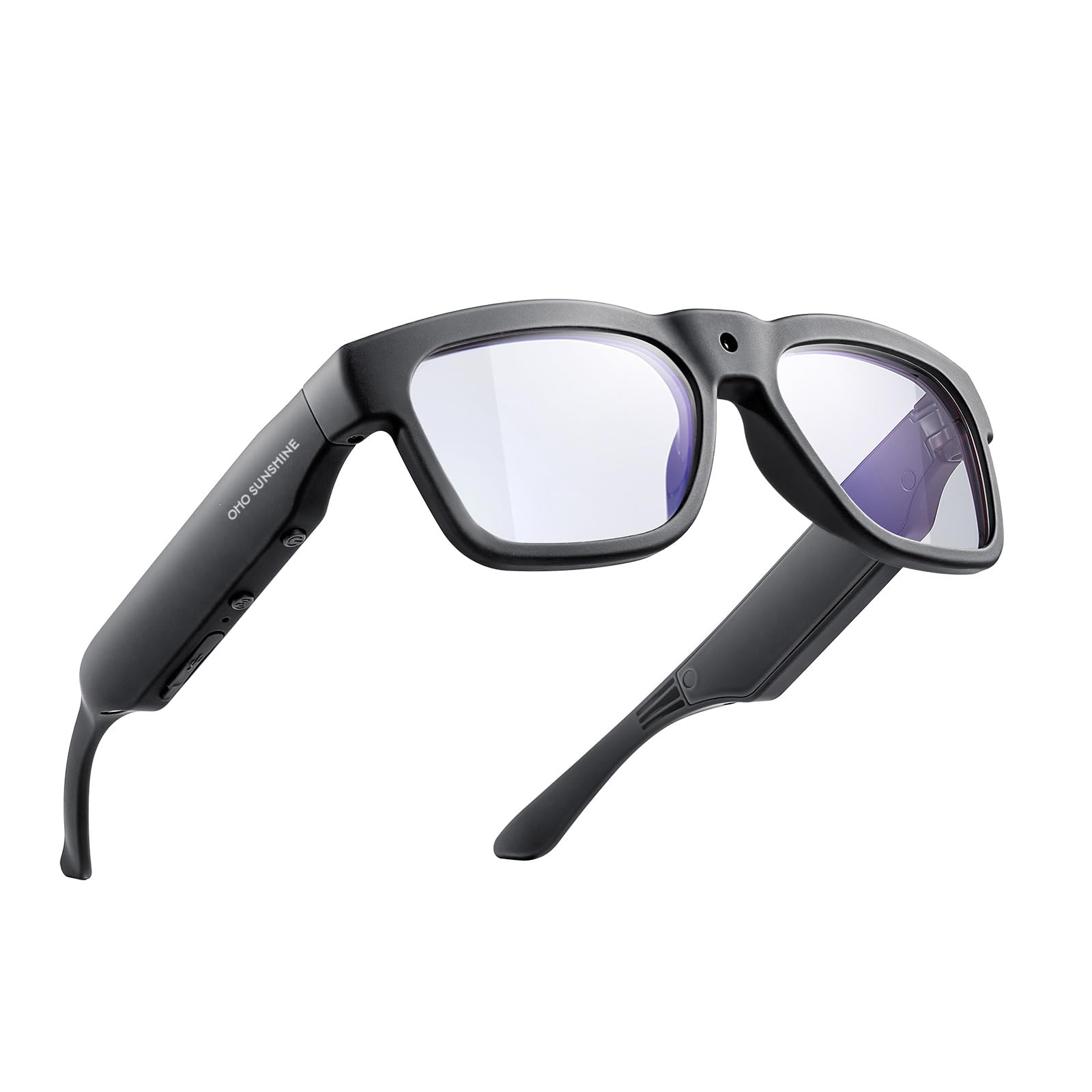
Image 1.1: The OHO Sunshine Edge Plus A31pro Smart Glasses, showcasing their sleek design.
2. Product Overview
The OHO Sunshine Edge Plus A31pro smart glasses combine eyewear with advanced technology. Key features include:
- Bluetooth 5.3 Connectivity: For audio streaming and hands-free calls.
- 4K Camera: Integrated for high-resolution video recording.
- Blue Light Blocking Lenses: Provides UV protection and reduces eye strain.
- Open Ear Speakers: Delivers audio without blocking ambient sounds.
- Voice Assistant Compatibility: Supports Siri, Google Now, and Cortana.
- 64GB Internal Memory: Stores approximately 5 hours of 4K video.
Component Identification

Image 2.1: Diagram illustrating the key components of the smart glasses, including the built-in camera, replaceable lens, microphone, power button, USB-C port, volume control button, and open ear speakers.
3. Setup
3.1 Charging the Glasses
Before first use, fully charge the smart glasses. Connect the provided USB-C charging cable to the glasses' USB-C port and a power source. A full charge takes approximately 2 hours. The glasses can operate while charging.

Image 3.1: The smart glasses connected via a USB-C cable for charging.
3.2 Bluetooth Pairing
To connect the glasses to your smartphone or other Bluetooth-enabled device:
- Ensure the glasses are charged and powered on.
- Activate Bluetooth on your device.
- Press and hold the Bluetooth button on the glasses until the indicator light flashes, indicating pairing mode.
- Select "OHO Sunshine Edge Plus" from the list of available devices on your phone.
- Once connected, the indicator light will change to a steady blue.

Image 3.2: A person wearing the smart glasses, illustrating Bluetooth connectivity.
4. Operating Instructions
4.1 Basic Controls
The smart glasses feature intuitive controls for ease of use:

Image 4.1: Location of the Bluetooth and Camera buttons on the smart glasses.
- Power Button: Located on the temple, used for powering on/off and other functions as indicated by the manual.
- Bluetooth Button: Controls Bluetooth pairing and call management.
- Camera Button: Initiates and stops video recording.
- Volume Control Button: Adjusts audio volume.
4.2 Bluetooth Audio and Calls
Once paired, you can stream audio and manage calls through the open-ear speakers.
- Playing Music: Audio from your connected device will play through the open-ear speakers.
- Answering/Ending Calls: Use the Bluetooth button to answer or end phone calls.
- Voice Assistant: Activate your device's voice assistant (Siri, Google Now, Cortana) for hands-free control of music, navigation, and calls.

Image 4.2: A user experiencing open-ear audio while driving, allowing awareness of surroundings.
4.3 4K Video Recording
The integrated 4K camera allows for hands-free video capture.

Image 4.3: An illustration highlighting the 4K camera technology within the glasses.
- Start Recording: Press the Camera button once to begin recording.
- Stop Recording: Press the Camera button again to stop recording.
- Memory: The 64GB internal memory can store approximately 5 hours of 4K video.

Image 4.4: A sample screenshot demonstrating the 4K video quality.
Image 4.5: Graphic representing the 64GB internal storage.
4.4 Transferring Files
To access recorded videos, connect the glasses to a computer or TV using the provided USB-C cable. The glasses will appear as a removable storage device, allowing you to transfer files.

Image 4.6: The USB-C cable used for charging and data transfer.
4.5 Blue Light Blocking Lenses
The glasses are equipped with blue light blocking lenses that also offer 100% UV protection. These lenses are suitable for indoor use with screens and outdoor activities.

Image 4.7: The smart glasses featuring blue light blocking lenses.
5. Maintenance
5.1 Cleaning
To clean the lenses and frame, use a soft, lint-free cloth. For stubborn smudges, a small amount of lens cleaning solution can be applied to the cloth, not directly to the lenses or frame. Avoid abrasive materials or harsh chemicals.
5.2 Water Resistance
The smart glasses are water-resistant for light rain and sweat. They are not designed for swimming or heavy water exposure. Avoid submerging the glasses in water.
5.3 Lens Replacement
The lenses are interchangeable. Refer to the product packaging or manufacturer's website for specific instructions on how to safely replace the lenses.
6. Troubleshooting
- No Power: Ensure the glasses are fully charged. Connect to the charger and check the indicator light.
- Bluetooth Connectivity Issues: Ensure Bluetooth is enabled on your device and the glasses are in pairing mode. Try unpairing and re-pairing the device. Ensure no other devices are interfering with the Bluetooth signal.
- Video Recording Not Working: Check if the internal memory is full. Transfer files to a computer to free up space. Ensure the camera button is pressed correctly to start/stop recording.
- Poor Audio Quality: Ensure the glasses are positioned correctly on your head. Check the volume levels on both the glasses and your connected device.
- Files Not Transferring: Ensure the USB-C cable is securely connected to both the glasses and the computer. Try a different USB port or cable.
7. Specifications
| Feature | Detail |
|---|---|
| Model Name | Edge Plus |
| Model Number | A31pro |
| Video Resolution | 3840 x 2160 (4K) |
| Memory Storage Capacity | 64 GB |
| Connectivity Technology | Bluetooth 5.3 |
| Battery Capacity | 500 mAh (Lithium Polymer) |
| Battery Average Life | Up to 48 hours (standby/audio playback, actual recording time may vary) |
| Battery Charge Time | 2 hours |
| Item Weight | 39 g |
| Frame Material | TR90 |
| Water Resistance Level | Not Water Resistant (Resistant to light rain/sweat) |
| Supported Applications | Spotify, Pandora, Siri, Google Now, Cortana |

Image 7.1: Technical drawing detailing the dimensions of the smart glasses.
8. Official Product Video
Video 8.1: An official product video demonstrating the HD camera and Bluetooth speaker features of the smart glasses.
9. Warranty and Support
For warranty information, please refer to the documentation included with your purchase or contact OhO Sunshine customer support directly. For technical assistance or further inquiries, please visit the official OhO Sunshine website or contact their customer service department.
Manufacturer: OhO Sunshine
Brand Store: OhO Sunshine Amazon Store