
Introduction
This manual provides essential information for the proper use and maintenance of your OPPO K14 5G Smartphone. Please read this guide thoroughly before operating your device to ensure optimal performance and longevity. The OPPO K14 5G features 5G connectivity, 6GB RAM, 128GB storage, and a 7000 mAh battery.
Getting Started
1. Unboxing and Initial Inspection
Carefully unpack your OPPO K14 5G smartphone and check for all included accessories. Ensure no components are missing or damaged.
2. SIM Card and MicroSD Card Installation
Locate the SIM card tray on the side of your device. Use the provided SIM ejector tool to open the tray. Insert your Nano-SIM card(s) and an optional microSD card into the designated slots. Ensure the cards are correctly oriented as indicated on the tray. Gently push the tray back into the device until it clicks into place.
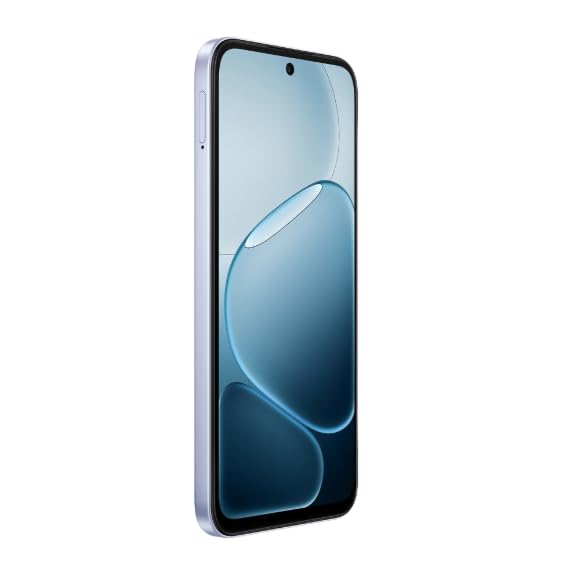
Image: Side view of the OPPO K14 5G Smartphone, illustrating the location of the SIM card tray.
3. Charging the Device
Before first use, fully charge your OPPO K14 5G. Connect the USB cable to the charging port on the bottom of the phone and the other end to a compatible power adapter. The device supports 45W fast charging. A full charge ensures the battery is calibrated for optimal performance.
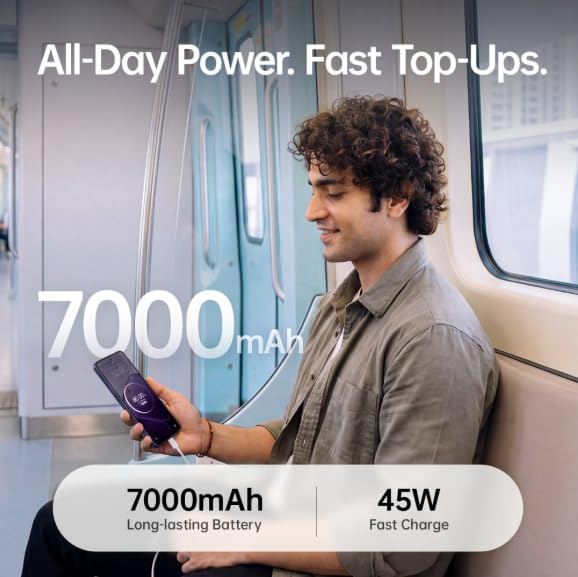
Image: A user charging the OPPO K14 5G Smartphone, emphasizing its 7000mAh long-lasting battery and 45W fast charge capability.
4. Initial Power On and Setup Wizard
Press and hold the Power button until the OPPO logo appears. Follow the on-screen instructions to complete the initial setup, including language selection, Wi-Fi connection, Google account setup, and security settings.
Basic Operation
1. Power On/Off and Restart
- Power On: Press and hold the Power button until the device vibrates and the OPPO logo appears.
- Power Off: Press and hold the Power button, then select 'Power Off' from the options.
- Restart: Press and hold the Power button, then select 'Restart' from the options.
2. Screen Navigation
The OPPO K14 5G features a large immersive display. Use touch gestures for navigation:
- Tap: Select an item.
- Swipe: Scroll through screens or lists.
- Pinch: Zoom in or out on images and web pages.
3. Calls and Messaging
To make a call, open the Phone app and dial the number or select a contact. To send a message, open the Messages app, tap 'Start chat', and enter the recipient and your message.
4. Internet and Connectivity
The device supports 5G connectivity for fast mobile data. To enable or disable 5G, navigate to Settings > Mobile Network. For Wi-Fi, go to Settings > Wi-Fi and select your desired network.
5. Camera Features
The OPPO K14 5G is equipped with a dual rear camera setup with AI capabilities. Open the Camera app to access various modes such as Photo, Video, Portrait, and Night. Tap the shutter button to capture images or start/stop video recording.
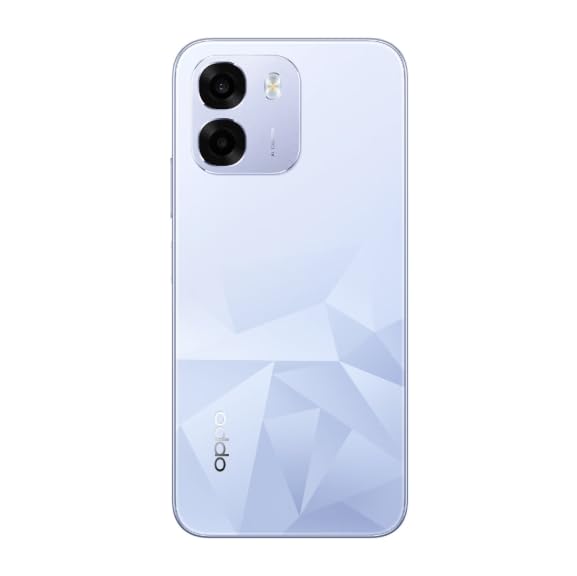
Image: Rear view of the OPPO K14 5G Smartphone, showcasing its dual camera system and distinctive diamond-pattern back design.
6. Battery Management
The 7000 mAh battery provides extended usage. To optimize battery life, reduce screen brightness, close unused apps, and enable power-saving modes in Settings > Battery.
7. Storage Management
With 6GB RAM and 128GB internal storage, your device offers ample space. Regularly clear cache, uninstall unused apps, and transfer large files to cloud storage or a computer to maintain optimal performance. You can check storage usage in Settings > Storage.
Advanced Features
1. ColorOS
The OPPO K14 5G runs on ColorOS, offering a customized Android experience with various features and optimizations for smooth performance.
2. Security Features
Enhance your device security by setting up a screen lock (PIN, pattern, password), fingerprint unlock, or face unlock. These options can be configured in Settings > Password & Biometrics.
3. IP69 Rating
The device features an IP69 rating, indicating a high level of protection against dust and water ingress. While designed to withstand certain conditions, avoid intentional submersion or exposure to high-pressure water jets.
Maintenance
1. Software Updates
Regularly check for and install software updates to ensure your device has the latest features, security patches, and performance improvements. Go to Settings > About device > Up to date to check for updates.
2. Cleaning Your Device
Use a soft, lint-free cloth to clean the screen and body of your phone. Avoid using harsh chemicals or abrasive materials. For stubborn smudges, slightly dampen the cloth with water or a screen cleaner designed for electronics.
3. Storage and Performance Optimization
To maintain optimal performance, periodically clear app caches (Settings > Apps > [App Name] > Storage usage > Clear cache) and remove unnecessary files. Consider using the built-in phone manager or optimizer tools if available.
Troubleshooting
1. Common Issues
- Device not powering on: Ensure the battery is charged. If not, connect to a charger for at least 15 minutes before attempting to power on.
- Network connectivity issues (5G/Wi-Fi): Check if Airplane Mode is off. Restart the device. For SIM card issues, ensure the SIM card is correctly inserted and active. If a specific SIM slot is not working, try swapping SIM cards between slots or testing with a different SIM card.
- Calling features not working: Restarting the phone often resolves temporary software glitches affecting call functionality. Check network signal strength.
- Camera not working: Close and reopen the Camera app. Restart the device. Check app permissions for the camera.
- Speaker issues: Ensure volume is not muted or set too low. Test with headphones. Restart the device.
2. Restarting the Device
A simple restart can resolve many minor software issues. Press and hold the Power button, then tap 'Restart'.
3. Factory Reset
If persistent issues occur, a factory reset may be necessary. This will erase all data on your phone, so back up important information first. Go to Settings > System settings > Back up and reset > Reset phone > Erase all data.
Specifications
| Feature | Specification |
|---|---|
| Brand | OPPO |
| Model Name | OPPO K14 5G |
| RAM Memory Installed Size | 6 GB |
| Memory Storage Capacity | 128 GB |
| Cellular Technology | 5G |
| Colour | Icy Blue |
| Battery Capacity | 7000 Milliamp Hours |
| Number of Rear Facing Cameras | 2 |
| Number of Front Cameras | 1 |
| Maximum Display Resolution | 1920 x 1080 |
| Specific Uses For Product | Entertainment, Mobile Photography, Professional Work, Outdoor Adventures |
Warranty and Support
1. Product Warranty
Your OPPO K14 5G Smartphone comes with a standard manufacturer's warranty. For detailed information regarding warranty terms, conditions, and duration, please refer to the warranty card included in your product packaging or visit the official OPPO website. Extended warranty and protection plans may be available for purchase separately.
2. Customer Support
For technical assistance, service, or further inquiries, please contact OPPO customer support. You can find contact details on the official OPPO website or through the support section within your device's settings.

