
Introduction
This manual provides essential information for setting up, operating, maintaining, and troubleshooting your new iBUYPOWER Element SE Gaming PC, model ESA5R65XT04. This high-performance desktop computer features an AMD Ryzen 5 5500 CPU, AMD Radeon RX 6500XT 4GB graphics, 16GB DDR4 RAM, and a 512GB NVMe SSD, running on Windows 11 Home. Please read this manual thoroughly to ensure optimal performance and longevity of your system.

Image: The iBUYPOWER Element SE Gaming PC, showcasing its sleek design and internal components.
What's Included
Your iBUYPOWER Element SE Gaming PC package includes the following items:
- iBUYPOWER Gaming Desktop (Model ESA5R65XT04)
- Wired RGB Gaming Keyboard
- Wired RGB Gaming Mouse
- User Manual (this document)
- Power Cable
- Extra SATA Cable
- Wi-Fi Antenna
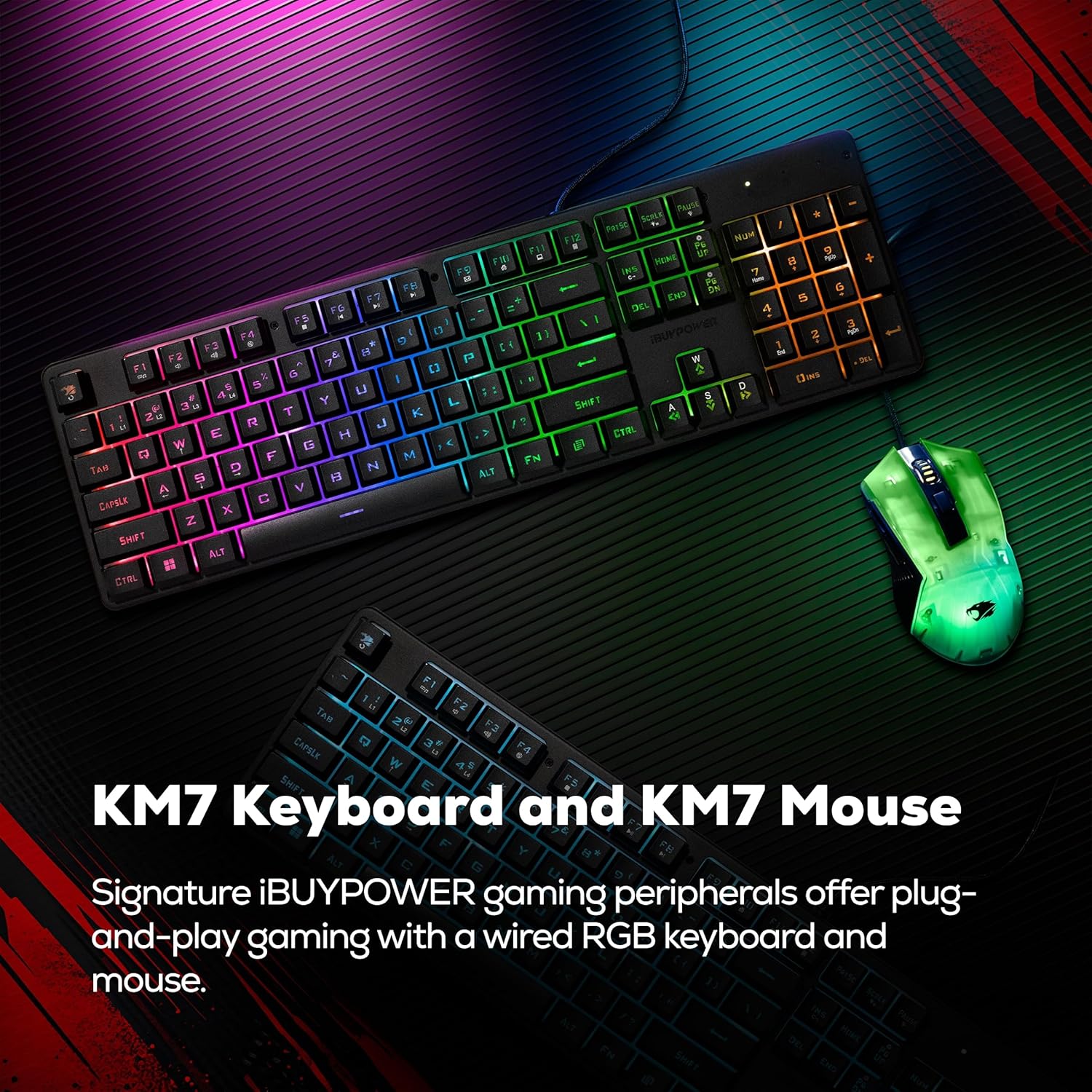
Image: All items included in the iBUYPOWER Element SE Gaming PC package, including the PC, keyboard, mouse, and accessories.
Setup Guide
Follow these steps to set up your iBUYPOWER Element SE Gaming PC:
- Unpack the PC: Carefully remove the PC and all accessories from the packaging. Retain packaging for future transport or warranty claims.
- Connect Peripherals:
- Connect the included RGB Gaming Keyboard to an available USB port on the back of the PC.
- Connect the included RGB Gaming Mouse to another available USB port.
- Connect your monitor(s) to the graphics card's video output ports (HDMI or DisplayPort). Ensure you connect to the dedicated graphics card (AMD Radeon RX 6500XT) ports, not the motherboard's integrated video ports.
- Connect Wi-Fi Antenna: Screw the included Wi-Fi antenna(s) into the designated ports on the back of the PC for wireless internet connectivity.
- Connect Power: Plug the power cable into the power supply unit (PSU) at the back of the PC, then plug the other end into a wall outlet or surge protector.
- Power On: Press the power button located on the front panel of the PC. The system will boot up, and you should see the iBUYPOWER logo or Windows 11 loading screen on your monitor.
- Initial Windows Setup: Follow the on-screen instructions to complete the Windows 11 Home setup, including language, region, network connection, and user account creation.

Image: Close-up of the convenient front I/O ports, including USB ports and the power button.

Image: The included iBUYPOWER KM7 RGB Gaming Keyboard and Mouse.
Operating Your PC
Windows 11 Home
Your iBUYPOWER Element SE PC comes pre-installed with Windows 11 Home. This operating system provides a modern interface and features optimized for gaming and productivity.
- Updates: Ensure Windows is kept up-to-date by regularly checking for and installing updates via the Settings app (Start Menu > Settings > Windows Update).
- Drivers: Graphics drivers for your AMD Radeon RX 6500XT are typically pre-installed. For optimal performance, it is recommended to periodically check for the latest drivers directly from the AMD website.
- Security: Windows 11 includes built-in security features. Keep your system protected by enabling Windows Security and performing regular scans.

Image: A user interacting with the Windows 11 Home operating system on an iBUYPOWER PC.
Gaming and Performance
The iBUYPOWER Element SE is designed for gaming. Its AMD Ryzen 5 5500 processor and AMD Radeon RX 6500XT graphics card provide a strong foundation for running modern games.
- Game Settings: Adjust in-game graphics settings to balance visual quality and frame rate according to your preferences.
- Cooling: The system features a Tower Air Cooler and RGB fans for efficient cooling. Ensure proper airflow around the PC case.

Image: A gamer immersed in a game, highlighting the performance capabilities of AMD Radeon graphics.
Image: A close-up of the Tower Air Fan Cooler, designed for efficient CPU cooling.
Maintenance
Regular maintenance helps ensure the longevity and optimal performance of your gaming PC.
- Dust Cleaning: Periodically clean dust from the PC's interior, especially fans and heatsinks, using compressed air. Ensure the PC is powered off and unplugged before cleaning.
- Software Updates: Keep your operating system, drivers (especially graphics drivers), and games updated to benefit from performance improvements and security patches.
- Airflow: Ensure the PC is placed in a well-ventilated area, free from obstructions that could block airflow to the intake and exhaust vents.
- Cable Management: Organize internal and external cables to prevent obstruction of airflow and to maintain a tidy setup.

Image: Case perforations near the power supply shroud, designed to enhance airflow and manage component temperatures.
Troubleshooting
If you encounter issues with your iBUYPOWER Element SE Gaming PC, refer to the following common troubleshooting steps:
No Display Output
- Check Cables: Ensure your monitor's video cable is securely connected to the graphics card's output port on the PC and to the monitor's input port.
- Correct Input: Verify your monitor is set to the correct input source (HDMI, DisplayPort).
- Power Cycle: Turn off both the PC and monitor, unplug them from the power source, wait 30 seconds, then plug them back in and power on.
- Reseat Graphics Card: If comfortable, power off and unplug the PC, open the side panel, and gently reseat the graphics card in its PCIe slot.
Windows Not Activated
- Internet Connection: Ensure your PC is connected to the internet, as Windows activation often requires online verification.
- Check Activation Status: Go to Start Menu > Settings > System > Activation to check the status. If issues persist, contact iBUYPOWER support.
System Overheating or Loud Fans
- Clean Dust: Dust accumulation can impede cooling. Refer to the Maintenance section for cleaning instructions.
- Airflow: Ensure adequate space around the PC for proper ventilation.
- Monitor Temperatures: Use monitoring software to check CPU and GPU temperatures during operation. If temperatures are consistently high, contact support.
Power Supply Unit (PSU) Issues
- No Power: Check all power connections, including the wall outlet, power cable to the PSU, and internal PSU connections if accessible.
- Intermittent Power: If the PC powers off unexpectedly, ensure the power supply is receiving stable power and is not overloaded.
Technical Specifications
Below are the detailed specifications for the iBUYPOWER Element SE Gaming PC (Model ESA5R65XT04):
| Feature | Specification |
|---|---|
| Brand | iBUYPOWER |
| Model Number | ESA5R65XT04 |
| Operating System | Windows 11 Home |
| CPU Model | AMD Ryzen 5 5500 |
| CPU Speed | 3.6 GHz (Max Boost 4.2 GHz) |
| Graphics Coprocessor | AMD Radeon RX 6500XT 4GB GDDR6 |
| RAM Memory Installed Size | 16 GB DDR4 (3200 MHz) |
| RAM Memory Maximum Size | 128 GB |
| Storage | 512GB NVMe SSD |
| Connectivity | Wi-Fi, Ethernet (10/100/1000), Bluetooth |
| USB Ports | 6 x USB 3.1, Total 9 USB Ports |
| Video Output | HDMI (Total 1 HDMI Port) |
| Cooling Method | Air (Tower Air Cooler, RGB Fans) |
| Case Design | Tempered Glass RGB Gaming Case |
| Dimensions (L x W x H) | 19.4 x 8.3 x 17.3 inches (492 x 210 x 440 mm) |
| Included Peripherals | Gaming Keyboard, Gaming Mouse |

Image: Diagram showing the physical dimensions of the iBUYPOWER Element SE Gaming PC case.
Warranty and Support
Warranty Information
Your iBUYPOWER Element SE Gaming PC comes with a 1 Year Manufacturer Warranty. This warranty covers defects in materials and workmanship under normal use. Please refer to the warranty card included with your product for full terms and conditions. Keep your proof of purchase for warranty claims.
Customer Support
For technical assistance, troubleshooting, or warranty inquiries, please contact iBUYPOWER Customer Support:
- Website: Visit the official iBUYPOWER website for support resources, FAQs, and driver downloads.
- Phone: Refer to the contact information provided on the iBUYPOWER website or your product packaging.
- Online Support: Utilize online chat or ticket submission systems available on the iBUYPOWER support portal.
When contacting support, please have your PC's model number (ESA5R65XT04) and serial number ready.