
1. Introduction
Thank you for choosing the Maxmango V08 Pro Underwater Camera. This rugged, waterproof digital camera is designed to capture high-quality photos and videos in challenging environments, including underwater up to 49 feet (15 meters). Featuring 8K video recording, 90MP photo resolution, a responsive touchscreen, and built-in WiFi, the V08 Pro is your ideal companion for adventures.
Please read this manual thoroughly before using your camera to ensure proper operation and to maximize its performance and lifespan.
2. What's in the Box
Carefully unpack your Maxmango V08 Pro camera and check that all items are present:
- 1x Maxmango V08 Pro 8K Underwater Camera
- 1x 32GB TF Card (Pre-installed or separate)
- 1x Lanyard
- 1x Type-C Charging Cable
- 1x User Manual (This document)
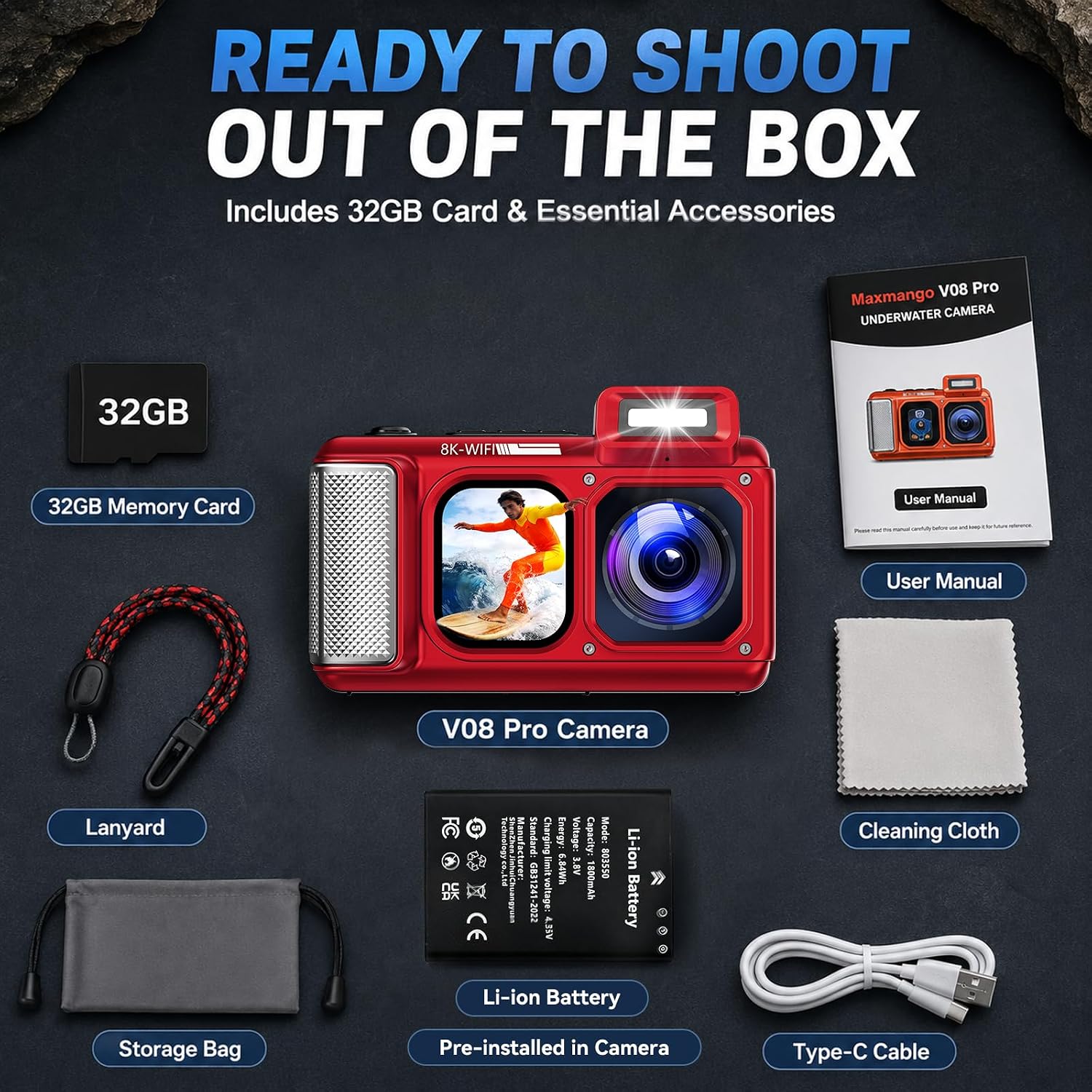
Figure 2.1: All items included in the Maxmango V08 Pro package. This image displays the red V08 Pro camera, a 32GB memory card, a black lanyard, a cleaning cloth, a storage bag, a Li-ion battery (pre-installed), a Type-C cable, and the user manual.
3. Camera Layout
Familiarize yourself with the main components and controls of your Maxmango V08 Pro camera.
3.1 Front View

Figure 3.1: Front view of the Maxmango V08 Pro camera. This shows the main lens, front display screen, flash, and speaker grille.
3.2 Rear View and Controls

Figure 3.2: Rear view of the Maxmango V08 Pro camera. This highlights the main touchscreen display and the control buttons on the right side, including zoom, mode, OK, delete, and menu buttons.
4. Setup
4.1 Battery and Memory Card Installation
Before first use, ensure the battery is properly installed and charged, and the memory card is inserted.
- Open the Battery/Port Compartment: Locate the double-lock mechanism on the side of the camera. Slide the first lock (A) and then the second lock (B) to open the compartment cover. Ensure both locks are fully disengaged before opening to prevent damage.
- Insert Battery: The camera comes with a pre-installed Li-ion battery. If removed, insert the battery according to the polarity indicators inside the compartment.
- Insert TF Card: The camera includes a 32GB TF card. Insert the TF card into the designated slot until it clicks into place. Ensure it is inserted in the correct orientation.
- Close Compartment: Firmly close the compartment cover, ensuring it is sealed completely. Engage both locks (B then A) until they click securely. It is crucial to ensure the compartment is fully sealed before any water exposure.
Video 4.1: Guide on how to open and close the battery compartment of the Maxmango V08 Pro camera. This video demonstrates the double-lock mechanism and proper sealing procedure.
4.2 Charging the Battery
Connect the camera to a power source using the provided Type-C charging cable. The charging indicator light will illuminate. Once fully charged, the indicator light will change or turn off. A full charge is recommended before first use.
5. Operating the Camera
5.1 Power On/Off
- To Power On: Press and hold the Power button (usually located on the top or side) for a few seconds until the screen illuminates.
- To Power Off: Press and hold the Power button again until the screen turns off.
5.2 Basic Photo and Video Capture
- Switch Modes: Use the Mode button (M) to cycle between Photo, Video, Playback, and Settings modes.
- Take a Photo: In Photo mode, press the Shutter button (usually on top) to capture an image.
- Record a Video: In Video mode, press the Shutter button to start recording. Press it again to stop recording.
- Zoom: Use the W (Wide) and T (Telephoto) buttons to zoom in or out.
5.3 Touchscreen Operation
The Maxmango V08 Pro features an intuitive touchscreen for easy navigation and settings adjustment.

Figure 5.1: The touchscreen interface allows for quick preview and control by tapping on-screen icons.
- Navigate Menus: Tap on icons or swipe to navigate through options and settings.
- Adjust Settings: Tap on specific settings to change values or toggle features.
- Playback: In Playback mode, tap on thumbnails to view photos/videos, and swipe to browse.
Video 5.2: A guide on operating the Maxmango V08 Pro using its touchscreen. This video demonstrates how to access menus, change settings, and review media directly on the screen.
5.4 Dual-Screen Framing
The V08 Pro features both a rear touchscreen (2.88") for general use and a front screen (2.01") for easy self-framing, perfect for vlogging or selfies.
- The front screen automatically activates when needed or can be toggled via settings.
- Use the front screen to preview your shot when the camera is facing you.

Figure 5.3: The Maxmango V08 Pro features a 2.88-inch front screen for easy preview and playback, and a 2.01-inch rear screen for quick self-framing views.
5.5 WiFi Connection and App Usage
Connect your Maxmango V08 Pro to your smartphone via WiFi for remote control, live view, and instant photo/video transfer.
- Download the App: Search for the official Maxmango camera app on your smartphone's app store (iOS or Android).
- Activate Camera WiFi: On your V08 Pro, navigate to the settings menu and enable WiFi. The camera screen will display the WiFi network name (SSID) and password.
- Connect on Phone: On your smartphone, go to WiFi settings, find the camera's SSID, and enter the password to connect.
- Open App: Launch the Maxmango app. You should now see a live view from your camera and be able to control it remotely, browse files, and download them to your phone.
Video 5.4: Instructions on how to connect your Maxmango V08 Pro camera to a mobile app via WiFi. This video guides you through the steps for pairing your camera with your smartphone for remote control and file transfer.

Figure 5.5: The camera offers a 5-meter WiFi range for quick transfer of photos and videos to your smartphone.
5.6 Underwater Use
The Maxmango V08 Pro is waterproof up to 49 feet (15 meters). Follow these guidelines for underwater operation:
- Ensure Sealing: Before entering water, double-check that the battery/port compartment cover is completely closed and both locks are securely engaged. Any water ingress due to improper sealing will damage the camera and void the warranty.
- Test Before Use: If you are unsure about the seal, perform a dry test by submerging the camera (without the battery/memory card) in shallow water for a short period to check for leaks.
- Depth Limit: Do not exceed the maximum depth of 49 feet (15 meters).
- Temperature: Avoid extreme temperature changes when taking the camera from one environment to another, as this can cause condensation.

Figure 5.6: The Maxmango V08 Pro is built for serious underwater adventures, waterproof up to 49 feet (15 meters).
6. Maintenance
6.1 Cleaning
- After Saltwater Use: Rinse the camera thoroughly with fresh water immediately after use in saltwater. Do not open the battery/port compartment until the camera is dry.
- General Cleaning: Use a soft, lint-free cloth to clean the camera body. For the lens and screens, use a specialized lens cleaning cloth and solution if necessary. Avoid abrasive materials.
- Drying: Ensure the camera is completely dry before opening any compartments or storing it.
6.2 Storage
- Store the camera in a cool, dry place away from direct sunlight and extreme temperatures.
- If storing for extended periods, remove the battery.
7. Troubleshooting
| Problem | Possible Cause | Solution |
|---|---|---|
| Camera does not power on | Battery is dead or improperly inserted | Charge the battery fully. Reinsert the battery correctly. |
| Water inside camera | Compartment not properly sealed | Immediately power off the camera, remove battery and memory card. Allow to dry completely. Contact support if damage persists. Always ensure compartment is fully sealed before water exposure. |
| Cannot connect to WiFi | Incorrect password, camera WiFi off, or too far from phone | Ensure WiFi is enabled on camera. Double-check password. Move phone closer to camera (within 5 meters). Restart both devices. |
| Images/Videos are blurry | Lens is dirty, condensation, or out of focus | Clean the lens. Allow camera to acclimate to temperature. Ensure proper focus mode is selected. |
| Memory card error | Card is full, corrupted, or incompatible | Delete files to free space. Format the card (this will erase all data). Try a different compatible TF card. |
8. Specifications
| Feature | Detail |
|---|---|
| Model Name | V08 Pro |
| Brand | MaxMango |
| Water Resistance Depth | 49 feet (15 meters) |
| Video Resolution | 8K |
| Effective Still Resolution | 90 MP |
| Photo Sensor Technology | CMOS |
| Screen Size | 2.88 inches (Rear), 2.01 inches (Front) |
| Connectivity Technology | USB, Wi-Fi |
| Flash Memory Type | Micro SD (TF Card) |
| Memory Storage Capacity | 32 GB (included) |
| Battery Cell Type | Lithium Ion |
| Special Features | Dustproof, Shockproof, Waterproof, Touchscreen |
| Supported File Format | JPEG (Photo), MP4 (Video) |
9. Warranty and Support
The Maxmango V08 Pro camera comes with technical support available. For any issues not covered in this manual, or for warranty claims, please contact Maxmango customer service through the retailer where you purchased the product or visit the official Maxmango website for support contact information.
Please retain your proof of purchase for warranty purposes.