
Introduction
This manual provides essential information for the safe and efficient use of your ciciglow 4G Slide Phone. Please read these instructions carefully before operating the device and retain them for future reference. This phone combines a classic slide design with modern 4G connectivity and a touch screen interface.
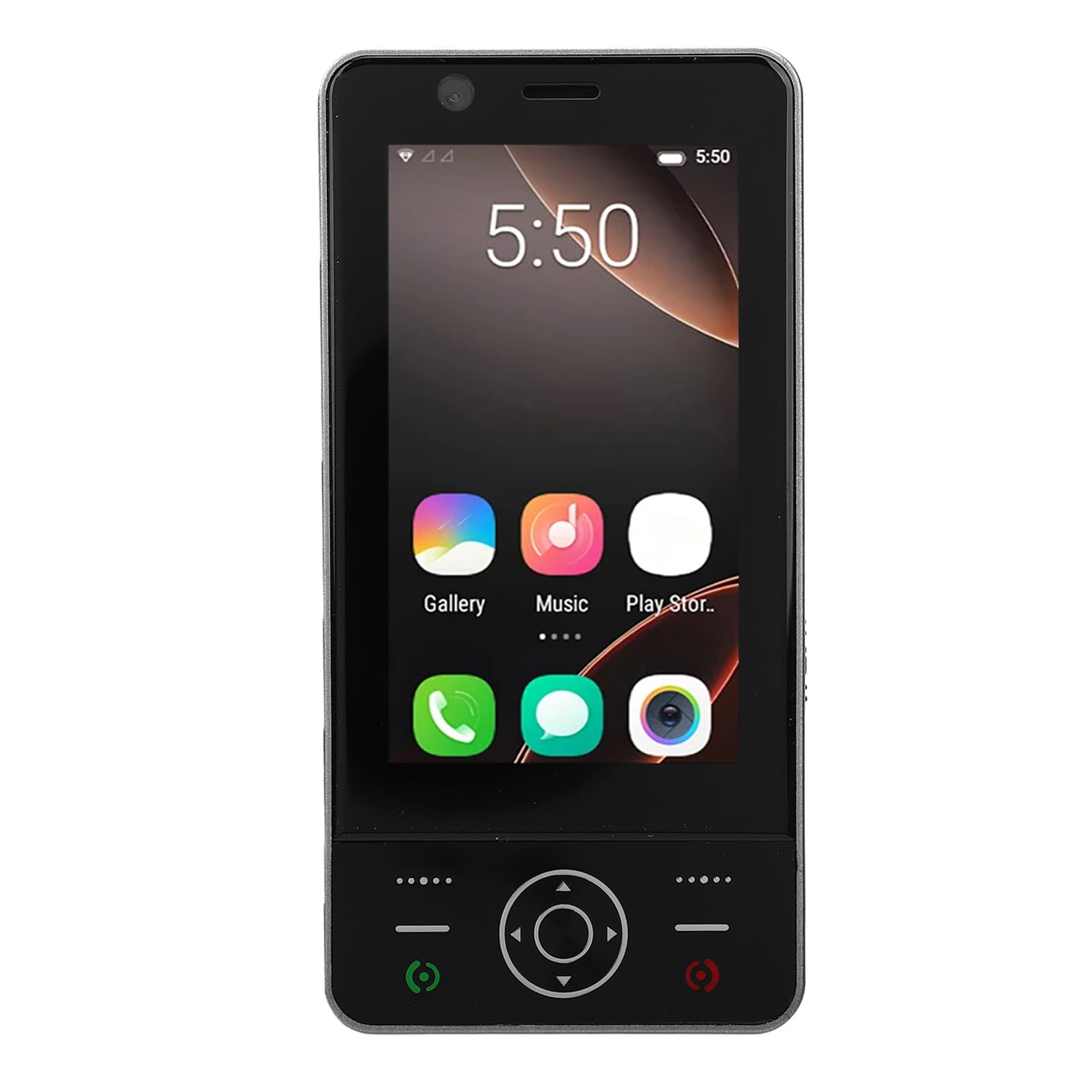
Image: The ciciglow 4G Slide Phone in its open position, displaying the touch screen interface and the physical keypad.
Product Overview
Key Features
- Slide Design: Compact and portable form factor with a sliding physical keypad.
- Display: 3.0-inch touch screen for intuitive navigation.
- Operating System: Android 8.1 (non-upgradable).
- Network Connectivity: Supports 4G/3G/2G networks (GSM 850/900/1800/1900, WCDMA B1/B2/B4/B5/B8, FDD B1/2/3/5/7/8/20/28AB, TDD B38/40/B41).
- SIM Support: Dual SIM slots for flexible network usage.
- Storage: 2GB RAM and 16GB internal storage, expandable up to 32GB via memory card (not included).
- Wireless: Bluetooth V5.0 and Wi-Fi connectivity.
- Camera: 2MP front and rear cameras.
- Battery: Built-in 2000mAh battery.
- Ports: Type-C charging port and 3.5mm headphone jack.
Package Contents
Verify that all items are present in the package:
- 1 x ciciglow 4G Slide Phone
- 1 x Charging Cable (Type-C)
- 1 x Lanyard
- 2 x User Manual (this document)
- 1 x SIM Ejector Tool

Image: The ciciglow 4G Slide Phone, lanyard, charging cable, and SIM ejector tool, representing the package contents.
Setup
1. Inserting SIM Card(s) and Memory Card
- Locate the SIM card tray on the side of the phone.
- Use the provided SIM ejector tool to open the tray.
- Carefully place your Nano-SIM card(s) into the designated slots. Ensure the gold contacts face downwards.
- If using a memory card (MicroSD, up to 32GB), insert it into the dedicated memory card slot on the tray.
- Gently push the tray back into the phone until it is flush with the device body.
2. Charging the Device
- Connect the Type-C charging cable to the charging port at the bottom of the phone.
- Connect the other end of the cable to a compatible USB power adapter (not included) or a computer's USB port.
- Allow the phone to charge fully before initial use. The battery indicator on the screen will show charging status.
3. Powering On/Off
- To Power On: Press and hold the Power button (usually on the side) until the screen lights up.
- To Power Off: Press and hold the Power button, then select 'Power off' from the options on the screen.
Operating Instructions
Basic Navigation
The ciciglow 4G Slide Phone offers dual navigation methods: the 3.0-inch touch screen and the physical keypad.
- Touch Screen: Tap to select, swipe to scroll, pinch to zoom.
- Physical Keypad: Use the directional pad for menu navigation and the numeric keys for dialing or text input when the keypad is extended.

Image: The phone with its keypad extended, illustrating the combination of touch screen and physical button controls.
Making and Receiving Calls
- To Make a Call: Open the dialer application on the touch screen or slide open the phone to use the physical keypad. Enter the phone number and press the call button.
- To Receive a Call: When a call comes in, swipe the answer icon on the touch screen or press the green call button on the keypad.

Image: A person using the ciciglow 4G Slide Phone for a call, demonstrating its ergonomic design.
Text Messaging
Access the messaging application from the home screen. You can compose messages using the on-screen keyboard or the physical keypad when extended.
Connecting to Wi-Fi
- Go to Settings > Network & Internet > Wi-Fi.
- Toggle Wi-Fi On.
- Select your desired network from the list and enter the password if prompted.
Bluetooth Pairing
- Go to Settings > Connected devices > Bluetooth.
- Toggle Bluetooth On.
- Ensure the device you wish to pair with is in pairing mode.
- Select the device from the list of available devices and follow any on-screen prompts to complete pairing.
Camera Usage
Open the Camera application from the home screen. Tap the screen to focus and press the shutter button to take a photo. You can switch between front and rear cameras within the app.
Maintenance
Cleaning Your Device
- Use a soft, lint-free cloth to clean the screen and body of the phone.
- Avoid using harsh chemicals, abrasive cleaners, or aerosol sprays.
- Keep ports free of dust and debris.
Battery Care
- Avoid exposing the phone to extreme temperatures.
- Do not puncture or disassemble the battery.
- For optimal battery life, avoid frequently draining the battery completely or keeping it at 100% charge for extended periods.
Software Updates
The operating system for this device is Android 8.1 and is not upgradable. Ensure you have the latest available applications from the Play Store for optimal performance.
Troubleshooting
| Problem | Possible Solution |
|---|---|
| Phone does not power on. | Ensure the battery is charged. Connect the phone to a charger for at least 30 minutes. If it still doesn't power on, contact support. |
| No network signal. | Check if the SIM card is correctly inserted. Verify that you are in an area with network coverage. Restart the phone. |
| Touch screen unresponsive. | Restart the phone. Ensure the screen is clean and dry. If the issue persists, contact support. |
| Cannot connect to Wi-Fi. | Ensure Wi-Fi is enabled on the phone and the router is working. Re-enter the Wi-Fi password. Restart both the phone and the router. |
| Apps are slow or crashing. | Close unnecessary background applications. Clear app cache (Settings > Apps > [App Name] > Storage > Clear cache). Restart the phone. |
Specifications
| Feature | Detail |
|---|---|
| Brand | ciciglow |
| Model Name | ciciglowzsbnh152p6-13 |
| Operating System | Android 8.1 (Non-upgradable) |
| Processor | MTK6737 |
| Screen Size | 3.0 inches |
| Display Type | Touch Screen, LED |
| Memory (RAM) | 2GB |
| Storage (ROM) | 16GB |
| Expandable Storage | Supports up to 32GB Memory Card (MicroSD) |
| Cellular Technology | 4G/3G/2G |
| Frequency Band | 2G GSM 850/900/1800/1900, 3G WCDMA B1/B2/B4/B5/B8, 4G FDD B1/2/3/5/7/8/20/28AB, TDD B38/40/B41 |
| SIM Card Slot Count | Dual SIM |
| Wireless Connectivity | Wi-Fi, Bluetooth V5.0 |
| Camera | 2MP Front and Rear |
| Battery Capacity | 2000mAh (Built-in) |
| Charging Port | Type-C |
| Headphone Jack | 3.5mm |
| Dimensions (Approx.) | Height: 136mm (5.35in), Width: 52mm (2.05in), Thickness: 19mm (0.74in) |
| Weight (Approx.) | 135g |

Image: Detailed dimensions and weight of the ciciglow 4G Slide Phone.

Image: An illustration of the phone's internal chipset, highlighting the MTK6737 processor, Android 8.1, 16GB ROM, and 2GB RAM.
Warranty and Support
Warranty Information
This ciciglow 4G Slide Phone is covered by a manufacturer's warranty for 90 days from the date of purchase. Please retain your proof of purchase for warranty claims.
Customer Support
For further assistance, technical support, or warranty inquiries, please refer to the contact information provided with your purchase or visit the official ciciglow brand store online. You can find more information at the ciciglow Store.